---
title: Edit Invoices
url: https://docs.maxio.com/accounting/accounting-invoices/invoice-lifecycle/edit-invoices
applies_to: Maxio Core
updated: 2026-10-12
---
# Edit Invoices
Editing an Invoice in Maxio should be done with care to maintain accurate financial reporting and prevent out-of-balance conditions. For critical Invoice adjustments, we recommend editing the proper Transactions so Maxio can generate an updated Invoice. Direct edits should be limited to fields such as PO Number and Payment Terms.
> **Important:** Editing is restricted while an Invoice is in a closed period, or once it's synced to an external system (a general ledger, Stripe, or Recurly), locked for sales tax, or committed.
Issuing an Invoice to the Billing Portal in Advanced Billing doesn't lock it by itself. You can still edit an issued Invoice, then use **Reissue to Billing Portal** to update the Customer-facing copy. For details, including what can be changed on an Invoice that's also synced to your general ledger, see Reissue Invoices to the Billing Portal.
If you send an e-Bill to a Customer and make edits afterward, changes are not reflected in the previously delivered e-Bill, since a sent e-Bill is a fixed snapshot. In this situation, you must delete and resend the e-Bill.
## How to edit an Invoice
You can edit an Invoice's non-financial fields, add or edit Invoice Line Items, and reorder them, as long as the Invoice isn't locked by one of the restrictions above.
**To edit an Invoice**
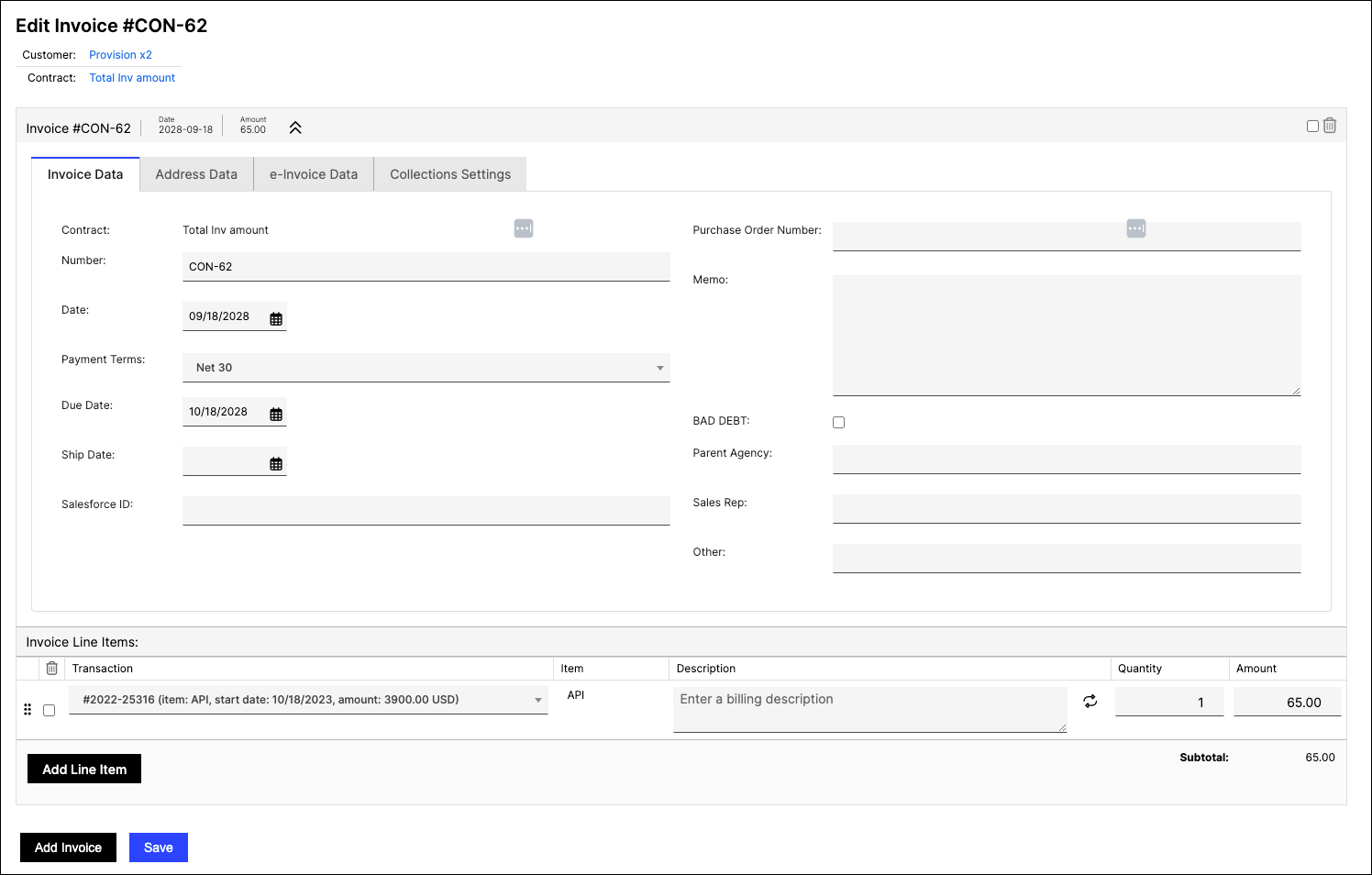
1. Navigate to the intended Invoice in Maxio.
2. Click **Edit** under the **Invoice** drop-down menu.
3. Make the necessary changes to the Invoice information.
4. To edit Invoice Line Items:
- Click **Add Line Item** to include new products or services.
- Edit an existing Invoice Line Item's **Description**, **Quantity**, or **Amount**. You can't change an existing Line Item's **Item** — remove it and add a new Line Item instead.
5. To reorder Invoice Line Items, see [Reorder Line Items](https://docs.maxio.com/accounting/accounting-invoices/invoice-lifecycle/edit-invoices#reorder-line-items) below.
6. Review the changes for accuracy.
7. Click **Save** to finalize the edits.
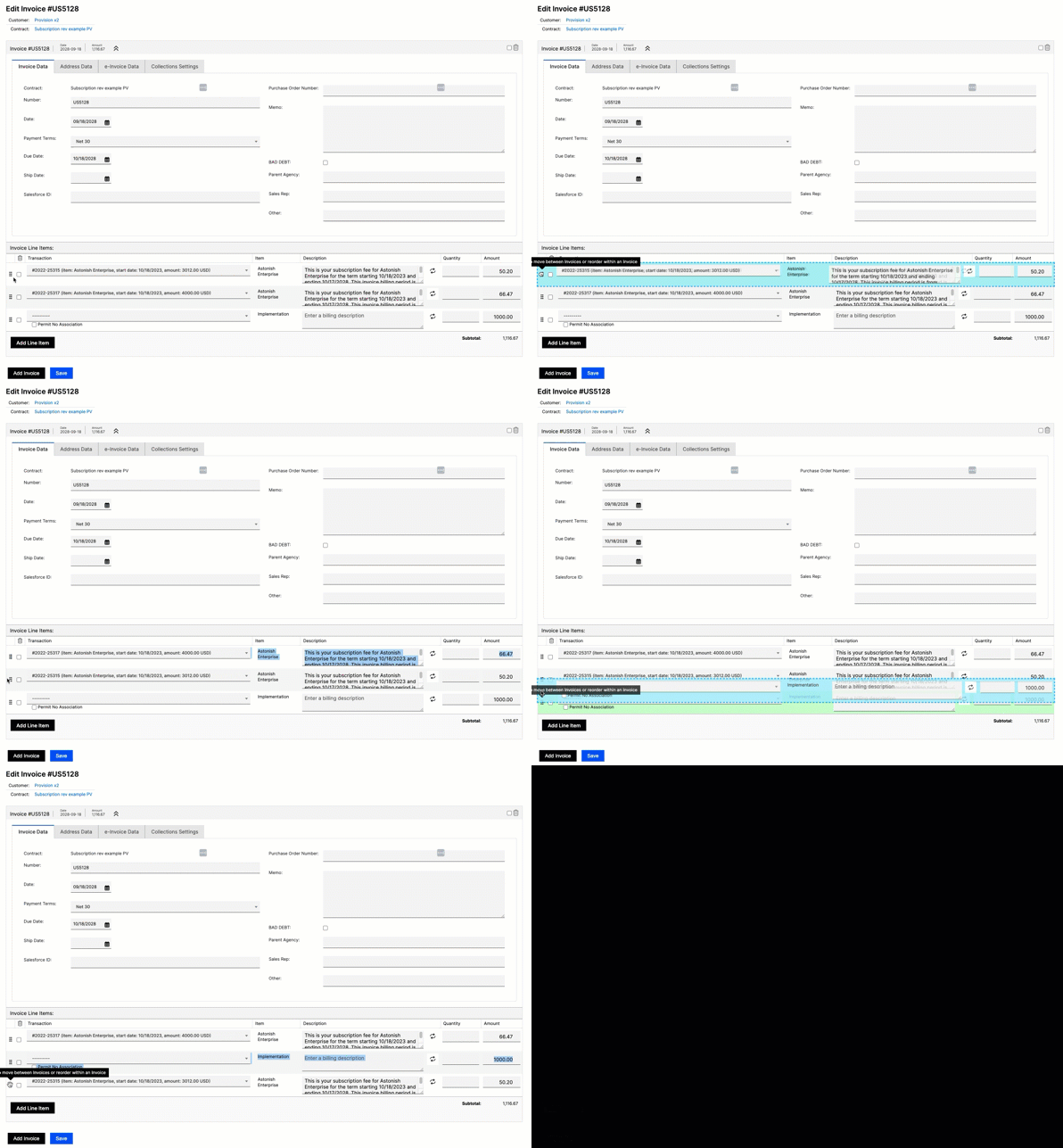
### Reorder Line Items
Drag and drop Invoice Line Items into the desired order for improved presentation, or drag a Line Item onto a different Invoice to move it there.