---
title: Web Connector ASCII Character Issues
url: https://docs.maxio.com/accounting/general-ledger-integrations/quickbooks/troubleshooting/web-connector/ascii-character-issues
applies_to: Maxio Core
updated: 2026-10-09
---
# Web Connector ASCII Character Issues
When a QuickBooks Desktop sync fails and Maxio Support suspects the cause is a bad ASCII character in a Customer or Invoice record, Support needs to see the exact XML that QuickBooks Desktop receives to find which record and which character are causing the problem. This procedure uses Intuit's SDKTestPlus3 tool to extract that Customer and Invoice XML into files you can send to Maxio Support for inspection. Once the bad character is identified, you fix it by editing the affected Customer or Invoice record directly in QuickBooks Desktop using the standard QuickBooks interface. SDKTestPlus3 is a free developer utility published by Intuit, not by Maxio, so its interface and behavior described in this article are Intuit's, not Maxio's.
## Why ASCII Character Issues Happen
When Maxio Core sends Customer and Invoice data to QuickBooks Desktop, it encodes the outgoing XML as ASCII and converts any non-ASCII character into an XML numeric character reference. Most characters survive this conversion cleanly, but some characters in a Customer or Invoice record, often ones pasted in from a word processor or another system such as smart quotes, em dashes, or non-Latin characters, do not round-trip cleanly through this ASCII conversion and QuickBooks Desktop's own XML parser. When that happens, the sync fails with an encoding-related error, and Maxio Support needs to see the raw XML QuickBooks Desktop is receiving to identify which record and which character are responsible.
## Extract Customer and Invoice XML with SDKTestPlus3
SDKTestPlus3 is a free diagnostic tool published by Intuit that sends a request file directly to QuickBooks Desktop and displays the raw XML response, which is exactly what Maxio Support needs to review. Complete the following steps to install the tool and produce the Customer and Invoice XML files for Maxio Support.
**To extract Customer and Invoice XML with SDKTestPlus3**
1. **Download** the following file and install it on your computer in its own directory.
Click the link below to download SDKTestPlus3 to your computer.
*SDKTestPlus3.exe*
2. Open **QuickBooks Desktop**.
3. Run the application called **SDKTestPlus3.exe**.
This application is built by Intuit for developers to access and test XML.
4. Click **Open**.
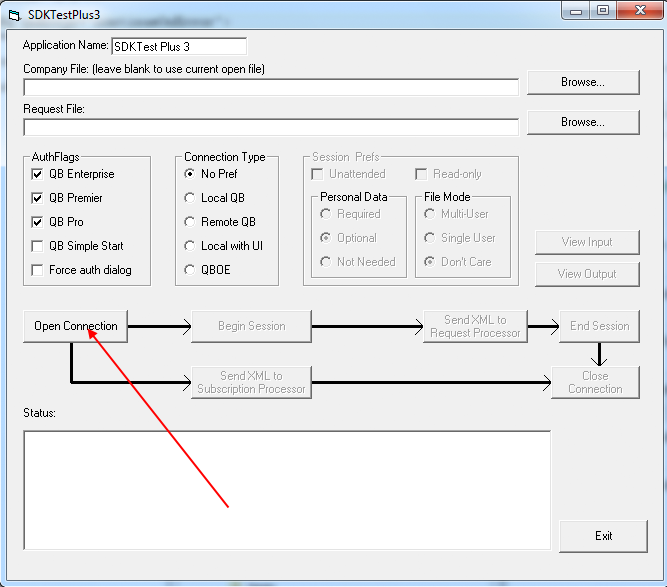
5. **Authorize** the application to access your QuickBooks file.
Click **OK** in the dialog that appears.
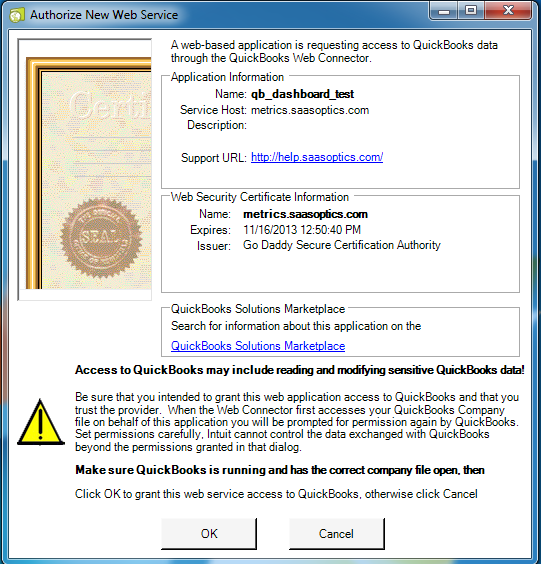
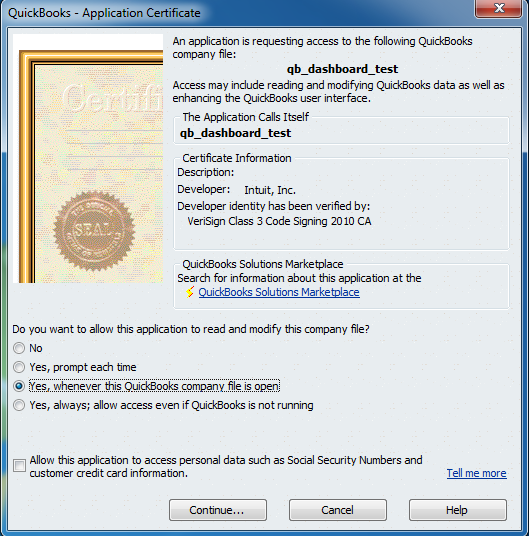
6. **Verify** the certificate.
In this step you choose whether to permit RevenueBooks to communicate with and update your QuickBooks file. Several options are available.
- **Preferred** - Yes, whenever this QuickBooks company file is open.
- Higher level of control - Yes, prompt me each time.
- For automatic sync - Yes, always allow access even if QuickBooks is not running.
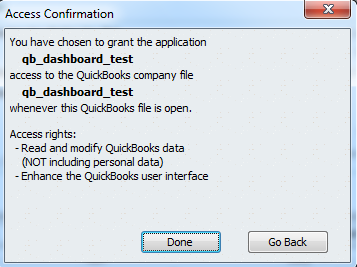
7. **Confirm** access.
8. Click **Begin Session**.
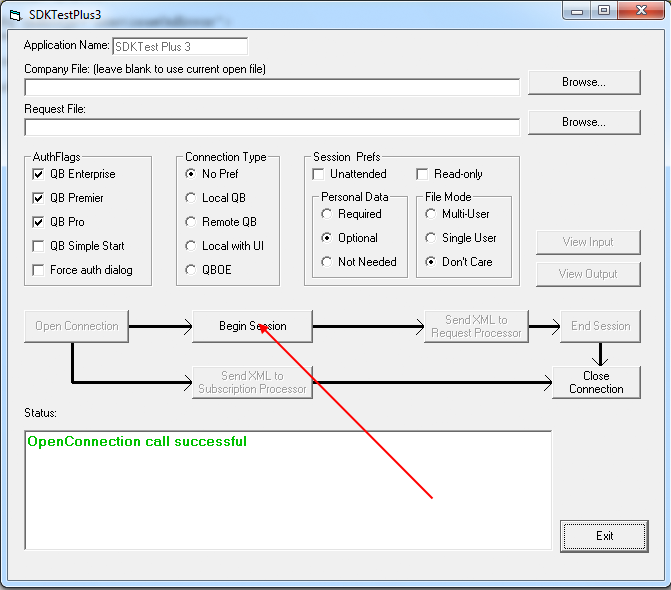
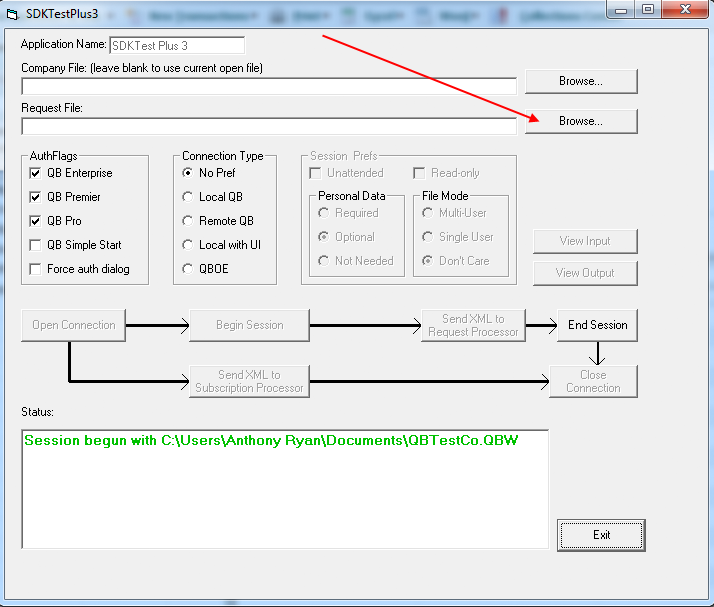
9. Select **Browse** to choose a file to run.
From the folder where you extracted the zip file's contents, select **ExtractCustomers.xml**.
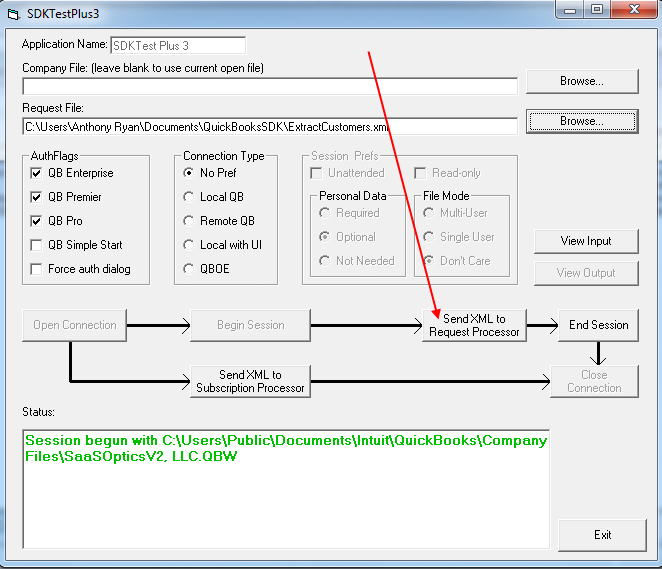
10. Click **Send XML to Request Processor**.
11. Attach the results to an email.
When the process finishes, a message appears in the Status box, and a file named QBResponse.xml appears in the folder that contains the zip contents. Rename this file to YOURCOMPANYNAME-Customers.xml and attach it to an email addressed to support@maxio.com.
12. Repeat steps 9 through 11 for the Invoice XML.
In step 9, select **ExtractInvoiceLineItems.xml** instead of ExtractCustomers.xml. When complete, rename the resulting QBResponse.xml file to YOURCOMPANYNAME-Bill.xml and send it to support@maxio.com.