---
title: Set Up Stripe with Plaid
url: https://docs.maxio.com/configuration/maxio-core/invoicing/set-up-stripe-with-plaid
applies_to: Maxio Core
updated: 2026-09-19
---
# Set Up Stripe with Plaid
Stripe + Plaid is the Stripe for Payments integration with Plaid authorization added, so ACH payments are verified instantly instead of through micro-deposits. You need a Stripe account, but not a Plaid account of your own.
## Before you start
Maxio Support switches Plaid on, and there is no setting for it on the Payment Providers screen. Contact [support@maxio.com](mailto:support@maxio.com) to enable Plaid authorizations, including if you already use Stripe for Payments, then complete the steps below. Once Plaid is enabled, the provider appears as **Stripe + Plaid** in place of Stripe.
## Connect Maxio to Stripe
Once Support has enabled Plaid, the connection steps are the same as for Stripe on its own.
**To connect Maxio to your Stripe account**
1. Click **e-Bill Payment Provider Settings** in the **Invoicing** section of the Admin screen.
2. On the Payment Providers screen, click **Connect to Stripe** on the Stripe + Plaid card.

3. On the Stripe screen that appears, click **Sign In** to connect an existing Stripe account, or fill in the fields in the lower half of the screen to create a new one. If your Stripe login covers more than one account, select the account you want to use for this integration.
4. Click **Configure** and complete the settings. They are identical to the ones for Stripe on its own, so see Set Up Stripe for Payments for what each one does.
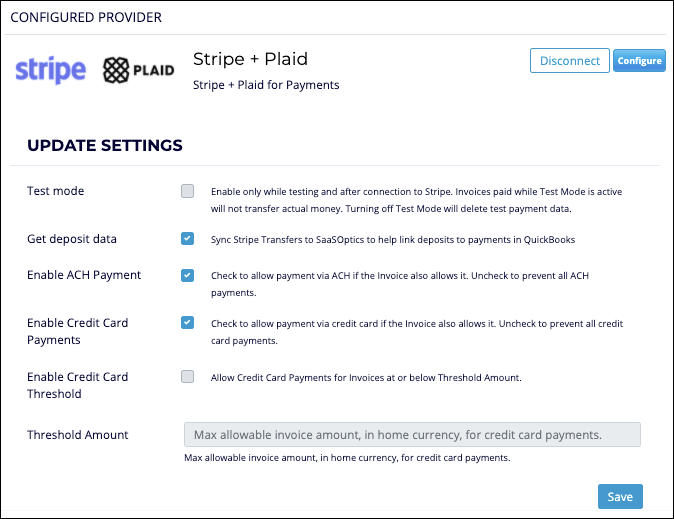
*The Stripe + Plaid settings panel*
5. Click **Save**.
Once connected, **Connect to Stripe** is replaced by **Disconnect**.
## Finish setup and test
The remaining work is the same for Stripe with or without Plaid, so it is documented once.
To align the e-Bill Settings screen with your Stripe setup, see Match your e-Bill settings.
To try a payment end to end before going live, see Test Stripe. Ask Support for a sandbox account rather than connecting a production one.