---
title: Configure Currencies
url: https://docs.maxio.com/getting-started/quick-start-guides/configuration/configure-currencies
applies_to: Advanced Billing
updated: 2026-08-29
---
# Configure Currencies
If your company bills in more than one currency, each currency has to be added to your Site before you can price anything in it. Use this guide to add a currency in Advanced Billing, then to set definitive prices in that currency on a product or component price point rather than relying on automatic conversion.
## At a glance
Feature
: Multi-Currency
You Need
: Understand which currencies your company bills in
Code
: None
Difficulty
: ◉◎◎◎◎
## 1. Add a currency
Adding a currency makes it available to price in. Choose the currency, then decide whether Advanced Billing tracks the exchange rate for you or holds a rate you set yourself.
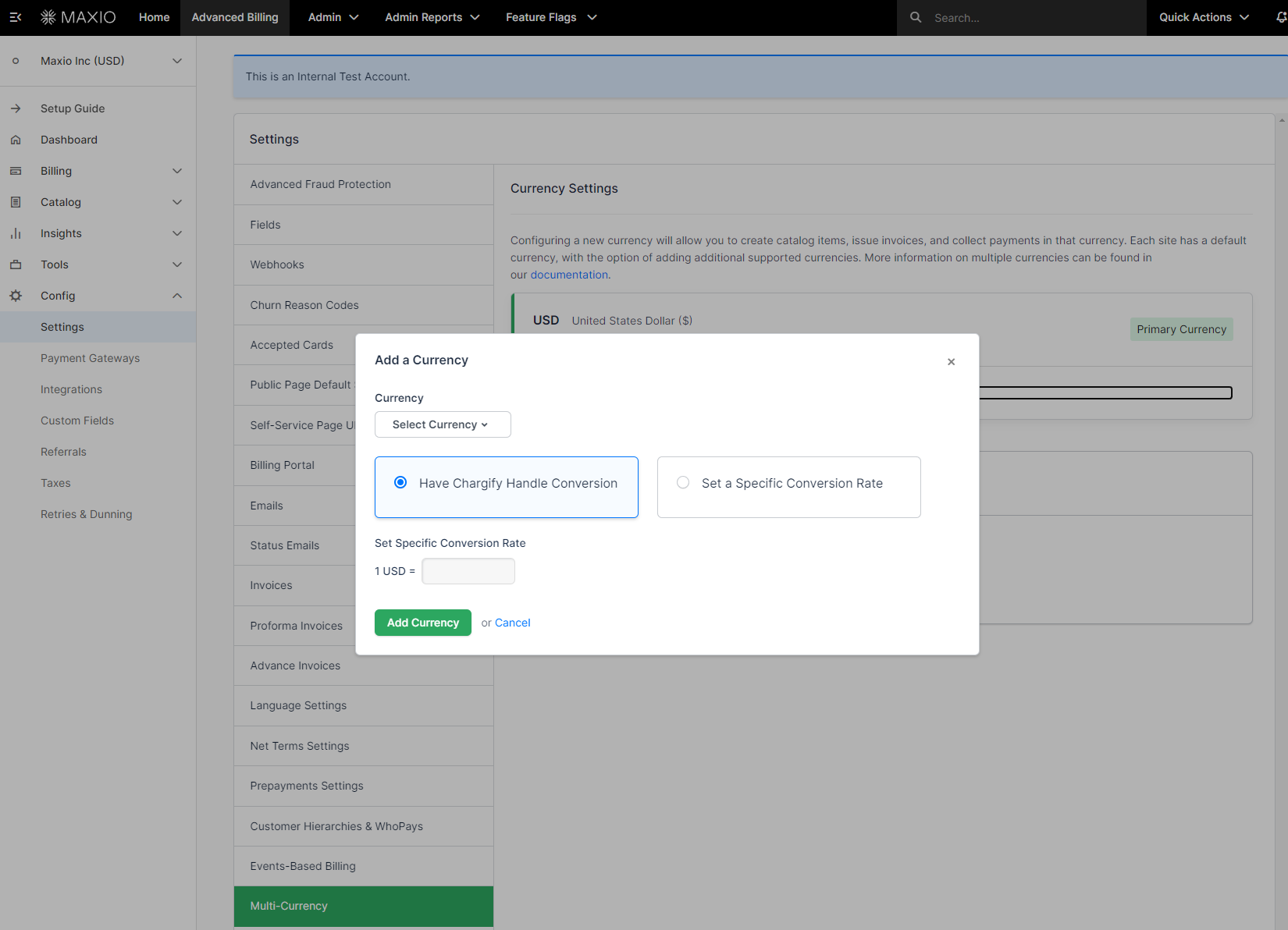
*The Add a Currency dialog over the Currency Settings page*
| Field | Description |
| :--- | :--- |
| Currency | *(Required)* The currency your company wants to add. |
| Conversion Setting | *(Required)* How the exchange rate against your home currency is maintained.- Automatically Handle Conversion Rate - Advanced Billing pulls current exchange rates and updates the rate for you. This is the default setting.
- Set a Specific Conversion Rate - You hold the rate between this currency and your home currency yourself, and it changes only when you change it.
|
| Set Specific Conversion Rate | *(Required)* Only when you select **Set a Specific Conversion Rate**. The field reads `1 = `, so enter how much of the new currency one unit of your home currency buys. |
## 2. Set definitive pricing for other currencies
This section is optional. Skip it if you're content to let Advanced Billing convert your home-currency prices at the current rate.
Definitive pricing lets you name the exact amount you want to receive rather than accepting a converted figure, which matters when you want round, marketable prices in each currency instead of whatever the exchange rate produces.
### Edit a product or component
Open the product or component whose price point you want to price definitively.
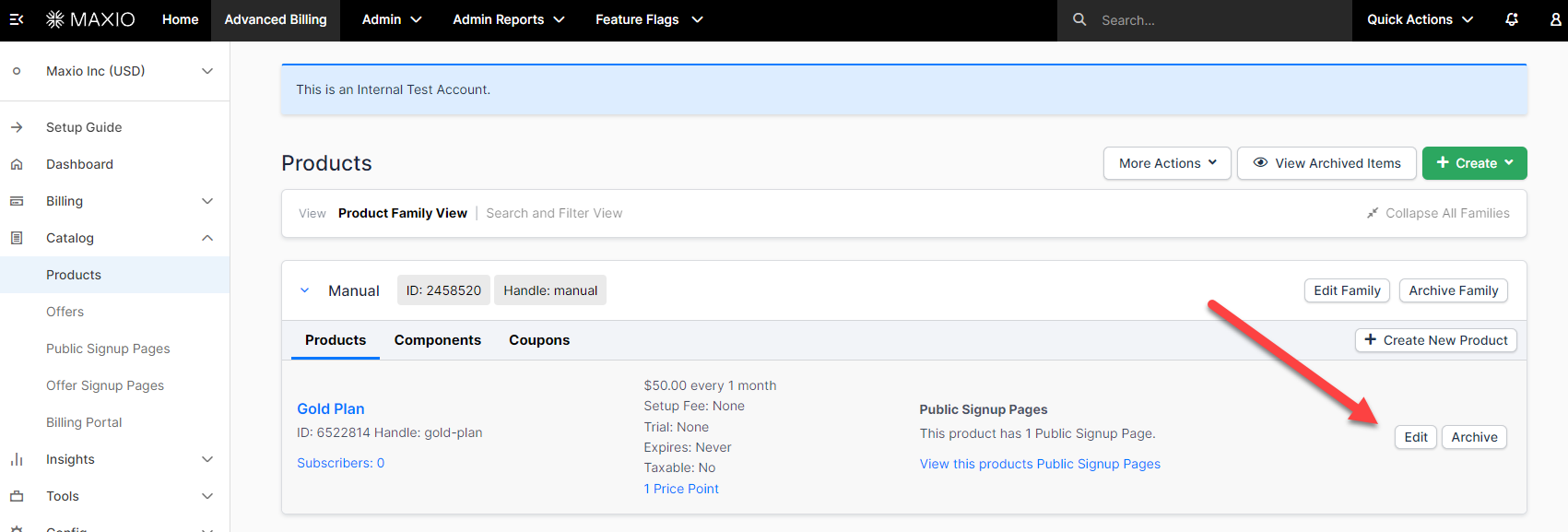
*Editing a product from the Products list*
### Set definitive pricing on a price point
On the price point's menu, select **Set Definitive Pricing**.
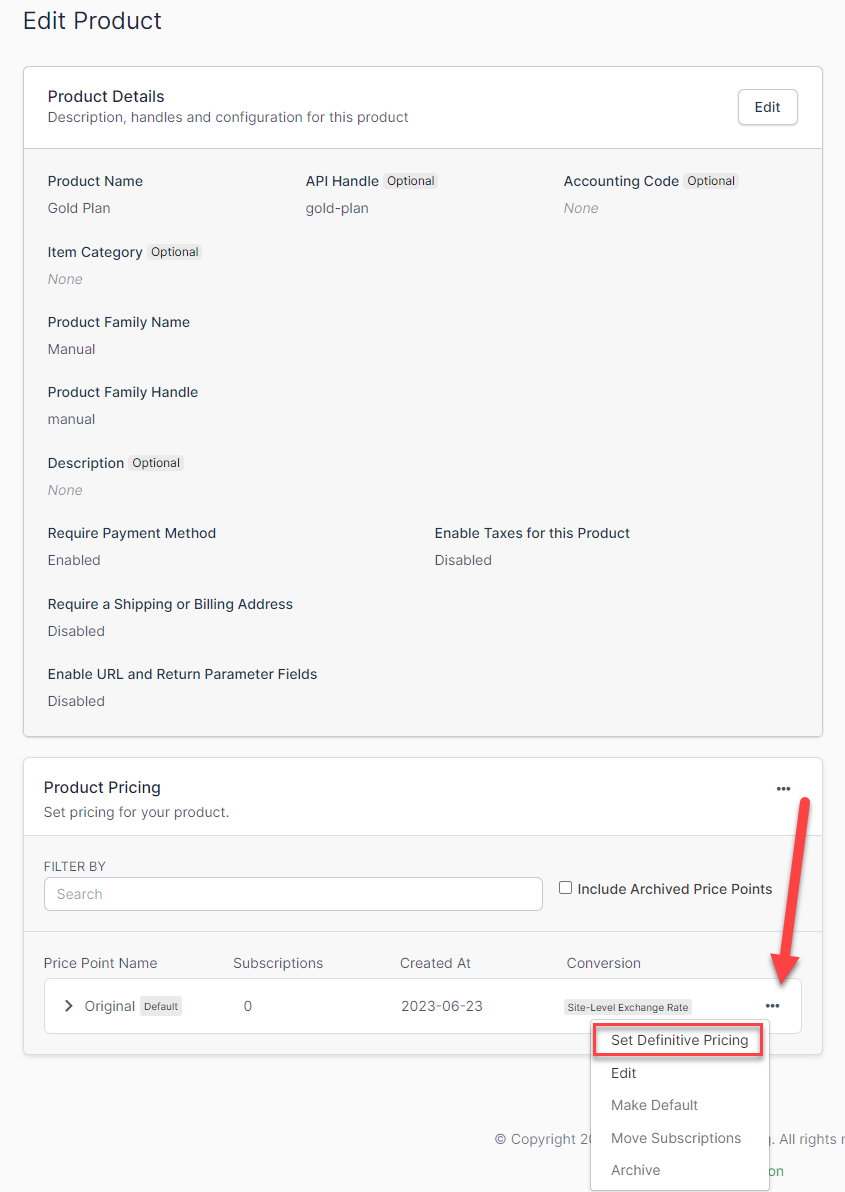
*The price point menu, with Set Definitive Pricing selected*
> **Note:** You can specify up to 11 decimal places for currency prices.
### Define the converted prices
Beside the currency you added, select **Define Converted Prices**.
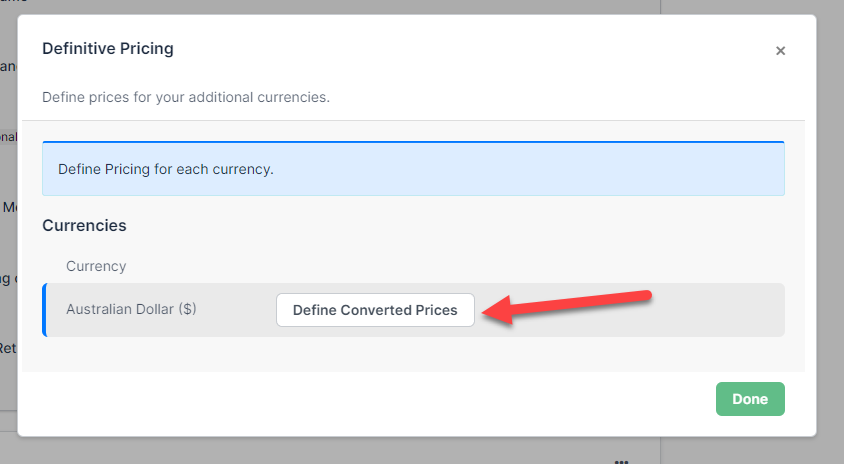
*Define Converted Prices, beside the additional currency*
### Set the converted price
Enter the amount you want to receive, and Advanced Billing shows the resulting figure in the currency you added.
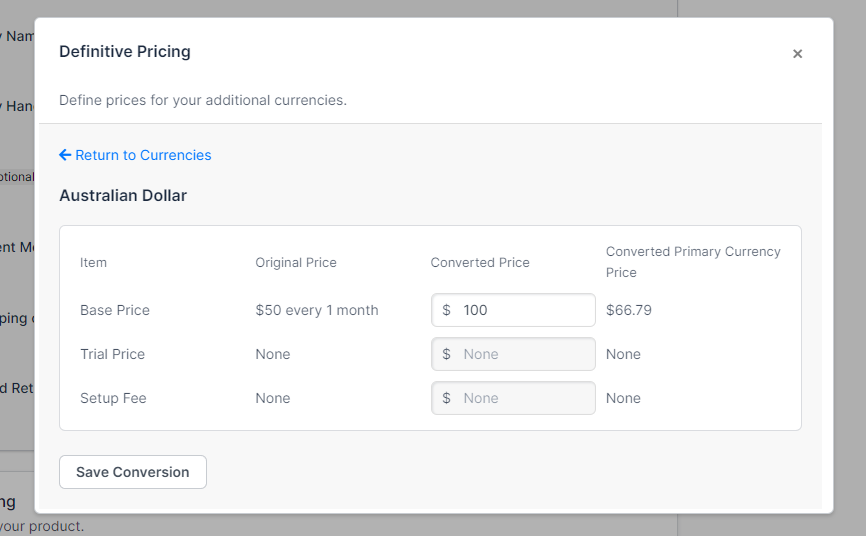
*Each price shown as original, converted, and converted primary currency*
| Field | Description |
| :--- | :--- |
| Converted Price | *(Required)* The amount of money you want to receive in your home currency for this price point. The equivalent amount in your newly added currency appears under **Converted Primary Currency Price**. |