
System Overview
Applies to: Maxio Core
Last updated on Aug 28, 2026
Maxio is a finance-operations system built specifically for B2B SaaS businesses. It automates billing, subscription management, revenue recognition, and SaaS metrics and analytics, so CFOs, finance teams, and product managers can simplify workflows, reduce revenue leakage, and improve financial visibility.
The Maxio Core Essentials video series covers this material in depth.
These are the core pillars of our product. The application addresses the unique pain points B2B subscription-based businesses experience across finance and operations.
Which pillar you start with depends on what you were brought in to do:
- Getting Started as a User
- Getting Started: Billing
- Getting Started: Managing Revenue
- Getting Started: Reports & Analytics
Billing
Maxio supports your evolving monetization strategy with a flexible billing engine built for B2B needs. It allows you to align your pricing model with your product’s value and remain competitive. The billing engine offers extensive options for monetizing products and services to adapt to diverse customer and market requirements.
Subscription Management
Whether you enter sales orders manually or via CRM integration, Maxio automates invoice creation and collections through our Advanced AR Management function. This automation helps reduce the risk of missed renewal invoices. Proper setup and oversight remain essential for accuracy.
Revenue Recognition
Maxio helps eliminate manual spreadsheets for revenue recognition by enabling accrual-based revenue using start and end dates for GAAP / IFRS-compliant reporting. Accurate configuration and data entry are critical for compliance.
For complex scenarios or re-allocations under ASC 606, use RevenueBooks. For milestone-based revenue or invoicing, use Projects.
Metrics & Analytics
Maxio supports compliant GAAP / IFRS reporting, and also delivers forward-looking SaaS metrics such as ARR, MRR, and cohort analysis on investor-friendly dashboards.
Key terminology
The key to learning any system is understanding what objects are called, how they work, and how they relate to one another. You can also learn more by checking out our full Glossary of Key Maxio Core Terms.
| Object | Definition |
|---|---|
| Customer | Customers are the entities that subscribe to and purchase your products. Customers can also be distributors and resellers. Each Customer can have Contracts that hold Transactions, revenues, Invoices, and payments. |
| Contract | Contracts serve as containers for key records such as Transactions and Invoices. A Customer can have one or more Contracts, and each Contract can hold one or more Transactions and Invoices. |
| Transaction | The Transaction is a specific type of financial record representing a contract element in Maxio Core. You add and manage Transactions to record subscriptions and non-recurring purchases, producing revenues and Invoices as a byproduct. |
| Invoice | Invoices are groupings of Invoice Line Items assembled by Maxio Core based on Customer and invoice date. Invoices represent the accounts receivable aspect of Transactions and enable payment collection through e-invoicing. |
| Invoice Line Item | Invoice Line Items are the individual elements that Maxio Core groups into Invoices. They represent individual lines on an Invoice. |
System navigation
When you log into Maxio Core, the home page surfaces key navigation elements.
Main menu
The main menu appears on the left and displays menu items based on your role and account configuration.
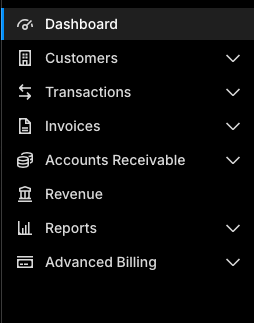
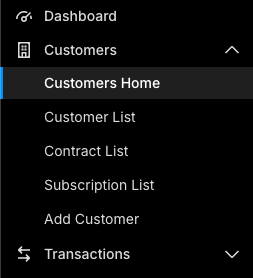
Click a sidebar option to reveal additional menu choices.
History
The History bar below the search bar shows recent screen links from this session, letting you jump back quickly by clicking on a breadcrumb.

Dashboard
Maxio Core includes a dashboard builder. You can create multiple dashboards by selecting widgets and reports on a configurable canvas, tailored to your role and tasks.
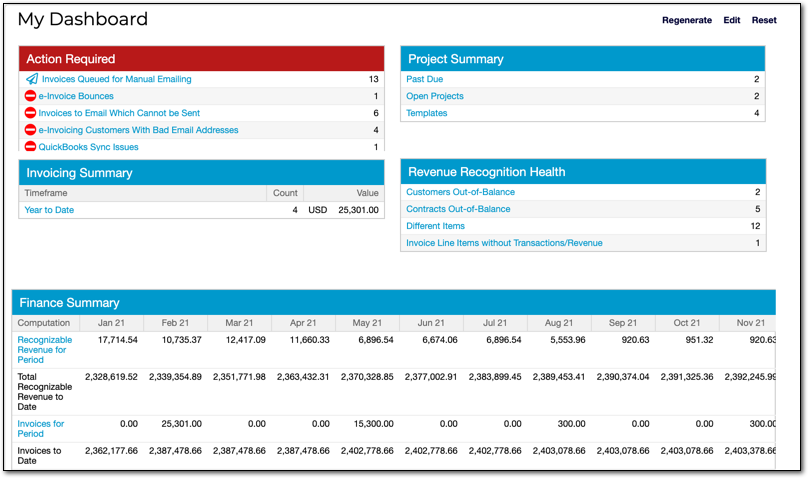
To make a dashboard your home page, click “Set as my home page” in the top-right corner of the configuration screen.
Administrators can define a default dashboard for users without a personal one. Go to Account Settings in the Admin menu, and select a default dashboard in the Reports section.

Learn more in the Build and Manage Report Dashboards help article.
List views and filters
List Views are the primary method for locating objects and records in Maxio Core. You access corresponding list views via the navigation bar.
Customize your list view by selecting filters, columns, sort order, and layout. Then you can:
-
Perform bulk editing or exporting of records via available actions.
-
Save customized views for quick reuse (views are user-specific unless shared via permissions).
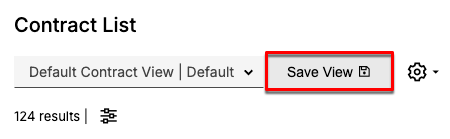
To filter records with precision
-
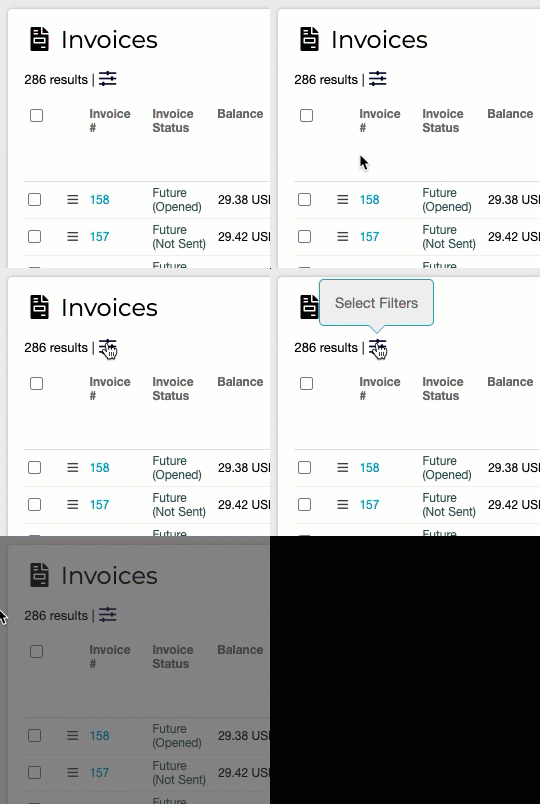
On any list or home page, click the filter icon in the filter bar. It is a sliders symbol, and hovering over it shows the label Select Filters.
-
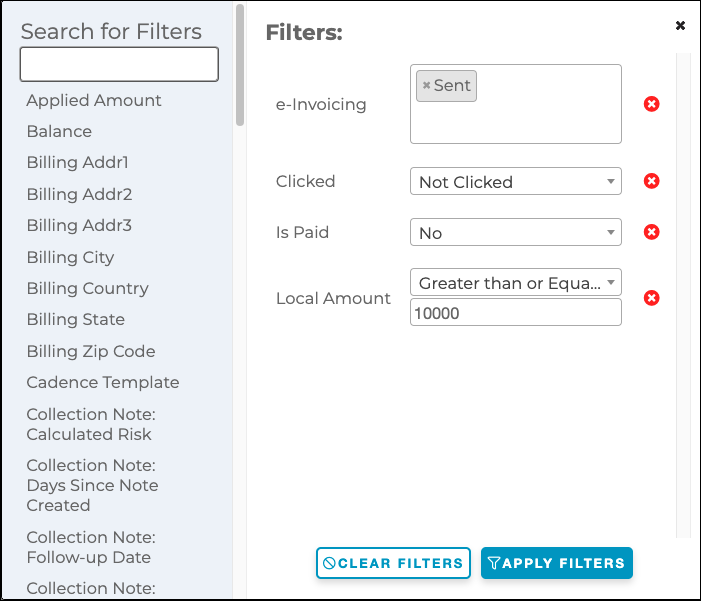
Add one or more criteria. There is no limit on how many filters you can add, but each one narrows the results further.
-
For example, filter the Invoice List to show sent e-invoices over $10,000 that the customer hasn’t clicked or paid.
You can learn more by visiting:
Notifications
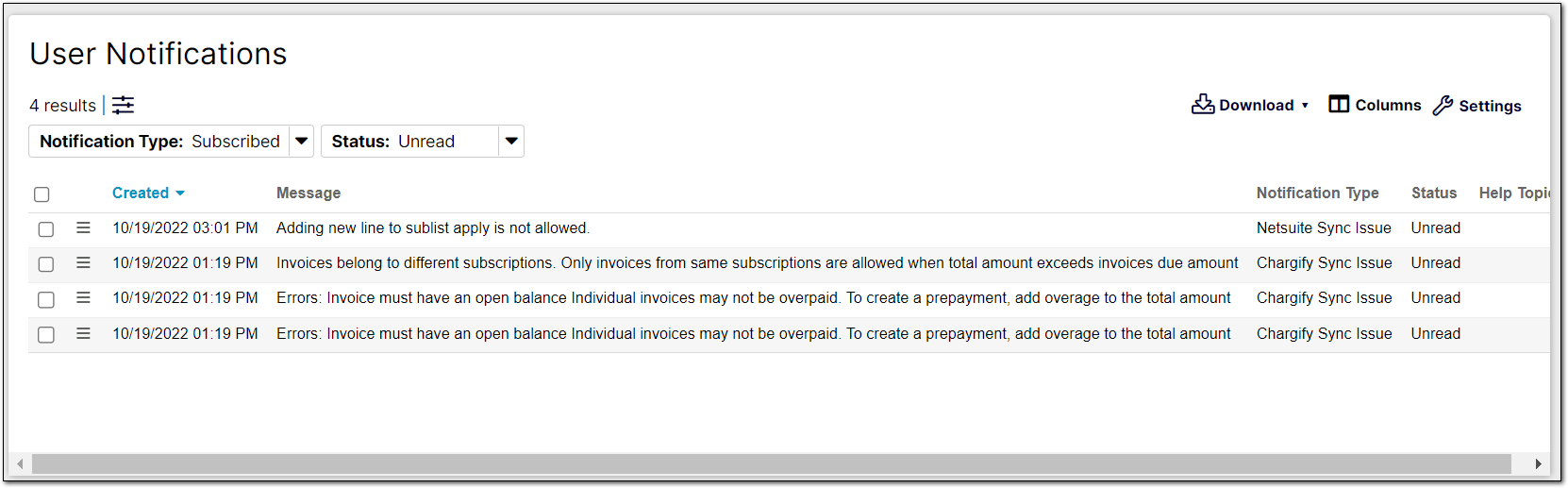
Notifications alert you to key account events. The User Notifications screen displays current alerts with timestamps, descriptions, and types like integration sync issues, system updates, or data errors.
Learn more in the View and Manage Notifications help article.
More video walkthroughs
Beyond the Maxio Core Essentials series above, these walkthroughs cover individual areas in more depth:
- Maxio Reporting — a tour of the reports available to you and what each one answers.
- Revenue Recognition 101 in Maxio — the starting point if revenue recognition is new to you.
- Manage More Complex Revenue Recognition Workflows in Maxio — the follow-on, for multi-element and non-standard arrangements.
- Automate your Invoice Collections Process with the Advanced AR Management Module — setting up automated collections.
- Drive Down DSO and Automate Invoice Collections with the Advanced AR Management Module — using the same module to shorten your collection cycle.
Still need help?
Reach out and our support team will take it from here.