
Manage My Profile and Account Settings
Applies to: Advanced Billing
Last updated on Aug 26, 2026
Your Advanced Billing account menu gives you access to several key areas, including your Profile, Account, Billing, Downloads, Documentation, and Support.
- Profile - Manage your personal user information (name, email, password, 2FA, and API token).
- Account - Manage your Merchant or organization-level information (business name, contact details, address, and time zone) that appears on invoices and communications with subscribers.
Related articles:
Locating my profile and account settings
Click the user icon in the upper-right corner of the application. A drop-down menu appears with links to your Profile, Account, Billing, Downloads, Documentation, and Support.
If you make changes to your account, you must re-enter your current password to save changes.
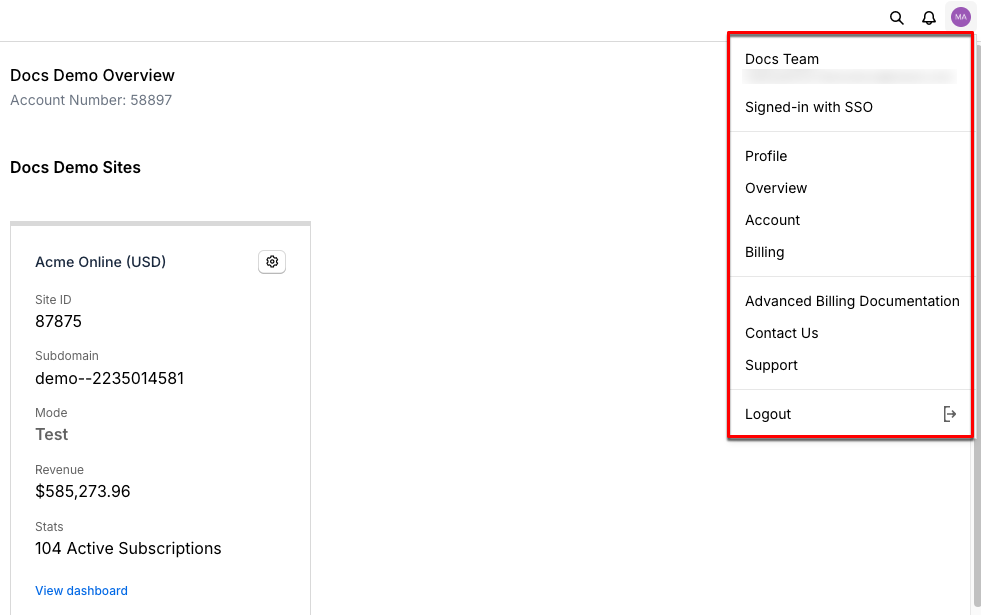
Locate your personal Maxio user account menu
Profile
On the My Profile page, you can easily update the details associated with your user account.
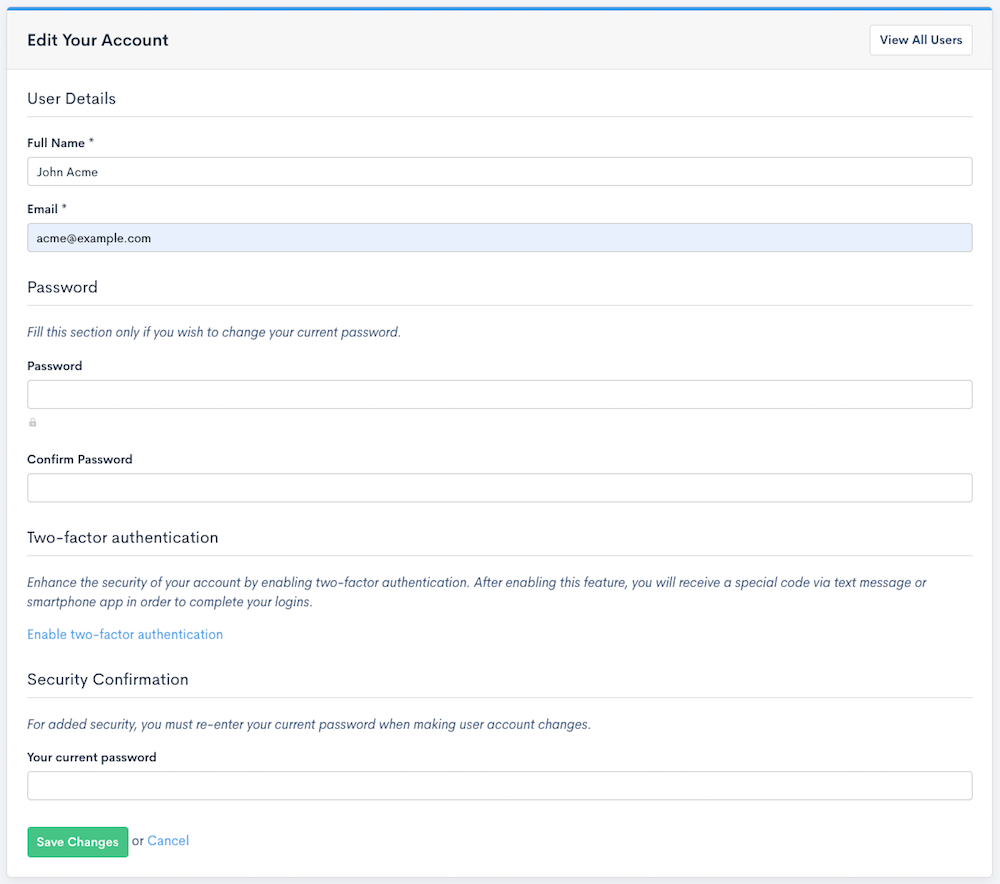
View your current profile information
User details
View or change the full name and email associated with your user account.
Password
For non-SSO users, you can change the password associated with your user account here. Your password is stored securely in a hashed format and cannot be viewed by anyone. If you have forgotten it, use the password reset page.
If your account uses Single Sign-On (SSO), manage your credentials through your identity provider instead.
Two-factor authentication (2FA)
If Two-Factor Authentication (2FA) is enabled for your account, a checkbox to disable 2FA appears—but only if your organization hasn’t made 2FA mandatory. If your account requires 2FA, contact an administrator to manage those settings.

Enable/disable 2FA
API token
Your User API Token allows seller-level API access for your individual user account. This token is distinct from Site API Tokens but enables similar types of authenticated requests tied to your user identity.
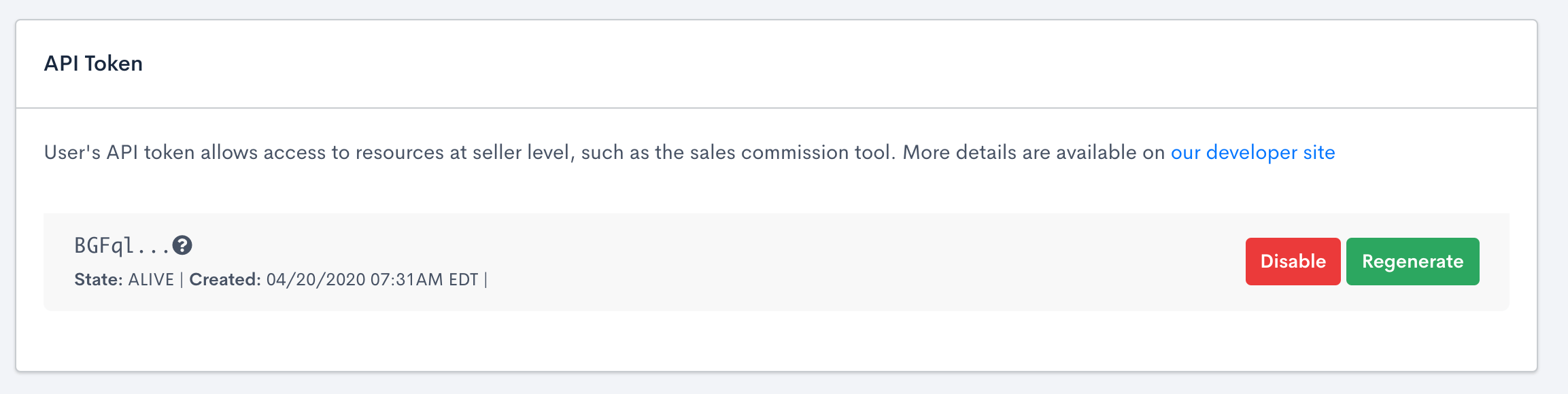
Disable/regenerate API Token
Security confirmation
When updating sensitive profile information, non-SSO users must confirm changes by entering their current password and, if enabled, a token. SSO-authenticated users typically save changes without additional confirmation.
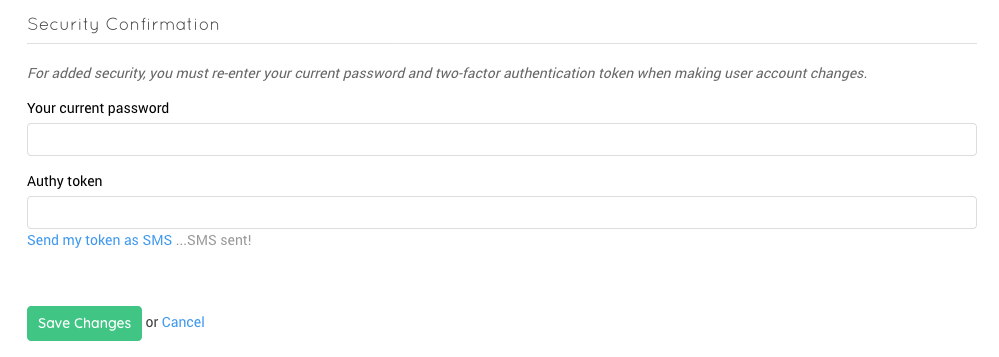
Authenticate
Account
When using Maxio, your seller account works with your Sites and Product Families to define your identity and what you sell. The information under Account represents your merchant contact information and can be shared with subscribers.
For security reasons, financial and ownership records are handled separately. Most merchant contact details (for example, email, phone number, and address) can be updated directly on the Account page. To request a transfer of account ownership, contact support@maxio.com.
Invoice-related information
The information entered under Account Information will be shared with subscribers if enabled in the Masthead Settings. You can also override the information displayed on invoices with site-specific data. Read more Site Details.
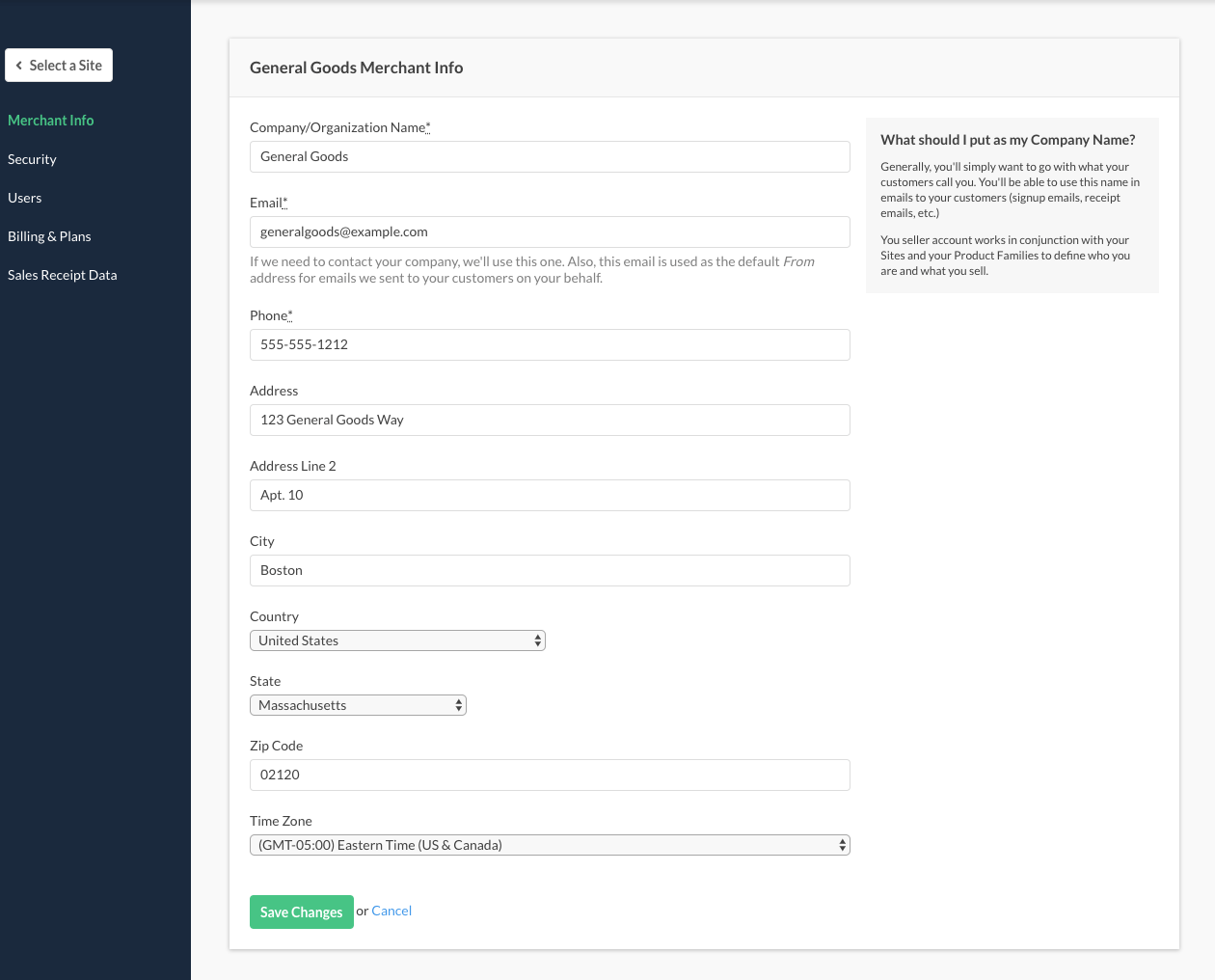
Masthead-related invoice information
Company/organization name
Required: Enter the name your customers use to refer to you. You can use this in signup emails, receipt emails, and other customer communications.
Required: This email serves as the default “From” address for customer-facing emails that Maxio sends on your behalf, including automated communications such as dunning and statement emails.
There are two ways to override it. Most email types can set their own “From” address individually; dunning emails cannot, and instead use a site-level setting. If we need to contact your company, we will use this email or the account owner or admin’s email.
Phone
Required: Provide the phone number associated with your merchant account.
Address information
Enter your company’s primary business address. This location typically appears on invoices and in customer communications. If your business operates virtually, enter your registered business address.
Time zone
Set the default time zone for your Sites. You can define the master time zone here and then configure each Site to reflect its specific location.
Still need help?
Reach out and our support team will take it from here.