
Understand Prepaid Subscriptions
Applies to: Advanced Billing
Last updated on Aug 29, 2026
BETA
This feature is currently in beta and may change over time. During the beta period, functionality, availability, and performance may vary.
To join the Beta program, request Beta access.
Offer usage-based pricing while collecting payment from the Customer up front, instead of billing in arrears.
What is a prepaid subscription?
A Prepaid Subscription maintains a prepayment balance, and usage is deducted from that balance in real time as it's reported to Advanced Billing. This reduces revenue risk and improves cash flow predictability, since Customers fund the Subscription before usage occurs.
You can configure a Prepaid Subscription with:
- An initial balance collected at signup.
- Optional auto-refill settings that automatically replenish funds when the balance drops below a defined threshold.
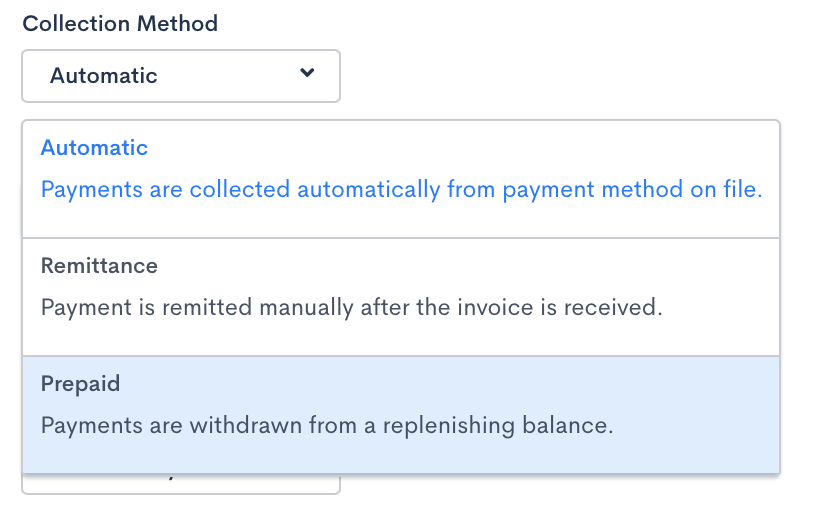
Prepaid Subscriptions are available on sites using Relationship Invoicing architecture (Invoice-Centric Billing), with the Prepaid Subscriptions feature enabled for your site. You select the prepaid collection method during Subscription setup.
Payments for Prepaid Subscriptions are collected via credit card only; each Prepaid Subscription must have a valid credit card on file, and its payment method can't be changed to any other type.
A Prepaid Subscription is created in an active state once the initial prepayment is successfully processed.
How the prepayment balance works
The prepayment balance equals total prepayments collected during the current billing period minus recorded usage. For example, if a Subscription has a $100 prepayment and $50 in recorded usage, the remaining balance is $50.
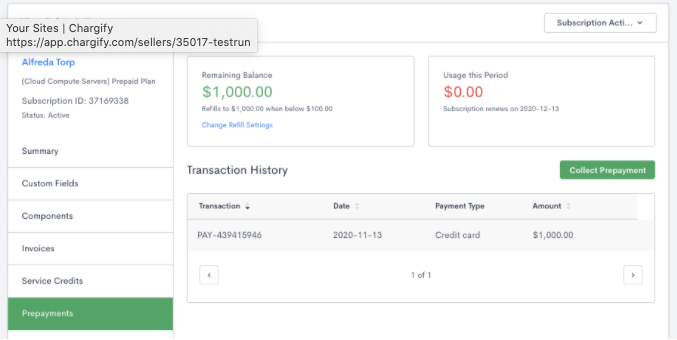
Auto-refill is triggered when the balance drops below the configured minimum balance. As usage increases, the remaining balance decreases and the Usage This Period value increases.
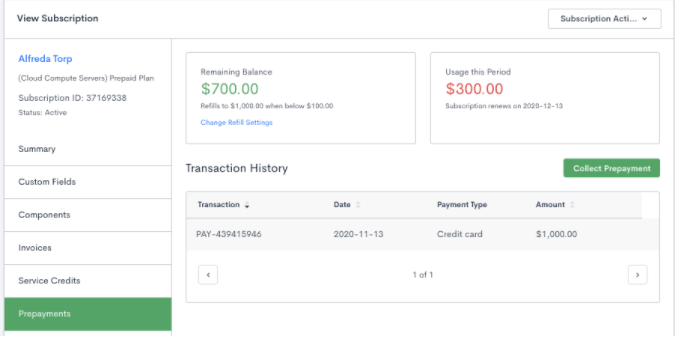
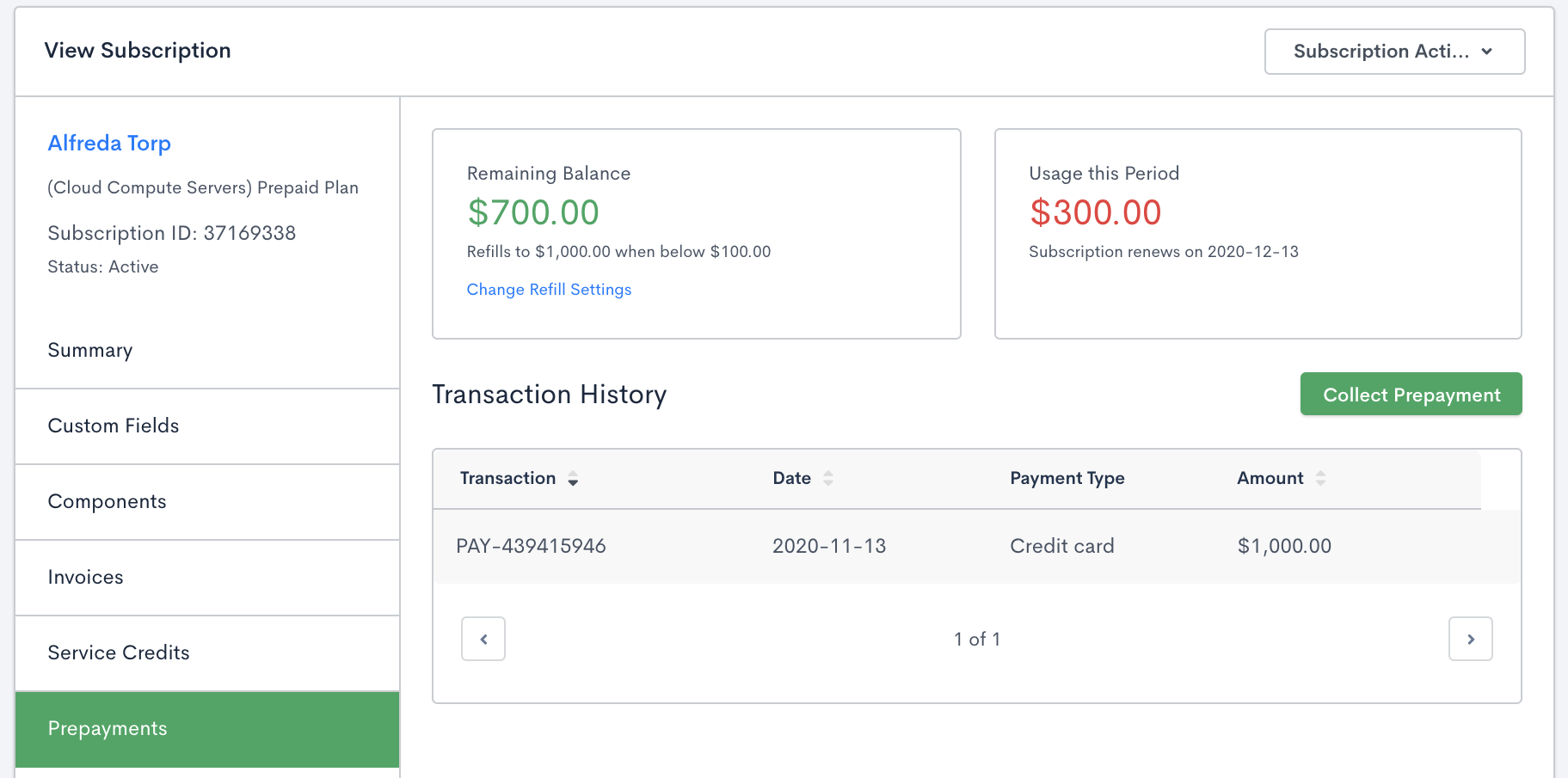
If auto-refill is enabled, the credit card on file is charged to restore the balance to the refill amount. The Usage This Period value continues to increase throughout the billing period, and both the current balance and usage are displayed at the top of the Prepayments tab and available via the API.
Track usage
Unlike other Subscription types in Advanced Billing, where metered Components are billed at the end of the billing period, Prepaid Subscription usage is deducted from the prepayment balance in real time.
At renewal, an Invoice is generated summarizing all usage recorded during the billing period.
You can view total usage for the current period on the Subscription's Prepayments tab.
Configure funding settings
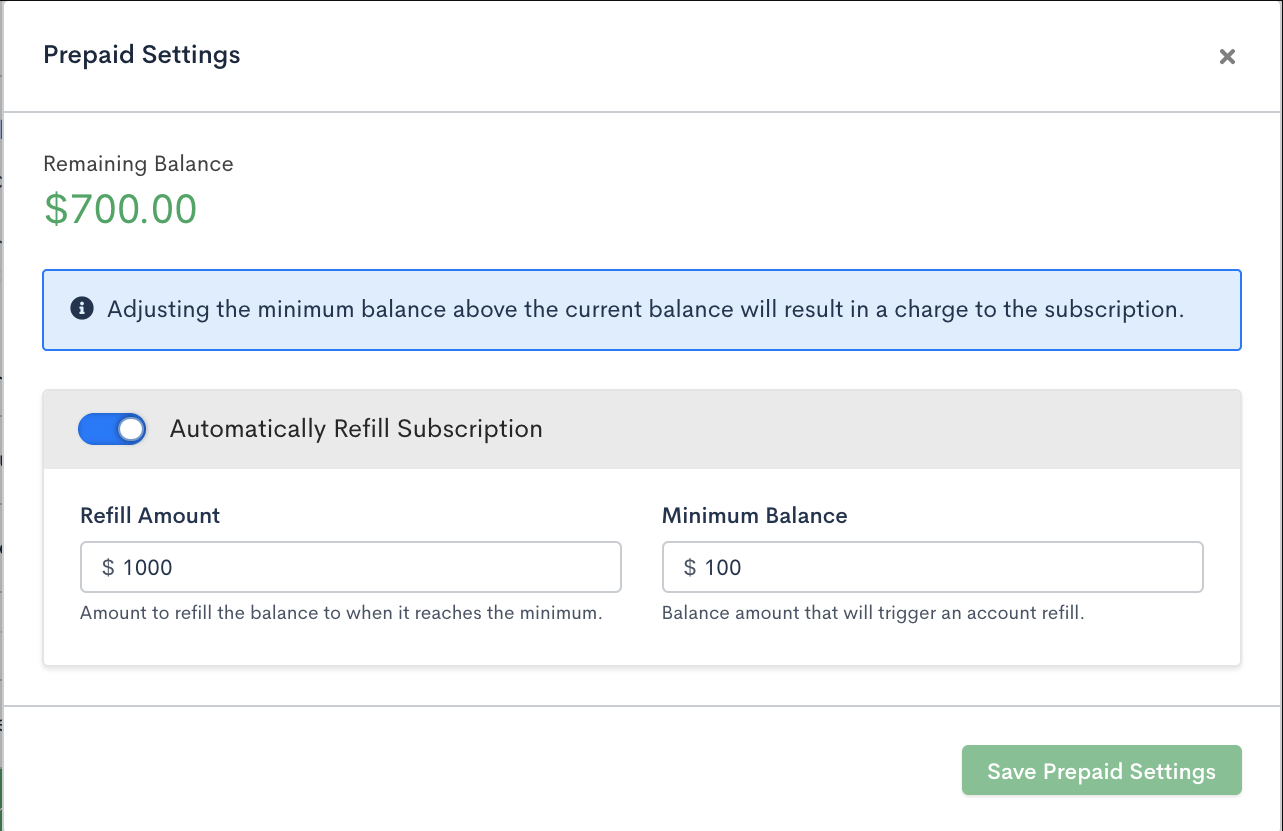
Prepaid Subscriptions support two funding configurations, controlled by four key settings. You can update these settings at any time, including enabling or disabling auto-refill and changing the refill amount or minimum balance.
Initial Charge
The Initial Charge is the prepayment amount collected at signup from the credit card associated with the Subscription.
This value may be $0 when importing Prepaid Subscriptions. In that case, the Subscription is created in a suspended state.
If auto-refill is enabled, the Initial Charge must be greater than the minimum balance.
Auto-Refill
Auto-refill (the API field name is auto_replenish) automatically collects additional funds when the balance drops below the minimum balance, with no manual action required.
Minimum Balance
The minimum balance defines the threshold that triggers auto-refill. It must:
- Be greater than $0.
- Be less than the refill amount.
Refill Amount
When the balance drops below the minimum balance, Advanced Billing charges the amount required to restore the balance to the refill amount.
What the catalog requires
Prepaid Subscriptions:
- Must use a free ($0 recurring price) Product with usage-based (arrears-billed) Components only, such as metered or events-based Components.
- Can't be attached to a Product that offers a Trial.
- Must have net terms set to 0 (for the primary Subscription in a group, or an ungrouped Subscription).
Prepaid and event-based components on multi-frequency or term subscriptions
Prepaid and event-based (metered) Components generally work the same way on Multi-Frequency and Term Subscriptions as on standard ones, with a few interaction rules to know:
- You can't add a Multi-Frequency Price Point to a Subscription that isn't Multi-Frequency enabled. Advanced Billing blocks the change with an error explaining that the Subscription isn't Multi-Frequency enabled.
- On a Term Subscription that's also Multi-Frequency, if your Site has multiple currencies and the Subscription isn't on your Site's primary currency, every Component and Product Price Point — including prepaid and event-based ones — must have definitive pricing set. Advanced Billing blocks the change otherwise, with a message explaining that a Term Subscription requires definitive pricing.
- Prepaid usage allocations on a Multi-Frequency Subscription are tracked and expire against that Component's own billing schedule, rather than the Subscription's overall billing period, since Multi-Frequency Components can each bill on a different schedule.
What happens at renewal
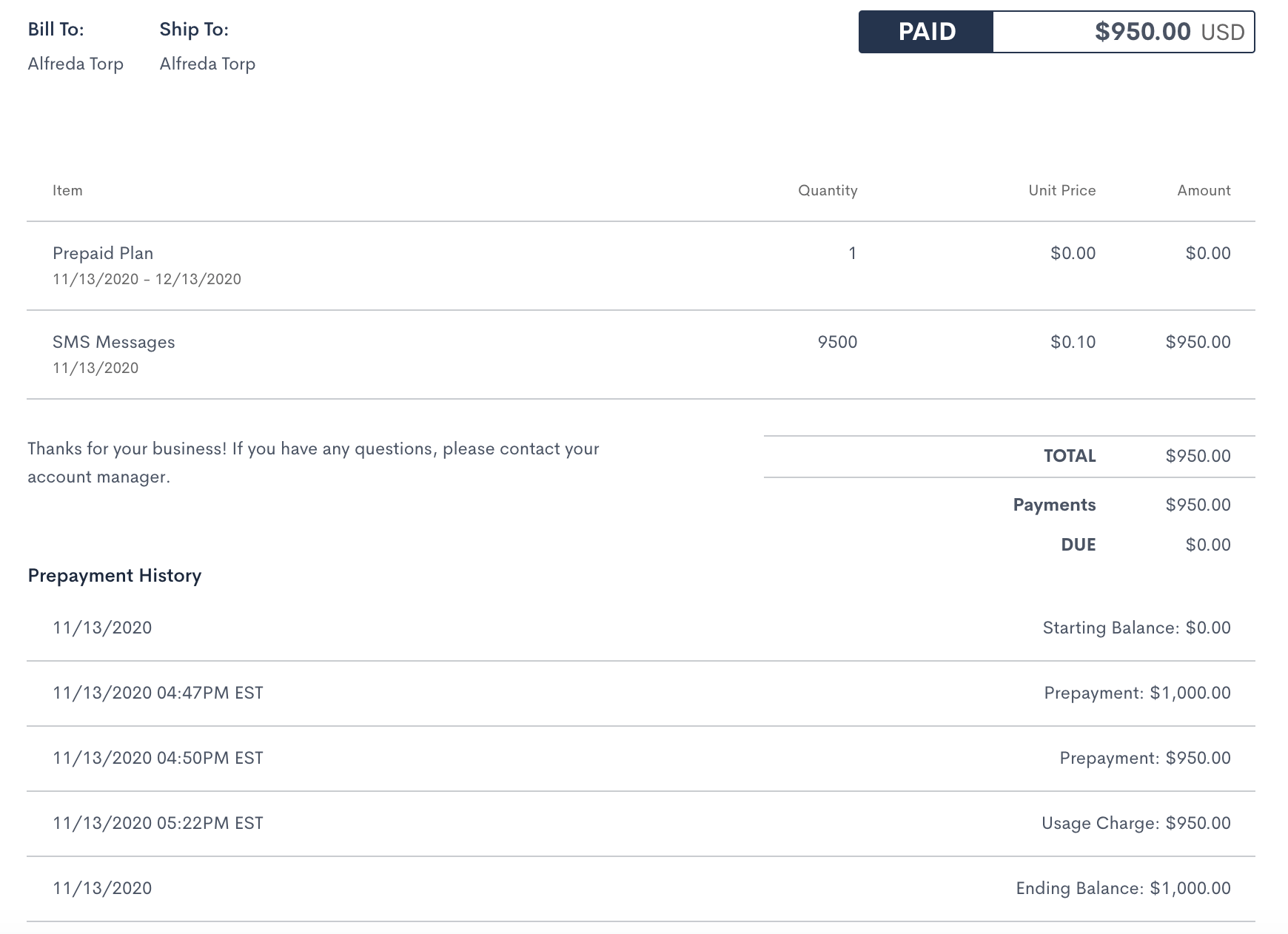
On each renewal date, Advanced Billing generates an Invoice summarizing activity for the billing period, including:
- Starting balance
- Total usage
- Prepayments collected
- Ending balance
No payment is due at renewal, since usage is already covered by the prepayment balance. Applicable tax is still calculated on the Invoice.
How dunning works for prepaid subscriptions
Prepaid Subscriptions have a configurable dunning process. If an auto-refill payment fails, Advanced Billing retries the charge based on your configured dunning strategy, once per day for the number of days defined in your settings. You can also enable email notifications using customizable templates.
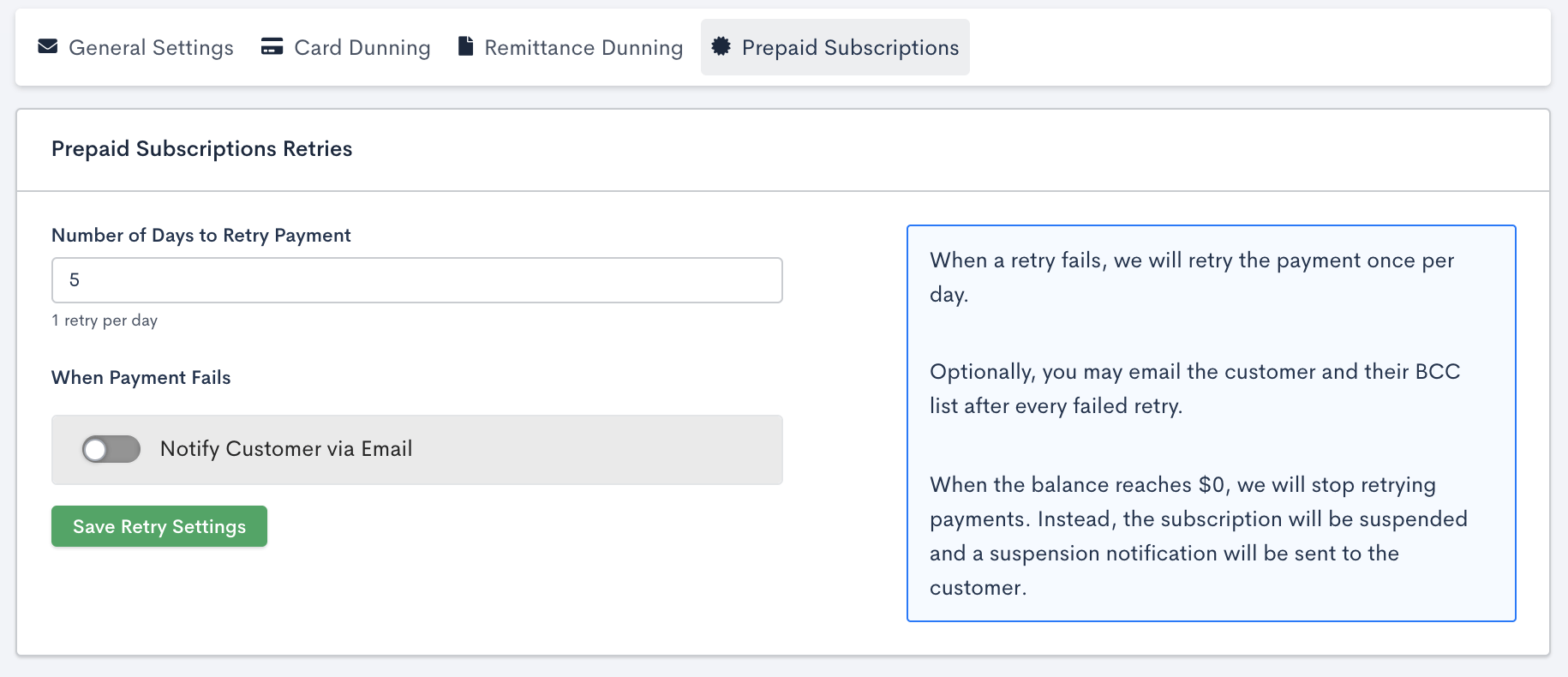
While dunning is active, the Subscription remains active until the balance is depleted; it's never marked past due. Instead, it displays the status (In Prepaid Dunning), which you can use as a filter.
What happens at suspension and cancellation
If the prepayment balance reaches $0 or below, the Subscription automatically transitions to suspended. A Subscription may become suspended if:
- Auto-refill is disabled and usage exceeds the balance.
- Auto-refill is enabled but the replenishment payment fails.
- Dunning retries are exhausted without a successful payment.
A suspended Subscription can be:
- Reactivated by applying a new prepayment.
- Canceled, like other Subscription types.
If you cancel a Prepaid Subscription immediately, the remaining balance is automatically refunded to the Customer. Prepaid Subscriptions can't be scheduled to cancel at the end of a period; cancellation is always immediate.
Related information
For the Purchase Prepaid Units flow for setting Custom Pricing on a Prepaid Usage Product, see Configure Custom Pricing for Products.
Still need help?
Reach out and our support team will take it from here.