
Report Product Usage and Allocations
Applies to: Advanced Billing
Last updated on Sep 30, 2026
Report Product usage and allocations correctly to keep Subscription billing, Invoice totals, and revenue reporting accurate. Accurate reporting prevents revenue leakage and keeps recurring billing aligned with your pricing model.
Important: To bill Customers properly for metered, quantity-based, prepaid, and on/off Products, you must report each Product's usage amount or status within the Subscription. See Understand How Products Are Billed for how Product Allocations work.
Report metered Product usage
For metered Products, record the number of units your Customer consumes during a billing period. At the end of the billing period, Advanced Billing charges the Customer for the total units recorded. The count resets to zero at the start of the next billing period.
The first time you record usage on a Subscription, the Price Point locks. Future usage is billed at that same Price Point unless you manually change it.
On a Termed Subscription, if a metered Product's Price Point has a rating interval, the remaining term must be a whole number of rating intervals. For example, a 24-month remaining term fits a 12-month rating interval, but an 18-month term doesn't. Advanced Billing checks this when you allocate the Product and when you record its first usage. If the term doesn't fit, the action is rejected with a message that names the Product, its rating interval, and the Subscription's term end date.
To record usage for many Subscriptions at once instead of one at a time, see Import Metered Usage, which sends each row of a CSV through the API.
This behavior differs from quantity-based Products, which don't reset to zero at the start of each billing period.
To record metered usage
-
Navigate to the Subscription.
-
Select the Products tab.
-
Locate the Product, then click More (...).
-
Select Record Usage.
-
Enter a quantity and, optionally, a memo, then click Record.
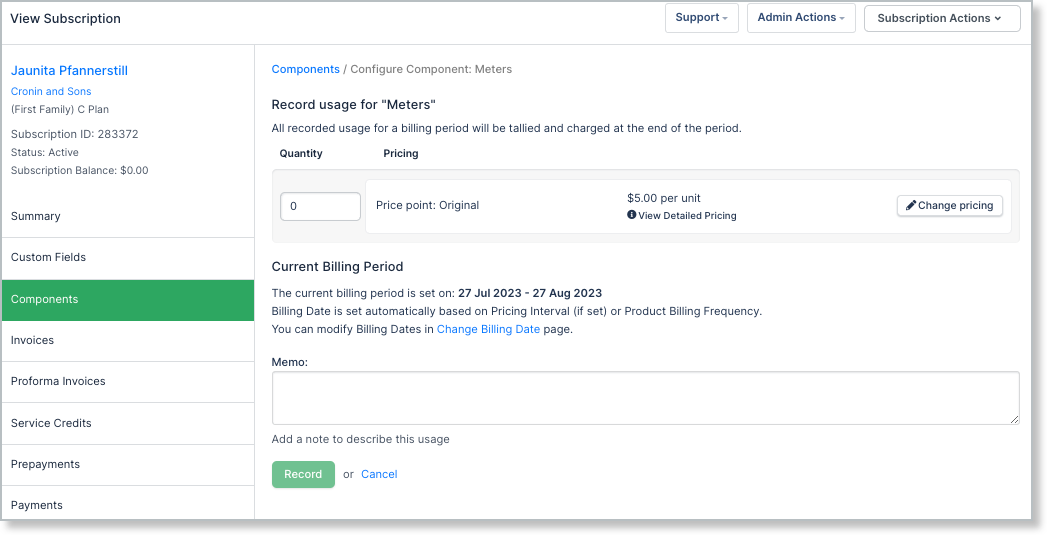
Recording usage for a metered Product - The quantity must be a whole number.
- If you enter a decimal value, Advanced Billing truncates the number instead of rounding it. For example, 5.5 becomes 5.
- All usage recorded during the billing period is totaled and charged at the end of the period.
Report quantity-based allocations
Quantity-based Products represent a set number of units purchased by the Customer. When you update the quantity, the new amount remains in effect until changed again.
One-time quantity-based Products reset to zero after allocation. Recurring quantity-based Products continue billing the set quantity each billing period.
For example, if you charge $100 per month per employee and set the quantity to three, Advanced Billing charges $300 every billing period until the quantity changes.
To update a quantity-based Product
- Navigate to the Subscription.
- Select the Products tab.
- Select the Product.
- Update the quantity as needed.
Report on/off Product status
On/off Products let you toggle a feature on or off for a Subscription.
To update an on/off Product
- Navigate to the Subscription.
- Select the Products tab.
- Select the Product.
- Toggle the status as needed.
Report prepaid Product status
Prepaid Products require two actions: purchasing prepaid units and recording usage against those units.
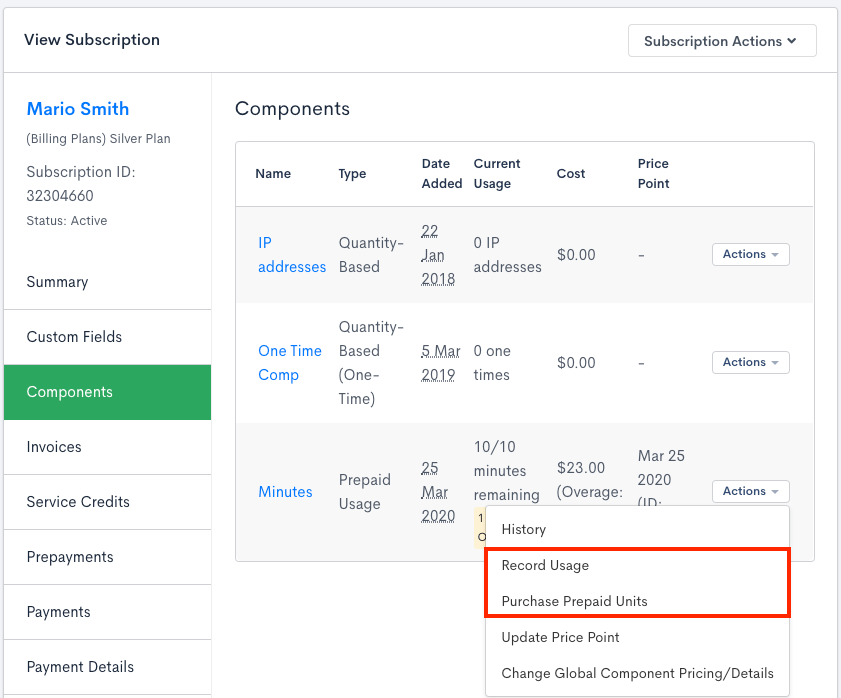
Purchase prepaid units
First, purchase prepaid units, also known as creating a prepaid allocation. Click More (...) next to the Product, then select Purchase Prepaid Units. This opens a drawer over the Products table, so you don't lose your place on the Subscription page.
The drawer opens on a Purchase Type toggle:
- One-time - Buy a set number of units as a single top-up. The units are available from now on and are invoiced immediately, and the purchase doesn't repeat.
- Recurring - Set a new ongoing recurring prepaid level instead of a single top-up. Raising the level bills the difference immediately. Lowering it takes effect at the next renewal, and can't go below the quantity already used this period.
Recurring is selectable only when the Product's current Price Point renews its prepaid allocation. On any other Price Point the option still appears, but it's disabled.
Below the toggle, enter the number of units and a Memo describing the allocation. A One-time purchase also asks how to handle an immediate Product payment failure, and, when the Product carries unbilled overage, whether to keep that overage and bill it as usual or offset it with this purchase. For a multi-frequency Subscription, you can also edit the current billing period's start date from this drawer.
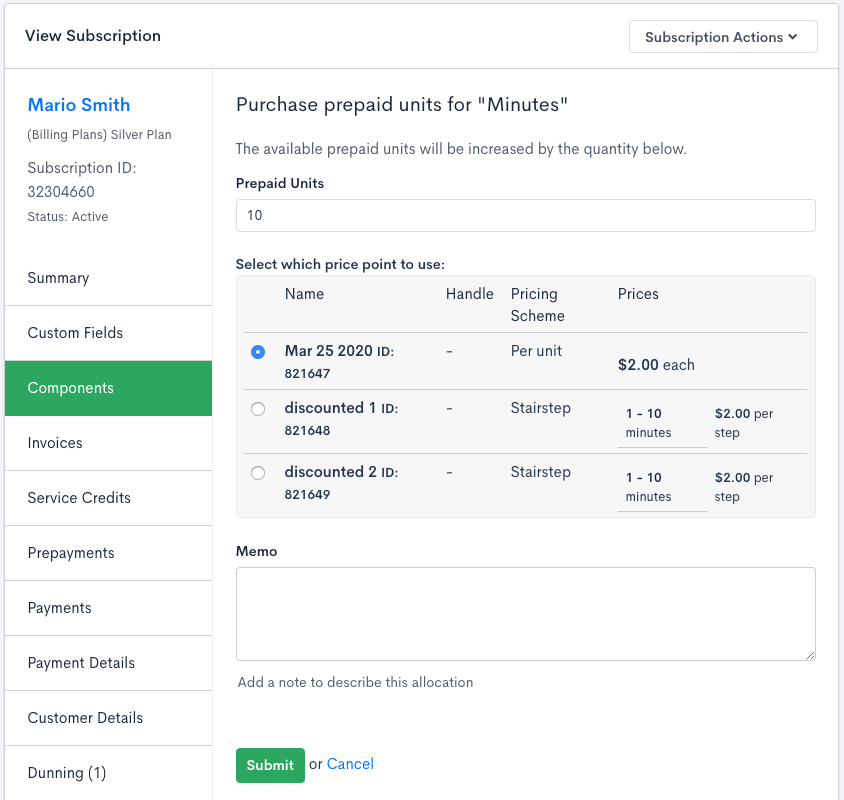
Click Purchase to save (or Decrease when lowering a recurring level). The drawer closes, a success message appears, and the Products table refreshes without navigating away from the Subscription page.
If a one-time purchase was entered by mistake, see Delete a One-Time Prepaid Purchase.
Record prepaid usage
After purchasing units, record usage as the Customer consumes them. If usage is recorded incorrectly, you can enter a negative quantity to reverse previously recorded usage.
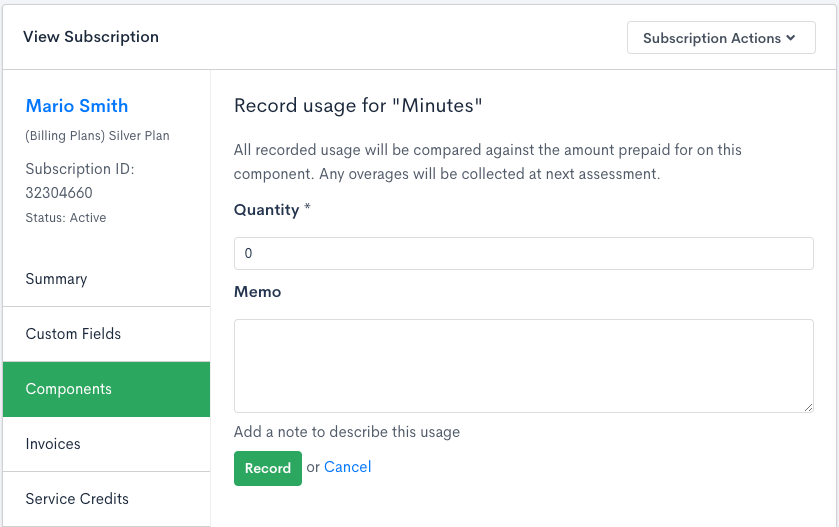
Current prepaid usage
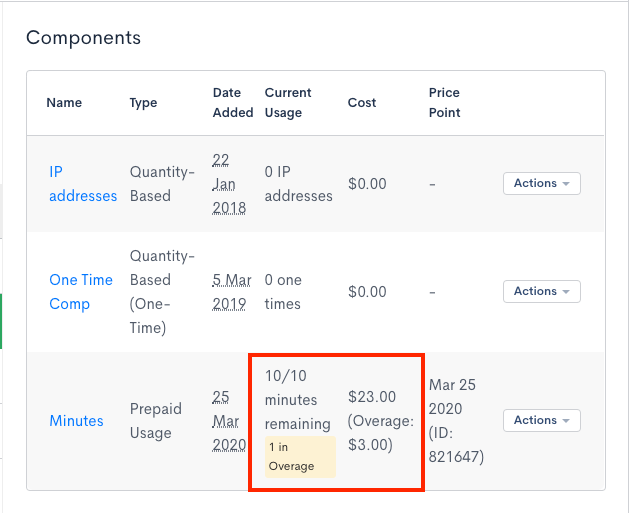
The Products table displays total usage compared to total prepaid allocations. If usage exceeds purchased allocations, Advanced Billing records overages and highlights them.
In the Cost column:
- The top number shows the total Product cost.
- The number in parentheses shows the portion attributed to overages.
For example, if a Subscription purchases 10 prepaid units at $2 each and records usage for all 10, the total cost is $20. If one additional unit is recorded as overage at $3, the total Product value becomes $23.
Related information
For how a quantity update like the one above is prorated and billed, see Configure Quantity Proration for Product Updates.
Still need help?
Reach out and our support team will take it from here.