
Manage Product Allocations for Different Payment Methods
Applies to: Advanced Billing
Last updated on Aug 29, 2026
Product Allocations accrue charges differently depending on whether a Subscription pays by invoice or automatically, and what happens when a charge fails depends on the Product type.
Important: To ensure accurate billing and revenue reporting, you must report each Product's status or amount to Advanced Billing. See Understand How Products Are Billed for how Product Allocations work.
Product Allocations for invoice-based subscribers
If you allocate any type of Product to an active Subscription that uses an invoice-based payment method, charges accrue until the next billing period. This applies under any proration scheme.
Product Allocations for automatic-based subscribers without a payment method
The same allocation rules apply to automatic-based Subscriptions. If a Subscription is active or past due, is configured to use an automatic payment method, but doesn't have a payment method on file, you can still allocate Products.
For automatic-based Subscriptions without a valid payment method:
- Allocated Products accrue charges until the next billing period.
- Under any proration scheme, charges accrue until the next billing timestamp.
Failed Product Allocations
If you allocate a Product to a Subscription and the charge fails, the outcome depends on the Product type.
Failed quantity-based Products
If you select Charge immediately and choose an upgrade charge option (prorated or full), and the payment fails, you see a warning: the payment for the upgrade charge was declined, but the quantity change was still applied, so the Subscription now has an outstanding balance. Advanced Billing attempts to collect this amount at the next renewal; you can choose to revert the quantity change instead.
In this scenario:
- The quantity change is saved.
- The outstanding balance increases by the failed charge amount.
- The charge accrues until the next renewal.
Failed metered Products
Metered Products aren't charged immediately when allocated. Metered Product allocations are always billed at the end of the billing period, so recording usage doesn't trigger an immediate payment attempt, even if the card on file is invalid.
When allocating a metered Product:
- The current balance doesn't increase immediately.
- The Product's usage is recorded on the Subscription.
- The allocation appears in the Activity tab.
- The Next Billing amount increases by the cost of the metered usage.
If the payment method fails at the next billing timestamp, the Subscription transitions to past due.
Failed on/off Products
On/off Products use proration. If an immediate charge fails, the behavior matches the quantity-based scenario described above: the allocation is saved, and the outstanding amount accrues until renewal.
Failed prepaid allocations
Prepaid Products don't use proration, but each allocation is charged immediately. If the payment fails:
- The allocation is saved.
- The outstanding amount accrues until renewal.
- The Subscription balance increases by the failed charge amount.
Choose what happens when the cost decreases
When you decrease the number of Products allocated to a Subscription, Advanced Billing gives you the following options:
- Credit the prorated amount of the difference in quantity
- Do Not Credit
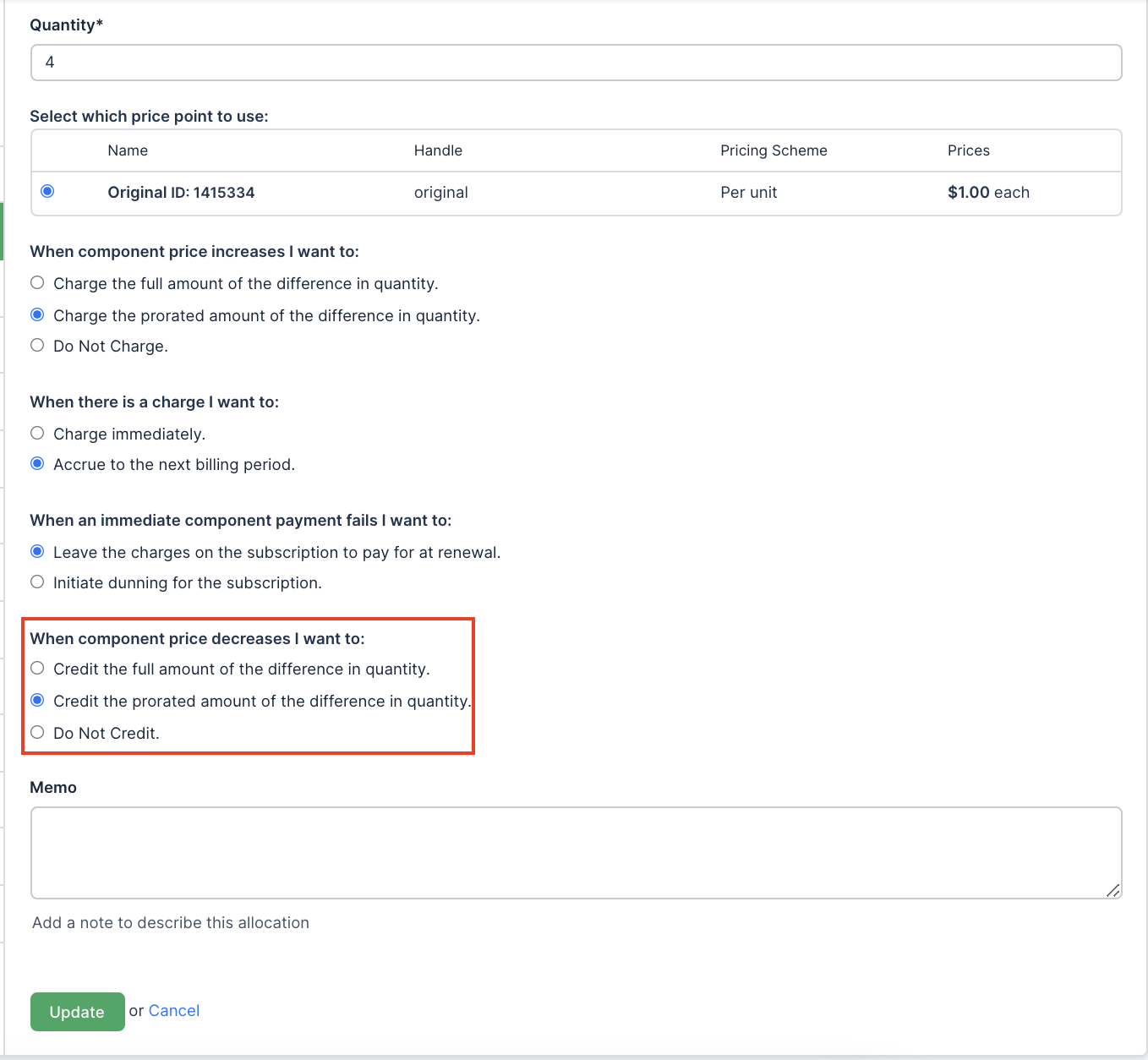
These settings determine whether a Transaction credit is generated when Product quantity decreases.
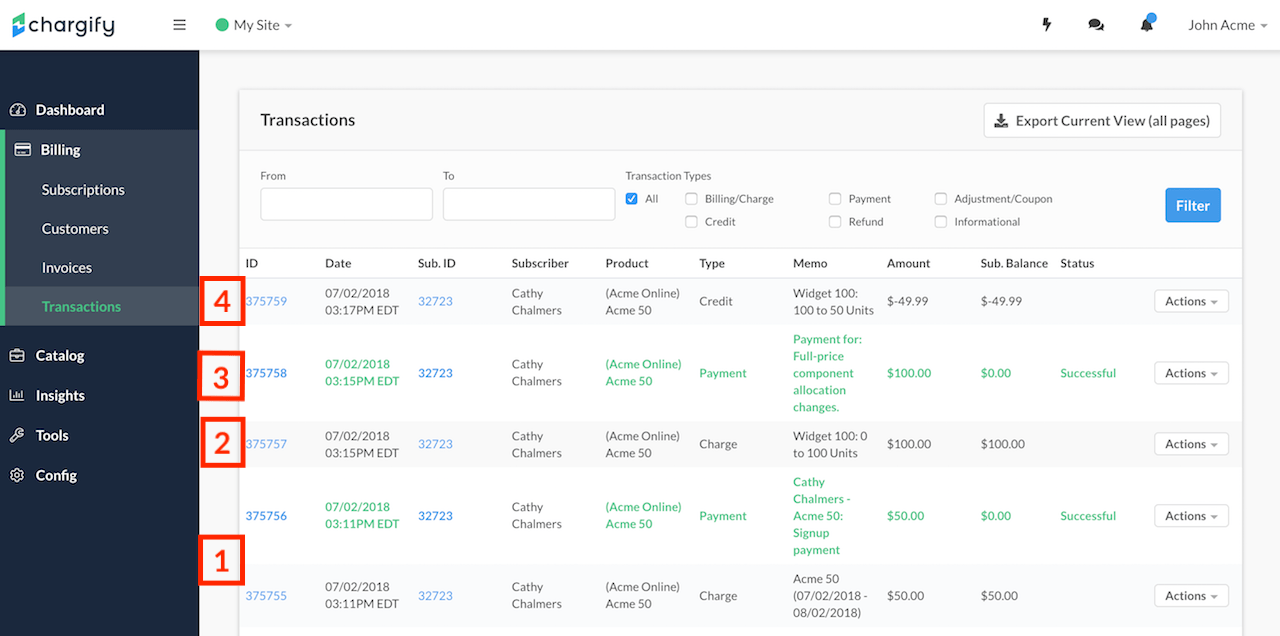
Example:
- On January 1, a Customer signs up for a $50.00/month Plan.
- On January 1, you allocate 100 quantity-based Products at $1 each, totaling $100.
- The Customer pays immediately for this Product allocation.
Then, depending on the option you selected:
- Credit the prorated amount of the difference in quantity - The Customer receives a Transaction credit for the unused portion of the billing period.
- Do Not Credit - No credit is generated.
Related information
For how the credit and charge options referenced above are configured, see Configure Proration Schemes for Products.
For how a quantity change is calculated and shown on an Invoice, see Configure Quantity Proration for Product Updates.
Still need help?
Reach out and our support team will take it from here.