
Understand Customer Hierarchies and WhoPays
Applies to: Advanced Billing · Maxio Core
Last updated on Aug 26, 2026
Customer Hierarchies and WhoPays let you organize Customers into parent/child relationships and assign billing responsibility across the hierarchy. These features support centralized billing, consolidated Invoices, and streamlined Subscription management. They're especially useful in SaaS billing scenarios such as reseller models, franchise operations, or when a parent Customer is responsible for child Subscriptions.
Enable Customer hierarchies and WhoPays
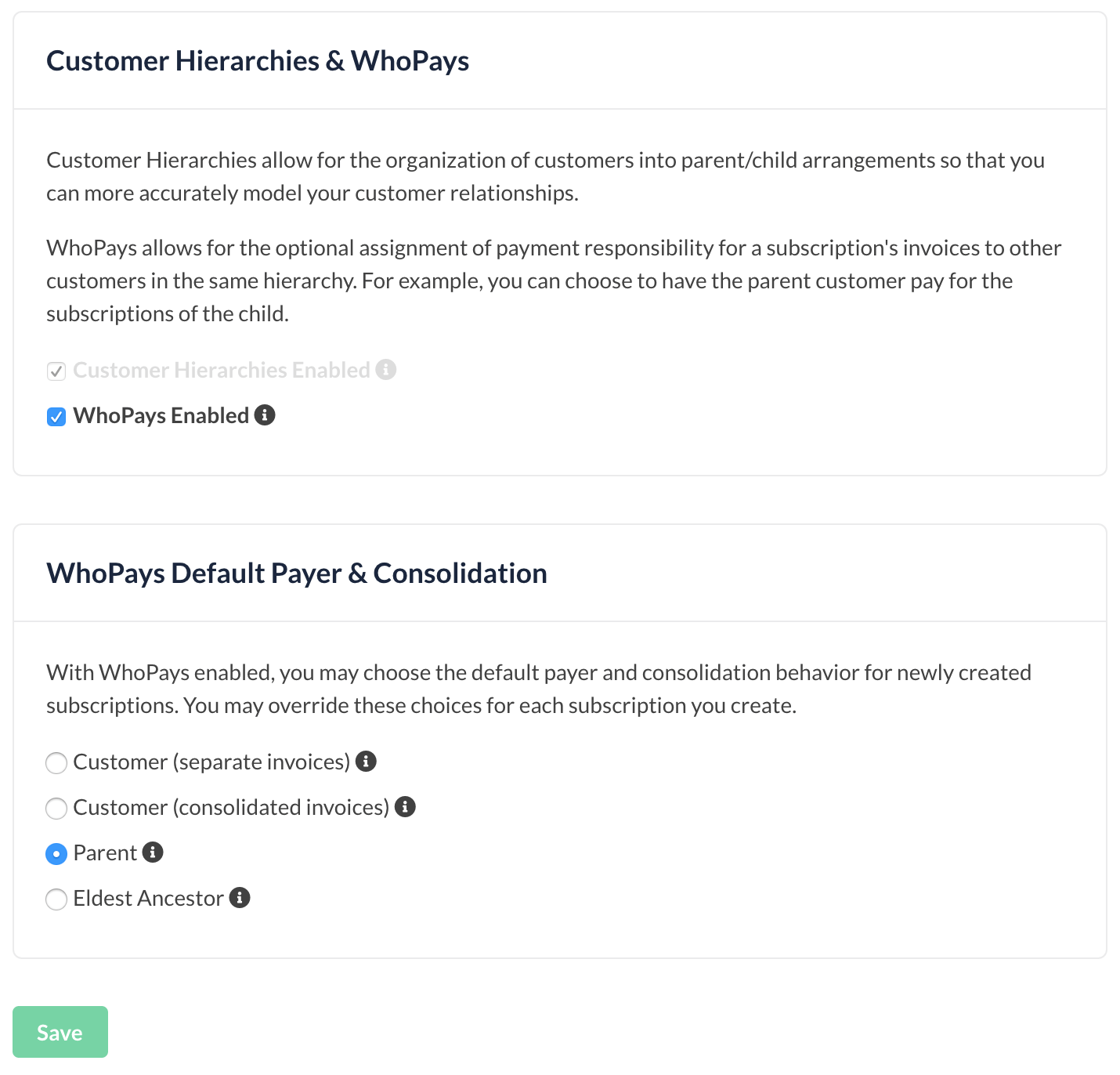
In the application's Settings > Configuration, enable Customer Hierarchies and WhoPays. Although they work together, they're independent:
- Enabling Customer Hierarchies alone lets you define parent/child structures without assigning payment responsibility.
- Enabling WhoPays requires Customer Hierarchies, since Advanced Billing only assigns payments to a related ancestor, not to any other Customer.
How hierarchies, WhoPays, and subscription groups work together
These four pieces build on each other:
- Customer Hierarchy: Defines relationships such as parent/child.
- WhoPays: Assigns billing responsibility up the hierarchy.
- Subscription Group: Invoices multiple Subscriptions as one.
- Consolidated Invoicing: Places grouped Subscriptions on one Invoice.
Example: If a parent is the payer for multiple child Subscriptions in a group, Maxio issues a single consolidated Invoice.
Choose a default payer
With WhoPays enabled, set a default payer and consolidation behavior for newly created Subscriptions. Override this choice for any Subscription you create.
- Customer (separate invoices): The Customer pays for each new Subscription themselves, each on a separate Invoice. This is the standard one-invoice-per-Subscription behavior.
- Customer (consolidated invoices): The Customer pays, but the new Subscription is grouped with their previous Subscriptions for a consolidated Invoice.
- Parent: The Customer's parent pays, and the new Subscription is added to the parent's default group.
- Eldest Ancestor: The Customer's eldest ancestor pays, and the new Subscription is added to that ancestor's default group.
Choose invoice consolidation options
When you assign WhoPays on a Subscription that's joining a group, choose how to handle its invoicing:
- Accrue charges until the group renewal: Collect charges but defer billing until the group's Invoice date.
- Align billing date with the group: Set the Subscription's cycle to match the group's cycle.
- Prorate billing for the current period: Issue a prorated Invoice from the start date to the group renewal date. This option only appears if you also select Align billing date with the group.
Limitations
- Parent accounts support unlimited children.
- Hierarchies support up to 10 levels deep.
- The Public Signup Page doesn't currently support creating Hierarchies, Groups, or WhoPays. Use the application or API instead.
- Once a Subscription Group is created, its primary Subscription is fixed and can't be changed. To use a different primary Subscription, remove all members from the group and create a new group.
Frequently asked questions
If I set up Customers into a hierarchy in Advanced Billing, is the parent field in Maxio Core automatically populated?
No. The Parent field in Maxio Core is not automatically populated from Advanced Billing. You must explicitly send this information via integration or API.
Can I change the primary subscription in a subscription group after creation?
No. Once created, the primary Subscription is fixed. To change it:
- Remove all members from the current group.
- Create a new group with a different primary Subscription.
Related information
To set up a parent/child relationship between Customers, see Set Up a Customer Hierarchy.
To create and manage Subscription Groups, see Create and Manage Subscription Groups.
To assign WhoPays on a specific Subscription, see Assign WhoPays to a Subscription.
To understand how a Subscription Group's Customer roles determine what syncs to Maxio Core, see Understand Customer Roles in Subscription Group Syncing.
Still need help?
Reach out and our support team will take it from here.