
Understanding How Dunning Works
Applies to: Advanced Billing · Maxio Payments
Last updated on Aug 28, 2026
Handle past-due accounts by communicating with Customers about failed payments and deciding what happens if a Subscription still can't be renewed. Advanced Billing lets you customize these communications and actions independently for each payment method, so your dunning strategy fits how you actually collect payment, whether that's a declined credit card Transaction or unpaid Invoice terms. Before relying on a dunning sequence in production, rehearse it — see Test Dunning and Simulate Payment Failures.
Key capabilities
Dunning processes generally consist of a series of emails sent at defined intervals to inform the Customer of the missed payment and prompt corrective action. For automated payment methods, retry attempts can also be configured. Because each payment method has unique characteristics, Advanced Billing lets you set up distinct dunning strategies for each one.
You can also choose the final action for Subscriptions that complete the dunning process but remain past due, either marking the Subscription "Unpaid" so it stays active and continues to accrue charges, or moving it to "Canceled" to restrict service access until payment is received.
Customizable elements of your dunning strategy include the frequency and quantity of Subscriber communications, the content of those messages, and the retry cadence for automated payment methods. Advanced Billing provides email templates for convenience, and you can also integrate Twilio to send SMS messages.
Automatic cancellation due to dunning
After a failed payment, Subscriptions transition to a past due state in Advanced Billing. At that point, the platform begins retrying the payment according to the configured dunning strategy. Once retries are exhausted, the schedule's configured Final Action determines what happens next: some schedules cancel the Subscription, others mark it unpaid instead.
Term Subscriptions are an exception once their term end date has passed. If a Term Subscription's term ends while it's still in dunning, the Subscription expires instead of staying past due — an active dunner no longer blocks expiration. After expiration, the dunner keeps retrying against the Subscription's existing open Invoice; no new Invoices, periods, or renewal charges are created. If the dunning strategy is exhausted after the Subscription has already expired, the Subscription is not canceled — it stays Expired. See Understand Subscription States for the full state reference.
If a payment fails due to a high-risk or fraud-related decline, Maxio disables the payment profile instead. This feature is only available for users with Maxio Payments and Advanced Billing. Future charges and dunning attempts can't succeed until the Customer adds a new payment method. See Understand Automatic Payment Profile Deactivation on High-Risk Events for the full behavior.
Collections status
In some cases, you may continue collecting on Invoices after the Subscription has been canceled due to dunning. The Cancellation of Invoices in Collections setting allows Invoices to remain in a "Collections" status for a specified number of days after dunning. After that period, the Invoice is marked "Canceled."
This setting is available under Config > Settings > Invoices. See Manage Invoices Settings for the full field reference.
Dunning by Plan or Plan Family
Advanced Billing allows Plan-specific or Plan Family dunning strategies in addition to site-level strategies for each payment method. A Plan-specific strategy overrides the site-level configuration.
To configure Plan-level dunning, go to Config > Retries & Dunning, then select Create Schedule to start a new schedule.
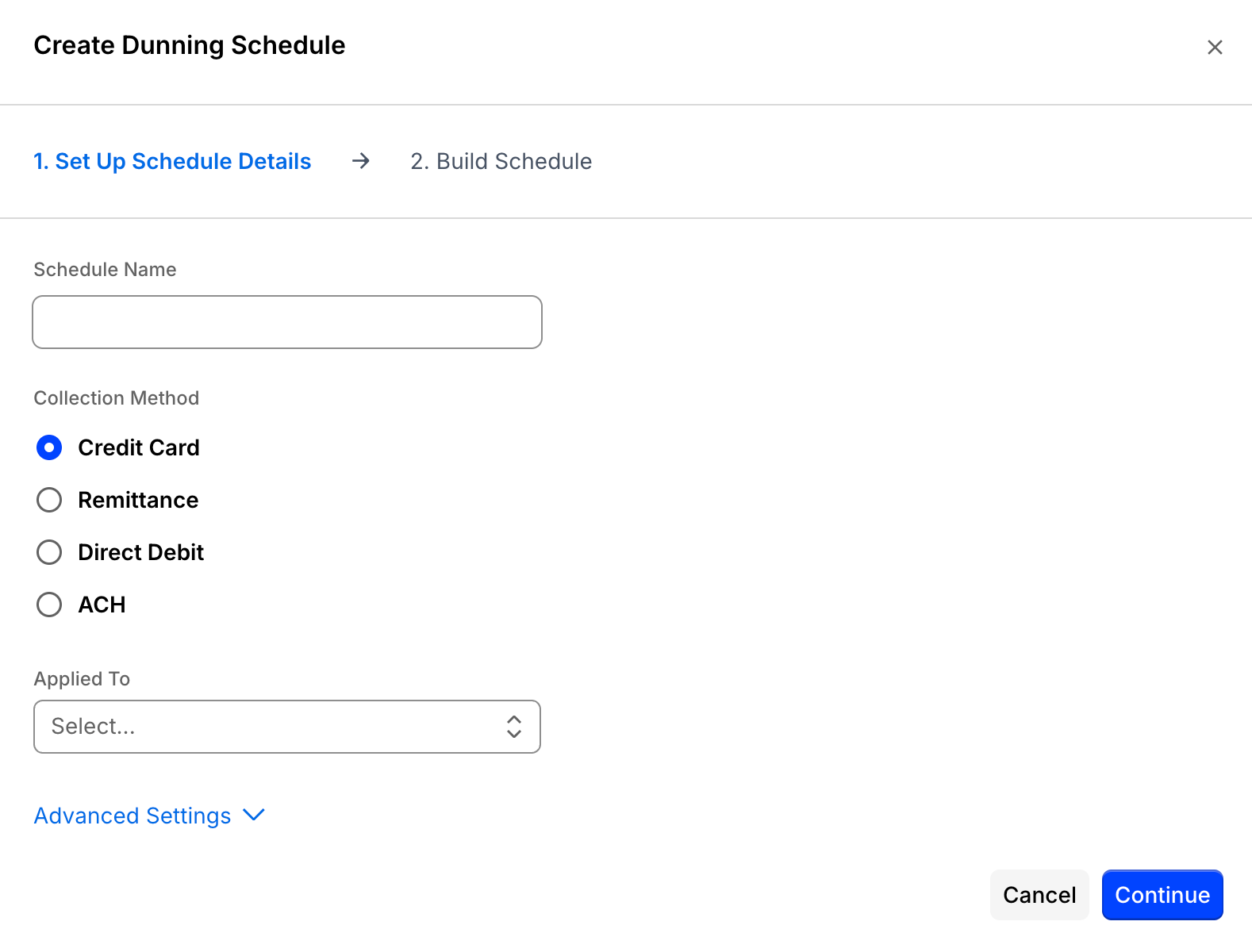
First, set up the schedule details: a name, a Dunning Type (Credit Card, Remittance, Direct Debit, or ACH), and, once a site-level (default) schedule already exists for that Dunning Type, an Applied To value naming the specific Plan or Plan Family the new schedule overrides it for.
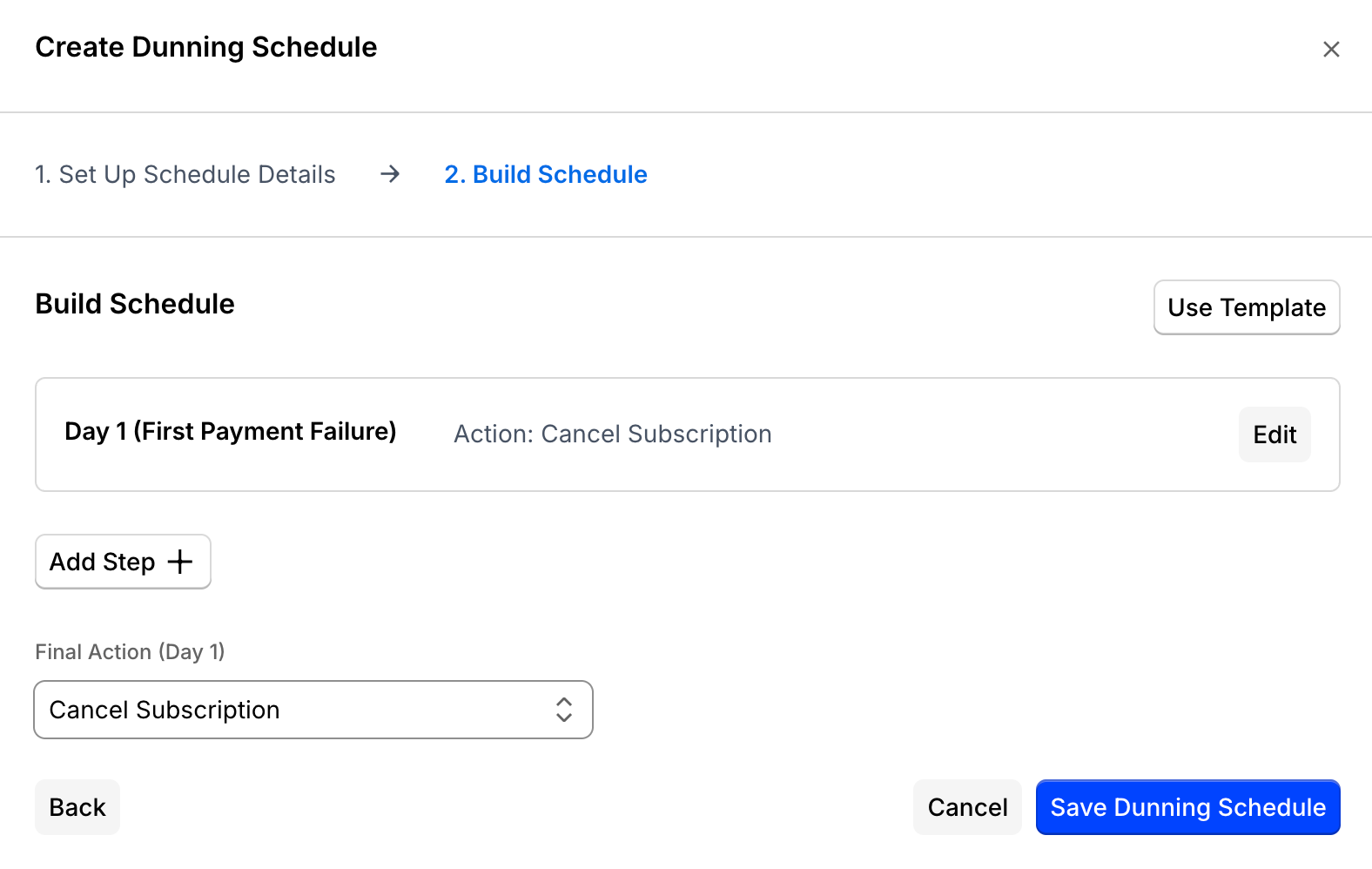
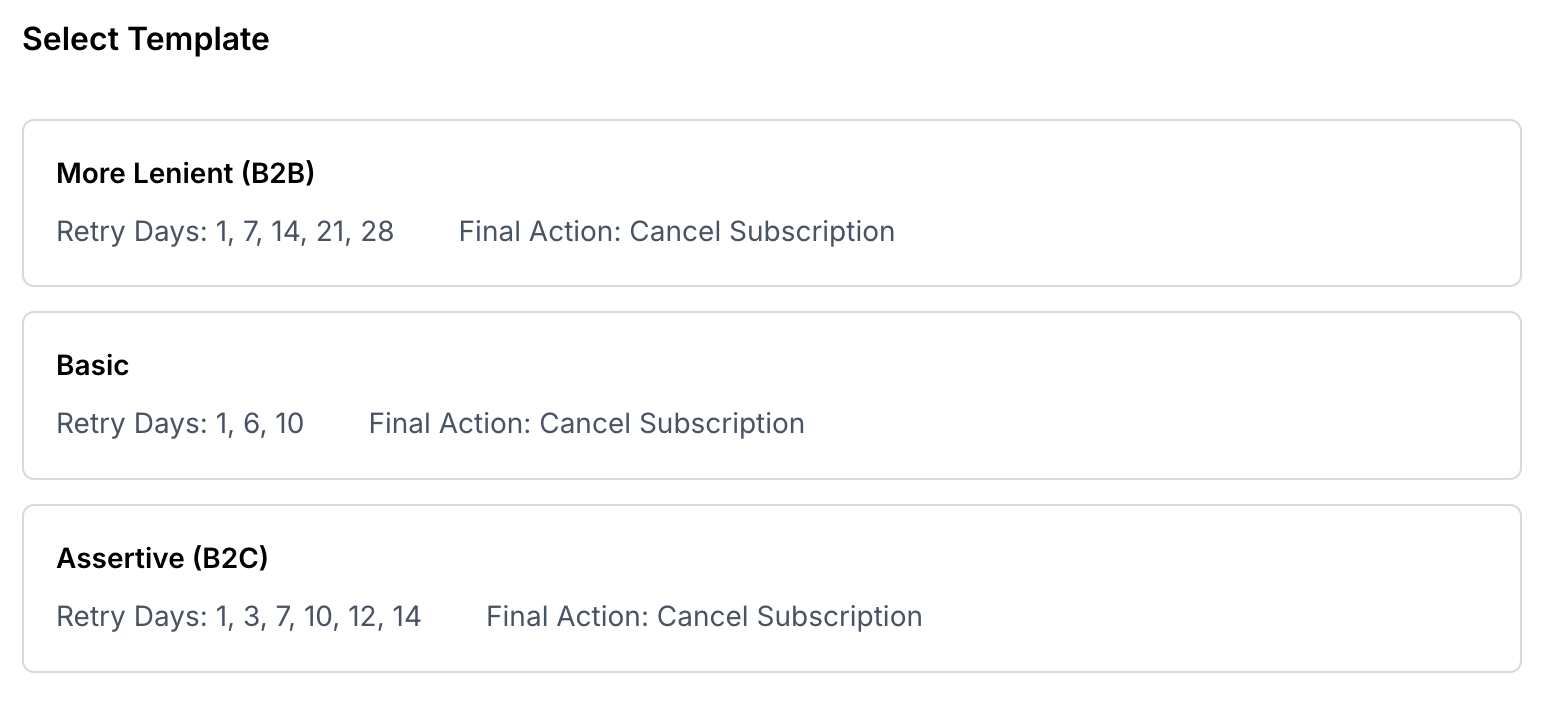
Next, build the schedule. You can either edit the pre-populated "Day 1 (First Payment Failure)" step and its Final Action, adding intermediary steps as needed, or select Use Template to start from one of three prebuilt schedules: More Lenient (B2B), Basic, or Assertive (B2C).
Once configured and saved, the Plan-specific dunning strategy appears in the payment method view (for example, Credit Card) and takes precedence over the site-level schedule for that Plan.
Visual timeline
Each schedule includes a Visual Timeline directly within the Dunning Schedules list, so you can see its structure at a glance.
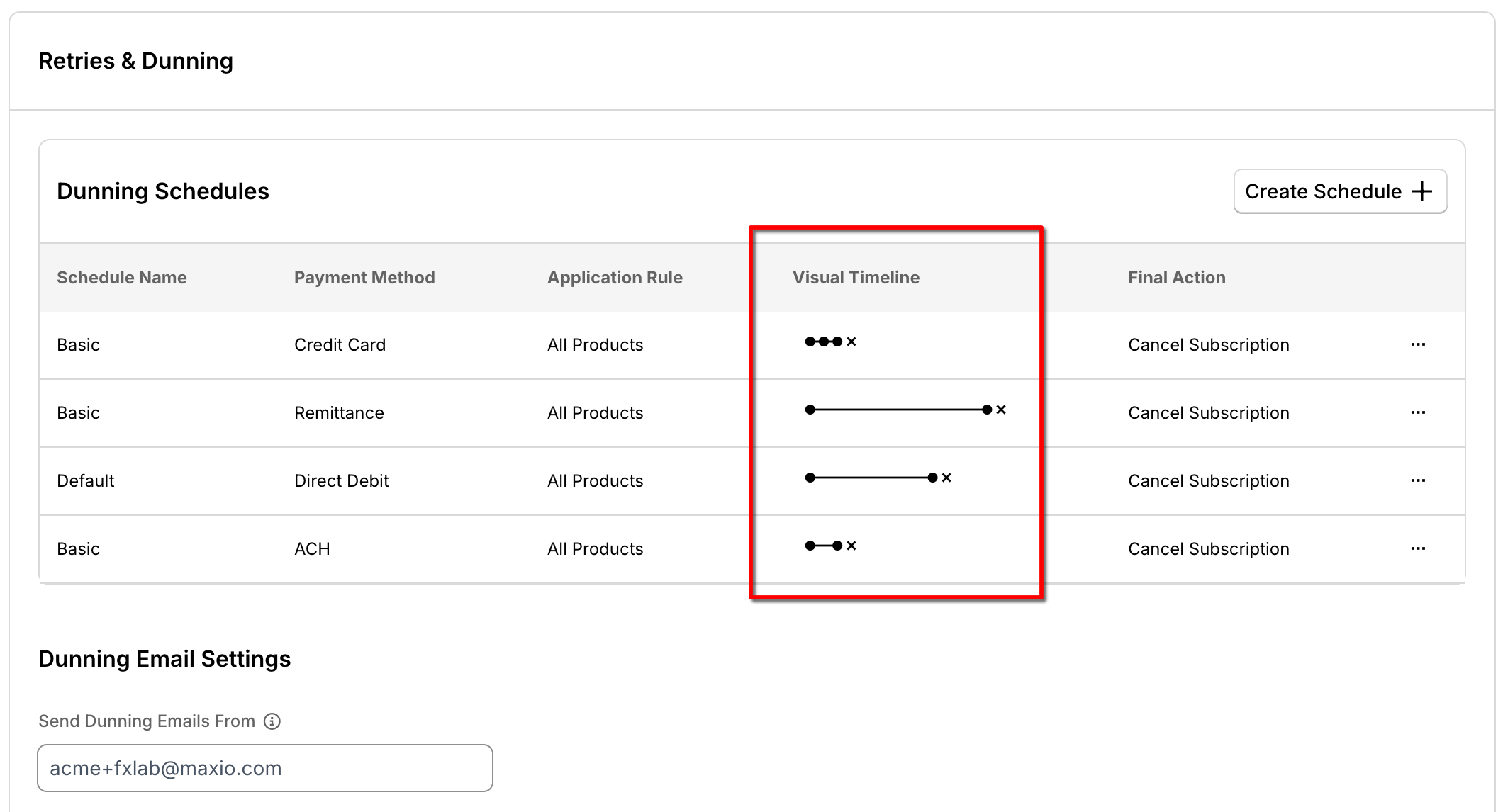
The timeline visually displays all scheduled touch points (emails, actions, etc.) relative to the full duration of the dunning schedule. Each filled circle, ●, represents a step in the dunning schedule, such as a retry attempt or email reminder. The X marks the final action taken at the end of the schedule, such as canceling the Subscription or marking the Invoice as unpaid.
The line between filled circles loosely represents the number of days between steps. Shorter lines indicate steps that occur closer together, such as daily retries (for example, the first timeline shown in the image above). Longer lines indicate more time between steps, such as retries that occur 14 days apart (as seen in the second timeline in the image).
Related information
To decide which schedule fits your payment method, see Choosing a Dunning Schedule.
For answers to common dunning scenarios, see Dunning FAQs.
To suppress dunning for one Subscription or restrict when its notifications send, see Set Dunning Exemptions and Notification Timing.
Still need help?
Reach out and our support team will take it from here.