Select Create New Customer to add a new customer to your Advanced Billing site. You will be required to add first name, last name and email as a minimum.
If you have any “Customer” based Custom Fields you will be presented with the option to set those fields on customer create.
| Option | Description |
|---|---|
| Organization | Specify the name of company or organization of the customer. |
| Reference ID | Specify a unique ID for a subscription. Please be aware the reference IDs are not case sensitive. Reference IDs must be unique across all your subscriptions; 2 customers may not share the same reference ID. |
| Business Type | The customer’s business classification, if applicable. |
| Primary Contact First Name | Specify the first name of the customer. This will be the first name noted on the subscription. |
| Primary Contact Last Name | Specify the last name of the customer. |
| Primary Contact Email | Specify the email address for your customer. |
| Primary Contact Phone | Provide a phone number for a customer. |
| CC Emails |
Add additional email addresses for your customer. Any CC emails included here will receive a copy of all associated communications for the subscription. Emails of this nature fall into the category of statements, receipts, cancellation confirmation and dunning notices. At this time, a customer may have a maximum of 5 CC email addresses. Any email addresses added to the cc field will not receive Billing Portal-related emails. This includes invitations, even once access to the Billing Portal has been enabled. See the portal login flows article for more information. |
| Default Auto-Renewal Profile | Set the default renewal behavior for this customer’s subscriptions, including whether they auto-renew and when renewal invoices are generated (for example, 1 week or 1 month in advance, or upon expiration). |
| Shipping Address 1/2/3 | Specify the street address(es) for the customer’s shipping location. |
| Shipping Country | Specify the shipping country for the customer. The entry for country must adhere to the ISO Standard for Country codes when submitted to Advanced Billing via API. |
| Shipping State | Specify the shipping state for the customer. The entry for state must adhere to the ISO Standard for State codes when submitted to Advanced Billing via API. |
| Shipping City | Specify the shipping city for the customer. |
| Shipping Zip Code | Specify the shipping postal or zip code for the customer. |
| Tax ID |
Enter a valid Tax ID for a subscription. In order for a Tax ID to be valid, please do not include the country ISO code in the Tax ID text input. For example: If the true Tax IDr is For more information on taxes, please see our documentation here. |
| Tax Exempt | Setting the customer as tax exempt will result in no taxes being assessed on any of their subscriptions. For more information on tax exempt subscriptions, please view our documentation |
| Locale Language | Select the default language used for invoices and communications. |
| Locale Country | Select the country used for currency, taxation, and localization. |
Verified for ACH/eCheck Payments
Verifying a customer for ACH allows them to enter their bank account information, which they can do via the Self-Service Page. ACH guidelines put the responsibility on you, the merchant, to know your customer well enough to trust them to enter valid bank account info. Therefore, we recommend that you enable ACH payments only for customers with whom you have some trust.
Maximum Length
The maximum length of each field within the customer object is 255 characters. The exception to this rule is the VAT field.
Custom Fields
We will show any associated custom fields for a customer and allow the editing of existing values or the deletion of the data:
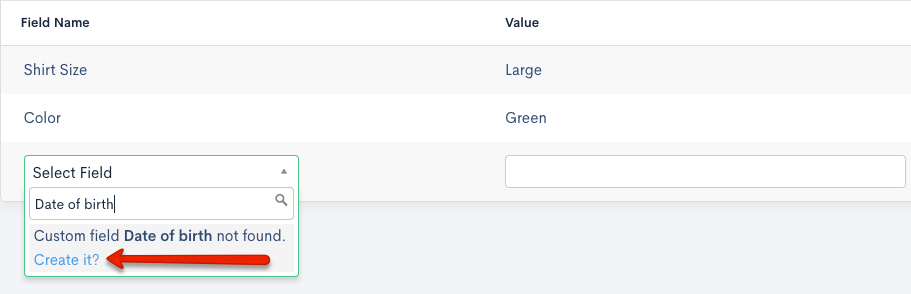
From the “Select Field” dropdown you can add new data to existing custom fields for the customer. In addition you can create new customer custom fields by typing in a name of a custom field that doesn’t exist yet.
Comments
Article is closed for comments.