
Design Your Catalog: Use Metering with Products
Applies to: Advanced Billing
Last updated on Aug 28, 2026
Connect a Meter to a metered Product to charge customers based on usage. Metered Products define pricing, segmented rates, and how measured usage appears during billing. After the Meter is connected, Maxio applies the Meter's usage values to Product pricing at billing time.
Important: Create a Stream and Meter before connecting one to a Product.
How metered products work
A metered Product is the billing object that holds pricing and appears on customer invoices. The Meter supplies the usage value.
The relationship is:
Meter → Metered Product → Subscription → Invoice
Key rules:
- A Product can be attached to only one Meter.
- Meter selection cannot be changed once a subscription has activated event-based billing on that Product.
- Product names appear on invoices exactly as entered.
Step 1: Create a Product
To create a Product:
-
Go to Catalog > Products.
-
Click Create Product.
-
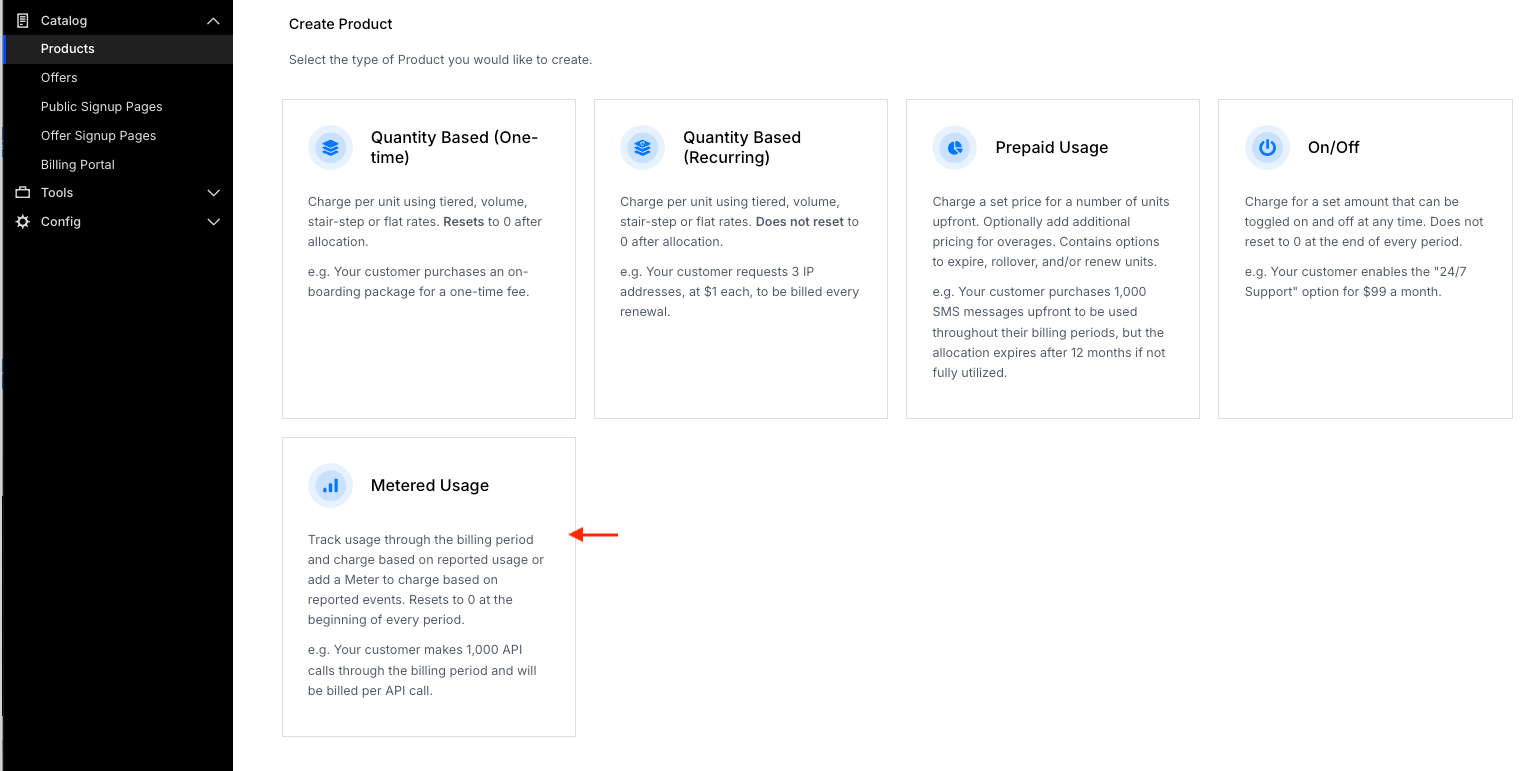
Select Metered Usage as the Product type.
-
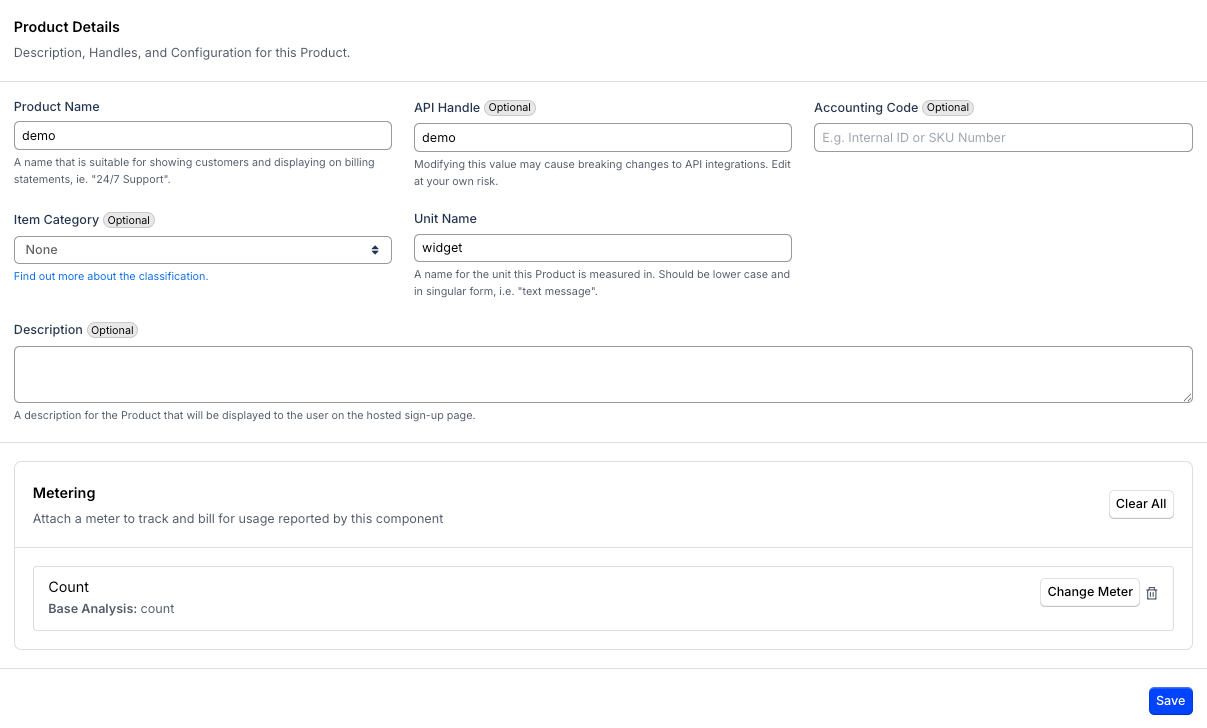
Under Product Details, in Product Name, enter the product name. This name appears on customer invoices.
-
Under Product Pricing, select a Pricing Scheme.
Pricing scheme Use when Per Unit You charge a flat rate per usage unit. Tiered The rate changes at usage thresholds, and each tier rate applies only to usage within that tier. Volume Based A single rate applies to all usage based on which tier the total falls into. Stairstep You charge a flat fee per tier, based on total usage. 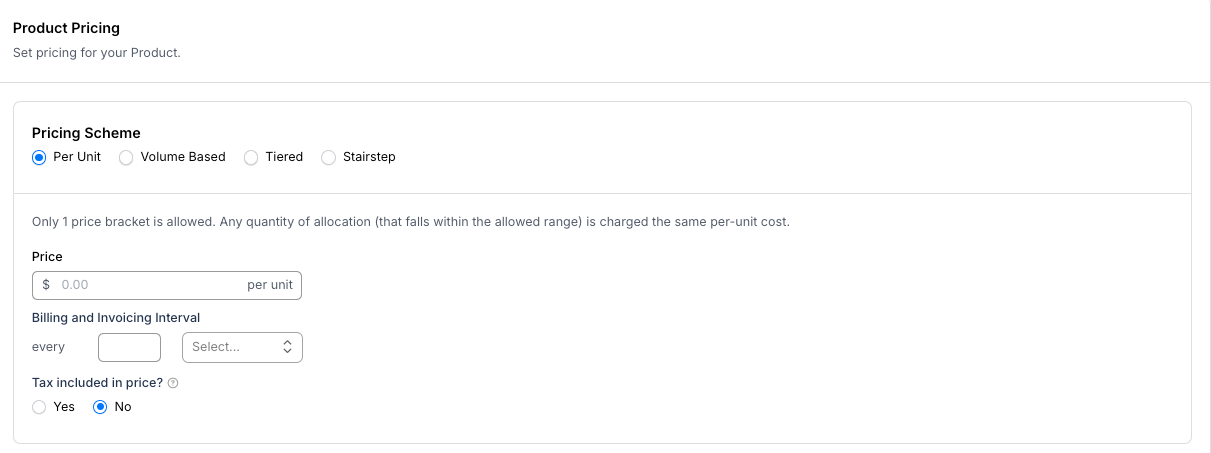
-
Click Create Product.
Step 2: Attach a Meter
A new Product isn't connected to a Meter yet. Attach one from the Product's edit page:
-
Open the Product you just created.
-
Under Product Details, in the Metering section, select a Meter to attach.
-
Click Save.
Step 3: Set up segmented pricing
This step only applies if your Meter uses a Segment. If it doesn't, skip to Step 4.
Maxio calculates usage separately for each Segment value. Define pricing for each Segment value on the Product.
Example: A Meter segments usage by region with values us-east, eu-west, and ap-southeast. Set a different per-unit price for each region on the Product.
To handle Segment values without explicit pricing, configure a catch-all Segment using the wildcard value. Maxio matches incoming events to the most specific Segment first, and falls back to the catch-all price only when no explicit Segment matches. After setting the catch-all price, define prices for each Segment value that needs separate pricing.
Segment value matching is case-sensitive. Confirm that event values exactly match the Segment values defined on the Product.
Step 4: Add the Product to a Subscription
After creating the metered Product, add it to the Subscriptions that should use usage-based billing.
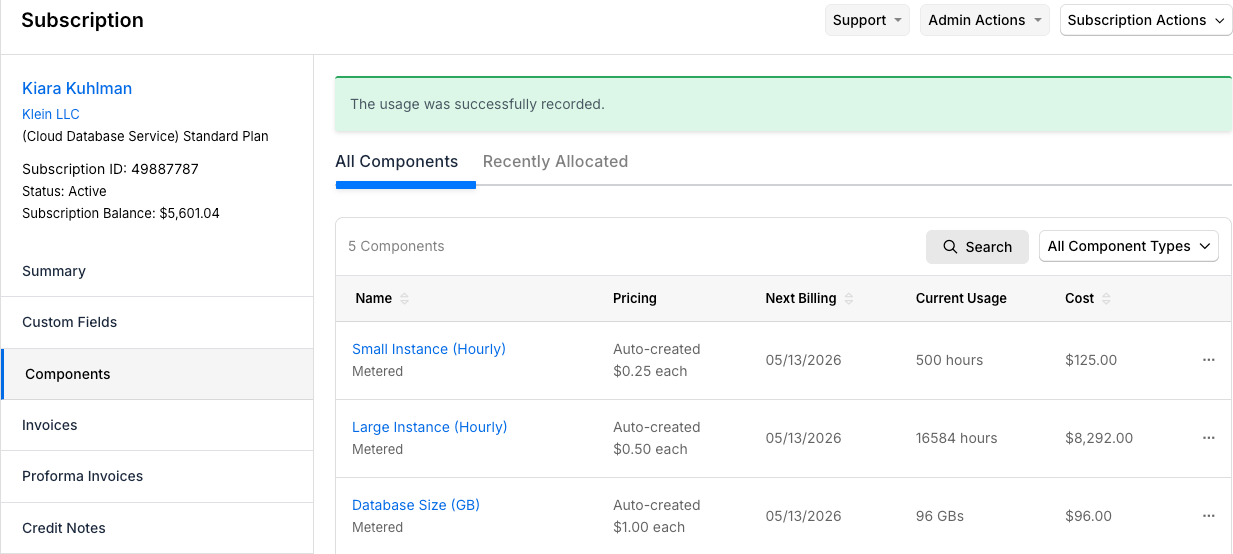
Note: The subscription-level tab for this is still labeled Components, regardless of catalog terminology.
- Open the Subscription.
- Go to the Subscription's Components tab.
- Add the metered Product.
- Confirm the Product pricing and Segment pricing.
- Save your changes.
Step 5: Review billing results
After usage is sent and the Subscription renews, review the generated Invoice charge.
Step 6: Confirm before going live
Confirm the following before using the Product in production. Some Product settings are difficult or impossible to change after a Subscription is active, so catching a mistake now avoids a billing error or an incorrect Invoice a customer has already seen.
Changes that are hard or impossible to make after Subscriptions are active:
- The Meter attached to the Product
- The Pricing Scheme
- The Product name (appears on invoices exactly as entered)
Before going live, confirm:
- The Meter is receiving events and calculating usage as expected.
- The Product uses the correct Pricing Scheme.
- The Product belongs to the correct Product Family and has been added to the appropriate Subscriptions.
- If using segmented pricing, Segment values match incoming event field values exactly, and catch-all pricing is configured for any unmatched values.
- A test Invoice reflects the expected charges.
Related information
For help creating a Stream and Meter, see Get Started with Maxio Metering or Configure Maxio Metering.
For a full explanation of Metering objects, see Understand Streams, Meters, and Segments.
For billing behavior and timing, see Understand Meter Results in Billing.
Still need help?
Reach out and our support team will take it from here.