---
title: Configure the State Sales Report
url: https://docs.maxio.com/insights/finance-reports/configure-the-state-sales-report
applies_to: Maxio Core
updated: 2026-10-21
---
# Configure the State Sales Report
Use the State Sales Report to summarize Revenue or Invoices by one of two available State fields:
- Customer: State
- QuickBooks Profile: State

## Configure options
Go to **Reports > Add Report > Finance Reports > State Sales** to open the report builder.
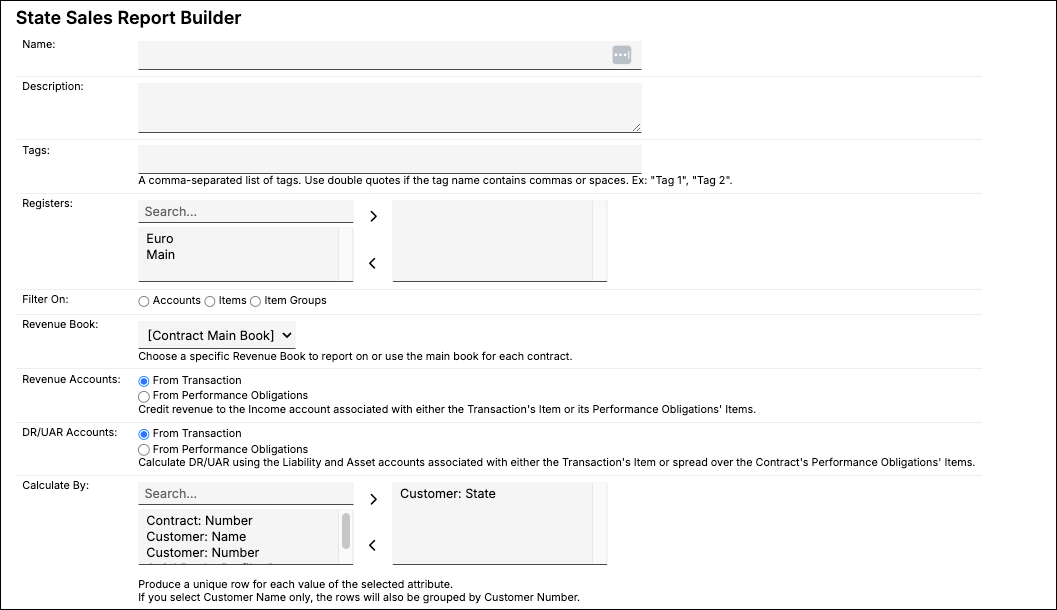
| **Option** | **Description** |
| :--- | :--- |
| Currency Presentation | Choose **Home Currency** or **Local Currency**. Only appears if multicurrency is enabled in your account. |
| Registers | Select one or more Registers. If none are selected, all are included. |
| Filter On | Choose whether to scope the report by **Accounts**, **Items**, or **Item Groups**, then select one or more of the chosen type. If none are selected, all are included.
For important caveats when selecting Items or Accounts, see Items, Accounts, and Filters in Finance Reports. |
| Date Range | Select fixed Custom Dates or one of the date range options. |
| Periodicity | Choose **Monthly**, **Quarterly**, or **Yearly**. |
| Calculate By | Select one or more fields to add a row for each unique combination:- Customer: State - selected by default.
- QuickBooks Profile: State - only available if your account has QuickBooks integration enabled.
- Customer: Name
- Customer: Number
- Contract: Number
|
| Operation | Select **Revenue** or **Invoices**. |
| Revenue and Invoice Filters | Select one or more filters and appropriate matching criteria to filter in or out relevant Transactions and or Invoice Line Items. All filters are combined with AND logic.
For important caveats when using Revenue and Invoice Filters, see Impact of Filters on Deferred Revenue and Unbilled AR. |
## Customer: State versus QuickBooks profile: State
Calculate By offers two different State fields, pulled from two different sources, so it's worth knowing which one you're using.
**Customer: State** (labeled *State/Province* in the Customer's Analytics Information section) is selected by default. It's an independent field on the Customer record.
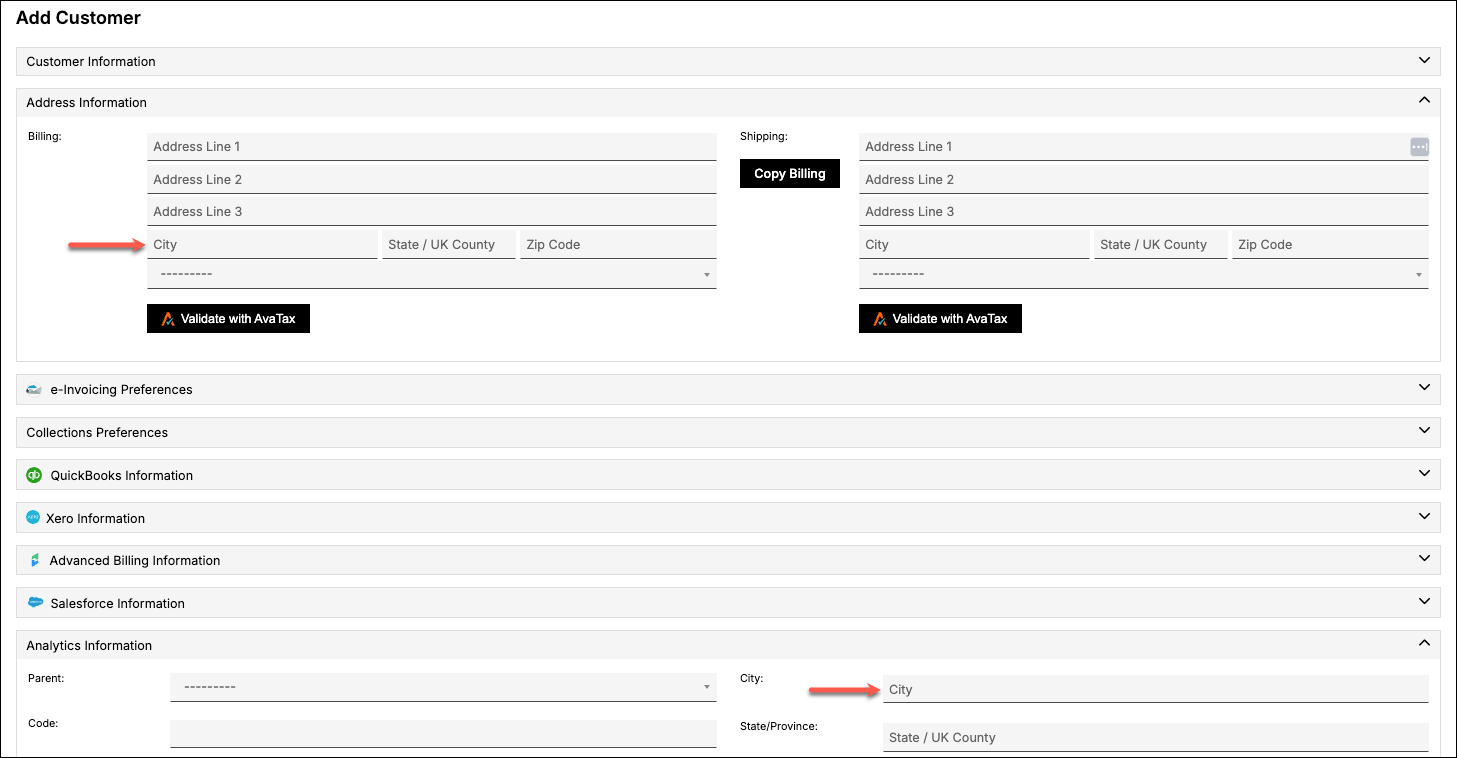
If your account has QuickBooks integration enabled, you can select **QuickBooks Profile: State** instead. This pulls the State/Province field from the Contract's QuickBooks Billing Profile, a separate field from Customer: State that isn't kept in sync with it. The two values can show different states for the same Customer.
## Report results
The Calculate By fields Customer: Name, Customer: Number, and Contract: Number are drill-down hyperlinks in all variations of the report. Drill-down by Customer: State or QuickBooks Profile: State isn't available. When the report's Date Range covers more than one period, a **Full Range** totals column is also added automatically.