---
title: Manage Advanced Billing Subscriptions in Salesforce
url: https://docs.maxio.com/selling/salesforce-for-advanced-billing/using/manage-advanced-billing-subscriptions-in-salesforce
applies_to: Advanced Billing
updated: 2026-08-29
---

# Manage Advanced Billing Subscriptions in Salesforce

Manage a Subscription's state, Product, coupons, and renewal settings directly from Salesforce, and add new Subscriptions from an Opportunity when a deal closes.

## Control a Subscription's state

Open the Subscription in Salesforce to control its state in Advanced Billing.
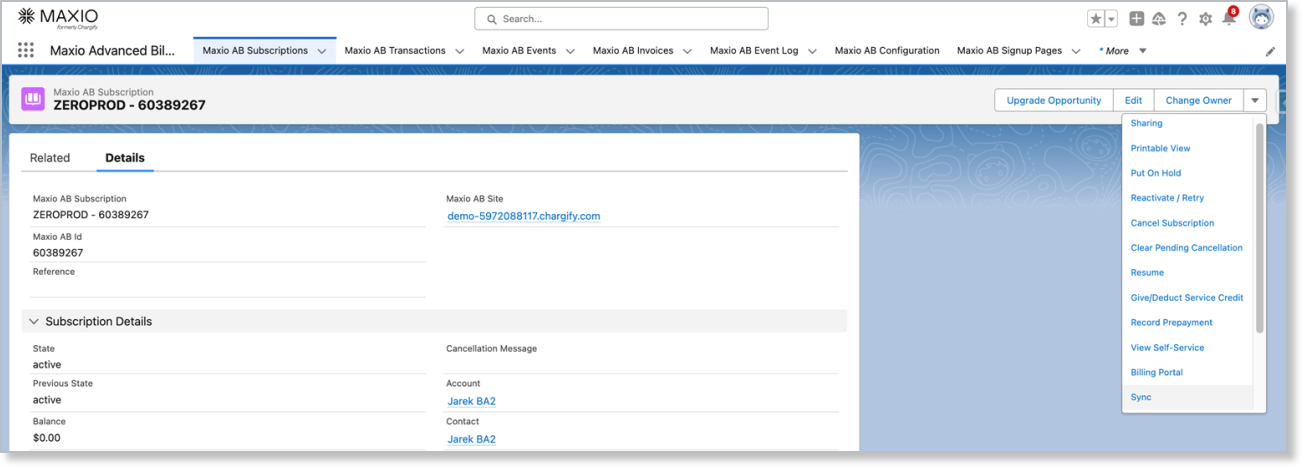
![a Salesforce Subscription record with the Subscription Actions menu open down the right side](https://docs.maxio.com/content-images/selling/salesforce-for-advanced-billing/using/manage-advanced-billing-subscriptions-in-salesforce/24294634041869_co_UsingSFIntegration_SubscriptionActions.png)

This menu includes:

- **Cancel Subscription** - Cancels the Subscription in Advanced Billing, either immediately or at the end of the period. You can add a churn code and notes.
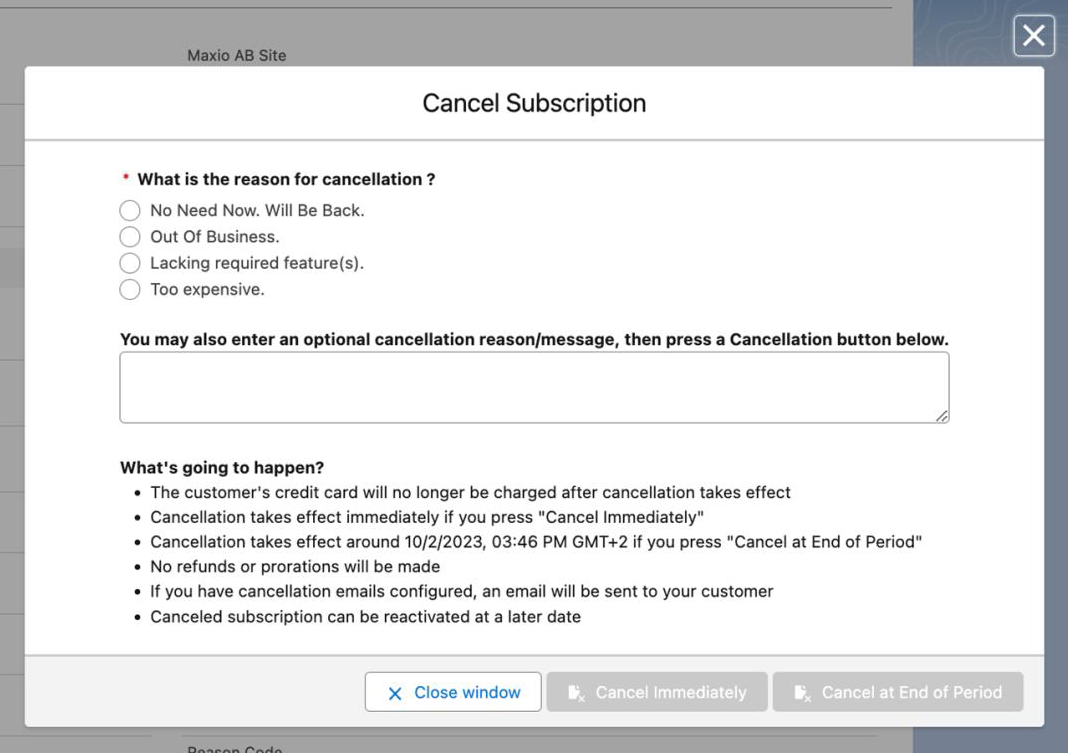
  ![the Cancel Subscription dialog listing cancellation reasons, with buttons to cancel immediately or at end of period](https://docs.maxio.com/content-images/selling/salesforce-for-advanced-billing/using/manage-advanced-billing-subscriptions-in-salesforce/24294607621901_co_UsingSFIntegration_SubscriptionActions_Cancel.png)
- **Reactivate / Retry** - Moves a canceled Subscription back to active.

  > Any amount due is expected immediately on reactivation. If payment fails, the Subscription stays canceled.
- **Clear Pending Cancellation** - Removes an upcoming cancellation already placed on the Subscription.
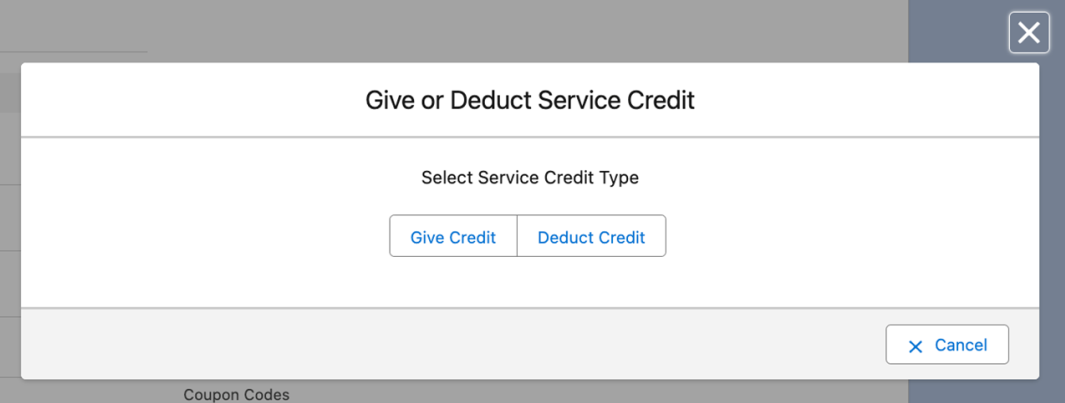
- **Give/Deduct Service Credit** - Gives or deducts a service credit from the Subscription.
  ![the Give or Deduct Service Credit dialog asking which credit type to apply](https://docs.maxio.com/content-images/selling/salesforce-for-advanced-billing/using/manage-advanced-billing-subscriptions-in-salesforce/24294611646349_co_UsingSFIntegration_SubscriptionActions_Give-Deduct01.png)

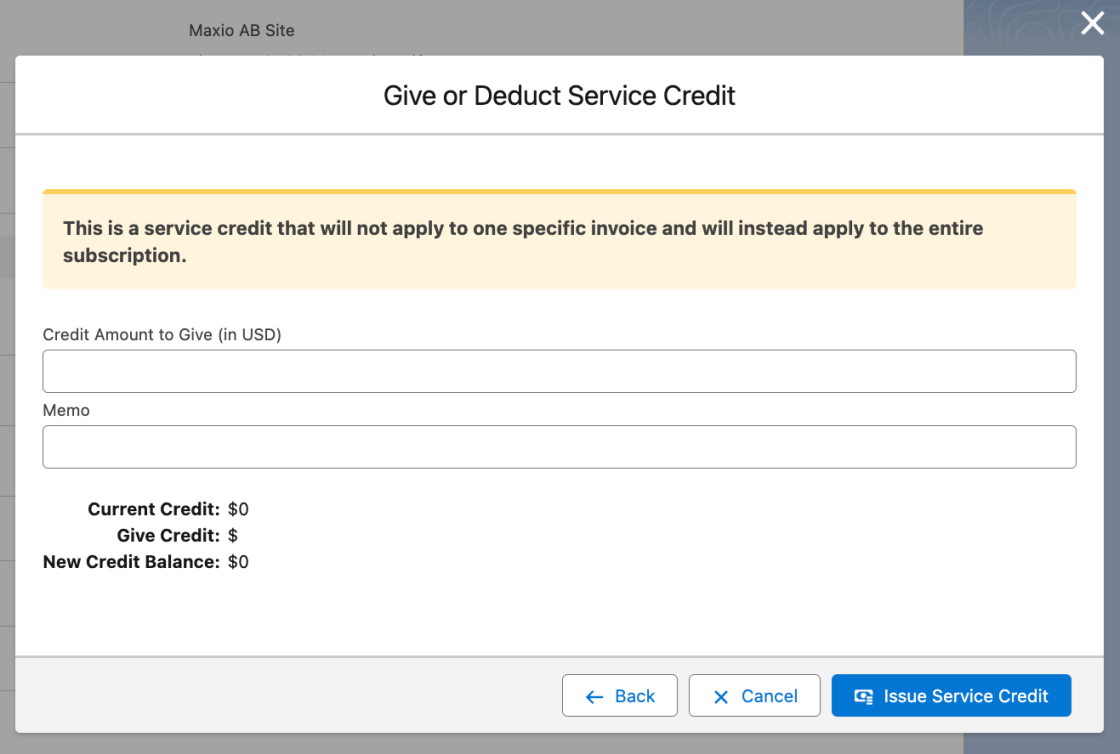
  Choosing **Give** or **Deduct** takes you to a screen where you enter the amount.
  ![the service credit amount screen with a credit amount field, a memo box and the resulting new credit balance](https://docs.maxio.com/content-images/selling/salesforce-for-advanced-billing/using/manage-advanced-billing-subscriptions-in-salesforce/24294634284813_co_UsingSFIntegration_SubscriptionActions_Give-Deduct02.png)
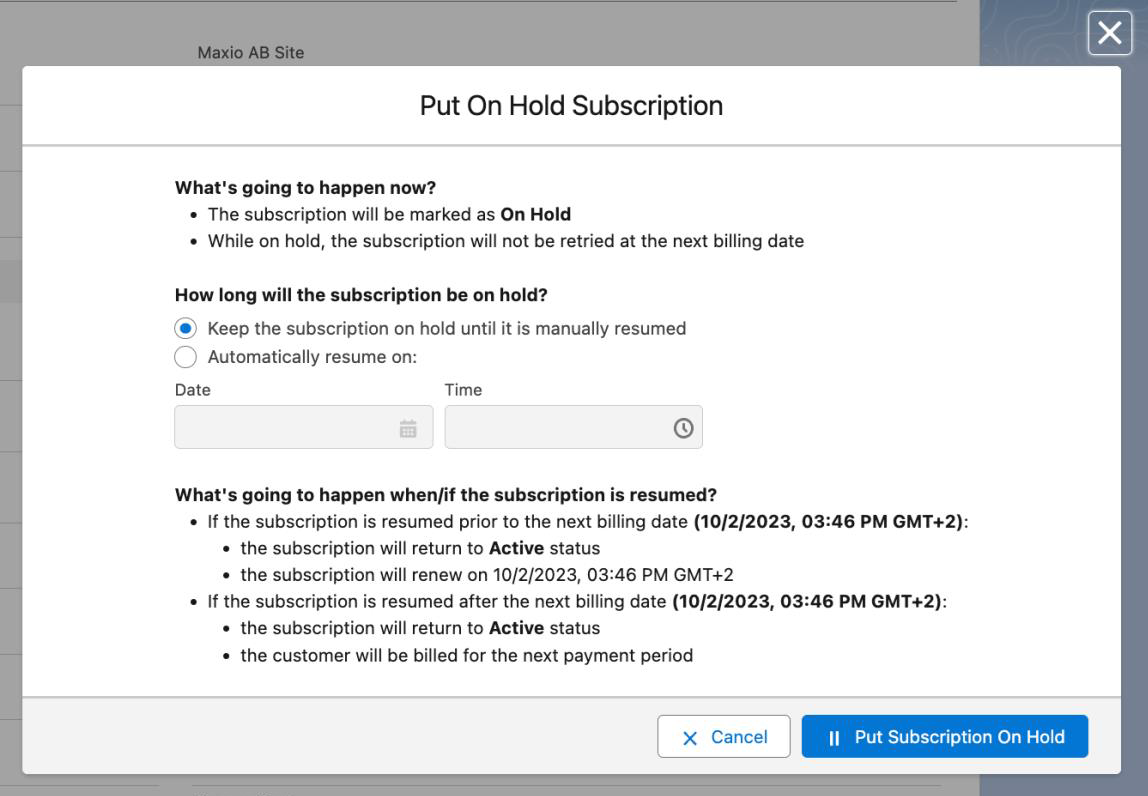
- **Put On Hold** - Moves the Subscription to an On Hold state, with options for how long to hold it. See <a href="https://docs.maxio.com/billing/subscriptions/management/state-management/put-a-subscription-on-hold" target="_blank" rel="noopener noreferrer">Put a Subscription on Hold</a> for more.

  ![the Put On Hold Subscription dialog, offering a hold until manually resumed or an automatic resume date](https://docs.maxio.com/content-images/selling/salesforce-for-advanced-billing/using/manage-advanced-billing-subscriptions-in-salesforce/24294612103821_co_UsingSFIntegration_SubscriptionActions_PutOnHold.png)
- **Resume** - Removes the Subscription's On Hold state.
- **Edit Term** - Available for active Subscriptions on sites with Multi-Frequency enabled. Opens a dialog where you can select a new end date or mark the Subscription as evergreen, which clears its end date.

The same menu also includes **Record Prepayment**, **View Self-Service**, **Billing Portal**, and **Sync**, for recording a prepayment, viewing the customer's self-service view, opening the Billing Portal, and manually triggering a sync.

## View billing intervals

Reference each Subscription's billing intervals directly in Salesforce, for both Product and Component billing.

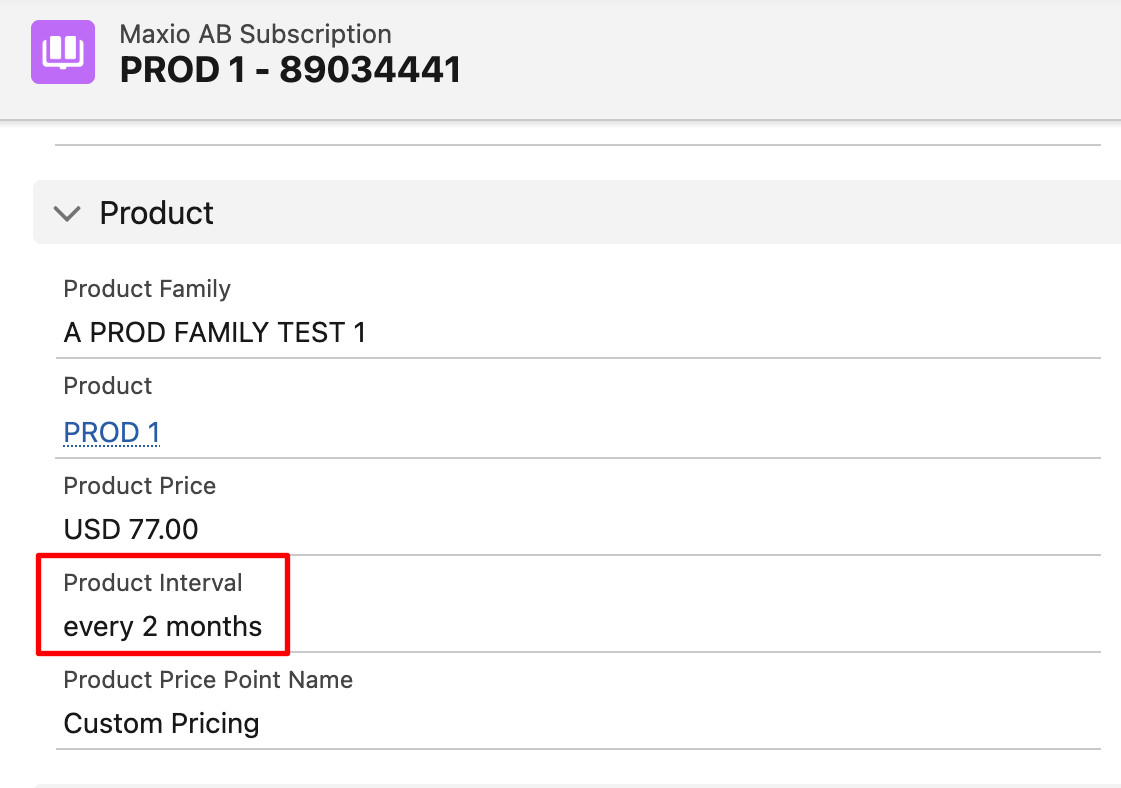
For the Product interval, go to the Maxio AB Subscriptions object. The **Product Interval** field is located within the Product group.
![a Salesforce subscription product record with its Product Interval, every 2 months, outlined](https://docs.maxio.com/content-images/selling/salesforce-for-advanced-billing/using/manage-advanced-billing-subscriptions-in-salesforce/41792356315277_Salesforce_SubscriptionProduct.png)

*Product Interval on a subscription's Product record*

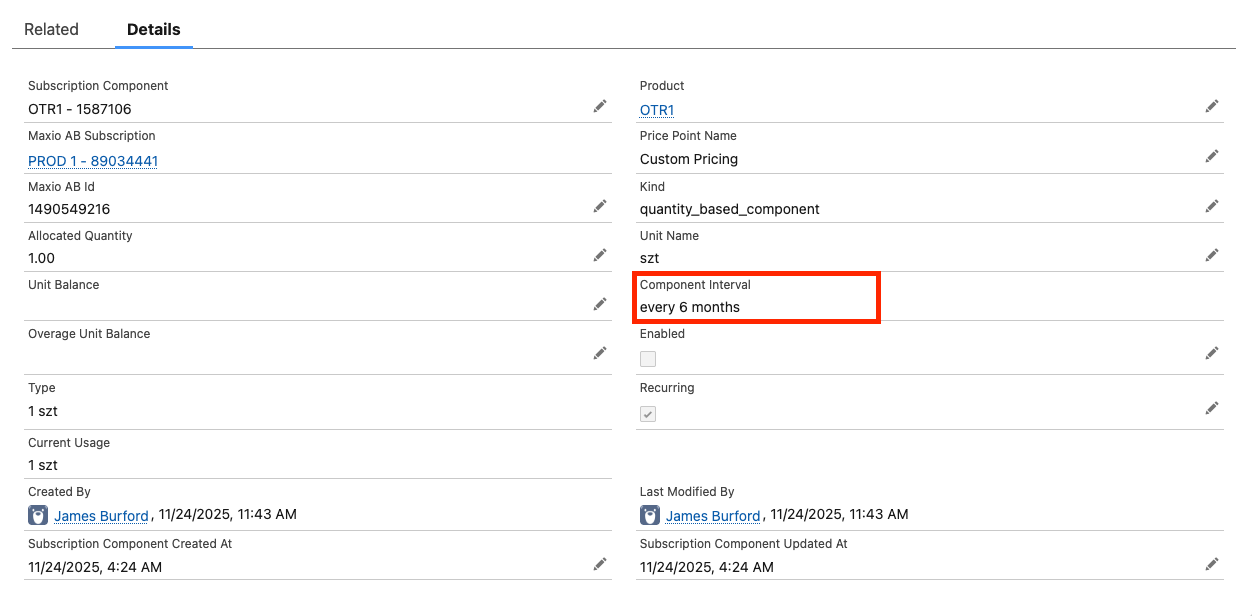
For the Component interval, go to the Maxio AB Subscriptions Component object. From the Details tab, locate the **Component Interval** field.
![a Salesforce subscription component record with its component interval outlined](https://docs.maxio.com/content-images/selling/salesforce-for-advanced-billing/using/manage-advanced-billing-subscriptions-in-salesforce/41754465816461_Salesforce_SubscriptionComponent.png)

*Component Interval on a subscription's Component record*

## Update an existing Subscription

Navigate to the Subscription in Salesforce and click **Upgrade Opportunity**.
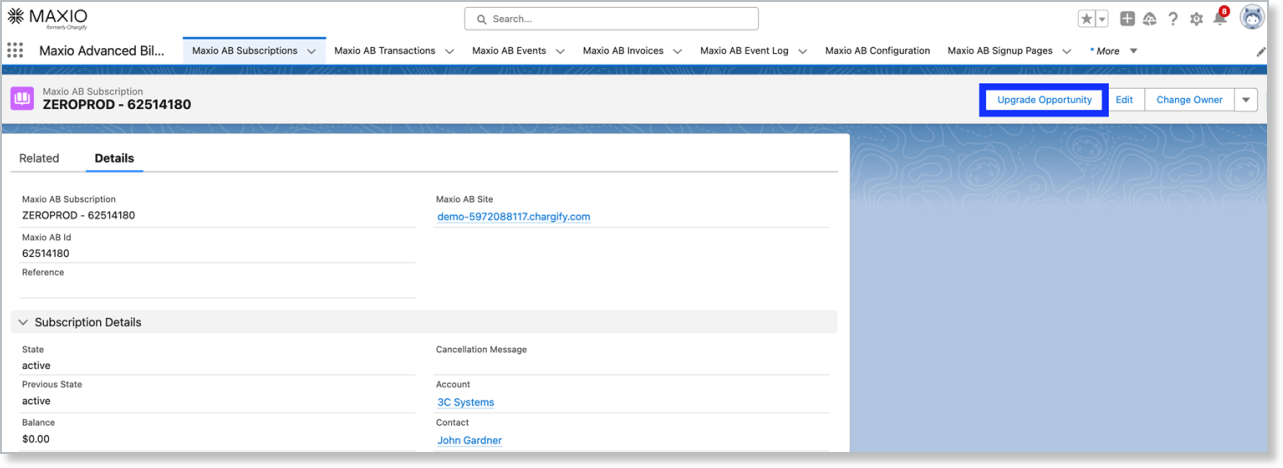
![a Salesforce Subscription record with Upgrade Opportunity outlined in the button bar](https://docs.maxio.com/content-images/selling/salesforce-for-advanced-billing/using/manage-advanced-billing-subscriptions-in-salesforce/24294607844749_co_UsingSFIntegration_UpgradeOpportunity.png)

This wizard lets you change the payment profile, and adjust the Subscription's Product, components, and coupons.
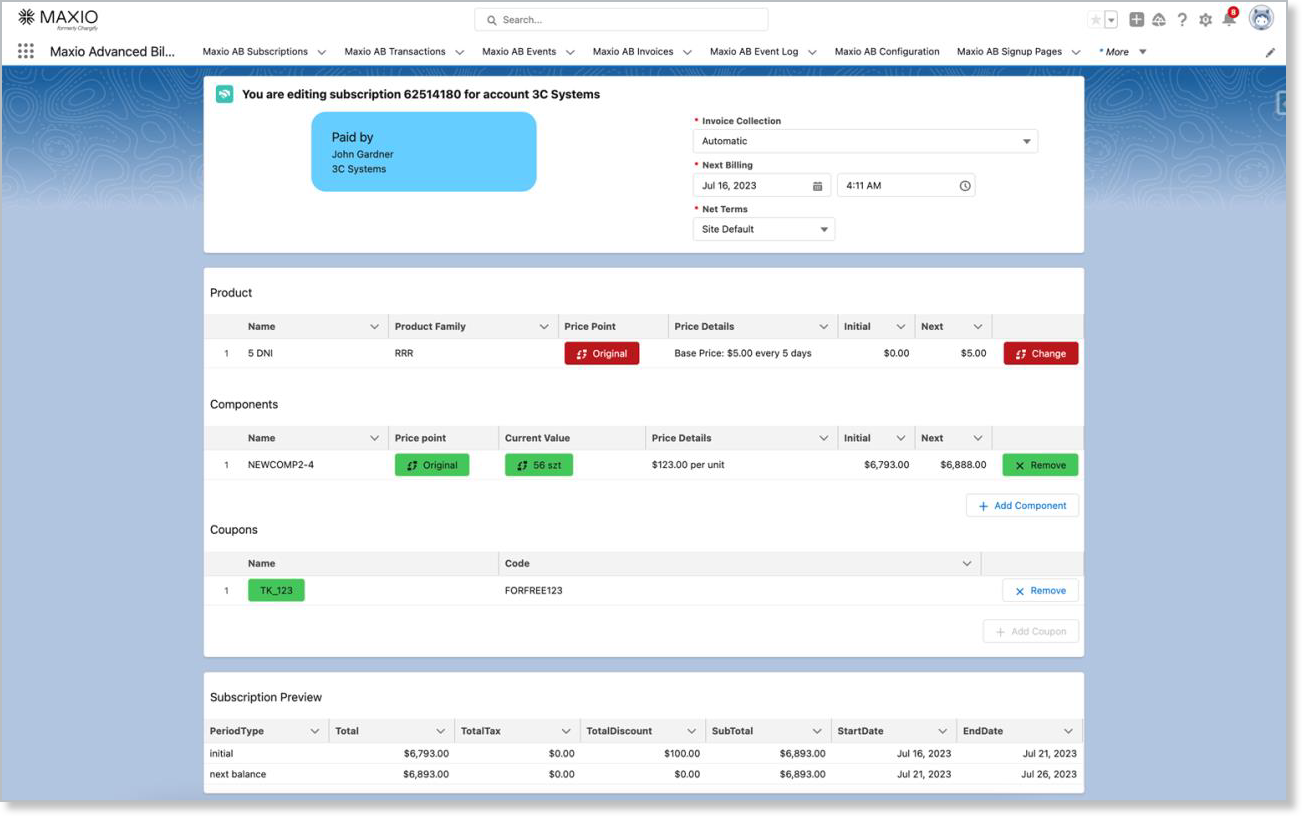
![the Upgrade Opportunity wizard, with panels for payment profile, Product, components, coupons and a subscription preview](https://docs.maxio.com/content-images/selling/salesforce-for-advanced-billing/using/manage-advanced-billing-subscriptions-in-salesforce/24294610461325_co_UsingSFIntegration_UpgradeOpportunity_Wizard.png)

### Change or upgrade the Product

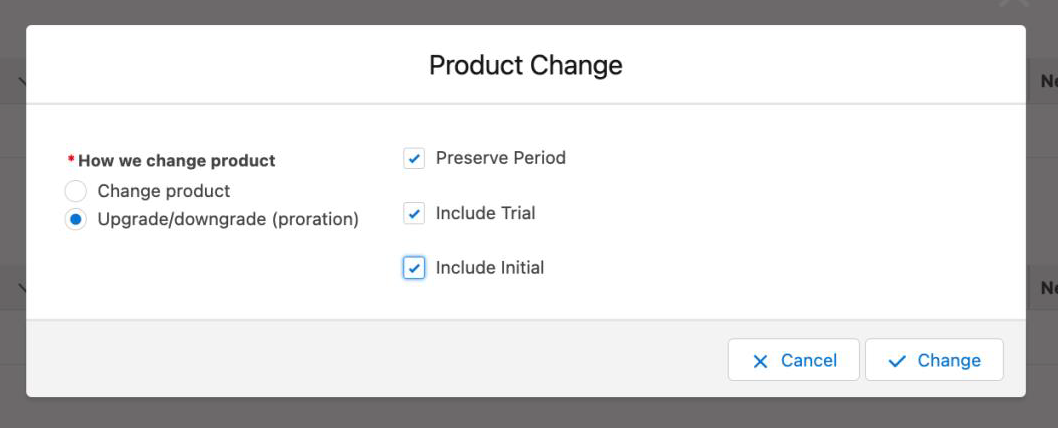
When you change the Product in the Upgrade Opportunity wizard, the Product Change dialog gives you two options:

- **Change product** - Changes only the Product, with no proration.
- **Upgrade/downgrade (proration)** - Changes the Product and adds a proration for the difference between the old and new Product. Three checkboxes refine how the proration is calculated:

  - **Preserve Period** - Keeps the existing next billing date.
  - **Include Trial** - Includes the new Product's trial period on the Subscription.
  - **Include Initial** - Includes the new Product's setup fee at the time of the change.
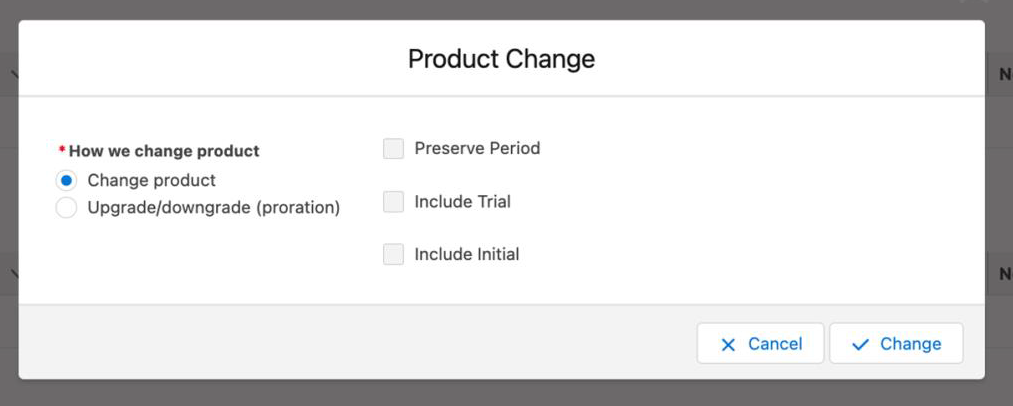
![the Product Change dialog with Change product selected and the Preserve Period, Include Trial and Include Initial options unchecked](https://docs.maxio.com/content-images/selling/salesforce-for-advanced-billing/using/manage-advanced-billing-subscriptions-in-salesforce/24294658753293_co_UsingSFIntegration_ChangeProduct.png)

![the Product Change dialog with Upgrade/downgrade (proration) selected and Preserve Period, Include Trial and Include Initial all checked](https://docs.maxio.com/content-images/selling/salesforce-for-advanced-billing/using/manage-advanced-billing-subscriptions-in-salesforce/24294574219405_co_UsingSFIntegration_UpgradeDowngrade.png)

### Add or remove a coupon

Add a coupon in the Create Subscription Wizard at the time of Subscription creation, or later when updating a Subscription in the Upgrade Opportunity wizard.
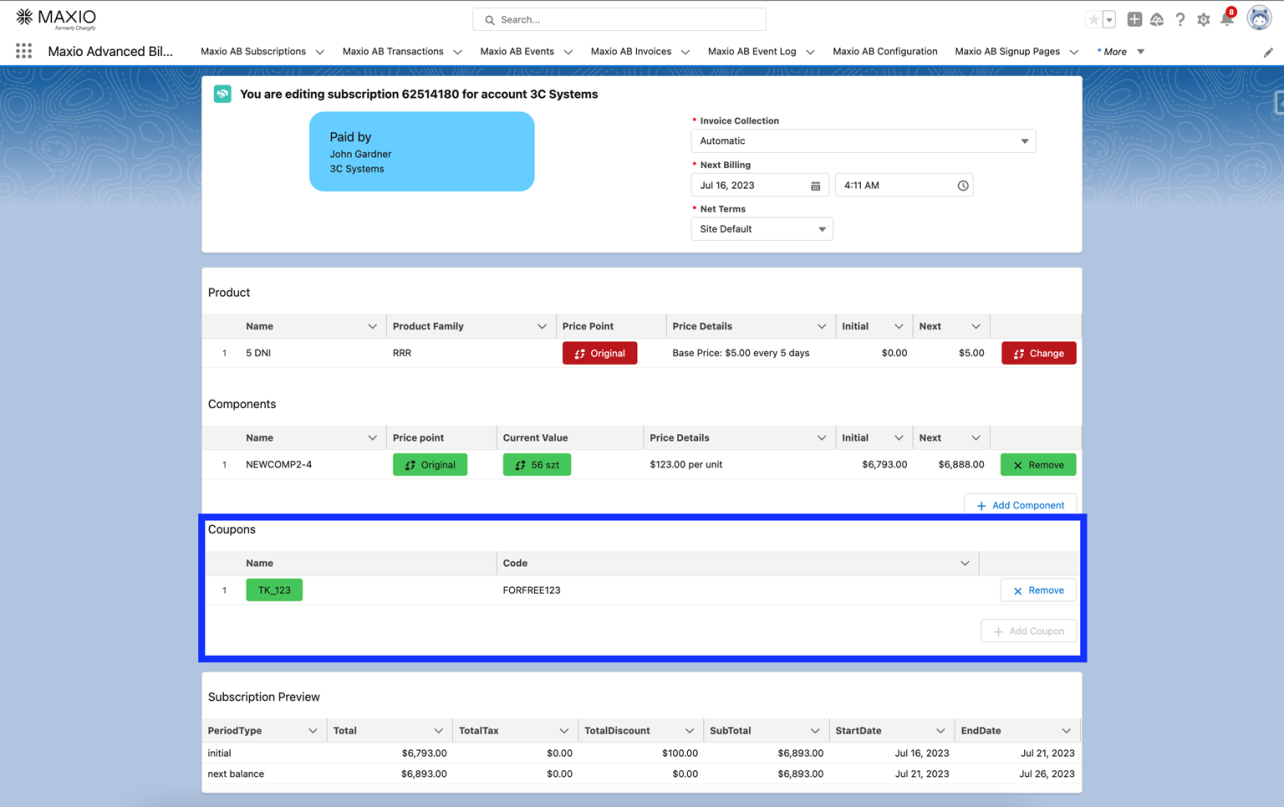
![the Subscription Wizard with the Coupons panel outlined below the components list](https://docs.maxio.com/content-images/selling/salesforce-for-advanced-billing/using/manage-advanced-billing-subscriptions-in-salesforce/24294624415245_co_UsingSFIntegration_UpgradeOpportunity_Wizard_Coupons.png)

To remove a coupon, click **Remove** next to it in the Subscription Wizard.

## Configure auto-renewal settings

When auto-renewal is enabled for both your Advanced Billing site and the Salesforce Managed Package, you can view, configure, and report on Subscription auto-renewal settings directly from the Subscription Preview, without switching to Advanced Billing.

**To configure auto-renewal settings from Salesforce**

1. Open the Subscription Preview in Salesforce.
2. Locate the Auto-Renewal Configurator section.
3. Configure the renewal type, factor, and term settings.
4. Click **Save**.

Updates sync to Advanced Billing once the Subscription is activated.

## Add a Subscription Preview to an Opportunity

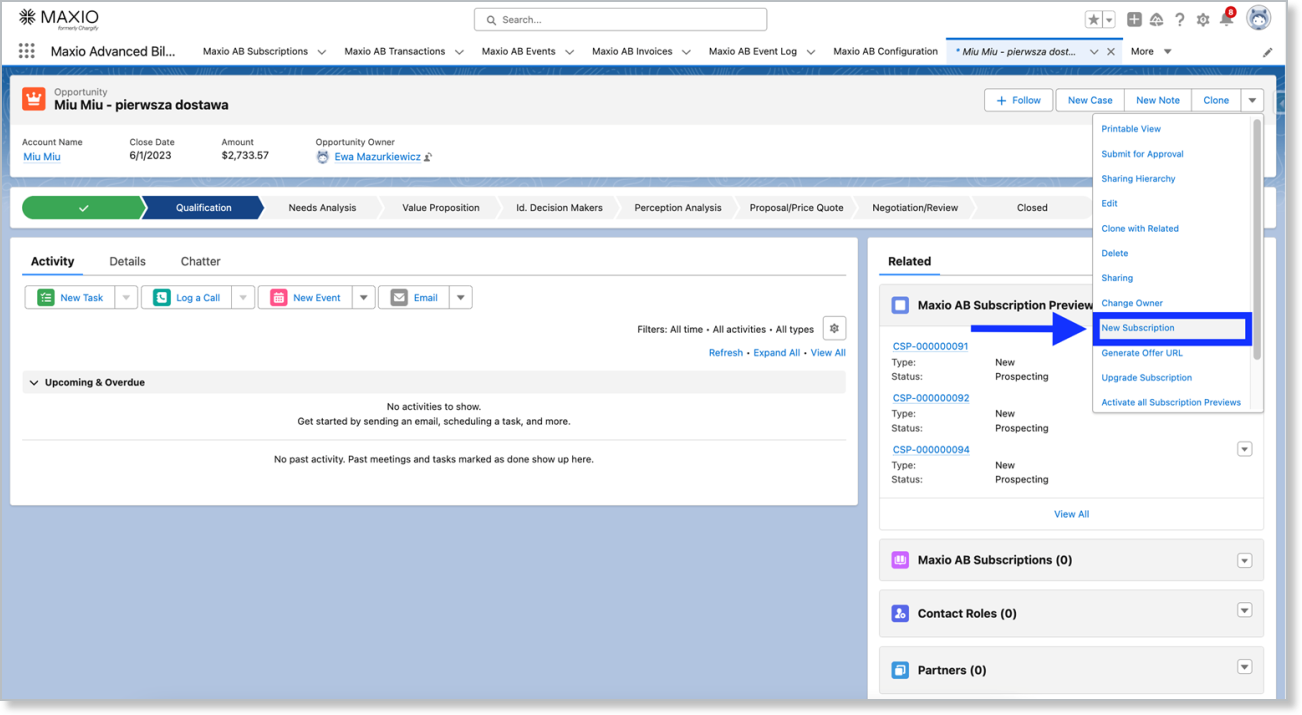
At the Opportunity level, add a Subscription Preview to model pricing before the deal closes. On the Opportunity's **Maxio AB Subscription Preview** related list, open the action dropdown and click **New Subscription**.
![a Salesforce Opportunity with its action dropdown open on New Maxio AB Subscription Preview](https://docs.maxio.com/content-images/selling/salesforce-for-advanced-billing/using/manage-advanced-billing-subscriptions-in-salesforce/24294621003149_co_UsingSFIntegration_Opportunity_NewSubscription.png)

The same dropdown also has **Upgrade Subscription** and **Activate all Subscription Previews**, for upgrading an existing preview and activating every preview on the Opportunity at once.
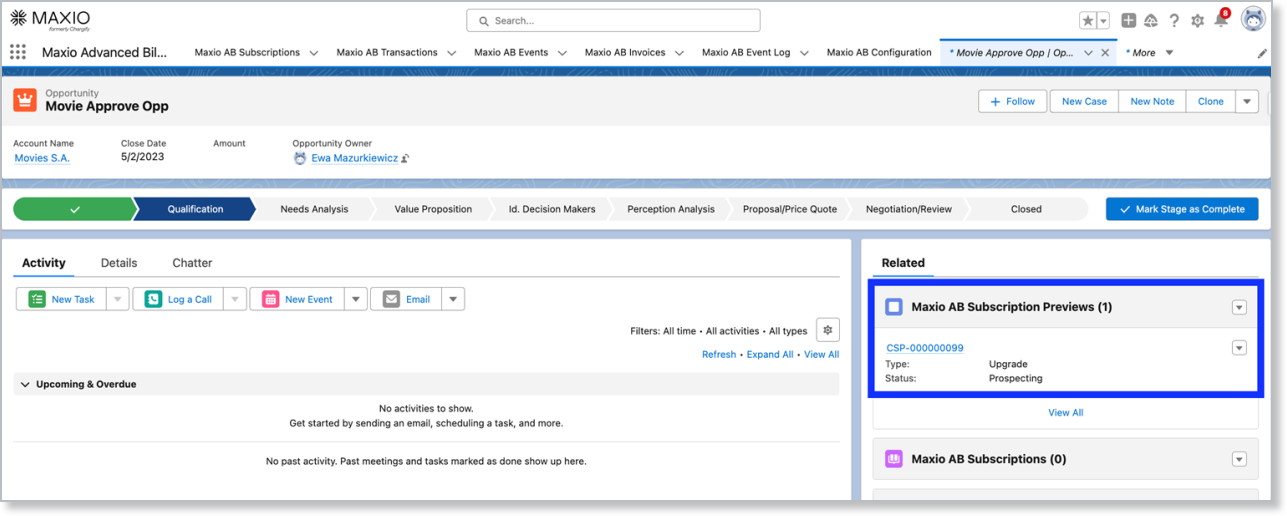
![an Opportunity's Maxio AB Subscription Previews related list, outlined, holding one preview](https://docs.maxio.com/content-images/selling/salesforce-for-advanced-billing/using/manage-advanced-billing-subscriptions-in-salesforce/24294607081101_co_UsingSFIntegration_OpportunityLevel.png)

Open the preview to activate it into a live Subscription.
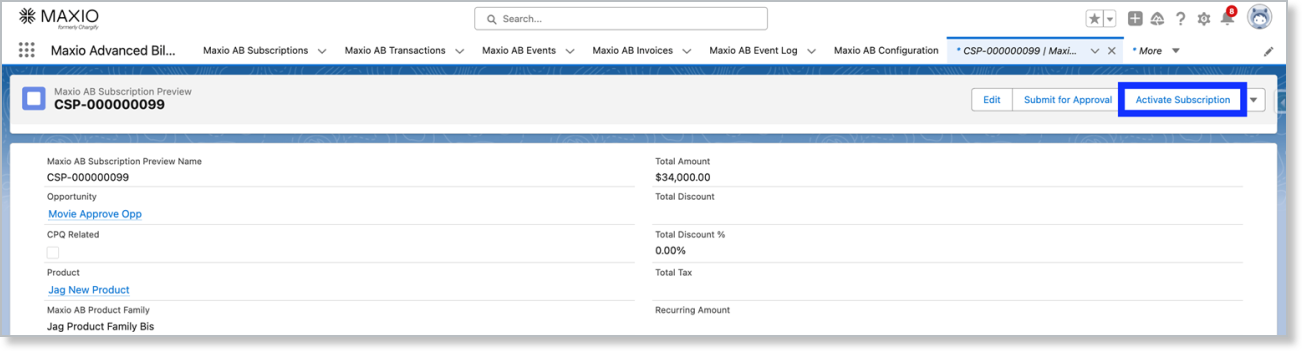
![an open Subscription Preview record with the activate action outlined at top right](https://docs.maxio.com/content-images/selling/salesforce-for-advanced-billing/using/manage-advanced-billing-subscriptions-in-salesforce/24294572887693_co_UsingSFIntegration_ActivateSubscription.png)

If your sync settings allow it, a Subscription can also be created automatically when the Opportunity is Closed/Won.

### Generate a PDF quote

To generate a PDF of the Subscription Preview, navigate to it and click **Generate PDF**, in the top right, to download it. This is a helpful tool early in a deal, before the customer has committed to pricing.

### Create a Subscription Group

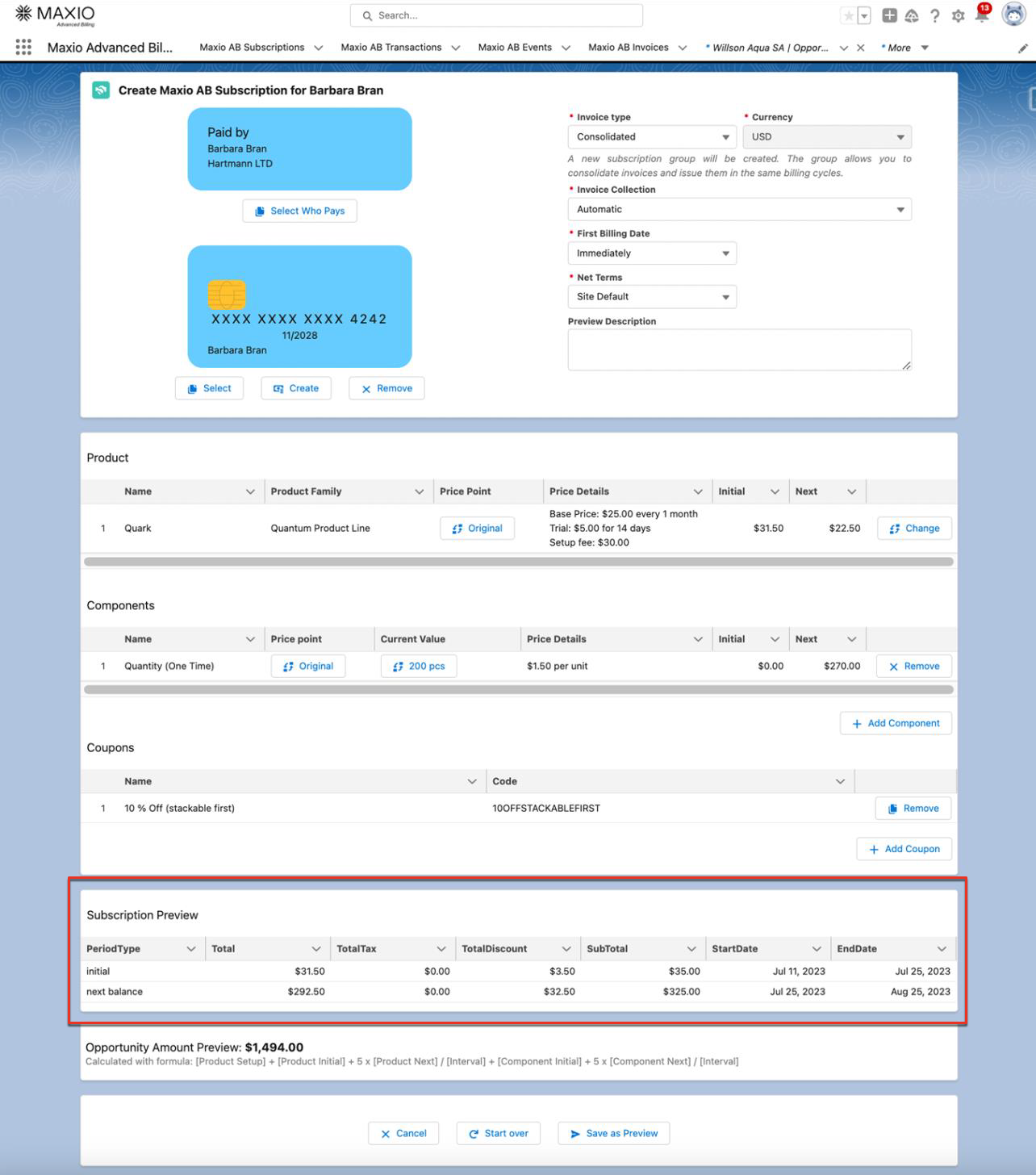
If you set **Invoice type** to **Consolidated** in the Subscription Wizard, a Subscription Group is created for that Subscription.

> A new subscription group will be created. The group allows you to consolidate invoices and issue them in the same billing cycles.
![the Create Subscription wizard with the Subscription Preview rows outlined, listing each period's totals](https://docs.maxio.com/content-images/selling/salesforce-for-advanced-billing/using/manage-advanced-billing-subscriptions-in-salesforce/24294571079565_co_UsingSFIntegration_Opportunity_CreateSubscriptionFull.png)

See <a href="https://docs.maxio.com/billing/subscriptions/configuration/subscription-groups/understand-subscription-groups" target="_blank" rel="noopener noreferrer">Understand Subscription Groups</a> for more.

## Collect payment profile information

Collect payment profile information as part of the Subscription Creation Wizard.
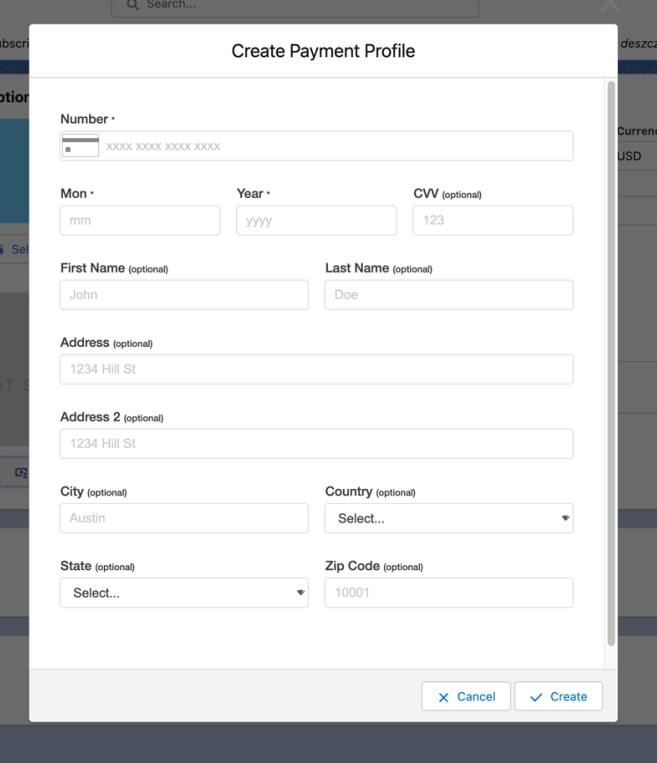
![the Create Payment Profile dialog with card number, expiry, CVV and billing address fields](https://docs.maxio.com/content-images/selling/salesforce-for-advanced-billing/using/manage-advanced-billing-subscriptions-in-salesforce/24294557863181_co_UsingSFIntegration_CreatePaymentProfile.png)

To update a payment profile later, navigate to the Subscription in Salesforce and click **Upgrade Opportunity**.

## Create a coupon

Create a coupon from the Products tab.

**To create a coupon**

1. Go to the **Products** tab and click **Create Coupon**.
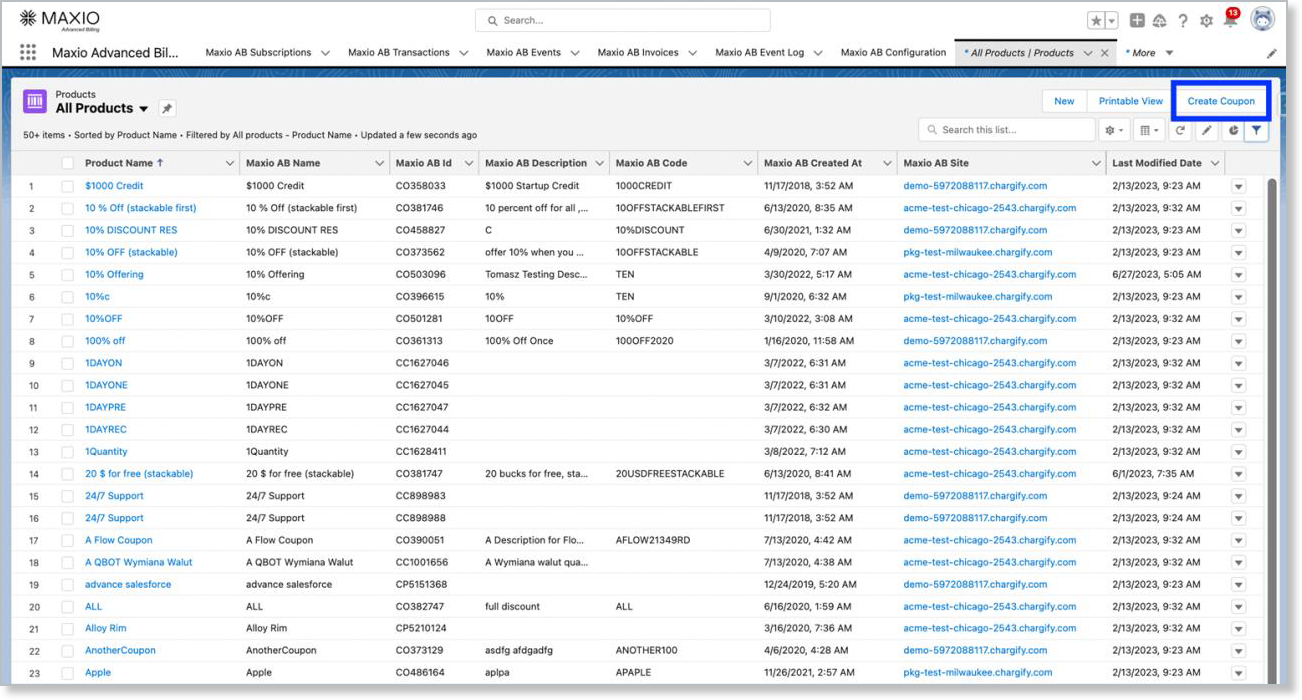
   ![the Products tab with Create Coupon outlined above the product list](https://docs.maxio.com/content-images/selling/salesforce-for-advanced-billing/using/manage-advanced-billing-subscriptions-in-salesforce/24294678626189_co_UsingSFIntegration_CreateCoupon.png)
2. Fill in the coupon options in the wizard. This creates the coupon in Advanced Billing, where it can be applied to a Subscription at creation.

   [![the Create New Coupon wizard, opening with Product Family and Site above the coupon detail fields](https://docs.maxio.com/content-images/selling/salesforce-for-advanced-billing/using/manage-advanced-billing-subscriptions-in-salesforce/24294636861709_db_UsingSFIntegration_CreateCoupon.png)](https://docs.maxio.com/billing/catalog/coupons/understand-coupons)
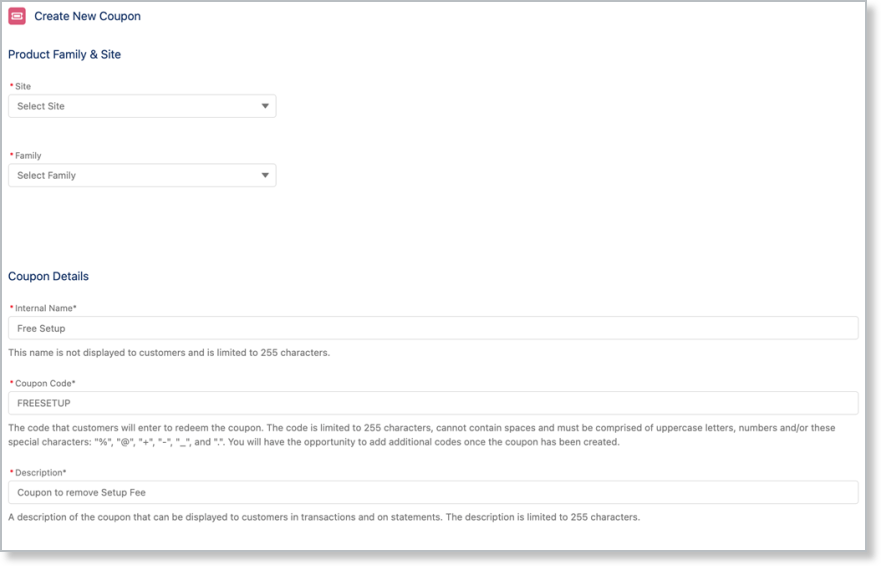
For more on coupon options and restrictions, see <a href="https://docs.maxio.com/billing/catalog/coupons/understand-coupons" target="_blank" rel="noopener noreferrer">Understand Coupons</a>.