
Understand Expense Reports and Margin Analysis
Applies to: Maxio Core
Last updated on Oct 12, 2026
Click-through capabilities come standard with expense reporting in Maxio. You can view a summary of cash outflows versus accrual-based expense reporting to support financial planning and GAAP and IFRS requirements.
Advanced Expense Summary Report
The Advanced Expense Summary Report is your primary Expenses report for understanding the complete financial picture. With this report, you can see when you first incur a liability, the cash timing of payments, and the resulting capitalized balance and associated expense recognition schedule. You will notice many similarities to the Advanced Revenue Summary Report.
Using the Advanced Expense Summary Report
The report Summary section displays Expense-related totals for the time periods shown. You can view both cash-related values and accrual-related values while easily differentiating between Bill dates, paid dates, and expense recognition schedules. This gives you the full financial picture at a glance.
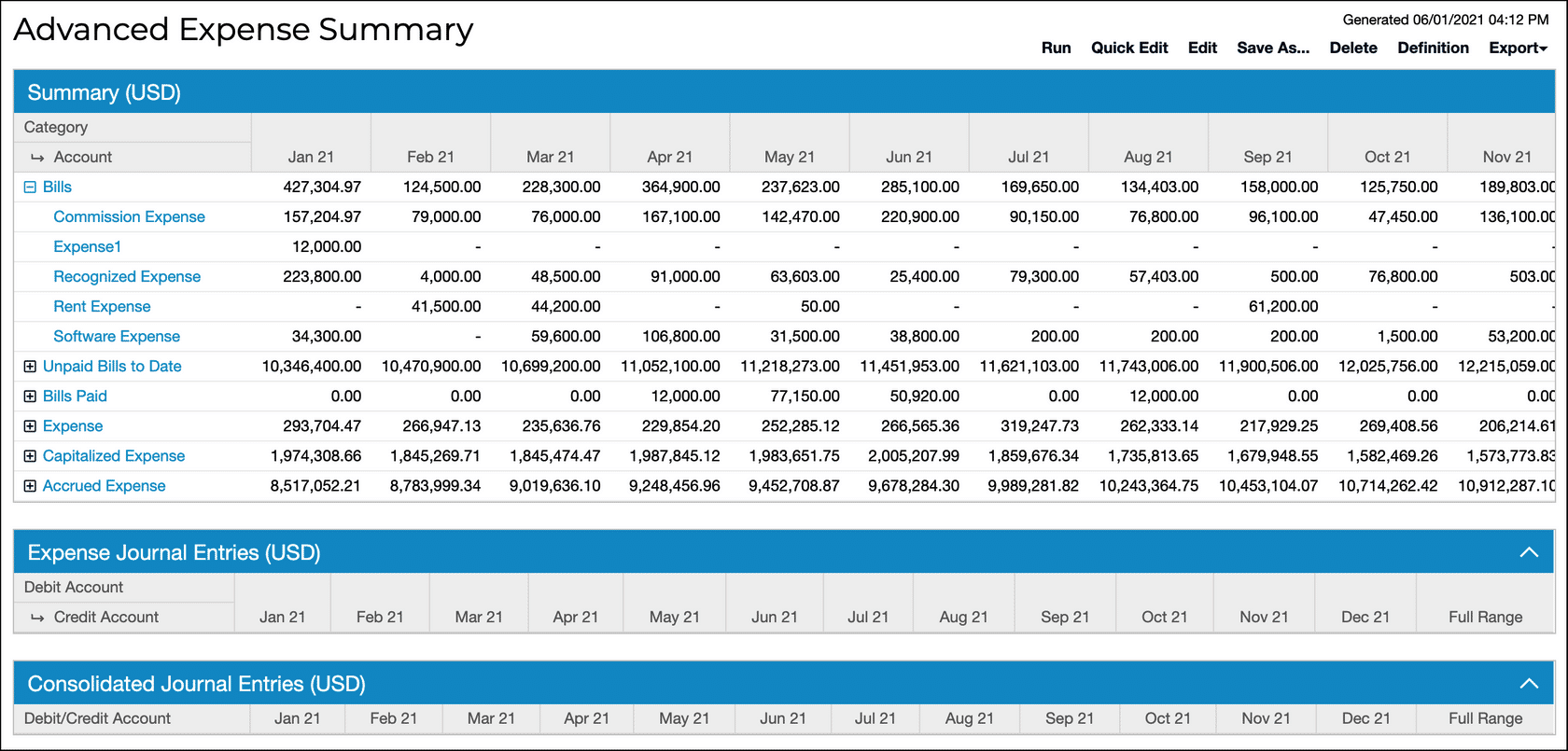
The lines of the summary report provide insights that are designed to answer specific Expense-related questions. The table below provides descriptions of each of these lines as well as the questions that they answer.
| Report Line | Description | Questions Answered |
|---|---|---|
| Bills | Contains the total of all Bills with a Bill Date in the given month. | "What new obligations do I have this month?" |
| Unpaid Bills | The sum of all unpaid Bills at the end of the period. | "How much do I still need to pay at the end of the month?" |
| Bills Paid | The total of all Bills paid in the given month. | "How much did we pay this month?" |
| Expense | The sum of all Expense Entries in the given month. This is similar to the Recognized Revenue line on the Advanced Revenue Summary Report. | "How much are we recognizing in Expenses this month?" |
| Capitalized Expense | The total unrecognized Expense balance at the end of each month. This is similar to the Deferred Revenue line on the Advanced Revenue Summary Report. | "What is our prepaid asset or capitalized commission balance at the end of this month?" |
| Accrued Expense | You will have Accrued Expenses any time your total Expense Entries are greater than the total Bills paid to date. This is similar to the Unbilled A/R line on the Advanced Revenue Summary Report. | "Do we have any expenses we need to accrue for because we have not yet paid the Bill?" |
Lastly, the Journal Entries section provides the consolidated journal entry to record in your general ledger (GL) at the end of each month. Use this section to ensure your Maxio balances match the balances in your GL system at the end of each reporting period. This is similar to the Journal Entries section of the Advanced Revenue Summary Report.
Configuration glossary
| Setting | Description |
|---|---|
| Report In | This option appears if multi-currency is enabled in your account. You can report in local or home currency for Transaction fields that support multi-currency. |
| Registers | Select one or more Registers from which Transactions will be included. If no Register is selected, all are included. |
| Date Range | Select fixed custom dates or one of the date range options. |
| Periodicity | Columns appear for each of the following periods within the date range specified above:
|
| Filters | Select one or more filters and appropriate matching criteria to filter in or out relevant Transactions. See Create and Manage Reports for more on filters. |
Expense Details Report
The Expense Details Report contains the same categories as the Advanced Expense Summary Report, but with more detail. The advantage of the Expense Details Report is that it can show more granular detail than the Advanced Expense Summary Report.
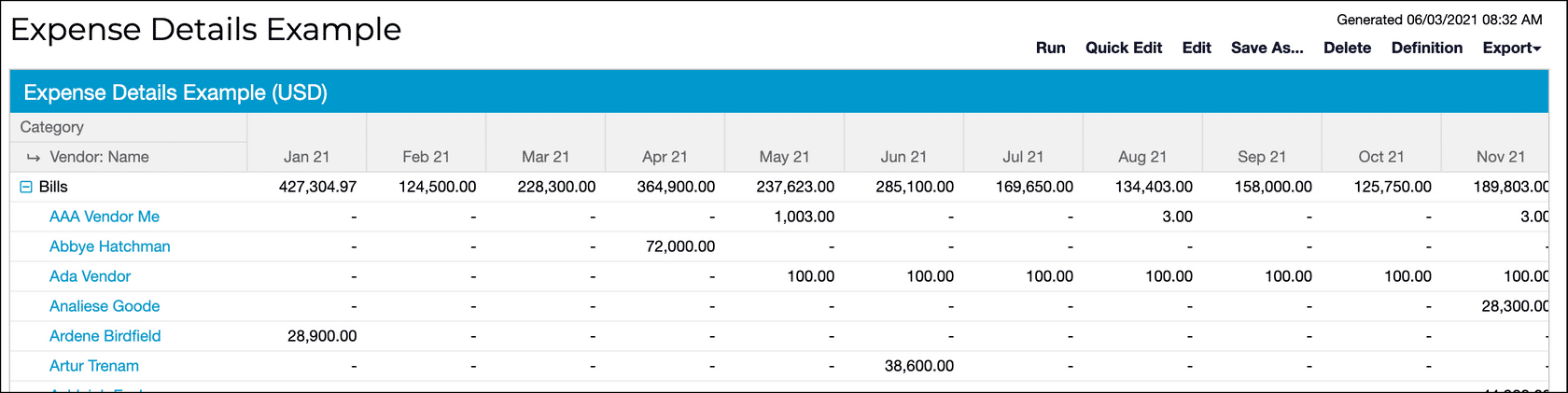
When you view the Summary section of the Advanced Expense Summary Report and click one of the hyperlinks, Maxio automatically creates an Expense Details Report to drill into the details by Vendor, item, account, and more. You always have the option to generate a details report directly, but you will save time by starting with the summary report first.
Configuration glossary
| Setting | Description |
|---|---|
| Report In | This option appears if multi-currency is enabled in your account. You can report in local or home currency for Transaction fields that support multi-currency. |
| Registers | Select one or more Registers from which Transactions will be included. If no Register is selected, all are included. |
| Accounts | Select the accounts you want to report on. |
| Categories | Select one or more categories to show on the report. If none are selected, all are included. |
| Calculate By | Produce a unique row for each value of the selected attribute. If you select Vendor Name only, the rows are also grouped by Vendor Number. Any active Vendor custom fields you've set up also appear in this list, labeled Vendor: [field name], for example Vendor: Department. Selecting one groups the report by each Vendor's value for that field, and the field's configured display name is used as the report's column header, both on screen and in CSV exports. Vendors with no value set for the field are grouped together at the top of the report. You can also select Customer: Name, Customer: Number, or Contract: Number to group the report by the Customer or Contract tied to each Expense. An Expense with no Contract still appears, with blank Customer and Contract cells. |
| Date Range | Select fixed custom dates or one of the date range options. |
| Periodicity | Columns appear for each of the following periods within the date range specified above:
|
| Filters | Select one or more filters and appropriate matching criteria to filter in or out relevant Transactions. See Create and Manage Reports for more on filters. You can also filter by Customer: Name, Customer: Number, or Contract: Number to narrow the report to the Expenses tied to a Customer or Contract. |
Margin Analysis Report
The Margin Analysis Report allows you to compare your Subscription, revenue, expense, and account balance data so that you can perform margin analyses for more robust financial reporting and planning.
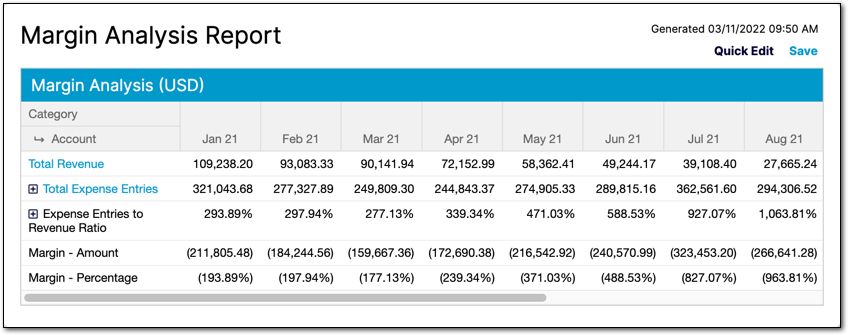
Account balances are synced directly from your GL to the Margin Analysis Report. This automation improves your gross margin calculations and gives you a clearer understanding of your margins. You can select individual accounts to include as part of cost of goods sold (CoGS) or use an Account Group.
Syncing GL account balances is currently only available for users of our QuickBooks Online integration.
Configuration glossary
| Setting | Description |
|---|---|
| Registers | Select one or more Registers from which Transactions will be included. If no Register is selected, all are included. |
| Date Range | Select fixed custom dates or one of the date range options. |
| Periodicity | Columns appear for each of the following periods within the date range specified above:
|
| Output Format | You can output the report data into tables and various types of charts. |
| Revenue Calculation | Select the object to use for the numerator in the margin analysis. You can select data from any of the following:
|
| Revenue Book | Select the Revenue Book to report on. You can use the default Revenue Book set on each Contract ([Contract Main Book]) or select a specific Revenue Book. |
| Revenue Accounts | This setting determines whether to use Transaction items or Performance Obligation (POB) items when posting revenue. If you are a Revenue Books enabled customer, you most likely select From Performance Obligations. If you do not have Revenue Books enabled, select From Transaction. |
| Revenue Filters | Select one or more filters and appropriate matching criteria to filter in or out relevant Transactions. See Create and Manage Reports for more on filters. |
| Expense Calculation | Select the object to use for the denominator in the margin analysis. You can select data from any of the following:
|
| Expense Filters | Select one or more filters and appropriate matching criteria to filter in or out relevant Transactions. See Create and Manage Reports for more on filters. |
| Display Margins As | You can display margins as a percentage or an amount of the numerator. Each option is calculated as follows: Percentages: [Revenue Account] / [Expense Account] with details by Expense Account. Amounts: [Revenue Account] - [Expense Account] with details at both Revenue and Expense Account levels. |
Account Balances Report
The Account Balances Report allows you to view the balance for any balance sheet or income statement account over the selected date range. You can use this report to validate that you are pulling in all of the correct accounts and balances when you want to leverage account balances in the Subscription Momentum report or Margin Analysis Report.
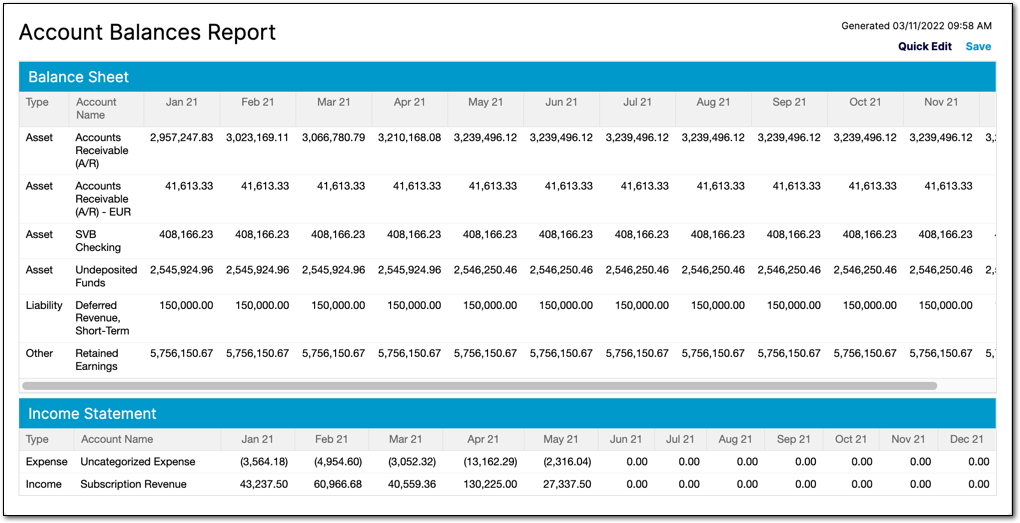
Syncing GL account balances is currently only available for users of our QuickBooks Online integration.
Configuration glossary
| Setting | Description |
|---|---|
| Date Range | Select fixed custom dates or one of the date range options. |
| Periodicity | Columns appear for each of the following periods within the date range specified above:
|
Still need help?
Reach out and our support team will take it from here.