---
title: Intacct Troubleshooting and FAQs
url: https://docs.maxio.com/accounting/general-ledger-integrations/intacct/troubleshooting/troubleshooting-and-faqs
applies_to: Maxio Core
updated: 2026-11-09
---
# Intacct Troubleshooting and FAQs
Common issues and errors encountered when connecting, configuring, or syncing the Intacct integration, along with what to check to resolve them.
## Common sync errors
| Error message | Why this occurs | How to resolve |
| :--- | :--- | :--- |
| "No GL accounts were found in the AR GL Information tab for itemid 'xxxxx' and warehouse 'yyyyy'" | You haven't filled out transaction definitions for your Order Entry items. | Complete the steps in Configure Order Entry Transaction Definitions for Intacct (for invoices) or the credit memos section of the same article. |
| "Company ID is invalid" | You have a multi-entity company in Sage Intacct but haven't set the entity or location ID for a given customer or entity. | Ensure all customers and instances of Maxio are configured to map to the applicable Intacct entity. |
| "The transaction definition Status is for Inactive" | The Order Entry object you're trying to sync to Intacct has an incomplete profile or has been set to inactive. | Complete the steps in Configure Order Entry Transaction Definitions for Intacct and ensure the Status is set to Active for the respective transaction object. |
| Reference number (DOCNUMBER) mapping to "Other" in MC. This field isn't big enough to receive the sample data in Intacct | Intacct's DOCNUMBER field has been manually mapped to Maxio's Other field in the Get Invoices sync step, and the reference number in Intacct is too long for it. Maxio's default Get Invoices mapping doesn't map Other to DOCNUMBER for this reason. | Map the Intacct Reference field to a custom text field on the invoice instead of Other in the Get Invoices sync step. |
| "Skipping ILI with intacct_recordno=1201, because the Item could not be found." | Invoices can be created in Intacct without an item. Maxio still gets these invoices but creates them without an invoice line item unless placeholder item configurations are set up. | Either ignore the message (it clears on the next sync) or configure placeholder items for Get Invoices and Get Adjustments so these records aren't skipped on future syncs. |
| "Skipping Payment with Intacct ID ...: its number ... and ... both belong to other payments or refunds in Maxio." (or "Skipping Reversal ...") | When you apply one Intacct receipt to invoices of several customers, each customer's payment shares one number. Maxio gives the first one the plain number and each other one the number followed by its Intacct record number in parentheses. Get Payments or Get Reversals skips the record when both of those numbers already belong to other payments or refunds in Maxio. | Find the Maxio payment or refund that has one of the two numbers in the message. If it was entered in Maxio and hasn't synced, edit it and change its number. Maxio doesn't let you change the number of a payment or refund that came from another system or has synced, so contact Maxio Support if that's the one holding the number. Once a number is free, clear the last sync date of the step that recorded the issue, as described in Clear Intacct Sync Dates, and sync again. |
| "Reversal ... was synced without updating its refund lines because no payment numbered ... could be matched to it for this customer." | Get Reversals synced the refund, but couldn't tell which payment it reverses: no payment imported from or sent to Intacct has that number, or several do and none belongs to the reversal's customer. Maxio leaves the refund's lines as they are rather than apply it to another customer's invoices. | Confirm that the reversed payment for the same customer is in Maxio, and run Get Payments if it isn't. Then clear the Get Reversals last sync date, as described in Clear Intacct Sync Dates, and sync again. |
| Multicurrency enabled in Maxio but not in Intacct | Multi-currency is enabled in Maxio but not in Intacct. | 1. Enable Multiple Transaction Currencies: go to **Company** > **Admin** > **Subscriptions**, next to **General Ledger** select **Configure**, and under **Multi-currency management**, select **Enable multi-currency subscription**. This can't be turned off once enabled. Or 2. Enable Multiple Base Currencies (for multi-entity companies): go to **Company** > **Admin** > **Subscriptions**, select **Multi-Entity Management**, then **Configure**. In the **Entity preferences** section, select **Enable multiple base currencies**. |
| Sync with Intacct failed. Sync failed with error: No data wrapper! Control Status: success Authentication Status: success Result Status: failure | You need to assign a role to your Web Service User to finalize the connection with Intacct. | Assign the Admin role to your user, as described in Step 3 of Setup the Intacct Integration. |
| "Home Currencies in Maxio and Intacct Do Not Match" (shown on the Intacct Settings and Intacct Home pages) | Maxio's home currency doesn't match the base currency Maxio read from Intacct during Get Settings, or Get Settings couldn't determine that entity's currency at all. For a company with Multiple Base Currencies enabled, Intacct doesn't expose one company-wide base currency — Maxio instead reads the base currency of the specific entity your integration is configured against, set as the **Location Entity** field under **Intacct** > **Integration Settings** (wrench icon). Get Settings can't determine a currency to compare, and shows this warning instead of failing the sync, when: **Location Entity** is set to Top Level, so there's no single entity to read a currency from; the Intacct Web Services user this integration authenticates as can't see the configured entity; or the configured entity has no base currency set in Intacct. | Confirm your Maxio home currency and the configured entity's base currency in Intacct actually agree. If **Location Entity** is set to Top Level, this warning is expected for a multi-base-currency company and doesn't indicate a real mismatch. If **Location Entity** points at a specific entity, confirm it's the correct one, then check in Intacct that the Web Services user can see that entity and that the entity has a base currency set, fixing whichever doesn't hold. **Location Entity** can only be set before the first sync, so pointing it at a different entity afterwards needs a new Maxio instance. Re-run Get Settings after making any change. |
## Item name or Intacct ID already used in Maxio during item sync
When Get Items reads a Sage Intacct item that doesn't match any Maxio Item by Intacct record number or Intacct ID, Maxio creates a new Item for it. Each Maxio Item name and each Intacct ID can belong to only one Item, so Maxio doesn't create the Item when either is already taken. Instead, it leaves the existing Maxio Item unchanged, records a sync issue for that Intacct item, and carries on with the rest of the sync. Get Items never links an Intacct item to a Maxio Item by name on its own.
The sync issue names the items involved and tells you which of these cases applies:
| Sync issue begins with | Why this occurs | How to resolve |
| :--- | :--- | :--- |
| "An Item named ... already exists in Maxio, but it is not linked to the Sage Intacct Item ...", followed by "If they are the same item, import ..." | A Maxio Item with the same name exists and has no Intacct ID or Intacct record number. | If they're the same item, use the Item importer to add the Intacct ID and Intacct record number from the message to that Maxio Item. If the message doesn't include the Intacct ID, look up the item's Item ID in Sage Intacct and import it as the Intacct ID along with the record number. If they're different items, rename one so the names differ. |
| "An Item named ... already exists in Maxio, but it is not linked to the Sage Intacct Item ...", followed by "The Maxio Item is already linked to Sage Intacct" | A Maxio Item with the same name is already linked to a different Sage Intacct item. | Rename one of the two items so the names differ. |
| "The Sage Intacct Item ... can't be added to Maxio because the Maxio Item ... already uses that Intacct ID ..." | Another Maxio Item already holds this Intacct ID under a different Intacct record number. | If they're the same item, use the Item importer to import the new record number from the message onto the Maxio Item it names. If they're different items, use the Item importer to correct the Intacct ID on that Maxio Item. Sage Intacct doesn't allow changing an Item ID, so make the correction in Maxio. |
The Item importer matches existing Items by name, and includes the Intacct ID and Intacct record number fields when the Intacct integration is enabled.
Get Items only reads Sage Intacct items modified since the step's **Last Sync Date**, so it doesn't read the item again after a fix you make only in Maxio. After you resolve the conflict, clear the Last Sync Date on the Get Items step, as described in Clear Intacct Sync Dates, and sync again.
## Intacct overriding Maxio invoice numbers and references
Intacct's platform allows you to set prefixes and numbering systems independent of the Maxio platform. If these settings are turned on and configured within Intacct, they override the Maxio-generated prefixes and invoice numbers.
You can use Intacct's Document Sequence capabilities to segment invoices created from Maxio from those created directly in Intacct. You can achieve the same segmentation using Maxio's own prefix capabilities instead, without the risk of a numbering override.
To ensure the Maxio invoice numbering system isn't overridden:
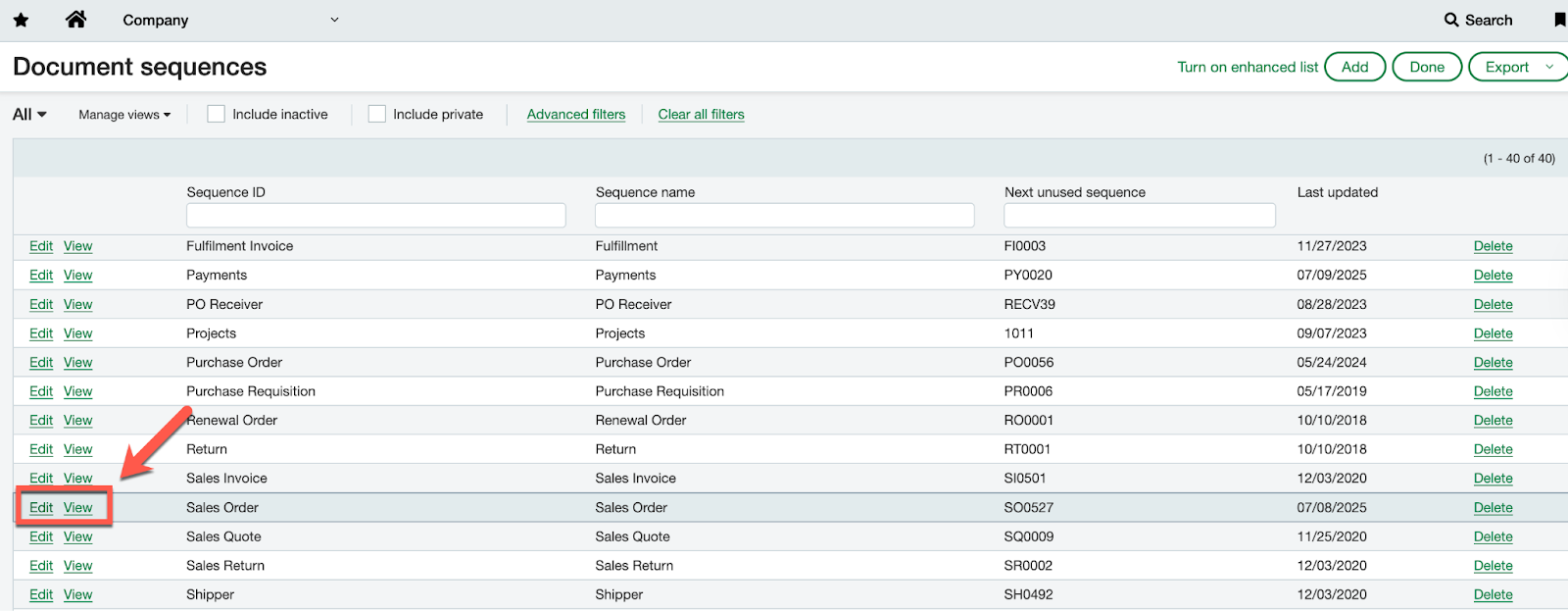
1. Navigate to the **Applications** drop-down, select **Company**, click the **Setup** tab, and under **Settings**, select **Document sequences**.
2. Navigate to the specific object you want to adjust the numbering sequence for and select **Edit**.
3. Remove the **Fixed prefix** and/or adjust the numbering sequence accordingly, then click **Save**.
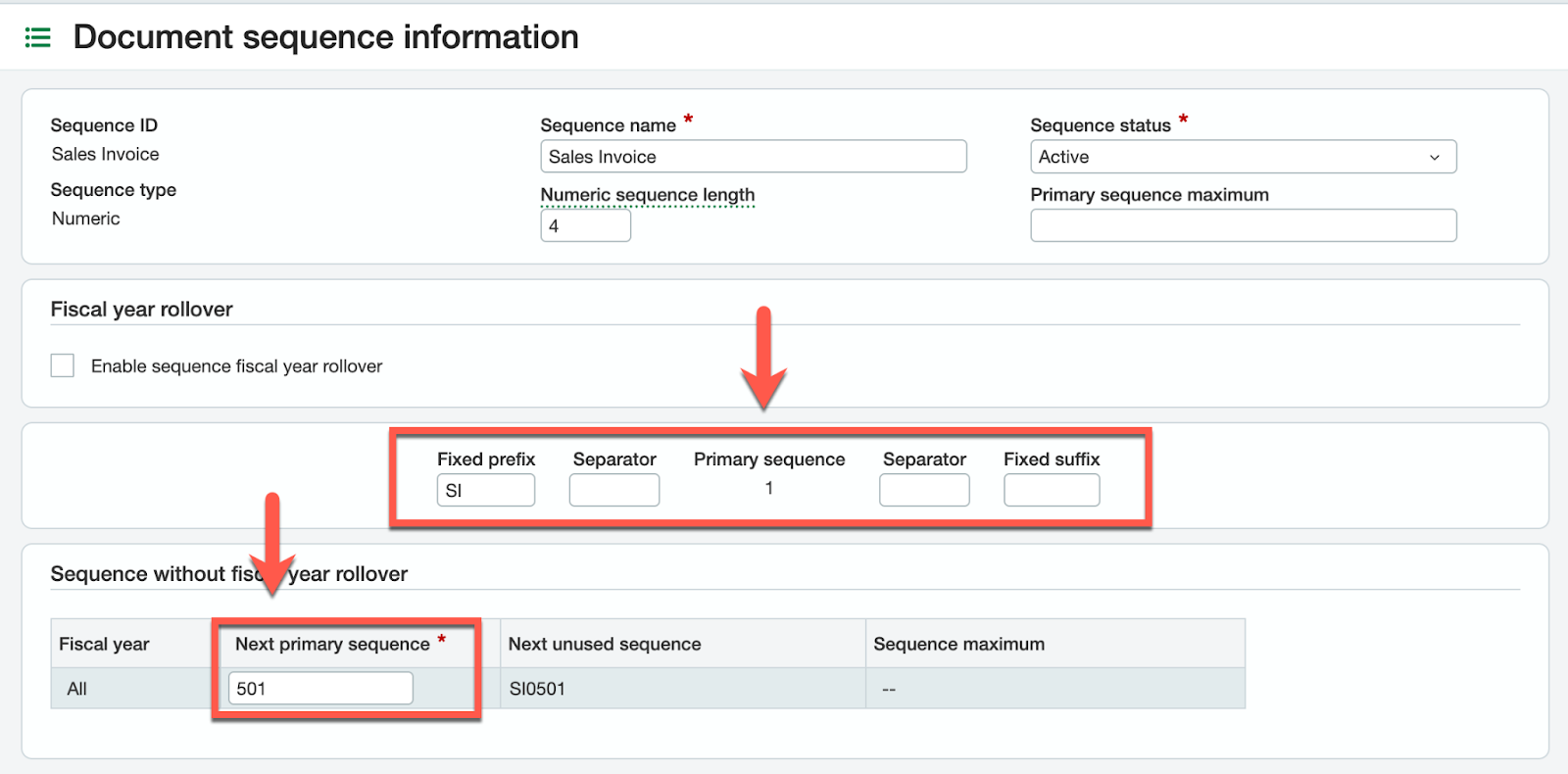
> Changing the document sequence settings changes all future document sequences. Existing documents and sequences aren't affected.
## Invoices are syncing from Intacct but missing invoice line items
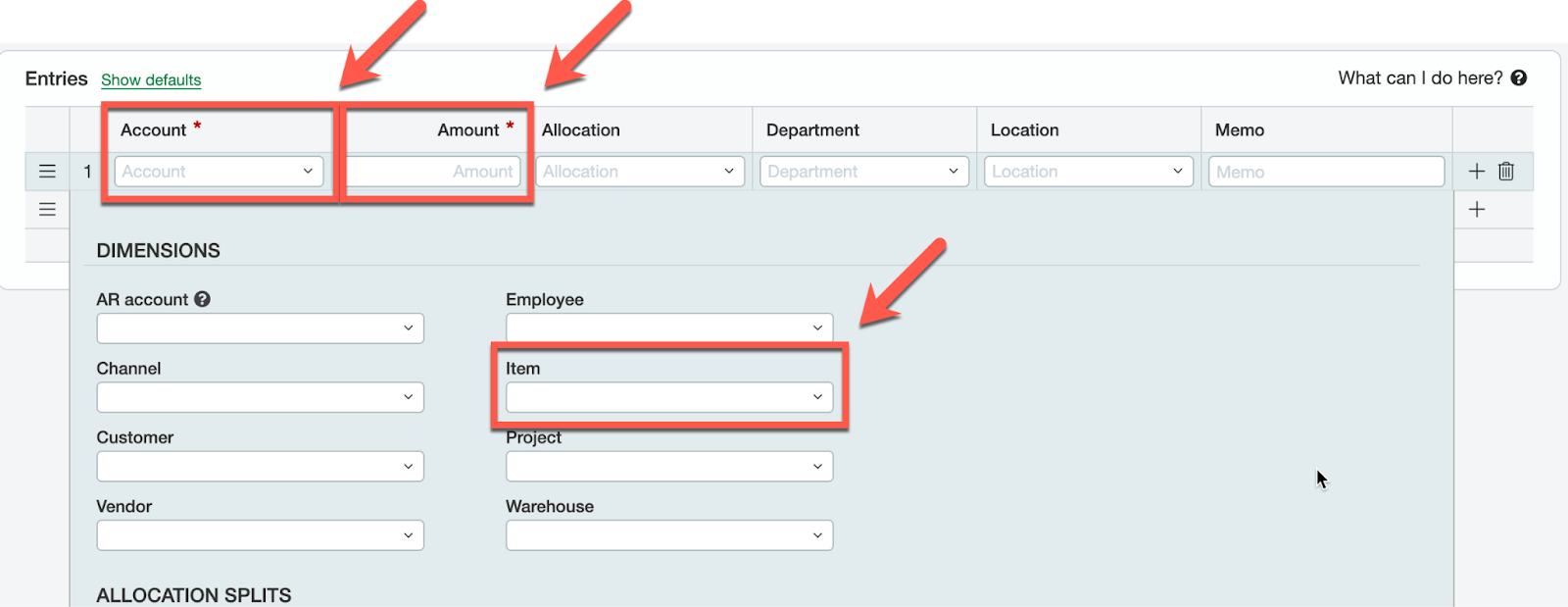
If you use the A/R module within Intacct, you can create invoices without an item. When this occurs, Maxio still gets the invoice but it's missing an associated invoice line item. If you're creating invoices in Intacct rather than Maxio, it's easy to miss the item configuration, since the item field is often hidden in a dropdown under the main invoice rows:
### How to avoid this issue using best practices
1. Use Maxio as your primary place for generating new invoices. Maxio requires items for all invoices.
2. If you're invoicing out of Intacct, use Order Entry. Order Entry is designed to use items within invoicing, which enhances the ability to receive granular information in your reports.
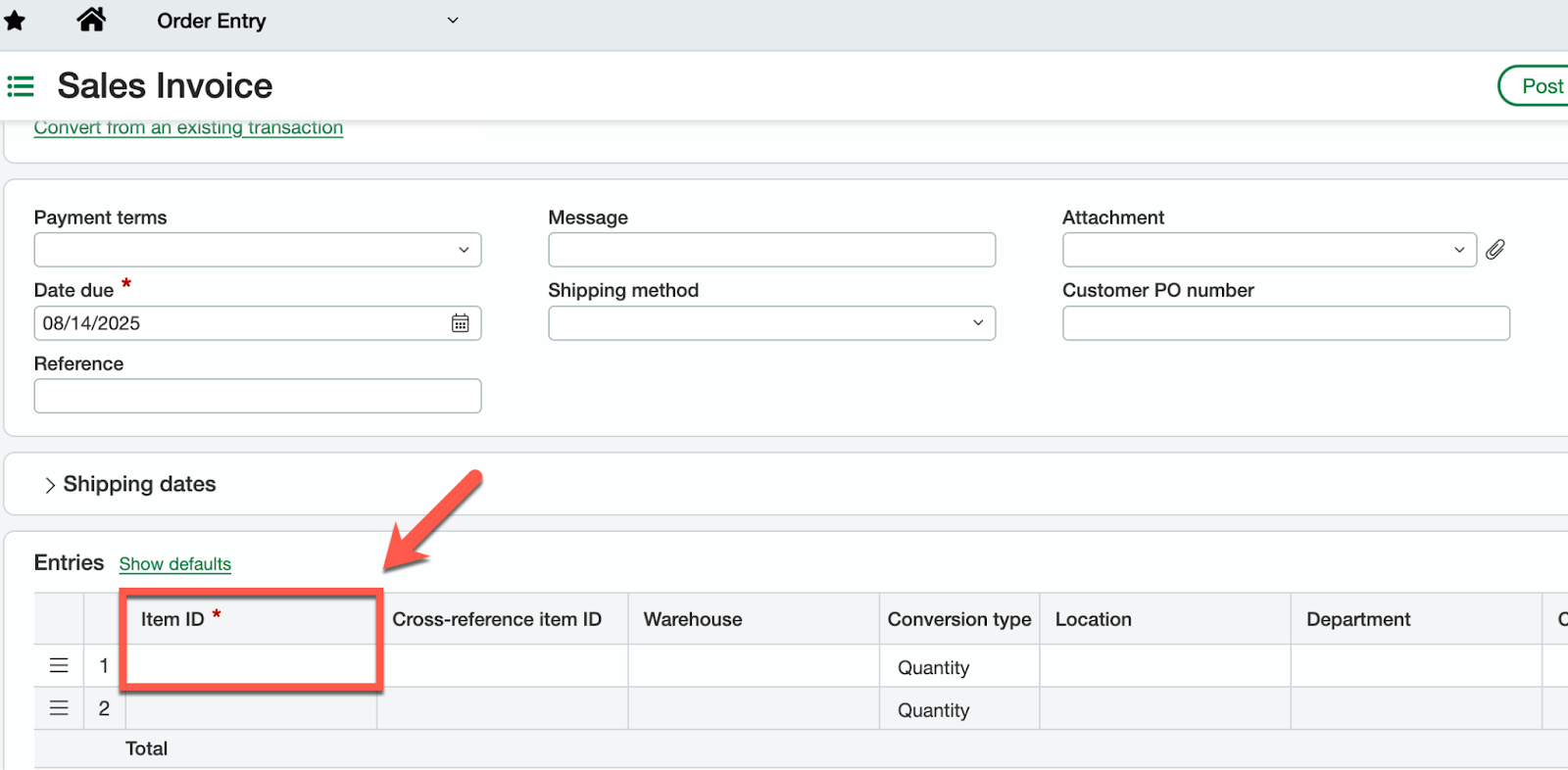
If invoices sync without items, you may run into the "Skipping ILI with intacct_recordno=xxxx, because the Item could not be found" error covered above. Following the two best practices here avoids that error.
## How do I post transactions to the Top Level?
Posting transactions to the Top Level takes two steps: confirm Intacct permits posting to the Top Level, then confirm which entity your Maxio instance is connected to.
### Step 1 - Confirm Intacct permits posting to the Top Level
Intacct provides configurable options for where key objects can post. You can restrict posting to the Top Level or enforce posting to specific entities. Review these settings:
1. Navigate to **Company** > **Admin** > **Subscriptions**.
2. Scroll down to **Multi-Entity Management** and click **Configure**.
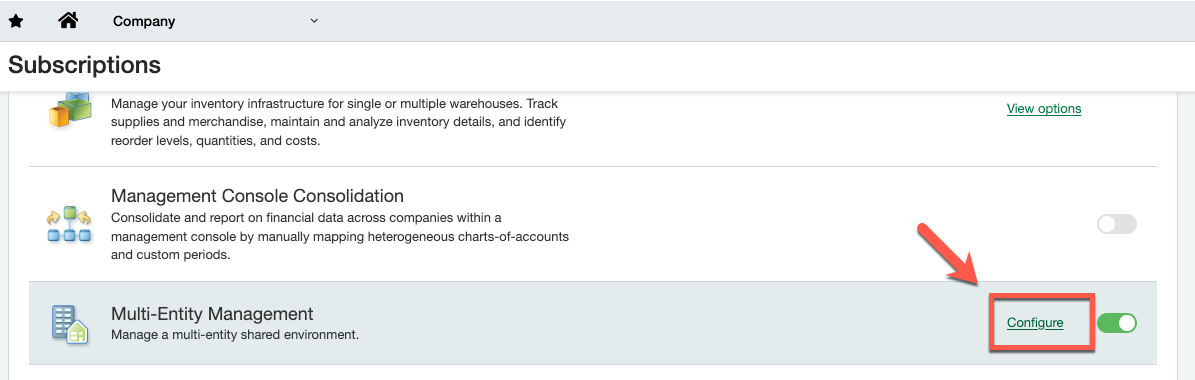
3. Review the **Entity restrictions** section and confirm **Restrict General Ledger transactions to the entity level only** and **Restrict subledger transactions to the entity level only** are not enabled.
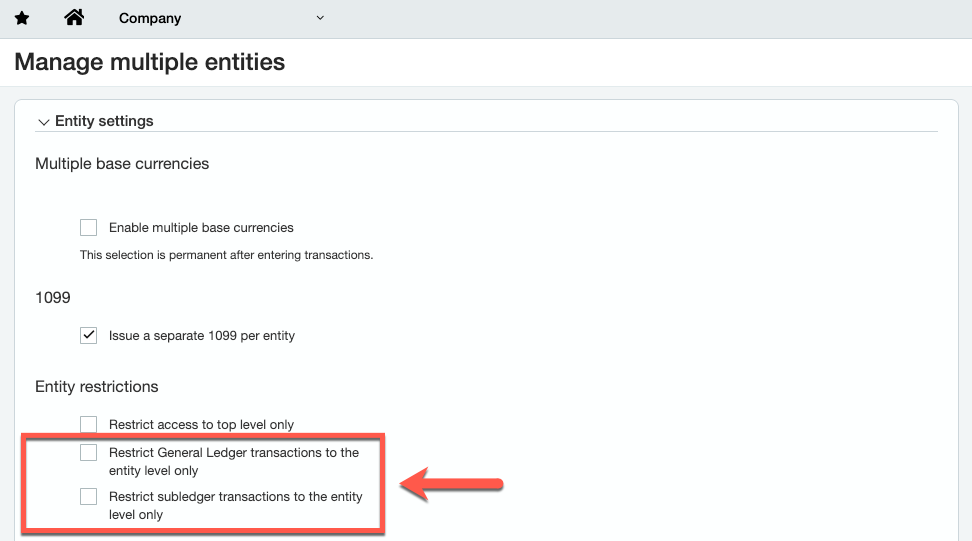
> Restricting access to the Top Level only is a very restrictive setting that defeats the purpose of having key objects available across all entities. Maxio generally doesn't recommend enabling this setting.
### Step 2 - Confirm which entity your Maxio instance is connected to
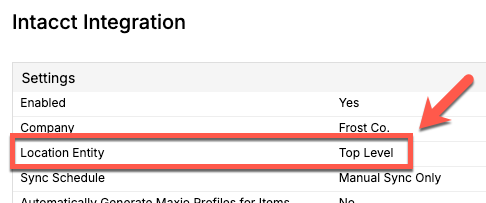
Each Maxio instance connects to either the Top Level or a specific entity. Review the entity Maxio is connected to before creating new records by going to **Intacct** > **Integration Settings** (wrench icon) and reviewing the **Location Entity** field.
## How does multi-entity management work between Maxio and Intacct?
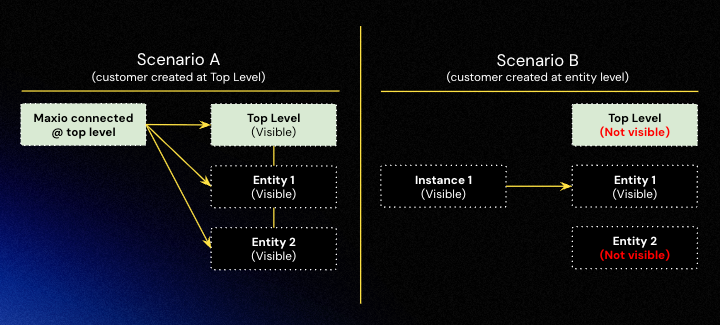
**With customers:** Maxio allows you to connect an instance to the Top Level or a specific entity. When Maxio is connected to the Top Level, customers created are unrestricted and visible across all entities (**Scenario A**). If customers are created using an instance of Maxio connected to a specific entity, they're restricted and visible only within that specific entity of Intacct (**Scenario B**).
### Scenario A - Creating customers within Maxio while connected to the Top Level
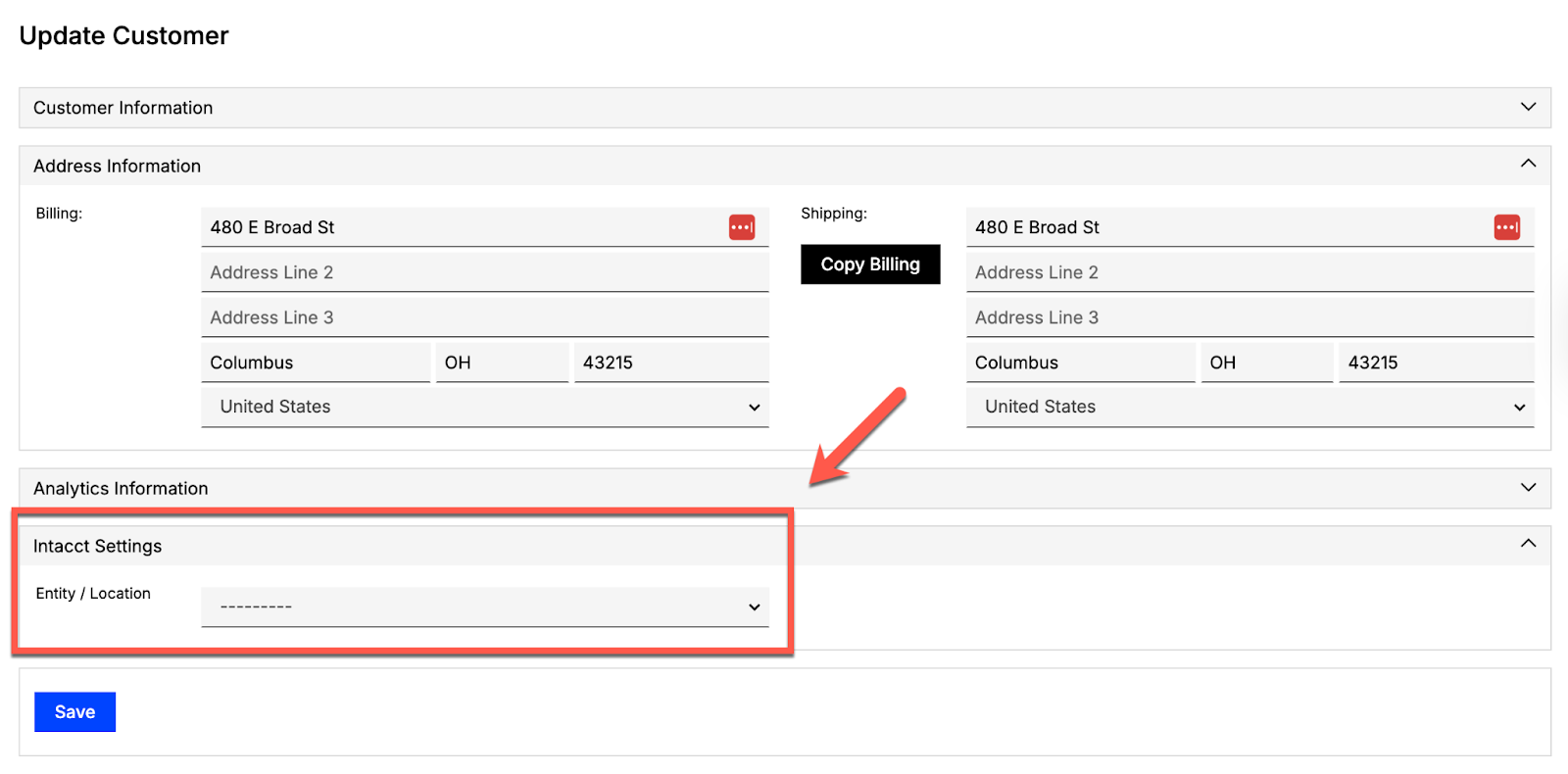
When multi-entity management is enabled and you're creating customers at the Top Level, you must set a default location for each customer. This can be a specific location or an entity. Set the location for a customer on the customer profile, in the **Entity / Location** field:
### Scenario B - Creating customers in Maxio while connected to a specific entity
Customers you create in an instance of Maxio connected to a specific entity are automatically associated with that entity. If there are multiple locations available within that Intacct entity, you can set those on the customer profile.
## Bridge payments not appearing for Credit Memos with additional payment
When a Credit Memo in Intacct (via **Order Entry** or a negative invoice in **AR Invoices**) is applied to an invoice with an additional payment, the Intacct sync may create an AR Payment ("bridge payment") in Maxio containing both the invoice and credit memo lines.
This behavior only occurs if certain conditions are met:
- The payment date is after the configured **Sync Payments From Intacct Only After Date**.
- The currency code is valid.
- The related invoice and customer exist in Maxio.
If any of these conditions fail, the payment may be skipped or created with unapplied lines, so the allocation may not match Intacct exactly.
To avoid these issues:
- Confirm the invoice and customer are synced before the payment is processed.
- Check that the payment date falls within the integration's configured date range.
- Ensure the currency code is valid in both systems.
> This only applies when a Credit Memo and an additional payment are used together and all prerequisites are satisfied.