---
title: Sync Data Between Maxio and NetSuite
url: https://docs.maxio.com/accounting/general-ledger-integrations/netsuite/sync/sync-data-between-maxio-and-netsuite
applies_to: Maxio Core
updated: 2026-11-07
---
# Sync Data Between Maxio and NetSuite
Control which records move between Maxio and NetSuite, and when, using sync steps, drop-down custom field mappings, and credit application behavior. These settings determine what data actually crosses the integration, distinct from the connection and general sync preferences covered in Setup and Configure.
## Sync steps
Users can choose which pieces of information can be sent to or retrieved from NetSuite using sync steps. These can be toggled on and off and customized to map to the correct fields on either side of the integration.
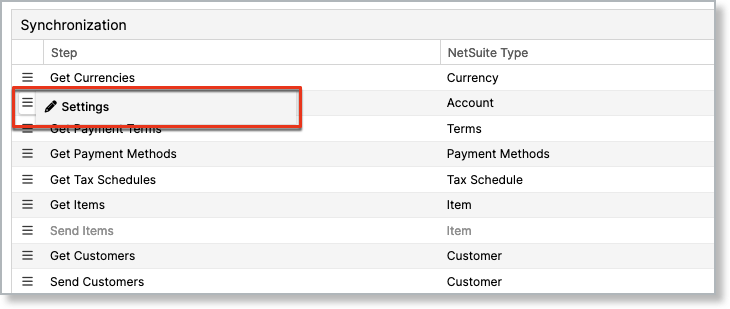
To edit these sync steps, go to **NetSuite** > **Integration Settings** > **Synchronization**, hover over the **Menu** menu icon, and select the **Settings** option.
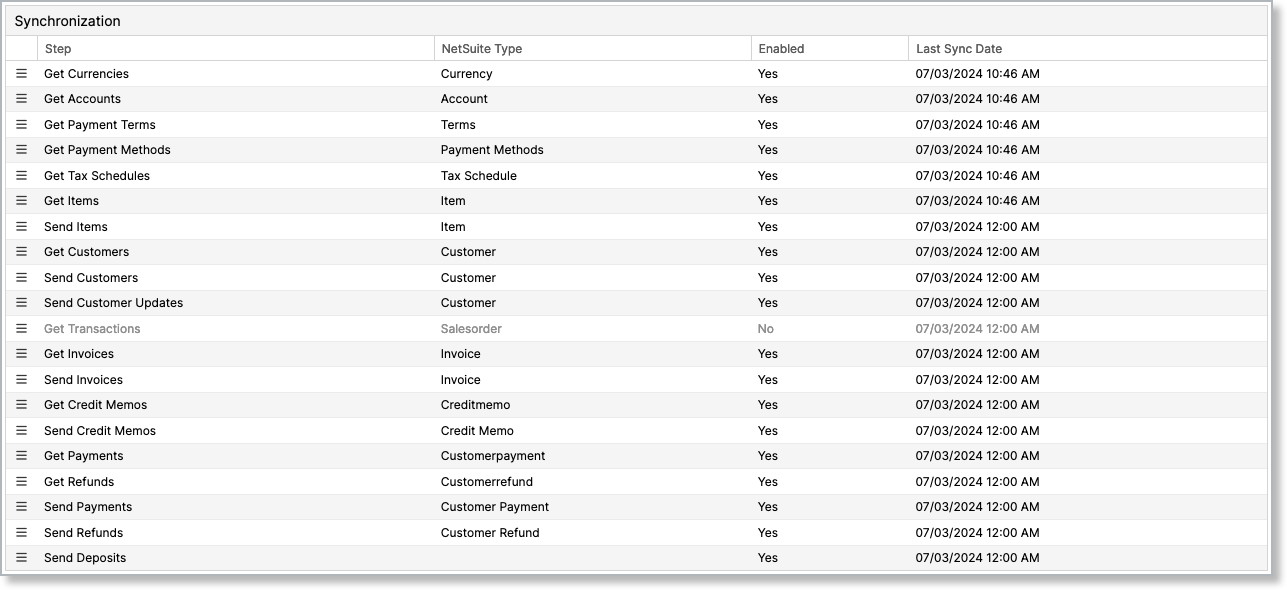
*Sync steps, their configuration type, and what each one does*
| Name | Type | Description |
| :--- | :--- | :--- |
| Get Currencies | Toggle | Retrieves the currencies being used in NetSuite and sets them in Maxio Platform. |
| Get Accounts | Toggle | Retrieves the accounts being used in NetSuite and sets them in Maxio Platform. |
| Get Payment Terms | Toggle | Retrieves the payment terms being used in NetSuite and sets them in Maxio Platform. |
| Get Payment Methods | Toggle | Retrieves the payment methods being used in NetSuite and sets them in Maxio Platform. |
| Get Legacy Tax Schedules | Toggle | Retrieves the tax schedules being used in NetSuite and sets them in Maxio Platform. Superseded by Get Tax Rates for accounts using NetSuite SuiteTax. |
| Get Tax Rates | Toggle | Retrieves tax rate records from NetSuite and creates them as tax rates in Maxio Platform. Only runs if the tax rate flow is enabled for your account. |
| Send Tax Rates | Toggle | Sends tax rates from other sources (such as AvaTax or Advanced Billing) to NetSuite. Only runs if the tax rate flow is enabled for your account. |
| Get Items | Toggle | Retrieves the items being used in NetSuite and sets them in Maxio Platform. |
| Send Items | Toggle | Sends new items from Maxio Platform to NetSuite as Non-Inventory Items for Sale. Changes to items already in NetSuite are sent as the item type NetSuite holds them as: non-inventory, service, other charge or inventory items. If NetSuite holds an item as another type, such as a Discount item, Maxio skips the change and logs a sync issue. See Item edit skipped because of its NetSuite item type. |
| Get Customers | Toggle and Mappings | Retrieves the customers from NetSuite and places them in Maxio Platform. Mappings will need to be filled out to ensure the proper information is carried over to the correct fields. |
| Send Customers | Toggle and Mappings | Sends the customers from Maxio Platform to NetSuite. Mappings will need to be filled out to ensure the correct information is carried over to the correct fields. Either the Maxio Platform field or a default text value can be used. |
| Send Customer Updates | Toggle | Updates customers already synced to NetSuite, so that changes made in Maxio Platform after the initial sync replace the corresponding NetSuite values. Reuses the mappings configured for Send Customers, filtered to only the fields marked to send updates. |
| Get Transactions | Toggle and Mappings | Retrieves sales orders from NetSuite and creates them as transactions in Maxio Platform. Mappings will need to be filled out to ensure the correct information is carried over to the correct fields.- NetSuite Type - Identifies which NetSuite record type this step retrieves (defaults to Sales Order).
- NetSuite Saved Search ID - The internal ID of a NetSuite saved search used as a base filter for which transactions are retrieved.
- Statuses - A list of transaction statuses in NetSuite that can be selected to filter in the desired transactions.
- Min/Max Date - A range of dates that can be used to filter in the transaction.
- Get transactions with zero value - A toggle that will allow any $0 transactions to be included in the sync.
By default, this feature is grayed out and unusable. It's specific to the Analytics-only solution, and must be enabled by Maxio support. |
| Get Invoices | Toggle and Mappings | Retrieves invoices from NetSuite. Mappings will need to be filled out to ensure the correct information is carried over to the correct fields.- NetSuite Type - Identifies which NetSuite record type this step retrieves (defaults to Invoice).
- NetSuite Saved Search ID - The internal ID of a NetSuite saved search used as a base filter for which invoices are retrieved.
- Generate placeholders for line items received which have Items set to not sync - Generates a placeholder line item for NetSuite items that were set to not sync in Maxio Platform.
- Tax 1 Line Label and Tax 2 Line Label - The names given to the tax lines created from NetSuite's Tax 1 and Tax 2 amounts (defaults GST and PST). These fields appear only when Get Tax 1 / Tax 2 as Invoice Tax Lines is turned on for your account. See [Get two NetSuite taxes as separate tax lines](https://docs.maxio.com/accounting/general-ledger-integrations/netsuite/sync/sync-data-between-maxio-and-netsuite#get-two-netsuite-taxes-as-separate-tax-lines).
|
| Send Invoices | Toggle and Mappings | Sends invoices from Maxio Platform to NetSuite. Mappings will need to be filled out to ensure the correct information is carried over to the correct fields. Either the Maxio Platform field or a default text value can be used.- NetSuite Type - Determines whether invoices sync to NetSuite as an Invoice or a Sales Order.
- Min/Max Date - A range of dates that can be used to filter the invoices synced to NetSuite.
|
| Get Credit Memos | Toggle and Mappings | Retrieves credit memos from NetSuite. Mappings will need to be filled out to make sure the proper information is carried over to the correct fields.- NetSuite Type - Identifies which NetSuite record type this step retrieves (defaults to Credit Memo).
- NetSuite Saved Search ID - The internal ID of a NetSuite saved search used as a base filter for which credit memos are retrieved.
- Generate placeholders for line items received which have Items set to not sync - Generates a placeholder line item for NetSuite items that were set to not sync in Maxio Platform.
|
| Send Credit Memos | Toggle and Mappings | Sends credit memos from Maxio Platform to NetSuite. Mappings will need to be filled out to ensure the correct information is carried over to the correct fields. Either the Maxio Platform field or a default text value can be used.- NetSuite Type - Identifies the NetSuite record type this step creates (Credit Memo).
- Min/Max Date - A range of dates that can be used to filter the credit memos synced to NetSuite.
|
| Get Payments | Toggle and Mappings | Retrieves payments from NetSuite. Mappings will need to be filled out to ensure the correct information is carried over to the correct fields.- NetSuite Type - Identifies which NetSuite record type this step retrieves (defaults to Customer Payment).
- NetSuite Saved Search ID - The internal ID of a NetSuite saved search used as a base filter for which payments are retrieved.
|
| Get Refunds | Toggle and Mappings | Retrieves refunds from NetSuite. Mappings will need to be filled out to ensure the correct information is carried over to the correct fields.- NetSuite Type - Identifies which NetSuite record type this step retrieves (defaults to Customer Refund).
- NetSuite Saved Search ID - The internal ID of a NetSuite saved search used as a base filter for which refunds are retrieved.
|
| Send Payments | Toggle and Mappings | Sends payments from Maxio Platform to NetSuite. Mappings will need to be filled out to ensure the correct information is carried over to the correct fields. Either the Maxio Platform field or a default text value can be used.- NetSuite Type - Identifies the NetSuite record type this step creates (Customer Payment).
- Min/Max Date - A range of dates that can be used to filter the payments synced to NetSuite.
|
| Send Payment Updates | Toggle | Updates payments already synced to NetSuite, so that changes made in Maxio Platform after the initial sync replace the corresponding NetSuite values. Reuses the mappings configured for Send Payments. |
| Send Refunds | Toggle and Mappings | Sends refunds from Maxio Platform to NetSuite. Mappings will need to be filled out to ensure the correct information is carried over to the correct fields. Either the Maxio Platform field or a default text value can be used.- NetSuite Type - Identifies the NetSuite record type this step creates (Customer Refund).
- Min/Max Date - A range of dates that can be used to filter the refunds synced to NetSuite.
|
| Send Deposits | N/A | Sends deposits from Maxio Platform to NetSuite. See Send Deposits fields below. |
*Send Deposits configuration fields*
| Option | Description |
| :--- | :--- |
| Bank Deposit Account | The bank account into which you make your deposits (typically, the bank account into which your Transfers are made). This cannot be an Undeposited Funds account. |
| Credit Card and ACH Fee Account | NetSuite account to receive debits for payment processing fees. Set to the GL Account to which you record your credit card and ACH handling fees. |
| Unassociated Payments Account | An Asset Account you create in NetSuite to hold payments synced from Maxio Platform that can't be linked to a NetSuite Invoice. See [How the Unassociated Payments account works](https://docs.maxio.com/accounting/general-ledger-integrations/netsuite/sync/sync-data-between-maxio-and-netsuite#how-the-unassociated-payments-account-works) below. |
| Map Number for Sent Deposits | Check this box to map the Maxio Deposit number to the NetSuite Deposit number. Keep this box unchecked if your NetSuite configuration doesn't provide Deposit numbers. |
| Consolidate Deposit Fee Lines | Sends a single line to NetSuite that sums the processing fees across all deposit lines, instead of a separate line per fee. |
### How the Unassociated Payments account works
Deposits (Payouts) in your payment provider sync to Maxio Platform, then to NetSuite, each time as a Deposit. Each Deposit references one or more Payments, which sync the same way: Stripe to Maxio Platform, then Maxio Platform to NetSuite. Each Payment, in turn, refers to one or more Invoices.
Normally, every Payment a Deposit references maps cleanly to an existing NetSuite Invoice. Under certain circumstances, such as someone manually marking the Invoice as paid in NetSuite before the automatic sync process syncs the payment, the Payment can't be applied to a receivable (invoice) in NetSuite, because the invoice may not exist there. When that happens, the Unassociated Payments account is credited instead, recording the payment against an unknown Invoice and entity.
A negative balance in this account will flag these payments as an issue to resolve in your GL.
### Apply a department, class, or location to deposit lines
The **Settings for Deposit Cashbacks** mapping lets you send a Department, Class, or Location value with each deposit line Send Deposits creates in NetSuite. It applies to both **Deposit Cashback** lines (the fee lines posted to your Credit Card and ACH Fee Account) and **Deposit Other** lines (unassociated funds posted to your Unassociated Payments Account) — the two are the same NetSuite line shape, so one mapping covers both.
If your NetSuite role requires a Department (or Class/Location) value on every deposit line, configure this mapping so a deposit containing unassociated funds isn't rejected for a missing value.
### Send a credit memo's origin invoice to NetSuite
The Send Credit Memos mapping can include a reference to the credit memo's origin invoice, which is the invoice the credit memo was created against. Map it to a custom field on the NetSuite Credit Memo record when a NetSuite script or saved search needs to match each credit memo to its invoice, for example to apply the credit automatically.
When you add a mapping line with **Maxio Field** as its source, the following fields are available on the Send Credit Memos step:
- **Credit Memo: Origin Invoice Number**: the origin invoice's number.
- **Credit Memo: Origin Invoice NetSuite ID**: the origin invoice's NetSuite internal ID, which is filled in once that invoice has synced to NetSuite.
These fields appear only on the Send Credit Memos mapping, not on Send Invoices. If a credit memo has no origin invoice, the mapped field is sent empty.
The origin invoice isn't always the invoice the credit is applied to. A credit memo can be applied to a different invoice, or to several invoices, through credit applications, and these fields still name only the origin invoice.
## Get two NetSuite taxes as separate tax lines
If your NetSuite account uses legacy tax with two taxes on a transaction, such as GST and PST in Canada, Maxio can keep the two amounts apart instead of storing a single sales tax amount. By default, Get Invoices maps an Invoice's sales tax from NetSuite's Tax 1 total only.
To turn this on, contact support@maxio.com and ask for **Get Tax 1 / Tax 2 as Invoice Tax Lines** to be enabled for your NetSuite integration. It is off by default, and it can't be used together with NetSuite SuiteTax.
When the setting is on, Get Invoices and Get Credit Memos work as follows:
- Each Tax 1 and Tax 2 amount that isn't zero becomes its own tax line on the Maxio Invoice or Credit Memo, and replaces the tax lines it had before.
- The Invoice's sales tax is set to the sum of those tax lines.
- Credit Memo tax lines are stored as negative amounts.
- On e-Bills, a theme with **Show Tax Detail** turned on lists each tax line by name in place of the single sales tax amount.
To name the tax lines, open the Get Invoices settings (**NetSuite** > **Integration Settings** > **Synchronization**, hover over the **Menu** menu icon next to Get Invoices, and select **Settings**) and enter **Tax 1 Line Label** and **Tax 2 Line Label**. They default to GST and PST. Get Credit Memos uses the same labels.
Some Invoices keep their tax as it was, for these reasons:
- **Tax on sales tax Items:** An Invoice whose sales tax comes from line items with sales tax Items keeps that sales tax and its existing tax lines.
- **SuiteTax:** If SuiteTax is enabled, Maxio doesn't update tax lines and creates a sync issue.
- **A different NetSuite Type:** If the step's **NetSuite Type** isn't the default (Invoice for Get Invoices, Credit Memo for Get Credit Memos), Maxio doesn't update tax lines and creates a sync issue.
- **Records Maxio can't read:** If Maxio can't read a NetSuite record, it creates a sync issue naming the record IDs, and existing Invoices keep their previous sales tax and tax lines. Check that the NetSuite integration role can view those records.
If the setting is turned off, Get Invoices and Get Credit Memos leave existing tax lines as they are.
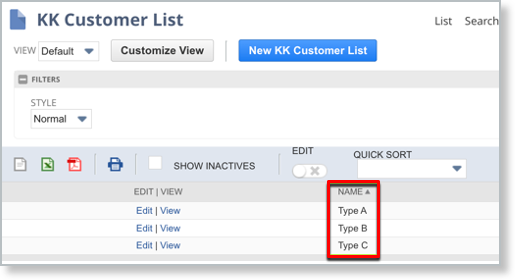
## Sync custom drop-down fields between Maxio and NetSuite
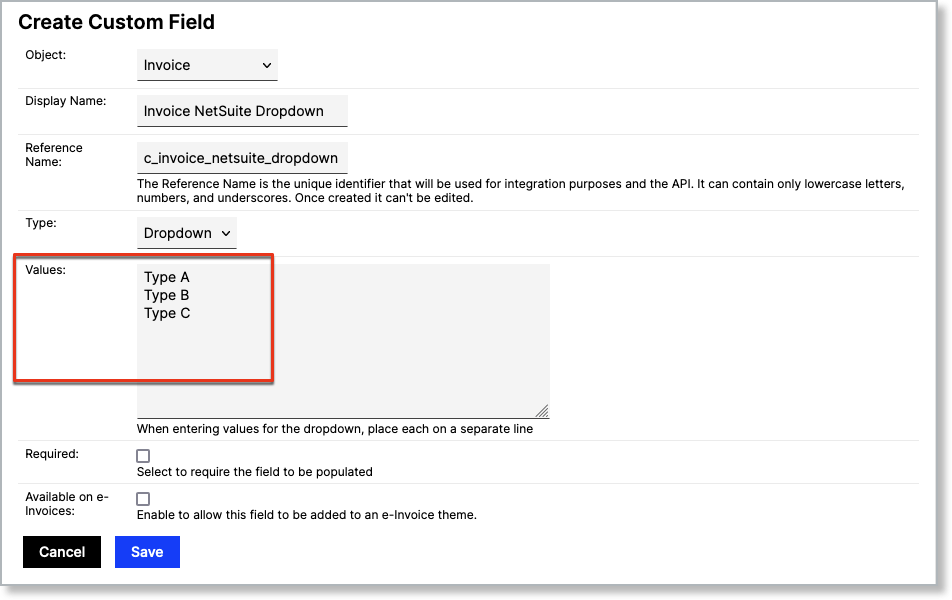
You can sync drop-down custom fields between Maxio and NetSuite. Configuration of the allowed values is required in *both* systems.
## How credit applications sync between Maxio and NetSuite
Use credit applications to automatically apply credit memos to invoices when syncing between Maxio and NetSuite. These records act as bridge payments that ensure balances remain accurate.
For Maxio Platform and Advanced Billing originating Credits, **Credit Applications** enable you to automatically apply Credit Memos in NetSuite. Credit Applications are bridge payments created to apply Credit Memos to the associated Invoice.
Credit Applications appear in the Payments List views as $0 at the top level. By default, they are set to **Do Not Sync**. This is the same sync setting used across every GL integration Maxio supports, not something specific to NetSuite. Uncheck it on the record if you need a specific Credit Application to sync.