
NetSuite Troubleshooting and FAQs
Applies to: Maxio Core
Last updated on Aug 28, 2026
Common issues and errors encountered when connecting, configuring, or syncing the NetSuite integration, along with what to check to resolve them.
Where to find sync issues
NetSuite sync errors are logged to the Sync Issues list on the NetSuite integration page. Check the specific message there first. The error NetSuite returns for a failed record often names the exact cause (for example, a missing permission), which is faster than working through the general checklists below.
Sync stops after the first error
By default, a single NetSuite sync error stops the current sync step and prevents any later steps in that run from executing. If a sync appears to stop partway through, with some records succeeding and others missing, this is expected default behavior, not a bug.
To have Maxio skip the failed record and continue through the remaining steps instead, enable Continue On Error in the NetSuite integration's Update Settings.
Connection and authentication issues
Common connection and authentication issues, and what to check
| Issue | What to check |
|---|---|
| Unable to authenticate | Verify the Consumer Key, Consumer Secret, Token ID, and Token Secret were copied correctly. These values cannot be viewed again after leaving the NetSuite screen. |
| SOAP Web Services unavailable | Confirm SOAP Web Services is enabled under Setup > Company > Enable Features > SuiteCloud. |
| Domain lookup fails | If the message says "Please check your data and try again," confirm the NetSuite Account ID was entered correctly, then click Get Domains for Account again. If the message says "Network error. Please try again later," the Account ID isn't the issue. Wait a few minutes and retry. |
Permission and authorization errors
Before working through the checklist below, check the specific error logged in Sync Issues. NetSuite often names the exact missing permission directly (for example, INSUFFICIENT_PERMISSION: Permission Violation: You need the 'Customer Status' permission to access this page. Please contact your account administrator.). If a permission is named, grant it and retest before continuing.
If the message doesn't name a specific permission, or the error persists:
- Verify the integration user has the correct NetSuite role assigned.
- Confirm the role includes access to the record type being synchronized (invoices, credit memos, payments, journal entries, etc.).
- Verify access to any required subsidiaries, departments, classes, or locations.
- Review the Maxio Core field mappings and item configuration for the affected record type.
- Review any SuiteFlow or SuiteScript customizations that may restrict access.
- Test the operation again after updating permissions.
NetSuite fields could not be loaded on the mapping page
Before you can map fields for a Get or Send step (Get Customers, Send Customers, Get Transactions, Get Invoices, Get Credit Memos, Get Payments, Get Refunds, and similar mapping-driven steps), Maxio requests the list of available NetSuite fields for that record type. If that request fails, an alert titled NetSuite fields could not be loaded appears on the page in place of the mapping controls, and the Save button stays disabled until the fields load successfully — you can't submit the mapping page while this alert is showing.
The alert explains what likely happened, and where NetSuite returned specific error details, lists up to three of them underneath the explanation.
What each alert message means
| Alert message | What to do |
|---|---|
| The NetSuite integration role likely cannot access customization or custom-field metadata. | Ask your NetSuite administrator to review the integration role's permissions — see Permission and authorization errors above. |
| NetSuite could not authenticate the metadata request. | Verify the Consumer Key, Consumer Secret, Token ID, and Token Secret. |
| NetSuite could not process the metadata request right now. | Wait a few minutes, then click Try again. |
| NetSuite rejected the metadata request. | Review the error details listed in the alert; share them with Maxio Support if they don't point to a clear cause. |
| NetSuite rejected the login. Verify the integration credentials and try again. | Verify the Consumer Key, Consumer Secret, Token ID, and Token Secret. |
| NetSuite could not provide field metadata. Contact Maxio Support with the reference ID below. | Copy the Reference ID shown in the alert and share it with Maxio Support. |
| NetSuite field metadata could not be loaded. Please try again or contact support. | Click Try again. If it keeps happening, contact Maxio Support. |
Click Try again on the alert to retry loading the fields without leaving the page.
Sync issues
Common issues and errors occur when settings are not set up properly within the sync steps. Provided below is a list of commonly occurring sync configurations that tend to help create a successful integration.
Only one email address syncs per customer
NetSuite's customer billing email field is an email-specific field type. This means that the field in NetSuite can only hold one email address. There should be no additional punctuation or spacing in the single email field. If there is more than one email populated in the Maxio Platform email field, the additional addresses are not sent to NetSuite automatically. Add a write mapping from Maxio's CC Email field to NetSuite's Alt. Email field if you need to send them.
Saved search isn't returning the expected records
On each Get sync step's settings and configuration page, there is a field labeled NetSuite Saved Search ID. This field allows a filter of what Maxio Platform pulls in from NetSuite. This filter requires a built Saved Search in NetSuite for the criteria to be sent to Maxio Platform. This generates a Saved Search Internal ID that will need to be provided. (The Saved Search Internal ID is not the same as the regular Saved Search ID.) The internal ID can typically be found in the URL of the Search.
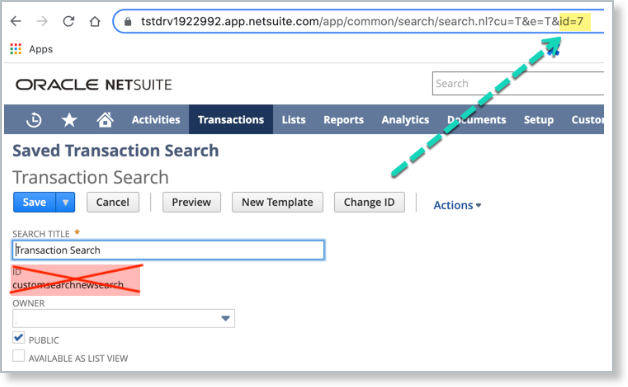
In NetSuite, the saved search must be marked Public for this to work. Maxio does not validate this. An incorrectly scoped search returns no results or the wrong results rather than an error, so if a Get step isn't pulling in what you expect, check the search's visibility in NetSuite first.
The following Get steps allow a Saved Search ID:
- Get Customers
- Get Items
- Get Transactions
- Get Invoices
- Get Credit Memos
- Get Payments
- Get Refunds
We recommend using the same saved search for all of the sync steps. Not using the saved search on all the steps could allow in unwanted information.
Invoice line item amount is negated after syncing
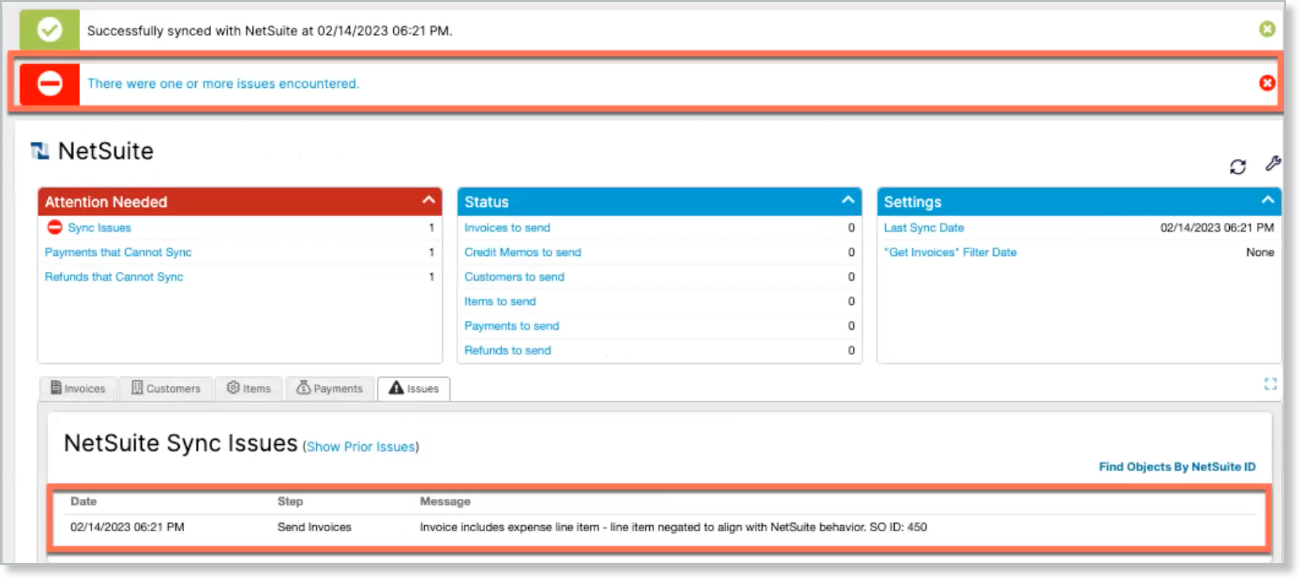
If an Invoice Line Item is associated with an Income account in NetSuite but is actually configured as an Expense in Maxio, the invoice still syncs to NetSuite. Maxio automatically negates that line item's amount to align with NetSuite's accounting rules. The invoice is flagged for manual review; check it for a negated line item and correct the item's account type or the line item as needed.
Still need help?
Reach out and our support team will take it from here.