---
title: Sync QuickBooks Sales Tax
url: https://docs.maxio.com/accounting/general-ledger-integrations/quickbooks/sync/sync-quickbooks-sales-tax
applies_to: Maxio Core
updated: 2026-10-13
---
# Sync QuickBooks Sales Tax
Maxio doesn't calculate Sales Tax itself. Sales tax calculation is supported through the direct Avalara integration within Maxio, or through the sales tax calculation methods available within QuickBooks. Both QuickBooks-based methods require your Invoices to sync with QuickBooks before Sales Tax is calculated there and added back to your Maxio Invoices.
You can have Sales Tax calculated through QuickBooks in either of these ways:
- Use Avalara connected to your QuickBooks account instead of Maxio's direct integration. Avalara computes Sales Tax and inserts it into QuickBooks Invoices as an Invoice Line Item.
- Use QuickBooks' own native Sales Tax or VAT Tax functionality, which QuickBooks calculates itself using Sales Tax settings you configure beforehand in QuickBooks Online or QuickBooks Desktop.
## Using Avalara to calculate Sales Tax via QuickBooks
Avalara is a third-party tool that adds Sales Tax to Invoices in QuickBooks based on address and product rules defined and managed in Avalara. Sales tax added by Avalara is added as a Line Item on a QuickBooks Invoice, not the Invoice's own Sales Tax field.
Any Item in QuickBooks that's itself a Sales Tax Item must have **Is Sales Tax** checked in its Maxio Item settings.
QuickBooks needs to connect to and communicate with Avalara as you create an Invoice, so there's a real-time, but not sub-second, delay before Sales Tax is calculated. Since Maxio's own sync steps run in sub-second timeframes, a single sync often completes before QuickBooks has retrieved the Sales Tax amount from Avalara, so it doesn't yet appear on the Invoice in Maxio.
> **Important:** If an Avalara-calculated Sales Tax amount isn't showing on an Invoice in Maxio after a sync, wait a few minutes and sync again. You can also open the Invoice directly in QuickBooks to check whether the Sales Tax Line Item is there yet. If it is, but a re-sync still doesn't bring it into Maxio, contact support@maxio.com.
## QuickBooks Online native Sales Tax
Maxio sends Invoices to QuickBooks without Sales Tax. For QuickBooks to add Sales Tax automatically during the sync, mark the Product as taxable in QuickBooks Online: only when its **Is taxable** box is checked does QuickBooks add Sales Tax to a synced Invoice.
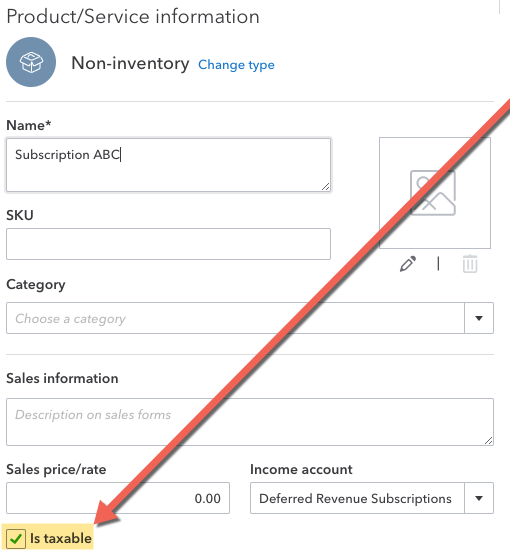
*The Is taxable box on a QuickBooks Online Product*
The Customer must also be marked as taxable. A Customer's Sales Tax Code can be set in either Maxio or QuickBooks Online.
## QuickBooks Desktop native Sales Tax
Maxio sends Invoices to QuickBooks without Sales Tax. For QuickBooks to add Sales Tax automatically during the sync, mark the Item as taxable in QuickBooks Desktop: only when its Tax Code is set does QuickBooks add Sales Tax to a synced Invoice.
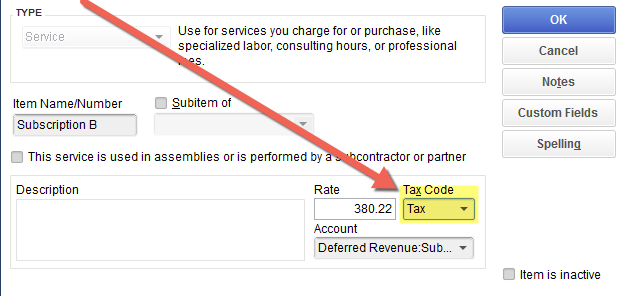
*The Tax Code field on a QuickBooks Desktop Item*
The Customer must also carry a taxable Sales Tax Code. This can be set in either Maxio or QuickBooks Desktop.
## Sales tax on surcharge invoices
When a credit card surcharge is added to an Invoice, Maxio handles the surcharge and its tax in one of two ways, depending on whether the Invoice has already synced to QuickBooks. The tax on a surcharge is carried the same way in both.
### How Maxio adds a surcharge to an invoice
Where the surcharge goes depends on whether the Invoice has already synced:
- If the Invoice has already synced to QuickBooks, Maxio creates a separate Surcharge Invoice instead of adding a line to that Invoice, and syncs the Surcharge Invoice to QuickBooks on its own.
- If Maxio creates a Surcharge Invoice, it numbers it with the original Invoice number plus "-SUR", or "-SUR-2" for a second surcharge on the same Invoice.
- If the Invoice hasn't synced yet, Maxio adds the surcharge as a line on that Invoice, and the Invoice's own Sales Tax includes the surcharge tax.
### Select a surcharge item first
Surcharges come into Maxio only when a **Surcharge Item** is selected on the Advanced Billing Settings page in Maxio Core. Without one, Maxio doesn't create the surcharge line or the Surcharge Invoice and records a sync issue instead.
### How surcharge tax reaches QuickBooks
A Surcharge Invoice carries and sends its tax as follows:
- If the surcharge is taxed, the Surcharge Invoice carries its own Sales Tax amount, equal to the surcharge tax Advanced Billing calculated.
- If the surcharge is untaxed, the Surcharge Invoice carries no Sales Tax.
- If the Surcharge Invoice has Sales Tax, it reaches QuickBooks the same way any other Invoice's Sales Tax amount does: as a Sales Tax Line Item, using the Item you select in **Send Invoice Sales Tax As**.
- If **Send Invoice Sales Tax As** isn't configured, a Surcharge Invoice with Sales Tax can't sync, as described below.
### What happens when a surcharge is refunded or removed
Refunding or removing a taxed surcharge works the same way in reverse. The credit memo Maxio creates for the Surcharge Invoice reverses the Sales Tax that goes with the amount being credited, so that tax is credited back in QuickBooks too.
### What happens to older surcharge invoices
Taxed Surcharge Invoices that Maxio created before it began carrying surcharge tax aren't updated automatically. They stay without Sales Tax, and a credit memo for one carries none.
## When Sales Tax blocks an Invoice from syncing
The **Send Invoice Sales Tax As** setting is required if both of the following are true:
- Your Invoices have a Sales Tax amount, whether it comes from Maxio's Avalara integration or from another source.
- You sync Invoices between Maxio and QuickBooks.
Without this setting configured, populating a Sales Tax amount on an Invoice blocks that Invoice's sync. Maxio flags this in two places: a warning on your Home page ("AvaTax Autocommit Enabled With No Sales Tax Item"), which shows when Avalara is set to commit Sales Tax automatically, and a red entry titled **Sales tax Item not set** in the issues button next to the title of any Invoice that has a Sales Tax amount and has not synced.
For example, you'll see this if you select **Re-estimate Sales Tax** or **Commit Sales Tax** on an Invoice that hasn't yet synced to QuickBooks. This happens because Sales Tax in Maxio needs to sync to QuickBooks as an Invoice Line Item representing the full Sales Tax amount, and nothing tells QuickBooks which Item to use for that until this setting is configured.
### Resolving the warning
To sync Maxio Invoices that have Sales Tax amounts to QuickBooks, tell QuickBooks which Item represents that Sales Tax by setting the **Send Invoice Sales Tax As** default.
**To set the Sales Tax Item default**
1. Go to Configure QuickBooks Integration Settings and set an Item as your default for **Send Invoice Sales Tax As**, under the **Settings** section.

2. Save the setting.
3. Sync to send every affected Invoice to QuickBooks.
> The Item you select must be marked *Is Sales Tax* in its Maxio Item Profile settings.
If you need to create a new Item to represent Sales Tax, create it in QuickBooks first, then set up its Maxio Profile and select **Is Sales Tax**. You can edit an existing Item's Profile from **Admin** > **Items**, selecting the Item.
**Is Sales Tax** also affects future Invoices synced from QuickBooks to Maxio: instead of creating a separate Invoice Line Item for that Item, Maxio adds its Amount into the Invoice's Sales Tax total.