
Configure Advanced Billing Settings
Applies to: Advanced Billing · Maxio Core
Last updated on Oct 13, 2026
The Advanced Billing Settings page is made up of two sections: Settings and Synchronization.
Please be aware that this article is related to Advanced Billing. Together, Maxio Core and Advanced Billing offer full-suite subscription management and financial operations for all SaaS business models.
You can learn more about Advanced Billing by checking out the articles in the Advanced Billing Overview and Resources section of the help center.
Update settings
You first need to access the Advanced Billing admin settings (Advanced Billing > Settings > Update Settings Action). Edit them according to the descriptions below. Be sure to save any changes.
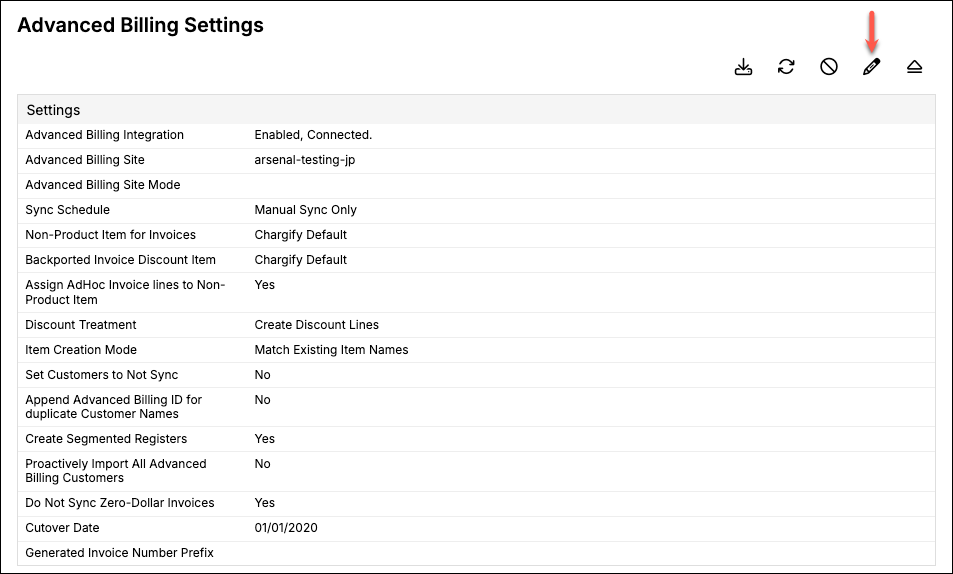
Settings descriptions
| Setting | Description |
|---|---|
| Sync Schedule | How often the sync runs. Manual Sync Only is the default and means no automatic sync. The scheduled options are Nightly Sync, Every 4 Hours Sync, and Hourly Sync. Every 15 Minutes Sync also exists for Advanced Billing, but it is opt-in rather than available by default. |
| Non-Product Item for Invoices | Select an item that will be automatically applied to any invoice line items received from Advanced Billing that are not associated with a product or component. This situation typically occurs with legacy ILIs that lose their associated item for one reason or another. |
| Backported Invoice Discount Item | Select an item that the system will use to create discount invoice line items received from Advanced Billing for backported Invoices. Backported Invoices are those that were originally created under the legacy architecture (also referred to as Statement sites). The process to migrate these statements to invoices under the new architecture (also referred to as Relationship Invoicing) is called backporting by the Advanced Billing team. |
| Surcharge Item | Select the item Maxio Core uses for surcharge invoice lines received from Advanced Billing. The item's revenue and transaction settings drive how the surcharge is recognized. If no item is selected, Maxio Core doesn't create surcharge lines or Surcharge Invoices and records a sync issue instead. Only active items are offered, and this setting only appears when surcharge syncing is available on your account. |
| Generate Transactions After Sync | Have Maxio Core automatically generate transactions based on the invoice line items synced in from Advanced Billing. We recommend that you keep this setting enabled, as this allows the system to generate transactions as part of the sync. |
| Assign AdHoc Invoice lines to Non-Product Item | If selected (checked), the custom AdHoc Invoice Lines will be set to the Non-Product Item and can be adjusted to a different item once synced to Maxio Core. If unselected, then all AdHoc Invoice Lines will be associated to the product of the subscription. |
| Discount Treatment | Determine how Maxio Core should handle discounts: - Just use the net invoice line amounts - Create separate invoice lines for each discount |
| Item Creation Mode | Determine how Maxio Core should treat items coming from Advanced Billing: - Have the system match items according to their names - Create unique items for each one synced in from Advanced Billing |
| Set Customers to Not Sync | Prevent Advanced Billing customers from automatically syncing to your GL. |
| Append Advanced Billing ID for duplicate Customer Names | This setting allows you to prevent the creation of duplicate Customer names in Maxio Core. If enabled, any duplicate customers coming into Maxio Core from Advanced Billing will automatically have their ID number appended to their name. For example, if you have a customer named "Astonish" with the ID number "1234" in Advanced Billing and there is already a customer with that name in Maxio Core, then the new customer will be given the name "Astonish (1234)" in Maxio Core to avoid creating a duplicate. |
| Create Segmented Registers | Create an Advanced Billing Register for each currency being synced into Maxio Core and use the appropriate Advanced Billing Register when creating new Contracts and Invoices. |
| Proactively Import All Advanced Billing Customers | When disabled, customer data will only be imported when there is an active subscription. When enabled, all Advanced Billing customers will be imported - even historical customers or those who were only trial customers. |
| Do Not Sync Zero-Dollar Invoices | Advanced Billing Invoices with a subtotal of 0 will not be created in Maxio Core. Please note that fully discounted invoices will still sync if this option is enabled. |
| Create Transactions for Zero Value Line Items | By default, Maxio Core does not generate Transactions for zero-dollar Advanced Billing Invoice Line Items or term subscription lines, even when the "Generate Transactions After Sync" setting and every other Transaction creation requirement is met. Enable this setting if you want Transactions created for these zero-dollar lines too. |
| Cutover Date | Only Invoices on or after this date will be synced. Open invoices or invoices that have a Credit Note applied, and issued after this date will also be synced. |
| Generated Invoice Number Prefix | When the Advanced Billing invoice is synced to Maxio Core, this prepends the automatically generated invoice number. By default, the prefix is blank. You can use any alpha-numeric combination. Spaces are not allowed. |
| Default Branding Theme | Pre-selects a Branding Theme on new Customers, whether they're created directly in Maxio Core or synced in from a connected integration. It's applied once, when the Customer is created, so you can still clear or change it on that Customer afterward, and it has no effect on Customers that already exist. Only published Branding Themes are offered, and this setting only appears when Branding Theming is available on your account. |
Update a synchronization step
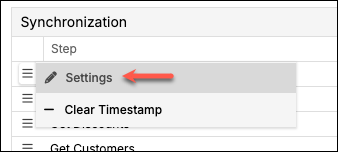
Next to the step you want to update, hover over the Menu icon and click Settings.
The Update Step page appears for the given step, which typically shows the step settings, as well as both system default and custom mappings (the Get Backported Invoices and Get Subscription steps do not have mapping).
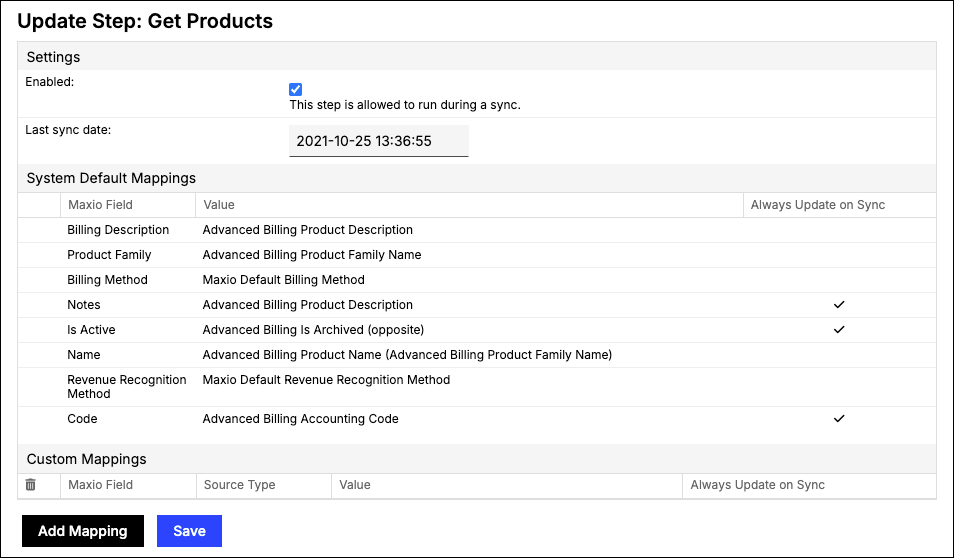
By default, all steps are enabled and run during a sync. And under System Default Mappings, the Always Update on Sync column shows which Maxio fields automatically update during a sync.
Add a custom mapping
Unlike System Default Mappings, Custom Mappings are configurable. Again, most of the sync steps allow you to set custom mappings.
-
Next to the step you want to update, hover over the Menu icon and click Settings.
-
At the bottom of the Update Step page, click Add Mapping.
This extends the Custom Mappings section.
-
From the drop-down, select the Maxio Field you want to map to.
-
For Source Type, you can either select from a drop-down list of existing Advanced Billing Field or click Text to enter the field name.
-
If you want this mapping to update on each sync, check the Always Update on Sync box.
-
Click Save.
The list of Maxio Fields and Advanced Billing Fields depends on the sync step. For example, the list of mappable Maxio Fields for the Get Customers step will be different to the mappable Maxio Fields for the Send Customers step.
When you add a custom mapping for Get Products:
The Maxio Fields available for this step are listed in the Maxio Field drop-down on the Update Step page. They can be mapped to any of these Advanced Billing fields:
id, name, handle, description, accounting_code, request_credit_card, expiration_interval, expiration_interval_unit, created_at, updated_at, price_in_cents, interval, interval_unit, initial_charge_in_cents, trial_price_in_cents, trial_interval, trial_interval_unit, archived_at, require_credit_card, return_params, taxable, update_return_url, version_number, update_return_params, default_product_price_point_id, request_billing_address, require_billing_address, require_shipping_address, product_price_point_id, product_price_point_name, product_price_point_handle, product_family.id, product_family.name, product_family.description, product_family.handle, product_family.accounting_code, product_family.created_at, product_family.updated_at
You have the ability to map Item Custom Fields to Items, when syncing Items to Maxio from Advanced Billing, through the Get Products, Get Components, and Get Coupons sync steps.
Delete a custom mapping
To delete a custom mapping, check the box next to the mapping, click the Trash icon, and click Save.
Still need help?
Reach out and our support team will take it from here.