
Issue Advance Invoices for Subscription Renewals
Applies to: Advanced Billing
Last updated on Sep 20, 2026
Bill subscription renewal charges before the current term ends, while preserving billing dates, net terms, and dunning logic, so you can collect payment early, validate upcoming charges, and manage edge cases such as metered usage, credits, and subscription changes.
Important: Advance Invoicing is available only on sites using Invoice Architecture.
What is an Advance Invoice?
An Advance Invoice is issued for renewal charges before the current subscription period ends. The billing period remains unchanged. The due date of the Advance Invoice reflects the subscription's period end plus its net terms. The Invoice number follows the next number in your site's sequence. Any existing prepayments or credits on file are automatically applied.
The line items on the Advance Invoice exactly match those generated at the normal renewal. If the renewal does not create an Invoice, an Advance Invoice cannot be generated.
Like any open Invoice, an Advance Invoice can be paid, emailed, or voided at any time. If the Invoice is not paid by the due date, the site's dunning strategy is applied when applicable.
How Products work
Metered usage is reset when the Advance Invoice is generated, following standard usage rules. However, all Product types remain available for allocation even when an Advance Invoice exists. Be aware that any additional allocations result in a second Invoice at the time of the subscription's renewal.
To avoid a second Invoice, void the existing Advance Invoice and regenerate it to include all line items, including the new allocations.
Restrictions
Advance invoicing has restrictions on both generating an Advance Invoice and modifying a subscription once one exists.
On generating an Advance Invoice:
- Only one Advance Invoice is allowed per subscription per billing period.
- The subscription must be in an active, trialing, awaiting signup, past due, or unpaid state.
- The subscription cannot be grouped.
- The subscription cannot be prepaid.
- The subscription cannot use prepaid Products.
- The subscription cannot use calendar billing.
- The current time must not be within one hour of the subscription's renewal.
- If using a non-default currency, the subscription must use fixed exchange rates.
After the Advance Invoice is generated:
The subscription becomes locked to certain changes. To unlock, you must void the Advance Invoice.
- Plan and Plan price points cannot be changed via immediate Plan change or migration.
- A Product's price point cannot be changed if that Product already appears on the Advance Invoice. Other Products on the subscription aren't affected, and you can still allocate to them as usual.
- The next billing date cannot be changed.
- The subscription cannot be added to a group.
- The subscription cannot be canceled immediately, unless the Advance Invoice is fully unpaid, in which case it is voided automatically.
- The subscription cannot be canceled at the end of the current period.
- A cancellation cannot be scheduled to take effect within the current billing period; the scheduled date must fall in a later period.
- However, if a pending cancellation already exists and charges are due at cancellation, you can still generate an Advance Invoice.
Other:
- Feature available on Invoice Architecture sites only.
Issue an Advance Invoice
Issue an Advance Invoice manually for a single subscription instead of waiting for automatic generation. See Set Up Automated Advance Invoicing to configure rules that generate Advance Invoices automatically instead.
To issue an Advance Invoice
-
In the Subscription Actions drop-down, select Issue Invoice Immediately.
-
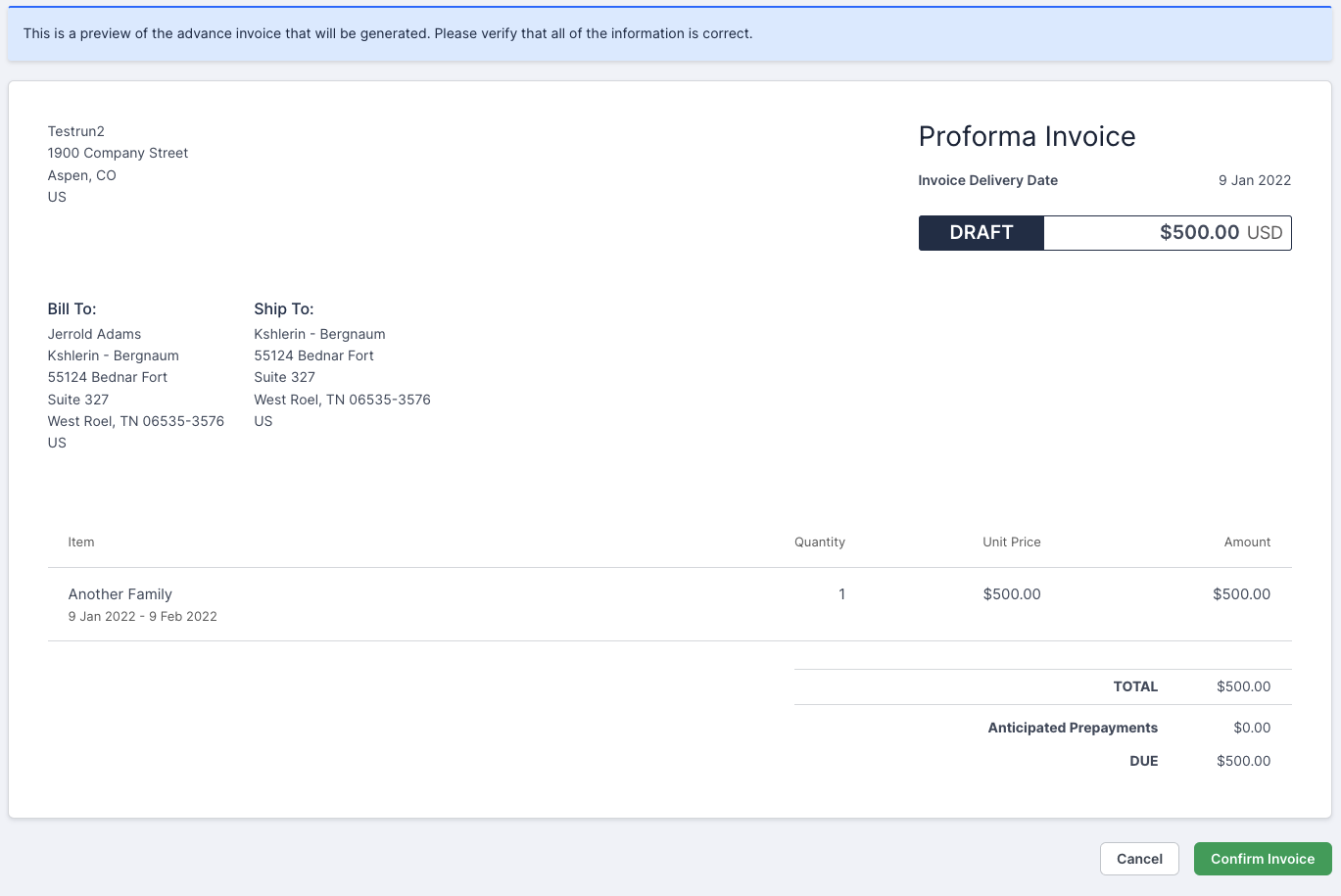
Review the proforma preview of the line items, customer information, and pricing included in the Advance Invoice. If something is incorrect, click Cancel and update the subscription, customer, invoice settings, or catalog item as needed.
-
Click Confirm Invoice.
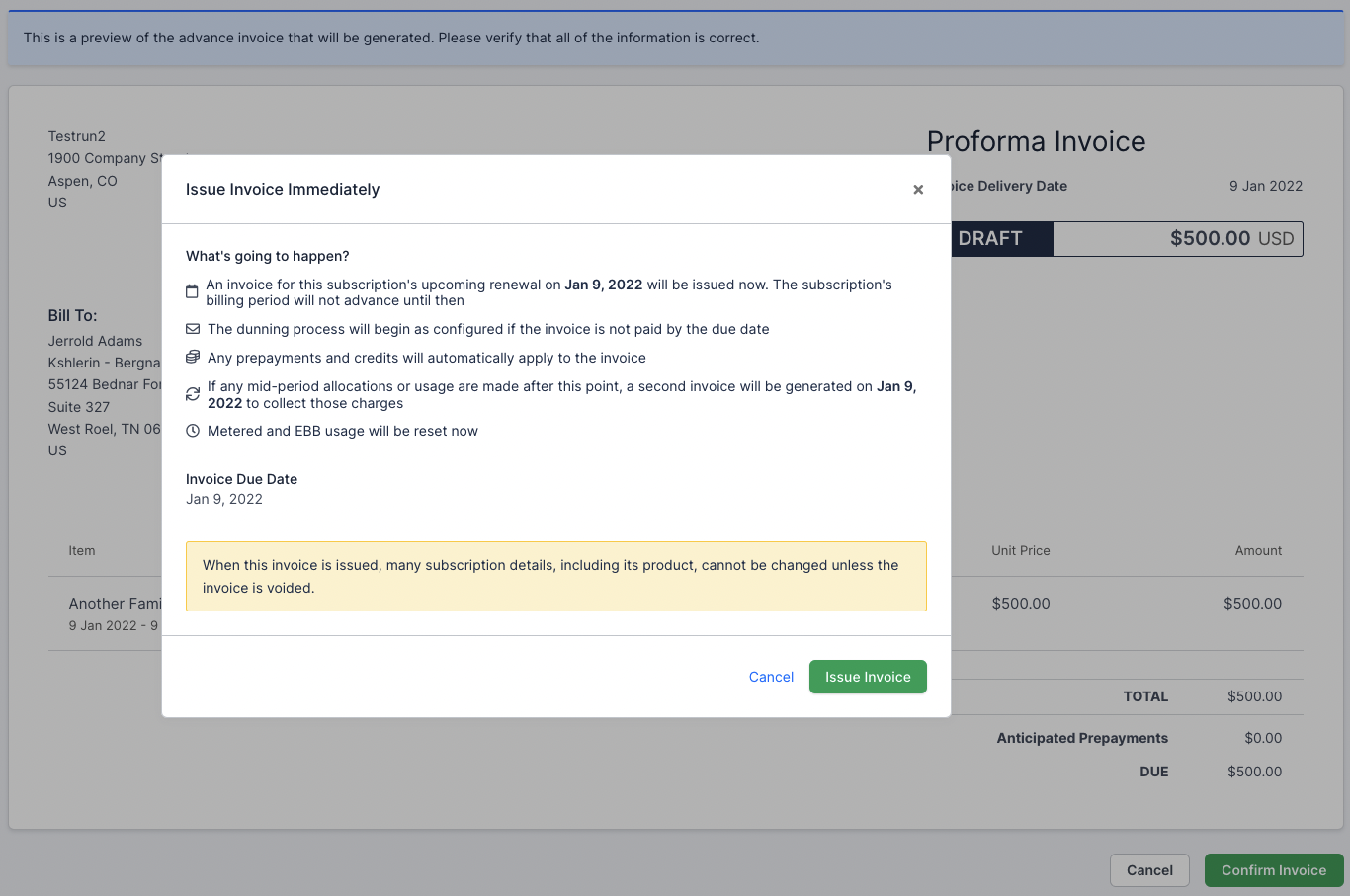
A confirmation popup summarizes the effects of issuing the Advance Invoice. If the subscription is past due or unpaid, the popup also notes that issuing the Invoice does not affect the subscription's current dunning attempts or auto-renewal configuration.
-
Click Issue Invoice.
You're redirected to the new Advance Invoice. If automated emails are enabled, the Invoice is sent to the customer automatically.
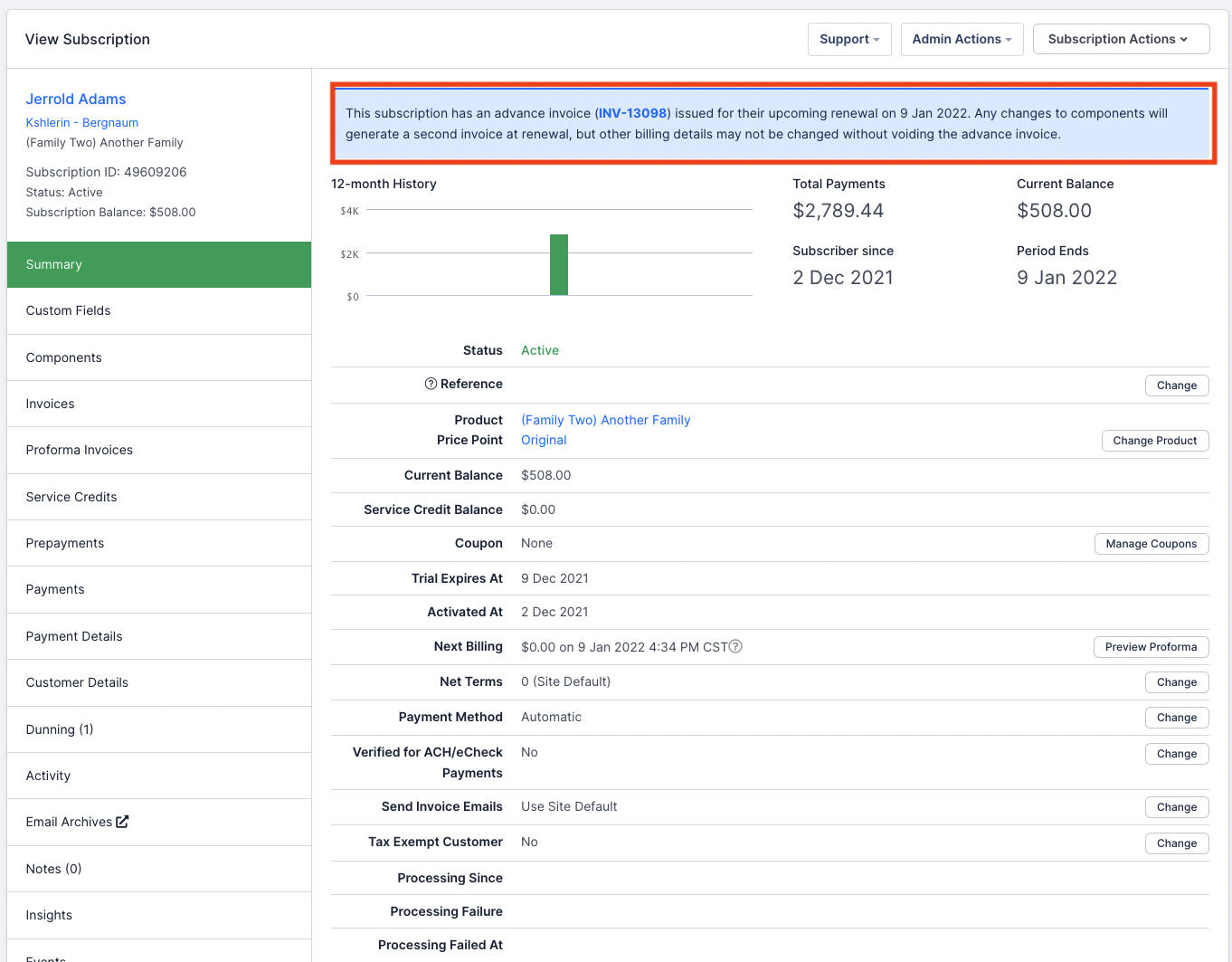
On the subscription's Summary page, a banner indicates when an Advance Invoice is present. If line item updates are needed before renewal, void the Advance Invoice. Updates to customer information, such as shipping addresses, can be made directly on the Invoice.
Void an Advance Invoice
If the Advance Invoice is voided before the renewal, several rollbacks occur:
- Prepayments and credits are returned to their respective accounts. Any payments are converted into prepayments.
- Any discounts from coupons are restored.
- Metered usage is restored to the relevant Product, equal to the amount invoiced.
The Invoice number remains unchanged if the Invoice is voided and regenerated.
Once the subscription renews, the Invoice is no longer considered "in advance." At that point, voiding follows standard behavior without rollbacks.
Still need help?
Reach out and our support team will take it from here.