---
title: Get Started with Maxio Metering
url: https://docs.maxio.com/billing/maxio-metering/setup/get-started-with-maxio-metering
applies_to: Advanced Billing
updated: 2026-08-28
---
# Get Started with Maxio Metering
Set up Maxio Metering in Advanced Billing to create a Stream, configure a Meter, and send a test usage event. After setup, you can confirm that Maxio receives usage data and calculates Meter results before connecting usage to billing.
## Before you begin
> **Important:** Metering must be activated for your US-hosted Advanced Billing site. Contact your Customer Success Manager or Maxio Support to request Metering activation.
Review these concepts before creating your first Stream and Meter:
- **Stream**: Defines the event structure Maxio accepts.
- **Meter**: Calculates usage from Stream events.
- **Segment**: Groups usage by a string property, such as region or customer tier.
## Step 1: Configure Metering
Once Metering is activated, you can configure it for your site.
1. From Advanced Billing, go to **Config > Settings > Metering**.
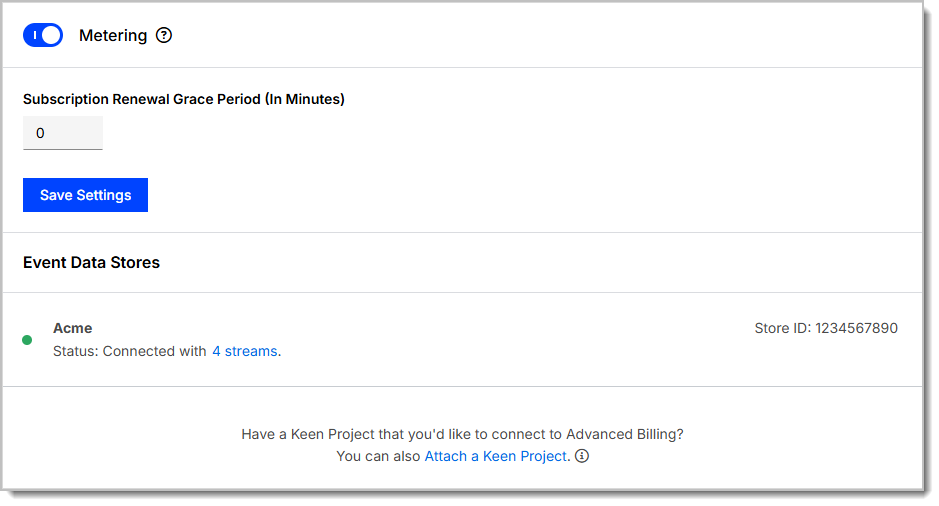
2. Toggle on **Metering**.
3. *(Optional)* Enter a **Subscription Renewal Grace Period (In Minutes)** to give Maxio extra time to receive usage data before closing a billing period. Enter a value between 0 and 120.
4. Click **Save Settings**.
## Step 2: Create a Stream
A Stream defines the structure of the usage events your system sends to Maxio.
1. Go to **Metering > Streams**.
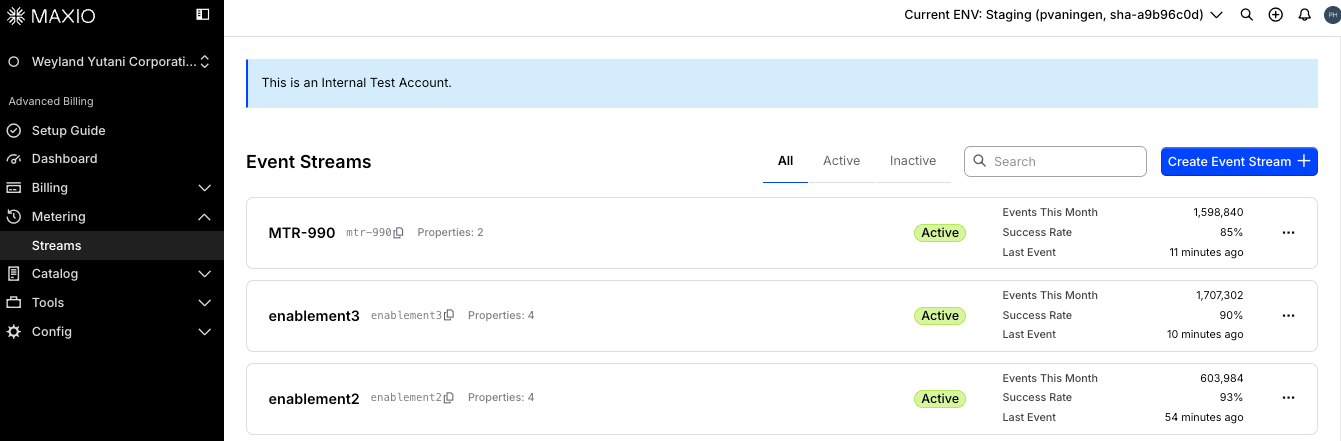
2. Click **Create Event Stream**.
3. Under **Event Details**, for **Name**, enter a descriptive name, such as `API Usage Stream`.
4. Review the **API Handle**.
Maxio generates the API Handle from the Stream name and uses it in the events API endpoint.
5. In **Description**, enter optional context for your team.
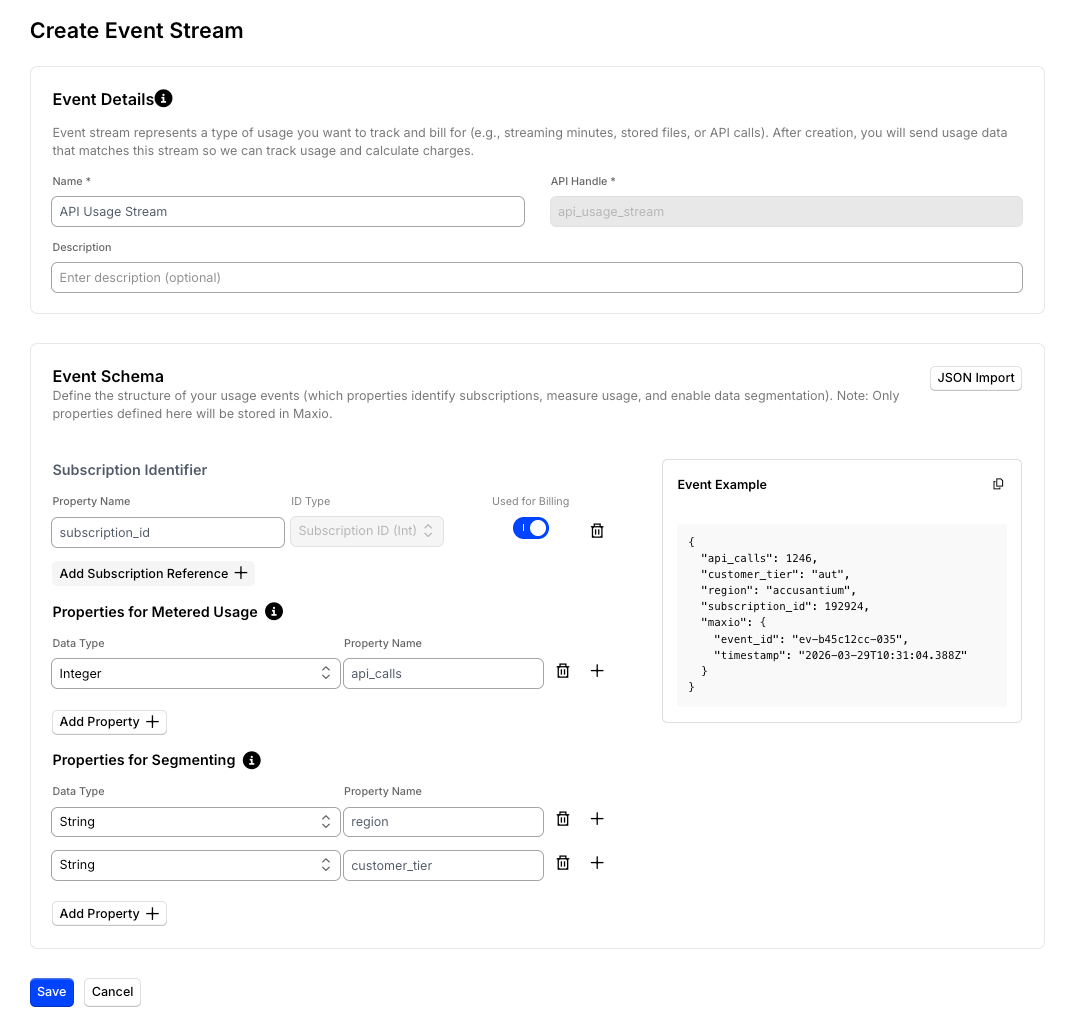
6. Under **Event Schema > Subscription Identifier**, enter a **Property Name** and select an **ID Type**, such as `Subscription ID (Int)`. Click **Add Subscription Reference** if you also want to identify subscriptions by an external reference ID.
7. Under **Properties for Metered Usage**, click **Add Property** for each numeric field your events include. Select a **Data Type** of **Integer** or **Float**, and enter a **Property Name**.
8. Under **Properties for Segmenting**, click **Add Property** for each field you want to group usage by. Select a **Data Type** (**Integer**, **String**, **Float**, or **Boolean**), and enter a **Property Name**.
*Example setup*:
| Property name | Section | Data type |
| :--- | :--- | :--- |
| `api_calls` | Properties for Metered Usage | Integer |
| `region` | Properties for Segmenting | String |
| `customer_tier` | Properties for Segmenting | String |
9. Review the **Event Example** panel, which updates as you add properties.
10. Click **Save**.
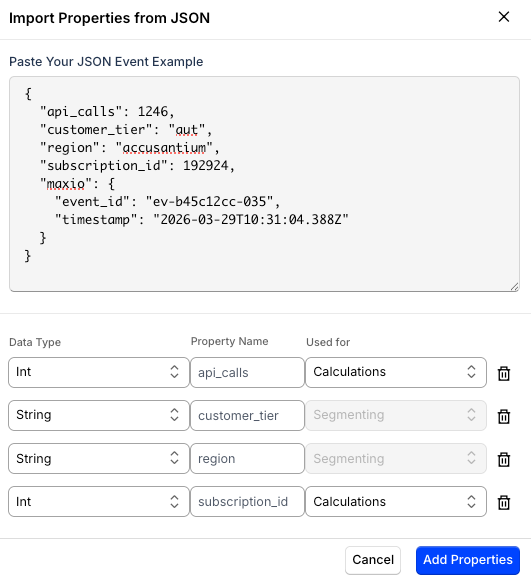
If you already have an event format, click **JSON Import**, paste a sample event, and Maxio detects the fields automatically. For each detected property, select a **Data Type** and whether it's used for **Calculations** or **Segmenting**, then click **Add Properties**.
## Step 3: Create your first Meter
A Meter defines how Maxio calculates usage from Stream events.
1. Open the Stream you created.
2. Click the **Meters** tab.
3. Click **Create Meter**.
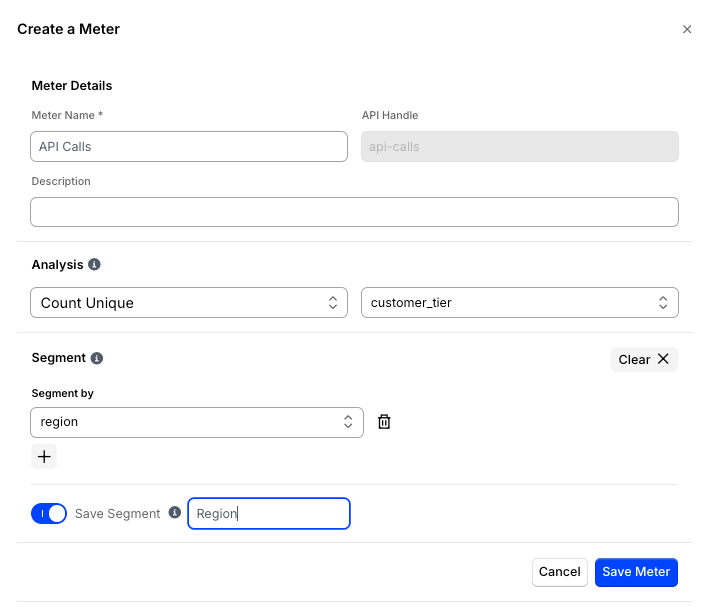
4. In **Meter Name**, enter a descriptive name, such as `API Calls`.
5. Under **Analysis**, select an analysis type:
- **Count**: Counts the total number of events.
- **Count Unique**: Counts distinct values for a selected property.
- **Sum**: Totals the values of a selected numeric property.
- **Average**: Averages the values of a selected numeric property.
- **Minimum**: Returns the lowest value for a selected numeric property.
- **Maximum**: Returns the highest value for a selected numeric property.
6. For every analysis type except **Count**, select the property to aggregate.
7. Under **Segment**, select an existing segment from the **Select Segment** dropdown, or select **New Segment** and choose a property under **Segment by**.
8. *(Optional)* Turn on **Save Segment** and enter a **Segment Name** to make the segment reusable.
9. Click **Save Meter**.
## Step 4: Send a test event
After the Stream and Meter are configured, send a test event that matches the Stream schema.
1. Go to **Metering > Streams** and open the Stream.
2. On the Stream's detail page, click the **Copy** icon next to the API Handle to copy the stream URL (also known as the API endpoint URL) to the clipboard.
3. Send a POST request with a JSON payload that matches your Stream schema.
Include:
- Your subscription identifier (matching the type selected on the Stream)
- The event properties you defined
A successful request returns a 2xx response.
## Step 5: Confirm the event and Meter result
After sending the event:
1. Go to **Metering > Streams** and open the Stream.
2. Click the **Events** tab.
3. Confirm that the event appears.
4. Check the success rate stat to confirm no validation errors occurred.
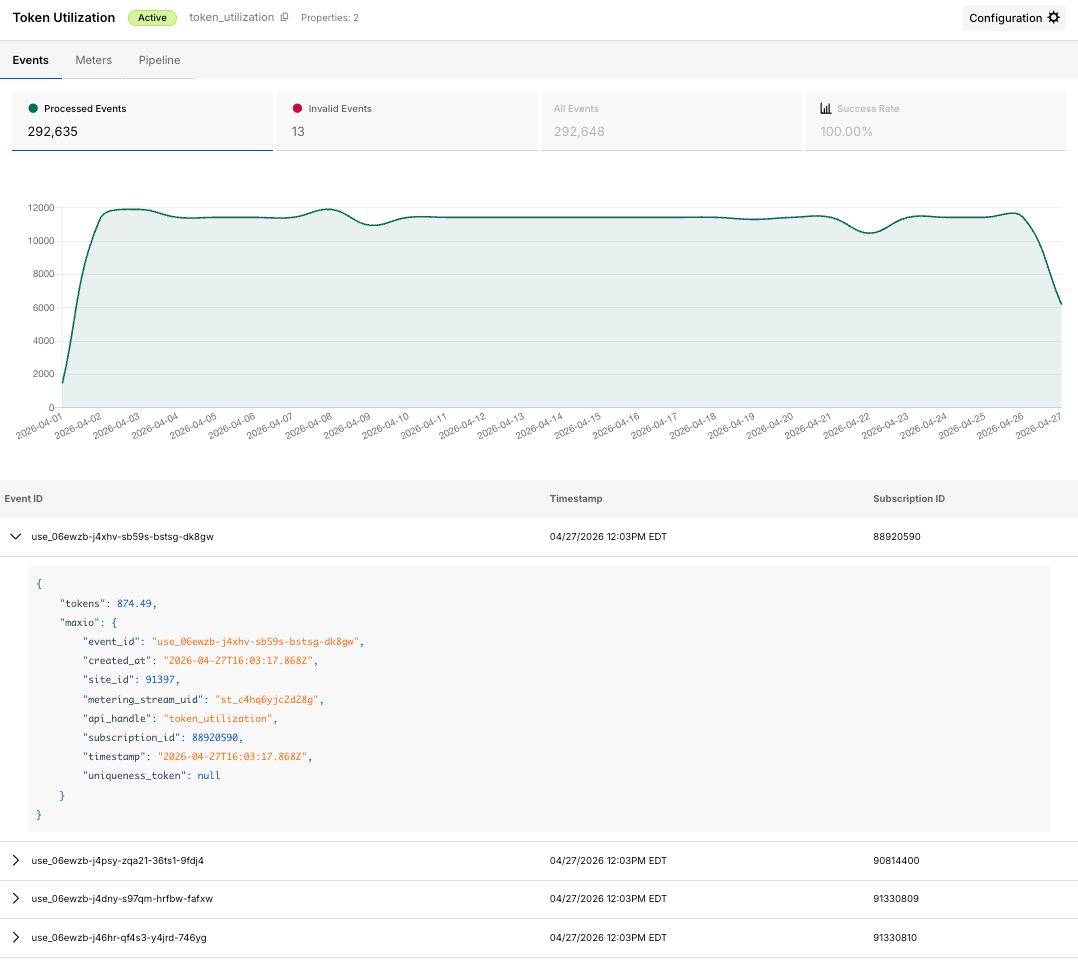
If the event does not appear or displays as invalid, review Troubleshoot Maxio Metering Issues.
## Next steps
Once your Stream and Meter are working, connect the Meter to a billing product in your Product Catalog. See Design Your Catalog: Use Metering with Products.