
Troubleshoot Maxio Metering Issues
Applies to: Advanced Billing
Last updated on Oct 16, 2026
Resolve common Maxio Metering issues by checking event receipt, validation errors, meter calculations, segment pricing, and invoice charges. Use these checks to identify why usage events are missing, invalid, calculated incorrectly, or not creating usage-based billing charges.
Events are not appearing
To check whether events are being received:
- Go to Metering > Streams.
- Open the stream.
- Click the Events tab.
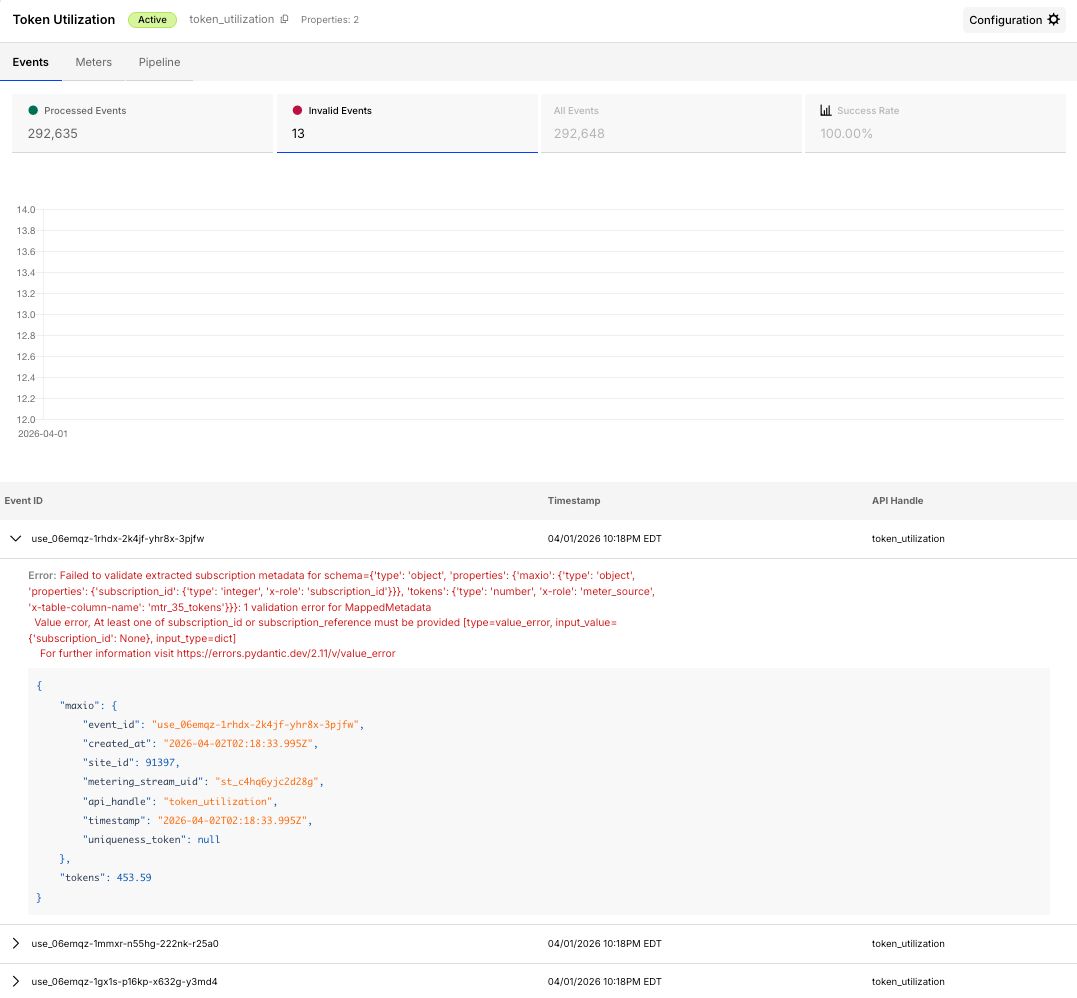
If no events appear, check the following causes.
| Possible cause | What to check |
|---|---|
| API handle mismatch | Confirm the endpoint URL matches the stream's API handle exactly. |
| Authentication error | Verify that the API key is correct and has the required permissions. |
| Subscription not found | Confirm the Subscription ID or Subscription Reference matches an active subscription. |
| Wrong identifier type | Confirm the event uses the identifier type selected on the stream. |
| Event sent to the wrong site | Confirm that your system sends events to the correct Maxio site. |
For identifier and stream field details, see Configure Maxio Metering.
Events are invalid
If events appear as invalid, open the event details and review the validation message.
Common validation issues include:
| Issue | Resolution |
|---|---|
| Missing required property | Add the missing property to the event. |
| Wrong data type | Send values that match the stream schema. |
| Unknown property | Add the property to the stream or remove it from the event. |
| Invalid subscription identifier | Send the correct Subscription ID or Subscription Reference. |
| Timestamp issue | Confirm the event timestamp uses the expected format. |
How to fix: Update the event payload to match the stream schema. The Event Example panel on the stream setup page shows a valid payload.
Invalid events do not contribute to meter calculations. A high volume of invalid events causes meter totals to be lower than expected.
Event counts don't match the events list
The Processed Events and Invalid Events counts at the top of the Events tab cover the same period as the chart shown below them: the last 30 days, by default. They don't count every event Maxio has ever received for the stream.
The individual events listed further down the tab aren't limited to that period, so the count above can be lower than the number of rows you find by scrolling or paging through the list.
If a count looks smaller than you expected, this reflects the 30-day window, not missing or deleted events. To check activity outside that window, review the events list directly rather than relying on the counts.
Use the Pipeline tab
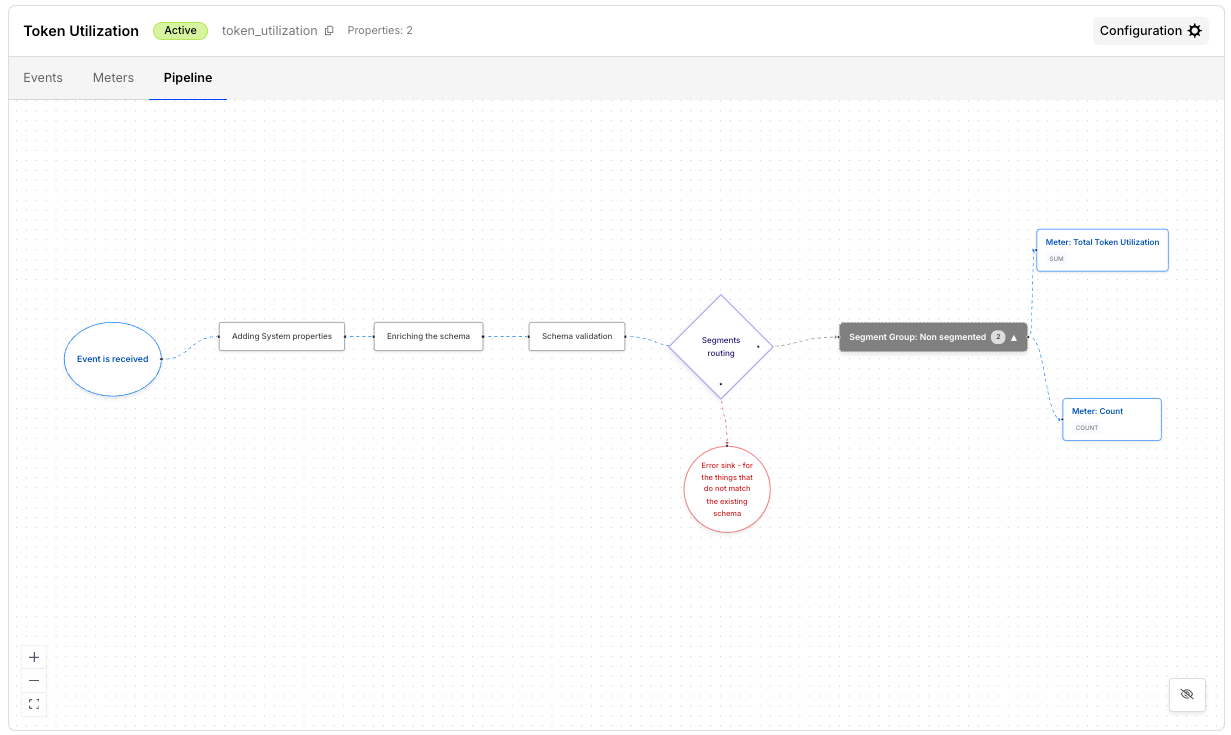
The Pipeline tab traces how an event moved through the system. Use this to identify exactly where an event is failing or being routed unexpectedly.
To access this view:
- Open the stream.
- Click the Pipeline tab.
This view shows each stage: event received, system properties added, schema enriched, schema validated, and segments routed. Events that don't match the stream's schema are routed to an error sink instead of continuing through the pipeline.
Usage totals are incorrect
If events are valid but usage totals are not expected, review the meter configuration.
Check the following items:
- Aggregation type: Confirm the selected type (Count, Sum, Average, Minimum, Maximum, or Count Unique) matches your billing intent.
- Selected property: Confirm the meter uses the correct numeric or unique property.
- Segment: Confirm the meter segments by the correct property and that the property's data type matches what your events send.
- Billing period: Confirm the event timestamps fall within the expected billing period.
- Duplicates: Confirm your system is not sending duplicate events unless duplicates should count.
Charges are missing from invoices
If usage is calculated but no charge appears on the invoice, check billing setup.
Confirm the following items:
- The Meter is attached to a metered Product.
- The Product is added to the Subscription.
- The Product has active pricing.
- Segment values have matching prices or a catch-all price.
- Events arrived before the grace period ended.
Segment values don't match pricing
Segment value matching is case-sensitive.
Example: US-East, us-east, and us_east are different values. Confirm that event values exactly match the segment values configured on the Product.
A missing or null segment value in an event does not match any configured Segment value. That usage is priced at the catch-all Segment price if one is configured, or at the Product's default pricing. It is never priced at a specific Segment value such as false.
If usage you expected to bill at a specific Segment price instead bills at the catch-all or default price, confirm the event actually sends that property.
When to contact Support
Contact Maxio Support if:
- Events are accepted but do not appear in the stream.
- Valid events do not update meter totals.
- Invoice charges do not match confirmed meter results.
- You need help correcting usage for a closed billing period.
Include the stream name, meter name, subscription identifier, event ID, and invoice number when available.
Related information
To review a Meter's calculated usage and where it appears on an invoice, see Understand Meter Results in Billing.
To check a Subscription's current usage or test billing before renewal, see Review Meter Results in Billing.
For Stream, Meter, and Segment configuration options, see Configure Maxio Metering.
Still need help?
Reach out and our support team will take it from here.