---
title: Set Custom Pricing on a Subscription
url: https://docs.maxio.com/billing/subscriptions/configuration/custom-pricing/set-custom-pricing-on-a-subscription
applies_to: Advanced Billing
updated: 2026-11-06
---
# Set Custom Pricing on a Subscription
Custom Pricing overrides a Product's catalog price for a single Subscription. Set it while creating a Subscription, when changing its Product, or by updating an existing Product's price point. You can mix and match Price Points and Custom Prices within the same Subscription; not every Plan and Product on it needs a Custom Price.
> Custom Pricing applies only to the given Subscription. It doesn't get saved to the Product Catalog.
## Create a subscription with custom pricing
Set a Custom Price on a Product as part of creating the Subscription.
**To create a Subscription with Custom Pricing**
1. From Advanced Billing, go to **Billing** > **Subscriptions**, then click **Create Subscription**.
2. In the **Customer** section, select **Select Existing Customer** or create a new Customer.
3. Complete the Customer details as needed.
4. In the **Configuration** section, select a **Currency**.
5. Click **Select Product**.
6. Select the Product to add, then click **Change** to set a Custom Price.
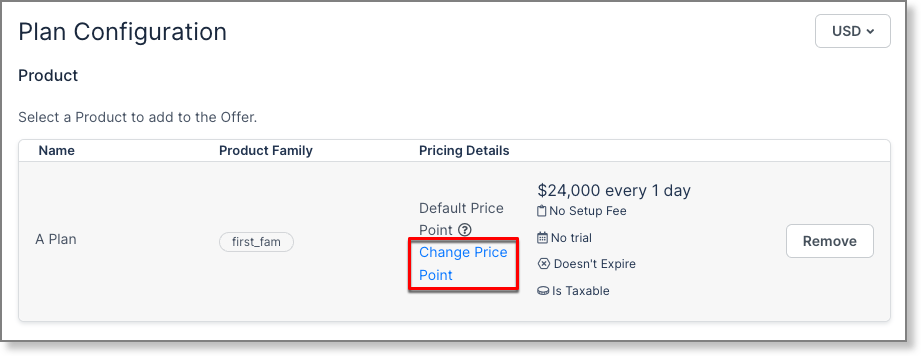
7. On the **Select Product Price Point** screen, select **Custom Pricing**. The Custom Price is only associated with this Subscription and isn't saved to the Product Catalog.
8. Set the **Base Price** and the **Interval**, and indicate if tax is included in the price.
9. Optionally add a Trial Period, a Setup Fee, or an Expiration.
10. Click **Preview** to save your Custom Price and return to the **Configuration** section.
11. Select any additional Products to add.
12. Optionally add Coupons.
> **Important:** Preview Cost is only available before you click **Create Subscription**.
13. Click **Preview Cost** to preview the Subscription with your Custom Prices applied.
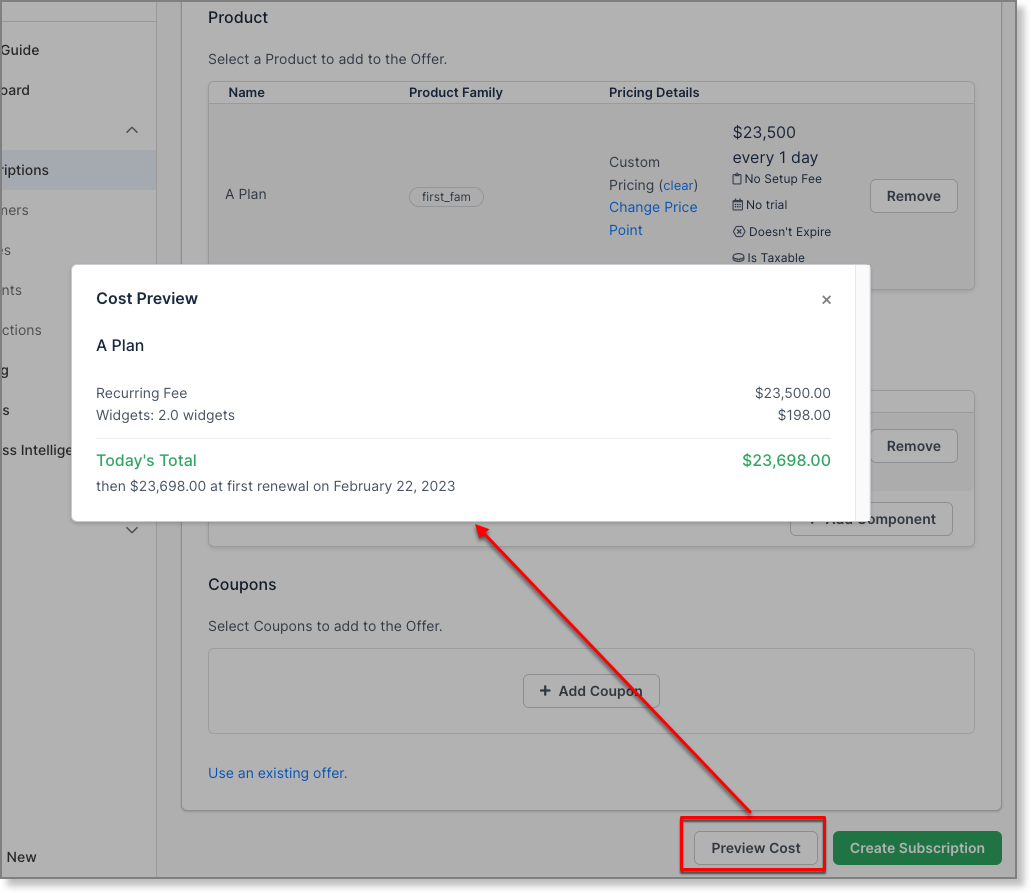
14. If the Cost Preview looks correct, click **Create Subscription**.
## Change a subscription's product with custom pricing
When viewing the Subscription, you can change its Product to one with a Custom Price, or modify an existing Custom Price.
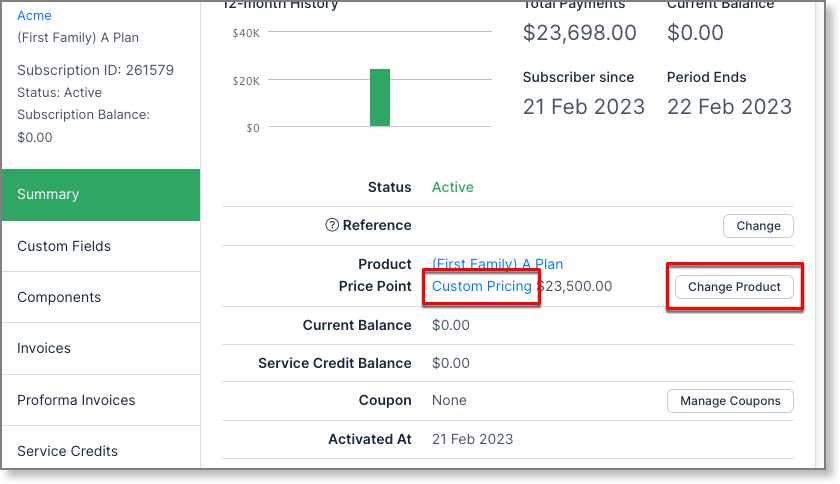
You can also set a Custom Price at the same time you change the Subscription's Product.
**To change the Subscription's Product with Custom Pricing**
1. Click **Change Product**.
The Change Product screen lists the effects of changing the Product:
- **No proration is done.** Your Customer isn't charged or credited at this time, except for wallet overage: if the change moves a wallet product's overage to another price point, overage that hasn't been invoiced yet is billed on its own invoice at the time of the change. See When a plan change moves overage to another price point. If you want proration, perform an Upgrade or Downgrade a Subscription instead.
- The selected Plan immediately becomes the current Plan in the Advanced Billing API and UI.
- The period isn't affected, except in the case of a trial.
- The new Plan's charges are assessed at the start of the next period.
- Products are unchanged, and Product charges are assessed at the start of the next period.
- If the new Plan belongs to a different Product Family, Product usage no longer shows in the **Products (Line-Items)** tab, because Products belong to a specific Product Family.
- If the new Plan doesn't have delayed initial charges, any pending initial charges don't apply.
- If the Subscription moves to a Plan that expires, its expiration is calculated from today.
- If the Subscription moves to a Plan that doesn't expire, its expiration date, if any, is removed and the Subscription never expires.
- If the Subscription is trialing and moves to a Plan with a longer trial, its trial is extended.
> **Important:** If the Subscription has a term, its term date isn't affected by this change.
2. Scroll down to find the Product to change to and click **Change Price Point**.
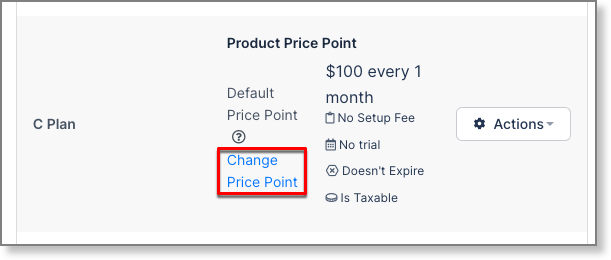
3. Set the **Custom Price** and click **Preview**.
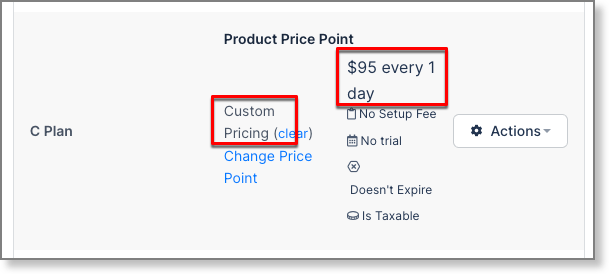
4. From the **Actions** drop-down, click **Change to Product**.
## Update a product's price point
Update a Product's existing price to a Custom Price without changing its quantity.
With **Custom Pricing** selected, the screen notes that a Custom Price takes effect immediately and reprices the current billing period. With a catalog price point selected, it notes that the updated price point is used the next time the Subscription renews.
**To update a Product's price point**
1. Open the Subscription and select **Products** in the left navigation panel.
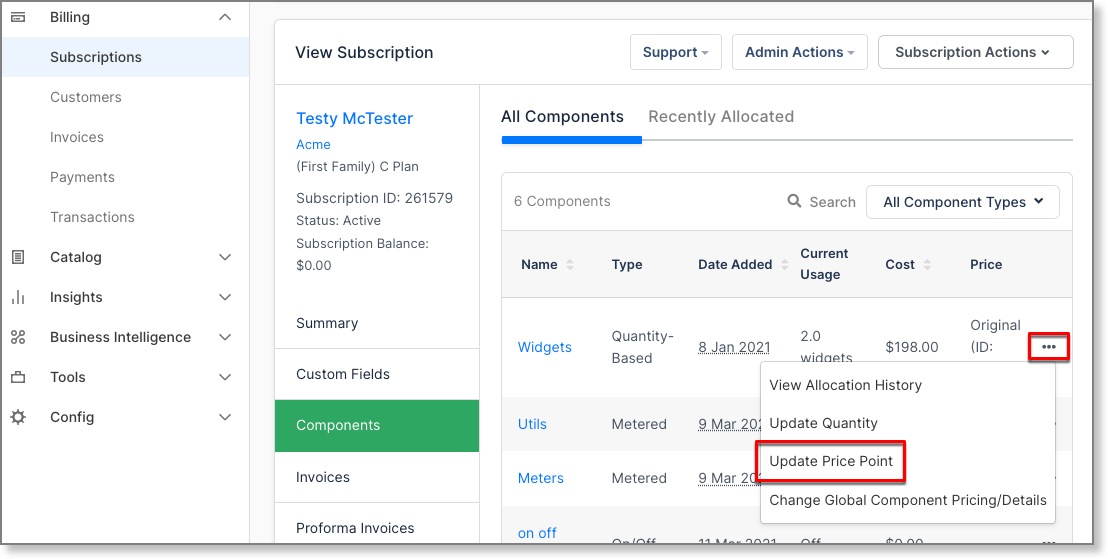
2. For the Product you want to set Custom Pricing for, click its **More icon (...)** and select **Update Price Point**.
3. On the **Update Price Point** screen, select **Custom Pricing**.
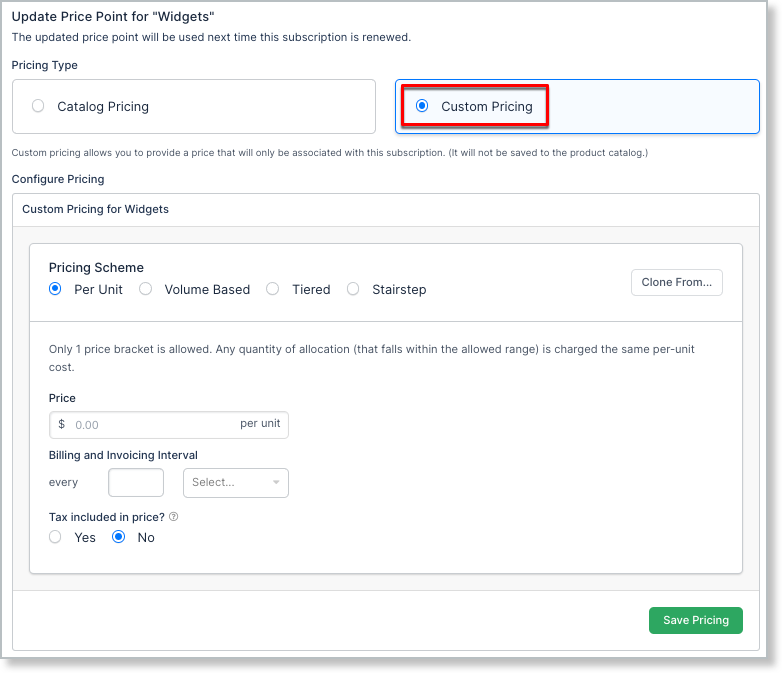
4. Set the **Pricing Scheme**.
> Custom Pricing supports up to 11 decimal places.
5. If Entitlements is enabled for your site, an **Override Default Entitlements for this Price Point** checkbox appears below the Pricing Scheme.
- Leave it unchecked to have this Custom Price point continue inheriting the Product's default Entitlements.
- Select it to reveal an editable feature set for this Custom Price point, pre-filled from the Product's default Entitlements. Adjust any feature value as needed. The change applies only to this Subscription's price point.
6. Click **Save Pricing**, then **Update**.
## Set segment rates on a metered product
A metered Product whose Meter has Segments can carry its own Segment rates on a Custom Price. You override the rate for one or more Segments, or add a Segment value, on this Subscription only, and the Product Catalog keeps its Segment rates unchanged.
The **Segment Rates** section appears on the **Update Price Point** screen when all of the following apply:
- Your site uses Maxio Metering.
- The Product is a metered Product.
- The Product's Meter has Segments.
It doesn't appear if your site tracks list and sales prices on Subscriptions, or when the pricing options open inside another action, such as activating a Product or recording an allocation.
The section lists the Segments of the price point the Subscription is on, with a column for each of the Meter's attributes. In the list:
- The first time you set a Custom Price, the rates come from the catalog price point. After that, they come from the Subscription's Custom Price.
- Rates are shown in the Subscription's currency.
- An asterisk (`*`) in a column means the Segment matches any value for that attribute.
**To set segment rates on a Subscription**
1. Open the Subscription and select **Products** in the left navigation panel.
2. For the metered Product, click its **More icon (...)** and select **Update Price Point**.
3. On the **Update Price Point** screen, select **Custom Pricing**.
4. Set the base pricing as needed.
5. In the **Segment Rates** section, click the rate shown on the Segment row you want to change.
6. In the **Segment Rate** dialog, select a pricing scheme and set the rate. To start from another Segment's brackets, use **Clone From**.
7. Click **Set new price**. The new rate shows on the Segment row but isn't saved yet.
8. Repeat for any other Segments you want to change.
9. Click **Save Pricing**, then **Update**. The base pricing and every Segment rate save together.
### Add a segment value for one subscription
You can add a Segment value that the price point doesn't define, such as a new region, and give it a rate on this Subscription only. The Product Catalog and the Meter keep their Segments unchanged, and other Subscriptions on the same price point keep their rates.
Above the Segment rows, the **Segment Rates** section has a value field under each of the Meter's attribute columns, followed by **Add Segment**. A field you leave blank matches any value for that attribute. **Add Segment** stays unavailable until at least one field has a value.
**To add a Segment value on a Subscription**
1. Open the Subscription and select **Products** in the left navigation panel.
2. For the metered Product, click its **More icon (...)** and select **Update Price Point**.
3. On the **Update Price Point** screen, select **Custom Pricing**.
4. In the **Segment Rates** section, enter a value in one or more of the attribute fields. Each field accepts up to 255 characters.
5. Click **Add Segment**.
6. In the **Segment Rate** dialog, select a pricing scheme and set the rate. To start from another Segment's brackets, use **Clone From**.
7. Click **Set new price**. The new Segment row appears in the list but isn't saved yet.
8. Click **Save Pricing**, then **Update**. The new Segment saves together with the base pricing and every other Segment rate.
If the values you enter identify the same Segment as a row already in the list, including where a blank field or an asterisk (`*`) in the other row matches any value, the update fails with an error that includes "Each segment must be uniquely identified by its property values". Both rows stay on the screen so you can correct them.
A Segment row you added on this screen shows a **Remove** action until you save, which takes the row out of the list. Rows that come from the price point or from the Subscription's Custom Price don't have a **Remove** action, so you can change their rates but you can't delete them from this screen.