
Set Dunning Exemptions and Notification Timing
Applies to: Advanced Billing
Last updated on Sep 19, 2026
Suppress dunning communication for a specific Subscription, or restrict the hours dunning emails can be sent, without changing the underlying Dunning Schedule itself.
To set dunning exemptions or notification timing
-
Ensure a dunning schedule is in place.
-
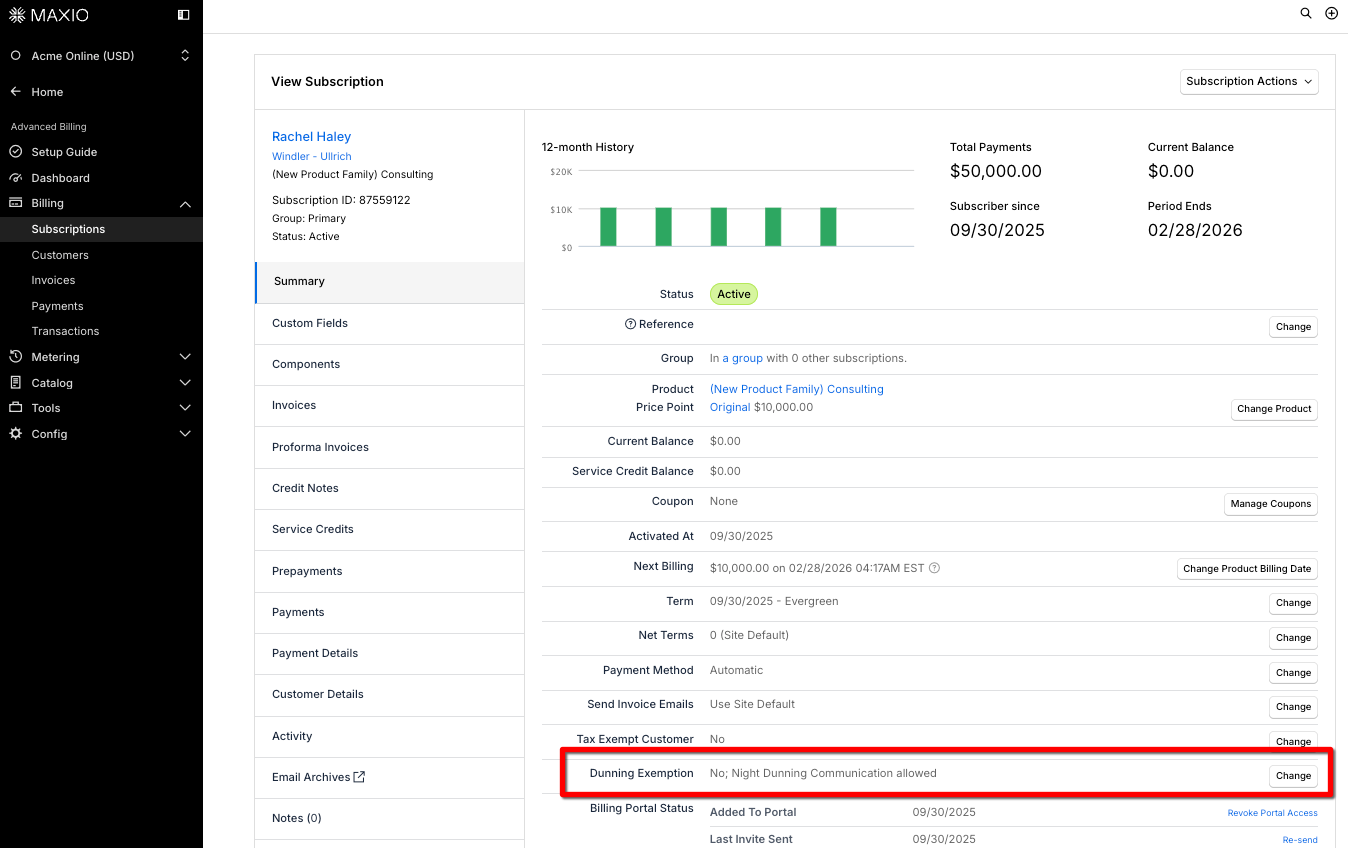
Navigate to the desired Subscription under Billing > Subscriptions.
-
On the Summary tab, locate the Dunning Exemption row and click Change.
-
On the Edit Dunning Exemption screen, set either or both of the following, then click Save Changes.
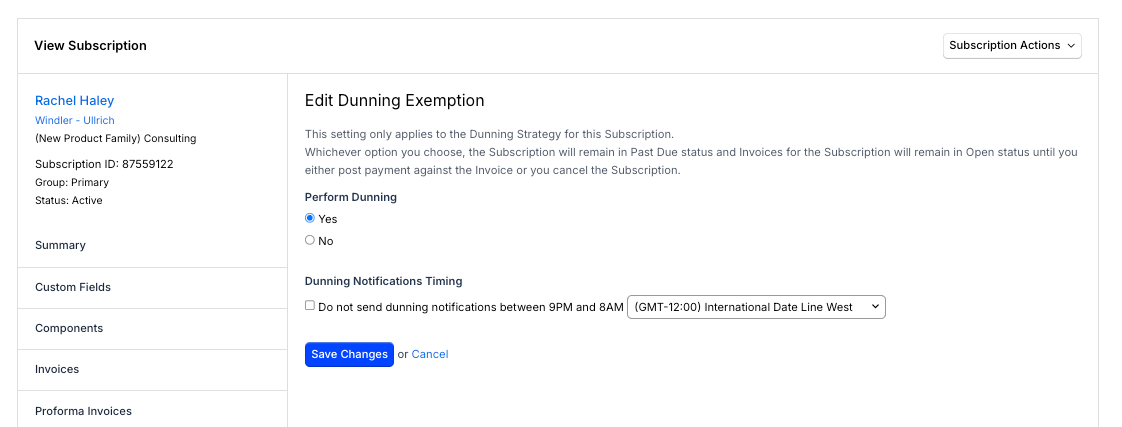
- Perform Dunning: Select No to exempt the Subscription from dunning entirely.
- Dunning Notifications Timing: Check the box to stop dunning notifications from being sent between 9:00 PM and 8:00 AM in the time zone you select.
Whichever option you choose, the Subscription remains in "Past Due" status, and its Invoices remain "Open," until you either post payment against the Invoice or cancel the Subscription. This setting only applies to the Dunning Schedule for this Subscription.
Related information
To understand how the overall dunning process works, see Understanding How Dunning Works.
Still need help?
Reach out and our support team will take it from here.