---
title: Track Product Usage for a Subscription
url: https://docs.maxio.com/billing/subscriptions/management/product-allocations/track-product-usage-for-a-subscription
applies_to: Advanced Billing
updated: 2026-11-21
---
# Track Product Usage for a Subscription
View detailed Product usage history for a Subscription directly from the Subscription's Product details page, to review historical allocations, usage activity, and billing-related changes for metered and prepaid Products.
> **Important:** To add charges for a subscriber's Products, you must report each Product's status or amount to Advanced Billing. See Understand How Products Are Billed for how Product Allocations work.
**To view a Product's history**
1. Navigate to the desired Subscription.
2. Locate the Product under **Product Details**.
3. Click **Actions > View History**.
4. Select **View Usage History** to see the past month's usage for that Product.
The exact button text may vary depending on the Product type. For example, metered Products display usage history specific to reported quantities.
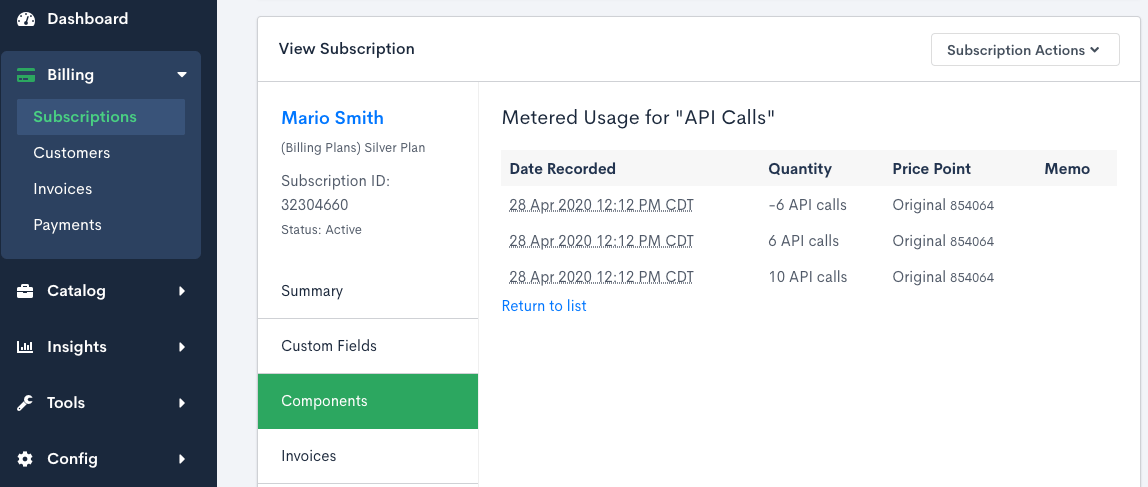
*Usage history for a metered Product*
If the Subscription belongs to a Subscription Group using consolidated invoicing, mid-period Product allocation charges that are accrued to the next billing period appear on the next consolidated group invoice. Charges marked to be charged immediately generate standalone invoices.
## Prepaid Product history
On sites where the Purchase Ledger is available, the history page for a prepaid Product has two tabs, **Purchase Ledger** and **Activity**, and opens on the **Purchase Ledger** tab. On other sites, and for Products that aren't prepaid, the history page shows the activity list without tabs.
### Purchase ledger tab
The Purchase Ledger tab lists one row per prepaid purchase (allocation), most recent first, so you can see exactly what was bought and how it's being used:
- **Date** - when the allocation was purchased
- **Quantity** - the number of units purchased
- **Type** - whether the allocation is **Recurring** (granted automatically each billing period) or **One-time Purchase** (a manual top-up)
- **Status** - **Used** if none of its purchased units are left, including after its expiration date; **Expired** if it expired with units still left; otherwise **Open**. A row that didn't add units, such as a decrease, shows **Open**
- **Pricing** - the Price Point the allocation was billed at
- **Expiration** - the date the allocation expires, if it has an expiration
- **Usage** - how many units have been consumed, and how many are left; an allocation with the **Expired** status shows its unused units as expired instead of remaining
- **Cost** - what the allocation cost
If the Subscription has used more than its purchased allocations, a highlighted **Overage** row with its cost appears at the top of the first page. The Overage row has no status, since its type already identifies it.
The ledger loads 50 rows per page by default. Use the page size control to switch between 25, 50, and 100 rows per page, and use the pager to move between pages. Your active tab and page position are saved to the page's URL, so switching between the Activity and Purchase Ledger tabs, or reloading the page, returns you to where you left off.
### Activity tab
The Activity tab clearly distinguishes between:
- **Prepaid** - newly purchased allocations
- **Used** - units recorded against available allocations
This distinction helps you track allocation purchases and consumption over time.
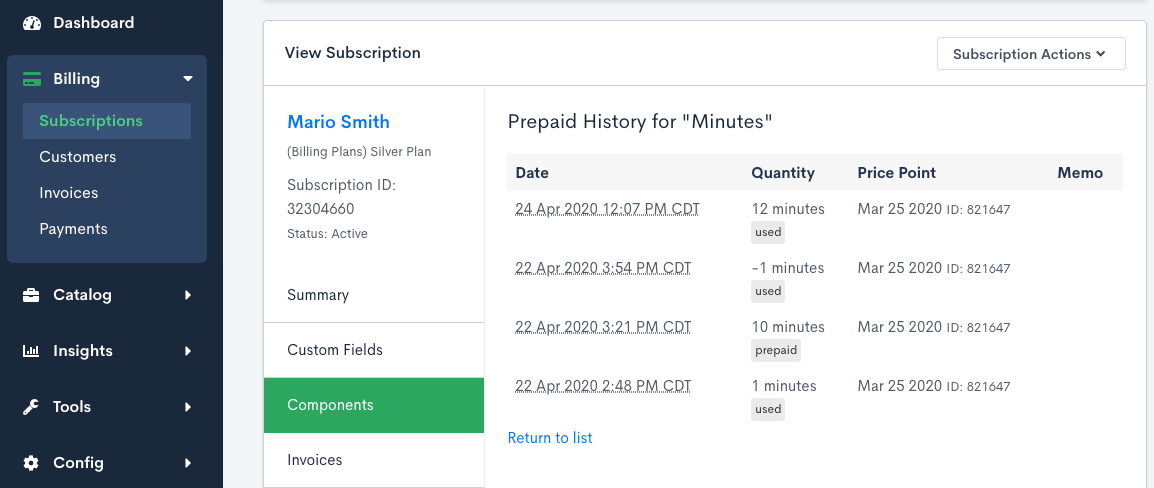
*Usage history for a prepaid Product*
Prepaid history separates purchased allocations and used units. In this example, 10 allocations were purchased and 12 units were used in total.
To remove an incorrect one-time purchase, see Delete a One-Time Prepaid Purchase.