---
title: Setting Up the Avalara ELR Integration
url: https://docs.maxio.com/billing/taxes/integrations/avalara-einvoicing-elr/setting-up-the-avalara-elr-integration
applies_to: Advanced Billing
updated: 2026-11-16
---
# Setting Up the Avalara ELR Integration
Before invoices can be submitted to Avalara ELR for eInvoicing and live reporting, you must complete a one-time setup in Maxio. This process connects your Maxio account with Avalara, ensures your seller information is configured correctly, and activates mandate rules for each supported jurisdiction.
For what the integration covers before you set it up, see Avalara ELR Integration Overview, and General Categories of E-Invoicing Models for the clearance and reporting models different countries require.
## Before you start
- Avalara ELR must be enabled for your site by Maxio Support. It's not a self-service toggle. If you don't see an **eInvoicing** tab under Config > Invoicing, [contact our support team](https://docs.maxio.com/getting-started/support/contacting-support) for access.
- Invoice-centric billing must be active on your site; Avalara ELR requires it.
## Configure your tax origin address
Avalara needs your business's full seller address on file, separately from the eInvoicing connection itself.
1. Go to **Config** > **Taxes**.
2. Next to **Tax Origin Address**, click **Edit** (or **Set Your Tax Address** if none is set yet).
3. In the **Tax Origin Address** dialog, enter your complete address: **Address**, **Address Line 2**, **City**, **Country**, **State**, and **Zip Code**.
4. Under **Identifiers**, add any legal entity identifiers your jurisdictions require, such as a **VAT ID**, using **+ Add Identifier**.
5. Click **Save Changes**.
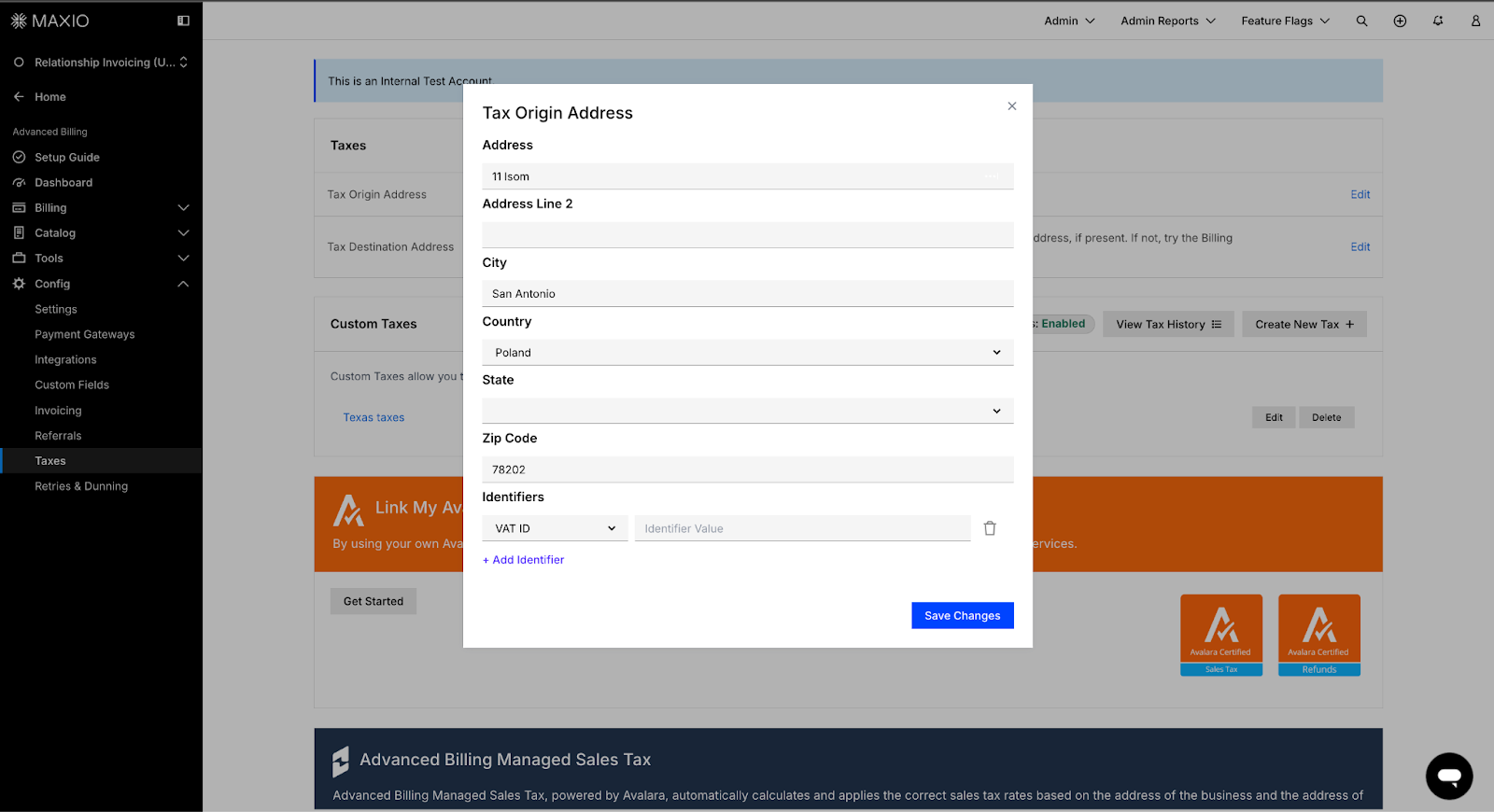
If you correct the **Country** after adding identifiers, the Kind options update for the new country:
- An identifier is kept if the new country also uses its Kind.
- An identifier is removed if the new country doesn't use its Kind.
- A removed identifier is restored if you switch back before saving.
See Configure Tax Entity Identifiers for how identifiers and the tax origin country interact. This matters here because some mandates require the identifier to be present, such as the seller's VAT number that a FR-B2B-EINVOICE document requires.
If you submit documents under France's B2B e-invoicing mandate (`FR-B2B-EINVOICE`), also add an **Addressing Line** identifier: the address your business registered in the French e-invoicing directory. Each French customer needs one too, in the **Addressing line** field on the customer form. With the default mappings, Maxio doesn't submit an FR-B2B-EINVOICE document unless both you and the customer have an addressing line. If you set a custom value on a party's endpoint ID mapping, that party doesn't need one.
If you submit documents to Chorus Pro under France's B2G e-invoicing mandate (`FR-B2G-EINVOICE`), add a **Company-Reg No.** identifier holding your 14-digit SIRET. Each French customer needs their SIRET on the customer form, either in the **SIREN/SIRET** field or as a **Company-Reg No.** Tax ID. If the SIRET is already the customer's Company-Reg No. Tax ID, you don't need to enter it again in **SIREN/SIRET**. The default B2G mappings send only a SIRET: if a party has just a 9-digit SIREN, its identifier is sent empty. Maxio doesn't check for a missing SIRET before it submits a B2G document.
## Connect Avalara ELR
Go to **Config** > **Invoicing** > **eInvoicing**. Connecting walks you through 3 steps: providing your Client ID and Secret, setting up your company, and configuring mandates.
### Step 1: Provide Client ID and Secret
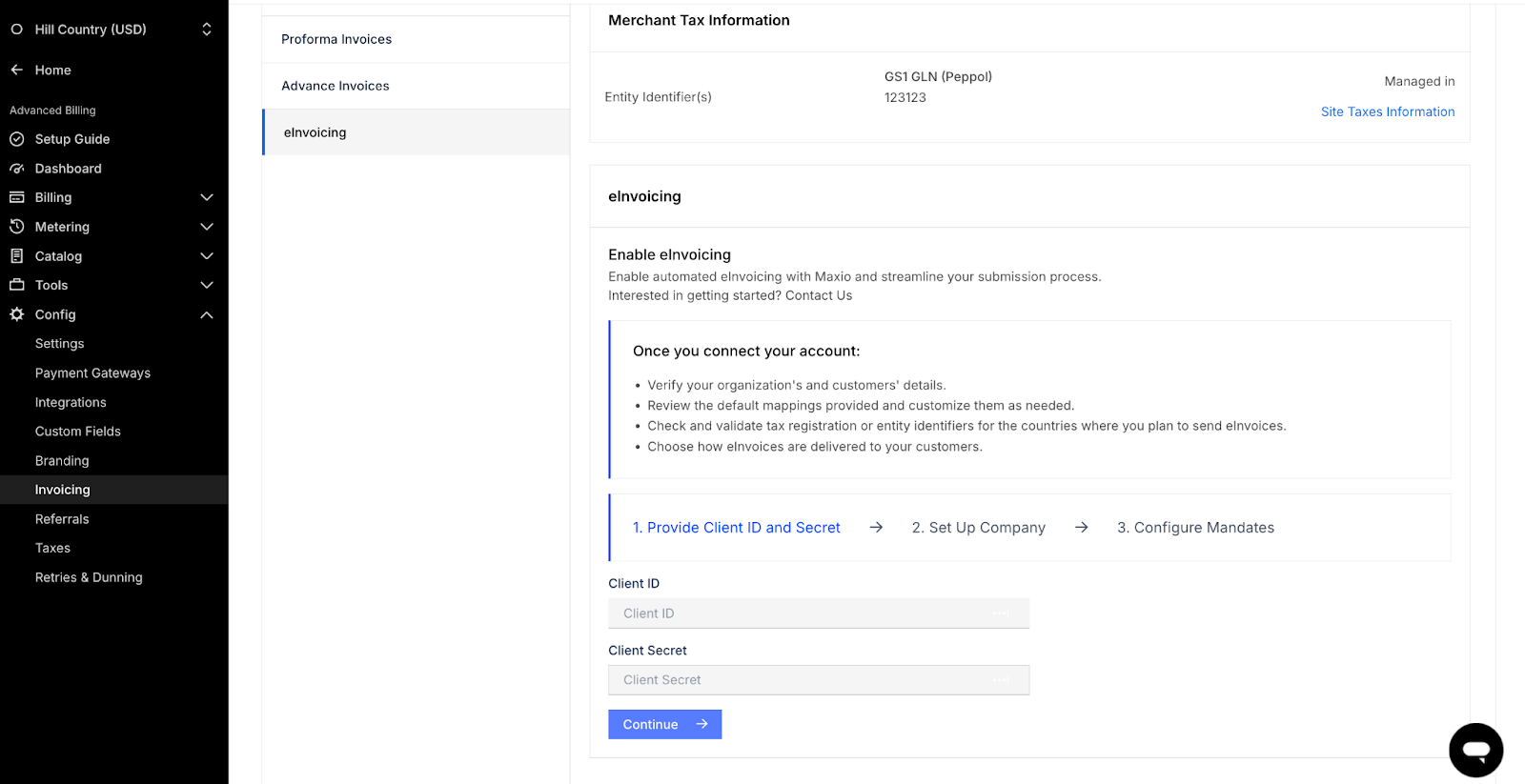
Enter the **Client ID** and **Client Secret** issued by Avalara ELR, then click **Continue**. Use your Avalara sandbox ELR credentials if you're testing in a non-production environment, or your production ELR credentials otherwise.
Once you connect your account, you'll need to verify your organization's and customers' details, review the default mappings and customize them as needed, check and validate tax registration or entity identifiers for the countries where you plan to send eInvoices, and choose how eInvoices are delivered to your customers.
### Step 2: Set up company
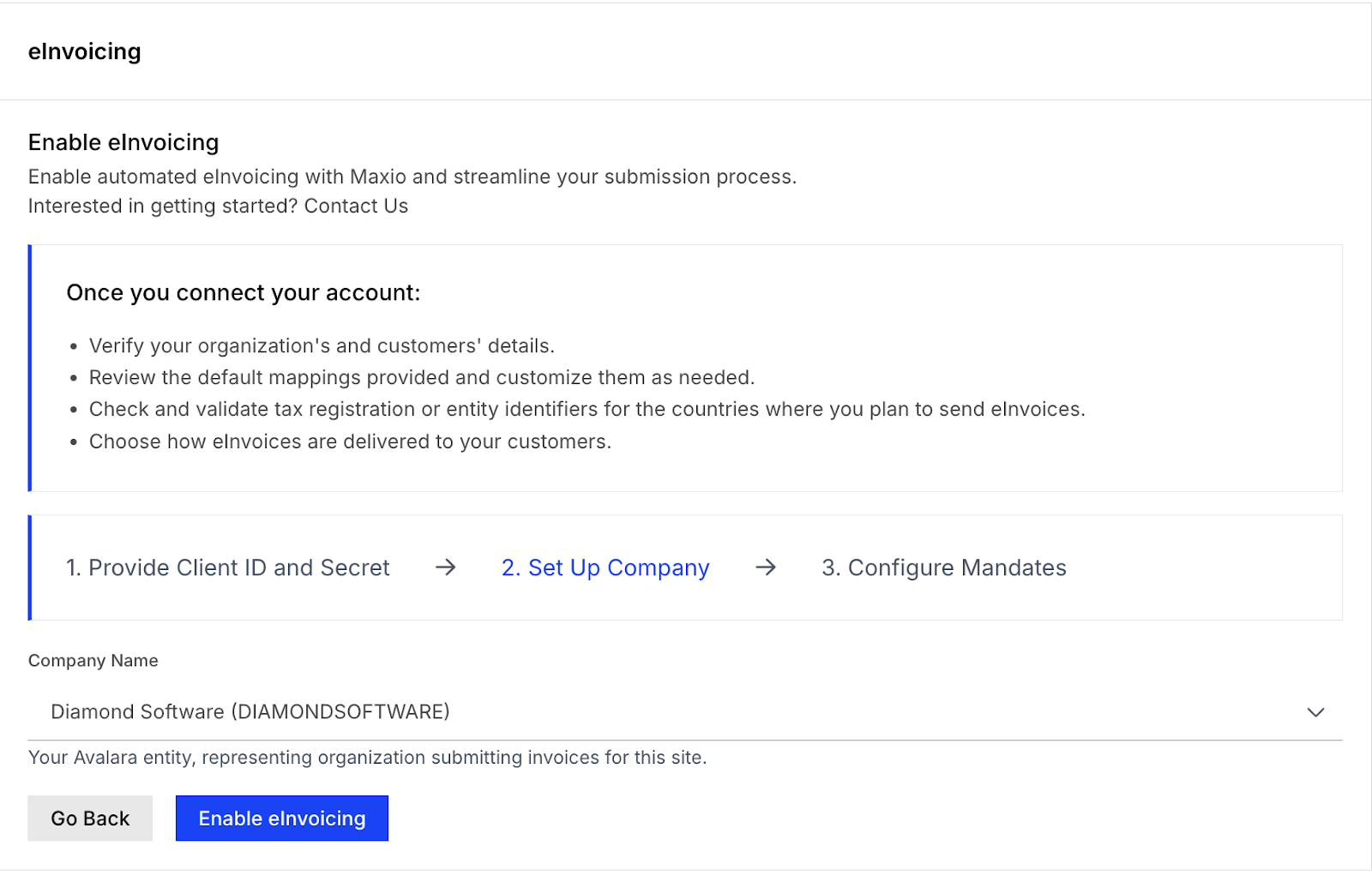
If you're new to Avalara ELR, register your company in the Avalara web portal and complete the compliance contact details first. If you're already registered, confirm your company is active and its identifiers, such as a VAT number, are populated.
Select your **Company Name** from the dropdown, then click **Enable eInvoicing**.
> **WARNING:** if you're reconnecting and select a different company than the one you originally connected, all previous mapping configurations are removed. Only change the selected company if you intend to start over with the new company's mappings.
### Step 3: Configure mandates
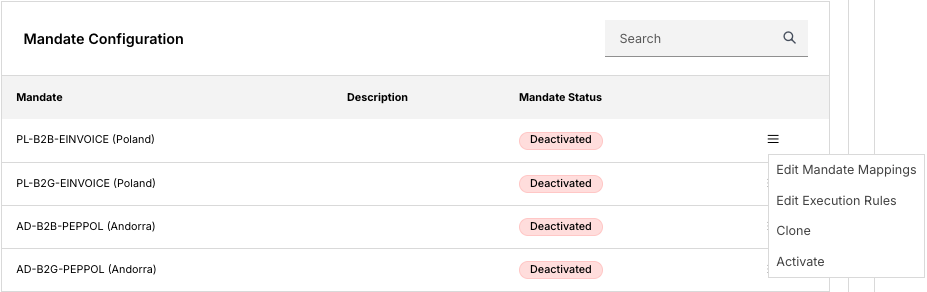
Avalara ELR returns the full list of eInvoicing mandates available to your account under **Mandate Configuration** (over 50 country- and network-specific mandates, such as `HU-B2B-REPORTING` for Hungary or `AD-B2B-PEPPOL` for Andorra). Every mandate starts **Deactivated**. The table's **Avalara Activation** column shows whether Avalara has finished activating each mandate; see [Avalara activation status](https://docs.maxio.com/billing/taxes/integrations/avalara-einvoicing-elr/using-the-avalara-elr-integration#avalara-activation-status) for what each status means. A mandate can't submit documents until that status reads **Completed**, with one exception: **Not synced yet** means Maxio hasn't checked with Avalara yet and doesn't block submission. From the row menu next to a mandate, you can:
- **Activate** or **Deactivate** the mandate, individually or in bulk across multiple selected mandates. A one-click **Reverse Change** link is available immediately after a bulk action, to undo it.
- **Clone** an existing mandate's mapping configuration to a new one, instead of starting from scratch.
- **Edit Mandate Mappings** to review and adjust how Maxio Properties map to Avalara Properties for that mandate, which Avalara then delivers in the mandate's required format.
- **Edit Execution Rules** to define the conditions, based on invoice or credit note fields, that determine whether a document matches that mandate.
#### Edit Mandate Mappings
The mappings list is split into an **Invoices** tab and a **Credit notes** tab, since a mandate's invoice formats and credit note formats are unrelated. Each tab keeps its own **Format** selector, scoped to that document kind's formats, and its own **Default format** dropdown.
A document kind can advertise more than one format (for example, both **UBL Invoice** and **UBL Extended Invoice** apply to invoices), and each format keeps its own independent set of mappings. Use the **Format** selector at the top of a tab to switch between that kind's advertised formats; the list refreshes to show only that format's Avalara Properties, alongside the search field for finding a specific property within it, a **Version** tag for the selected format, and a **Used for submission** tag when it's that kind's saved default format.
For each Avalara Property, its Maxio Property is a default value out of the box, labeled **(Default)**. You can:
- **Add a custom value** by typing directly into the Maxio Property field instead of choosing one of the listed options. Any text that doesn't start with `{{` is sent exactly as you typed it. See [Custom values that use a Maxio property](https://docs.maxio.com/billing/taxes/integrations/avalara-einvoicing-elr/setting-up-the-avalara-elr-integration#custom-values-that-use-a-maxio-property) for the rules on those values.
- **Restore a single property to its default** by clicking the reset icon inside its Maxio Property field.
- **Restore multiple properties to their defaults at once** by selecting their checkboxes and choosing **Restore to Default** from the bulk actions menu. Confirm the action in the dialog that follows.
**Save Mappings** stays disabled until you change a mapping, the mandate description, or either tab's default format, and a save only submits the format(s) you actually edited. Editing one format never touches what's stored for another. If Maxio rejects a save, for example because the format you edited isn't one the mandate currently accepts, the pane shows the reason it gave instead of a generic error.
A format that the mandate advertises but that Maxio can't yet submit documents in shows in a tab's **Format** selector labeled **(view only)**. When you select it:
- Its properties are shown for reference.
- An alert explains that documents are still submitted using the formats you can edit.
- Its Maxio Property fields are read-only.
- No new repeatable-element rows can be added.
UBL Extended Invoice and UBL Extended Credit Note are a special case of this. They're submittable only on a mandate that supplies its own extended defaults.
- Today, that's just France's B2B e-invoicing mandate (`FR-B2B-EINVOICE`).
- On every other mandate that advertises one of them, it shows as **(view only)**, even on an otherwise fully submittable mandate, because Maxio has no safe default mapping to send under that profile.
On `FR-B2B-EINVOICE`, the default mappings for both the standard and extended UBL formats send each party's addressing line as its endpoint ID, under scheme ID `0225`, and keep the SIREN or SIRET in the party identification. If you set a custom value on a party's endpoint ID mapping, Maxio sends your value instead, and doesn't require an addressing line for that party.
`FR-B2G-EINVOICE` has its own default mappings for the UBL Invoice and UBL Credit Note formats, built for Chorus Pro. They differ from the B2B defaults in these ways:
- Neither party has an endpoint ID, so B2G documents don't need an addressing line.
- The party identification and legal entity company ID of both parties carry the party's SIRET, using the `french_siret` Maxio Property, under scheme name `0002`.
- The seller's legal entity includes its registration address.
- The payment means code is `30` (credit transfer). The payee financial account ID below it is blank by default and is left out of the document while it's blank. To send your IBAN, enter it as a custom value on that property.
- Each tax subtotal repeats its tax rate as its own percent, beside the one in the tax category.
- A single note carries the French legal mentions, followed by the memo, instead of the separate notes `FR-B2B-EINVOICE` sends. See [Set the legal mentions for France](https://docs.maxio.com/billing/taxes/integrations/avalara-einvoicing-elr/setting-up-the-avalara-elr-integration#set-the-legal-mentions-for-france).
If you customized `FR-B2G-EINVOICE` mappings before these defaults existed, only the customizations whose properties are still in the B2G mappings apply. For example, a custom endpoint ID value is no longer sent.
On ZUGFeRD mandates, such as `DE-B2B-ZUGFERD`, the default mappings send the invoice number the way the invoice PDF shows it, without the `#` in front of it. Invoice 17734 is sent as `017734`, and a segment invoice numbered 100.2 as `000100.2`. If the invoice carries a Maxio Core invoice number, that number is sent. The default mappings use this number on these rows:
- `Invoice/cbc:ID` on the Invoices tab and `CreditNote/cbc:ID` on the Credit notes tab, through the `display_number` Maxio Property.
- `CreditNote/cac:BillingReference/cac:InvoiceDocumentReference/cbc:ID` and `CreditNote/cac:DiscrepancyResponse/cbc:ReferenceID`, where a credit note names its original invoice, through the `origin_invoice_display_number` Maxio Property. If the original invoice was already submitted as an eInvoice that didn't fail, the credit note names it by the invoice number that eInvoice carried, so it matches the document your customer received. Maxio uses the eInvoice submitted under the credit note's own mandate first, and otherwise the latest one under any mandate.
These two Maxio Properties are offered, and can be saved, only on ZUGFeRD mandates. On any other mandate, Maxio refuses to save them with "... cannot be mapped for eInvoicing mandate ...", and with their default mappings those mandates send the invoice's stored number, such as `17734`. If you saved a custom value on one of the four rows of a ZUGFeRD mandate, Maxio keeps sending your value. To send the number as the PDF shows it, restore that row to its default.
When the format you're editing isn't the one that document kind actually submits, a notice above the mappings list names the format that is, and explains that your edits take effect once you choose this format as the default.
##### Custom values that use a Maxio property
A value that starts with `{{` is read as a Maxio Property. Maxio saves it only if it's one of these:
- One Maxio Property from the list offered for that row, written exactly as the list shows it, such as `{{ invoice.number }}`. Each row offers its own list: for example, a line item property can't be saved on `Invoice/cbc:ID`.
- The row's default value, which is what restoring a row to its default saves.
When you enter or change any other value that starts with `{{`, Maxio refuses to save it and the pane shows the reason:
- A value not written like the listed options, such as `{{invoice.number}}`, is refused with "Invalid placeholder ...". Write one space inside each pair of braces, and use only letters, digits, dots and underscores in the property name.
- A Maxio Property that only another kind of mandate offers is refused with "... cannot be mapped for eInvoicing mandate ...".
- Any other value, including a property that isn't in the row's list or two properties in one value, is refused with "Invalid ... mapping value for ...: choose a Maxio property from the list or enter plain text".
Text that has a Maxio Property inside it but doesn't start with `{{`, such as `PO {{ invoice.core_po_number }}`, is sent exactly as you typed it.
A value saved earlier that Maxio would refuse today is kept when you save edits to other rows, the description or the default format. It's checked only when you change it. If it names a property that no mandate offers and that Maxio's default mappings don't use, that row can be sent empty.
On the Invoices tab, the lists for invoice-level rows include `{{ invoice.core_po_number }}`, the invoice's PO number. Credit notes have no PO number. On both tabs, the lists for the seller's party rows (`cac:AccountingSupplierParty`) include the seller's email, `{{ invoice.seller.email }}` or `{{ credit_note.seller.email }}`.
##### Choose which format is submitted
At the top of each tab, **Default format for invoices** (on the Invoices tab) or **Default format for credit notes** (on the Credit notes tab) decides which of that kind's submittable formats Maxio actually sends. Avalara returns this in the submission metadata as the document's format and version. Pick a format from the dropdown and save to change it. Each dropdown only lists formats the mandate currently accepts for submission for that document kind.
If a format you previously chose is no longer advertised by the mandate, a warning banner appears on that format's tab naming which submittable format Maxio is using instead. Maxio chooses the replacement in this order:
1. The document kind's standard default format (UBL Invoice or UBL Credit Note).
2. If the default isn't available, another format of that kind that the mandate still advertises and Maxio can submit.
Whichever replacement is used:
- Documents are submitted using that replacement format's own saved mapping, or its default values if none is saved.
- A mapping you configured for your original choice is never copied to the replacement.
- Your original choice is kept as saved and isn't overwritten until you pick a different format from the dropdown.
- Maxio only falls back to another format for the documents you submit in the meantime.
#### Edit Execution Rules
Execution rules specify the conditions that determine when a mandate applies to an invoice or credit note. Build one or more rules, each comparing a document or customer field against a value, then combine them with **AND** or **OR** to decide whether a document matches.
Rule fields cover the customer, the invoice or credit note, and the underlying subscription, including:
- **Customer fields**, such as `customer.business_type`, `customer.network_format`, `customer.country`, `customer.vat_country`, and `customer.tax_exempt`.
- **Invoice or credit note fields**, such as `invoice.currency`, `invoice.total_amount`, `invoice.billing_address.country`, and `invoice.line_items.tax_code`.
- **Subscription fields**, such as `subscription.taxable_country`.
- **Document type**, to scope a rule to only invoices or only credit notes when a mandate's rules otherwise apply to both.
Each rule supports operators appropriate to its field type: equals, not equals, greater than, greater than or equal, less than, less than or equal, in list, not in list, contains, begins with, and ends with. Click **Save Rules** to apply your changes to the mandate.
## Set the legal mentions for France
French e-invoicing rejects an invoice or credit note whose notes don't carry three legal mentions: late payment penalties, early payment discount, and the fixed recovery fee. Maxio adds them for you on documents submitted under France's B2B and B2G e-invoicing mandates (`FR-B2B-EINVOICE` and `FR-B2G-EINVOICE`), so a refund or void credit note passes validation even though its memo is generated per document.
The **French legal mentions** section appears on the eInvoicing settings page when `FR-B2B-EINVOICE` or `FR-B2G-EINVOICE` is one of the mandates listed for your connected company. It has one field per mention:
- **Late payment penalties (PMD)**, which defaults to "Pénalités de retard : trois fois le taux d'intérêt légal."
- **Early payment discount (AAB)**, which defaults to "Escompte pour paiement anticipé : néant."
- **Fixed recovery fee (PMT)**, which defaults to "Indemnité forfaitaire pour frais de recouvrement : 40 EUR."
**To change the French legal mentions:**
1. Go to **Config** > **Invoicing** > **eInvoicing**.
2. In **French legal mentions**, edit the text of any mention. Leave a field blank to use its default text.
3. Click **Save legal mentions**.
Each text can be up to 1,000 characters and can't contain a `#`, because the note uses `#` to mark where each mention starts. Maxio shows an error and keeps your saved texts if a text breaks either rule. The fields are locked while a save is in progress.
Each mention starts with its code, in the form `#PMD#` followed by the text. Where the mentions go depends on the mandate:
- **`FR-B2B-EINVOICE`:** each mention is a note of its own, in the order PMD, AAB, PMT. The document's memo follows as one or more notes. Any memo text before its first subject code is one note, and each subject code the memo carries, such as `#PMD#` or `#TXD#`, starts a note of its own that runs to the next code. A document with no memo gets only the three mention notes.
- **`FR-B2G-EINVOICE`:** the document has a single note that holds each mention on its own line, followed by the memo.
Two cases change that:
- **The memo already has the mention.** If the memo contains a mention's code marker, such as `#PMD#`, Maxio leaves out that mention so it isn't repeated, and the memo's text is sent for it. To use another text on one document, write it in the memo after its code, for example `#PMD#Taux BCE + 10 points.` On `FR-B2B-EINVOICE`, a mention code in the memo with no text after it gets the text from its **French legal mentions** field. The code on its own, without the `#` on each side, doesn't count.
- **You've customized the note mappings.** On `FR-B2B-EINVOICE`, the mandate's mappings have one row per note, from `Invoice/cbc:Note[0]` to `Invoice/cbc:Note[3]` on the Invoices tab and the matching `CreditNote/cbc:Note` rows on the Credit notes tab. By default, they map `french_legal_mention_pmd`, `french_legal_mention_aab`, `french_legal_mention_pmt`, and then `french_memo_notes`. Changing one row leaves the other notes as they are, and **Add another cbc:Note** adds a further note. On `FR-B2G-EINVOICE`, if you replace the default Maxio Property for the note, your mapping is used and the mentions aren't added. To keep them in a custom mapping, choose `memo_with_french_legal_mentions` as the note's Maxio Property.
## Manage your connection
- **Sync Schedule:** on the same eInvoicing settings page, choose how often Maxio checks Avalara for updated registrations and mandates: Manual, Fifteen minutes, Hourly, or Nightly.
- **French legal mentions:** if your company has the `FR-B2B-EINVOICE` or `FR-B2G-EINVOICE` mandate, edit the texts Maxio adds to French documents' notes. See [Set the legal mentions for France](https://docs.maxio.com/billing/taxes/integrations/avalara-einvoicing-elr/setting-up-the-avalara-elr-integration#set-the-legal-mentions-for-france).
- **Test Connection:** verify your Avalara credentials are still valid without submitting a document.
- **Registrations:** review the Networks and Registration Status for your company, separately from Mandate Configuration. A failed registration links out to your Avalara account for resolution.
- **Disable eInvoicing:** disconnect the integration entirely from the same settings page. No future documents are submitted after disabling, and you can re-enable at any time.