
Manage Currency Codes and FX Rates
Applies to: Maxio Core
Last updated on Oct 17, 2026
FX rates load into Maxio Core daily from Open Exchange Rates. You cannot choose a different rate source, but you can see every rate Maxio holds and enter your own rate for a specific date or a date range.
Which currencies are available
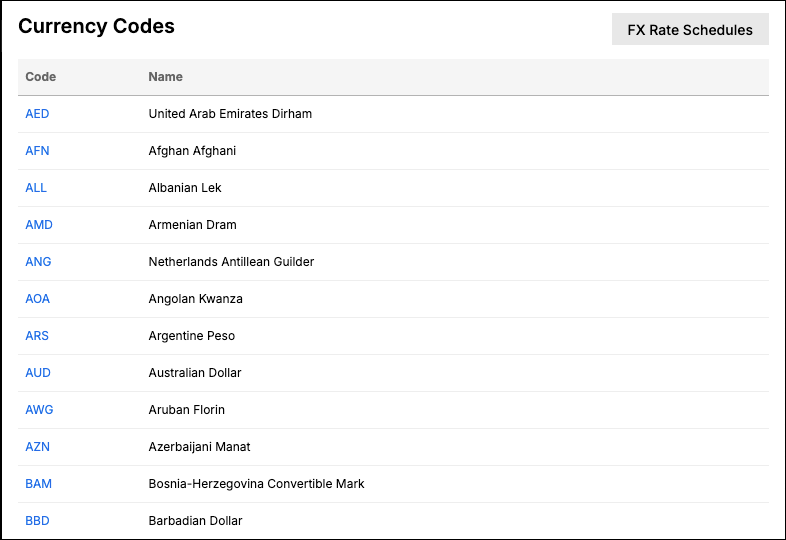
The currency code list is maintained by Maxio and does not change with the daily rate load, so a currency Open Exchange Rates offers but Maxio does not list is skipped. To see the current codes, go to Admin > Multicurrency - Currency Codes.
How rates load
Rates are fetched at 06:00 UTC, and each run retrieves the previous day's rate. So a transaction created today uses the rate Open Exchange Rates published for yesterday. Each run also re-checks the previous 30 days and fills in any date it does not already have, so a missed day recovers on its own.
For a transaction dated in the past, Maxio Core uses the most recent rate on or before that date, the rate stored for that day when there is one, and the closest earlier rate when there is not.
Maxio stores each rate to ten decimal places and rounds to six when it applies one, which is what QuickBooks supports. Report conversions use the unrounded rate, so a report total can differ slightly from the same figure recalculated manually from a displayed rate.
FX rate schedule
The FX rate schedule is where you see every rate Maxio holds for one currency, day by day. It is also where you check which rate a transaction picked up, and where you override a loaded rate that is not the one you want to bill at.
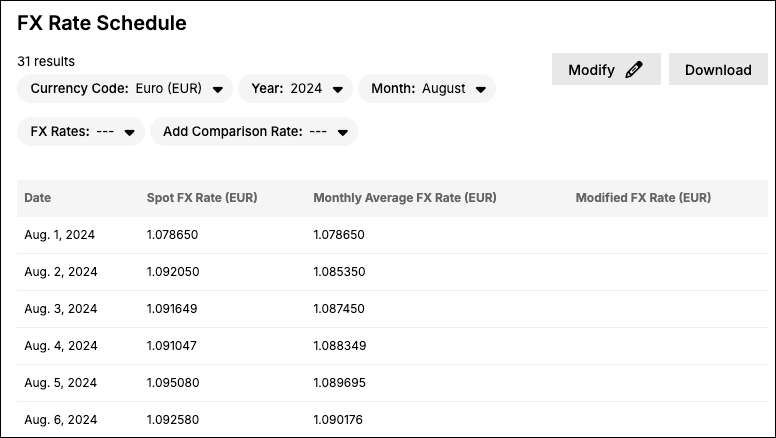
Go to Admin > Multicurrency - Currency Rate Schedules, or click FX Rate Schedules on the Currency Codes page. The schedule shows one row per date for the currency, year, and month you select, and choosing All Months shows the whole year instead.
Each row carries three rates, and three controls above the table change what the schedule shows you:
-
Spot FX Rate is the rate loaded from Open Exchange Rates for that date. It cannot be removed, but a Modified FX Rate takes precedence over it.
-
Monthly Average FX Rate is the running average of the spot rates across the month.
-
Modified FX Rate is a rate you entered yourself, and is empty unless you have set one.
-
Show Only Modified FX Rates filters the list to dates you have overridden.
-
Add Comparison Rate puts a second currency's rates alongside the first.
-
Download exports the schedule.
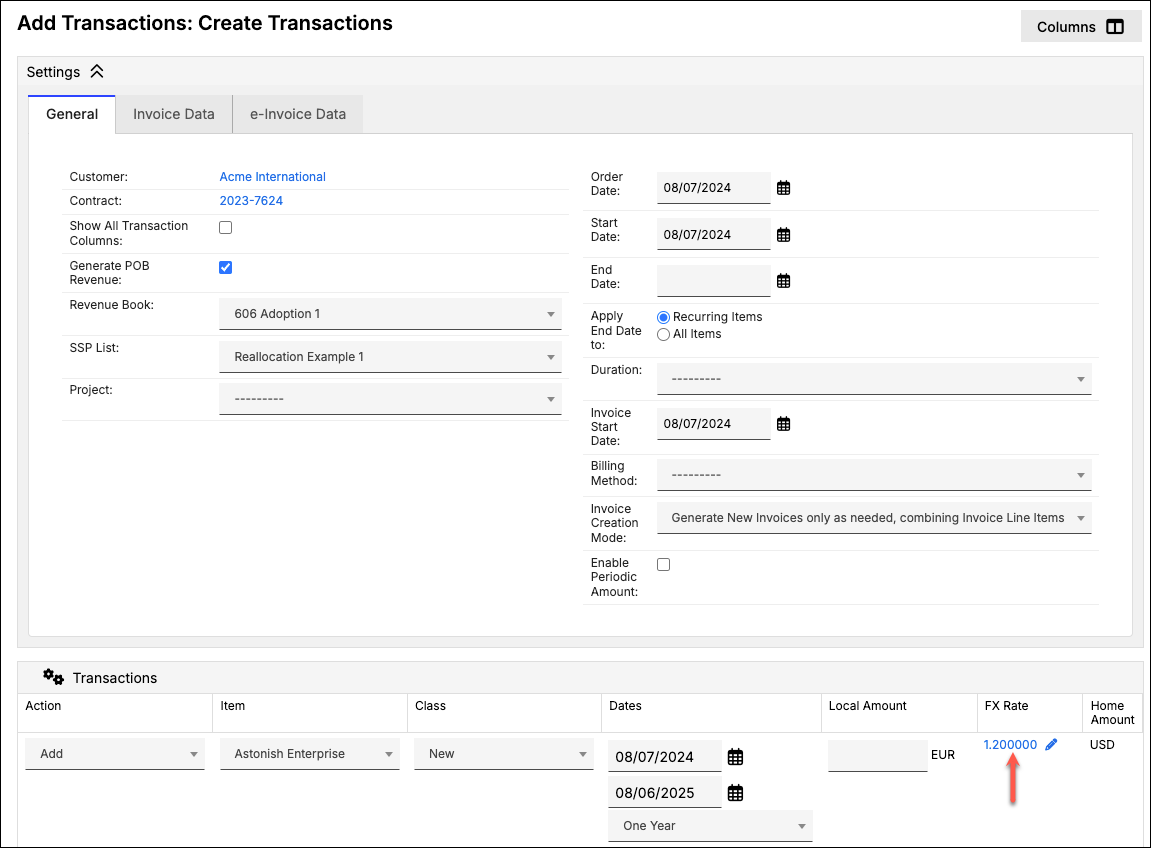
A Modified FX Rate is sometimes necessary, for a single date or for a range. When you create a transaction whose FX Date falls in a range that has a Modified FX Rate, that rate is used automatically. Note that it is the FX Date that decides this, not the transaction's start date.
Enter a modified FX rate
A Modified FX Rate applies to every transaction created with an FX Date in the range you set. It is separate from the single-use rate you can set on one transaction.
To enter a Modified FX Rate
- Go to Admin > Multicurrency - Currency Rate Schedules.
- Click Modify.
- Select the Local currency. Each currency is modified on its own; there is no bulk edit for FX rates.
- Enter a Start date and End date. Both are included in the range, and the end date must be less than a year after the start date.
- Enter the Rate, which must be greater than zero. Local currency multiplied by this rate gives home currency.
- Click Save.
To clear a Modified FX Rate, set the same date range and leave Rate blank. The Spot rates for those dates take effect again.
Related information
To turn on multi-currency and see what it affects across your account, see Configure Multi-Currency.
Still need help?
Reach out and our support team will take it from here.