
Design Your Catalog
Applies to: Advanced Billing
Last updated on Aug 29, 2026
Catalog Terminology
We’re transitioning the terminology used in the Maxio Product Catalog. If you’re using the new experience, you’ll see updated naming in the application—Products are now Plans, and Components are now Products.
Our documentation is still being updated, so you may see previous terminology (especially in screenshots); refer to these definitions for the most accurate interpretation.
Pick a catalog model before you build anything, because the model decides whether your charges sit on products, on components, or on price points underneath them. Three models cover almost every case, from a simple set of plans through to usage-based billing with many permutations.
Model 1: Basic Model 2: Beyond Basic Model 3: It's Complicated Component Types
Model 1: Basic
- Feature
- Catalog - Products and Components
- You Need
- To understand your company's price book
- Code
- None
- Difficulty
- ◉◎◎◎◎
Diagram
The Basic Model uses Products and optionally Components. Use cases that benefit from this model have basic subscription models like Bronze, Silver, Gold, with or without add-ons.
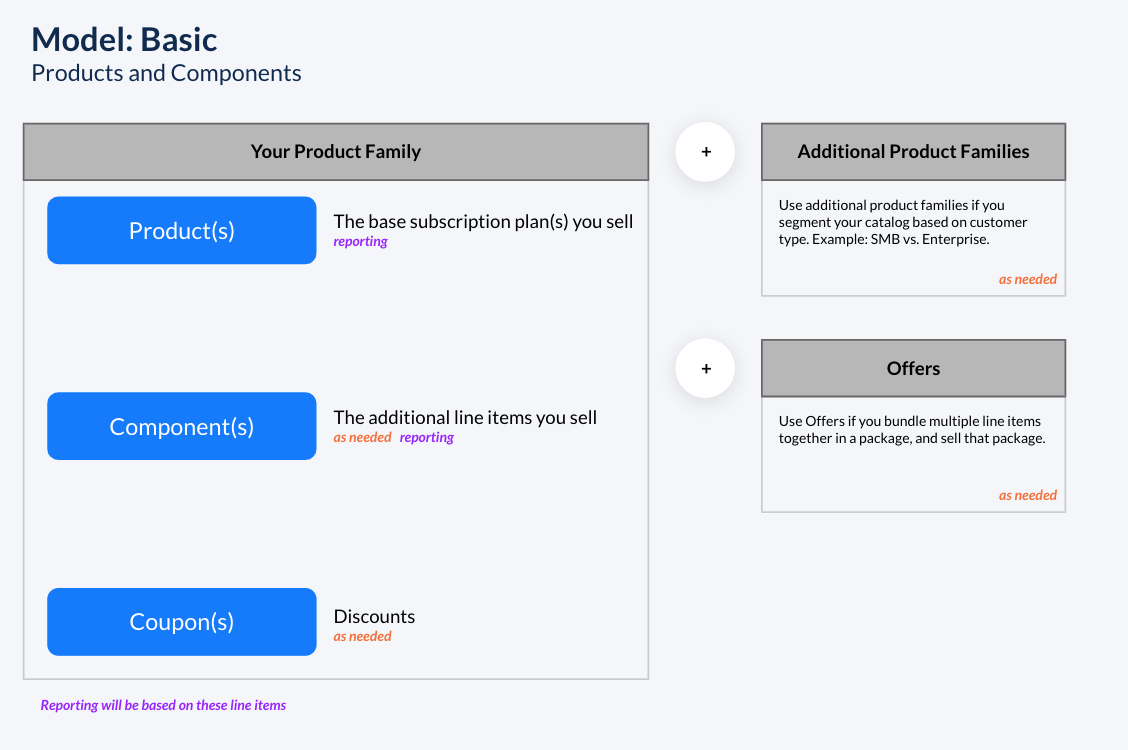
Example use cases
The Basic Model suits catalogs like these:
- Bronze, Silver, Gold type models
- Monthly user seats ($x/month plan + user seats for $y/seat or tiered pricing for user seats)
- Monthly plans and yearly plans, where you apply a 10% off discount for the yearly plans
Full example
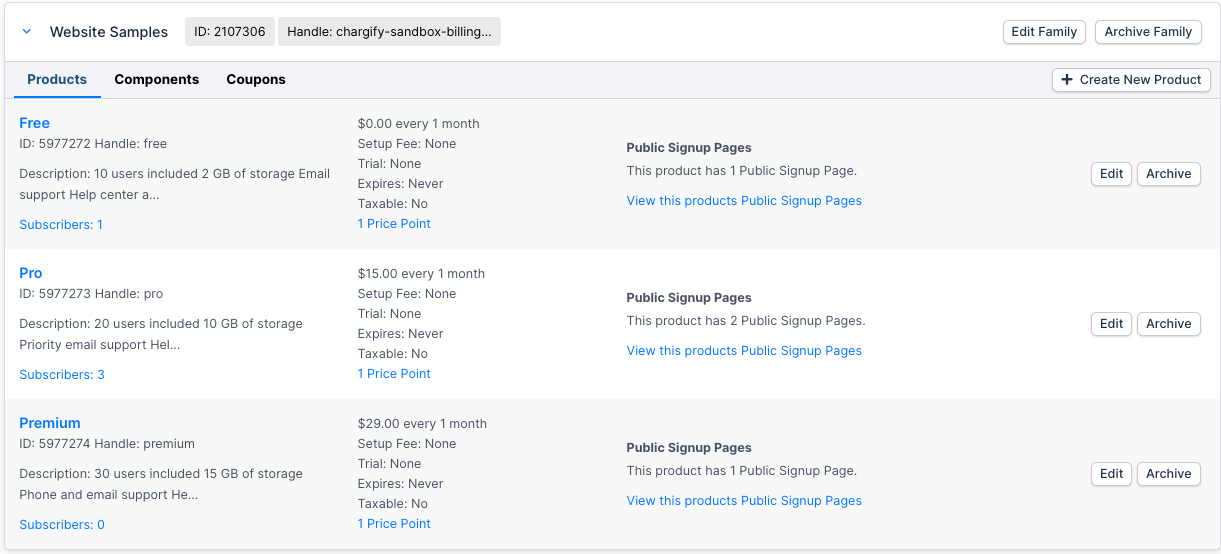
Let's say you sell Free, Pro, and Premium plans. Within each plan, you offer features but don't charge for them as separate line items. If you did, you would use the Beyond Basic Model instead.
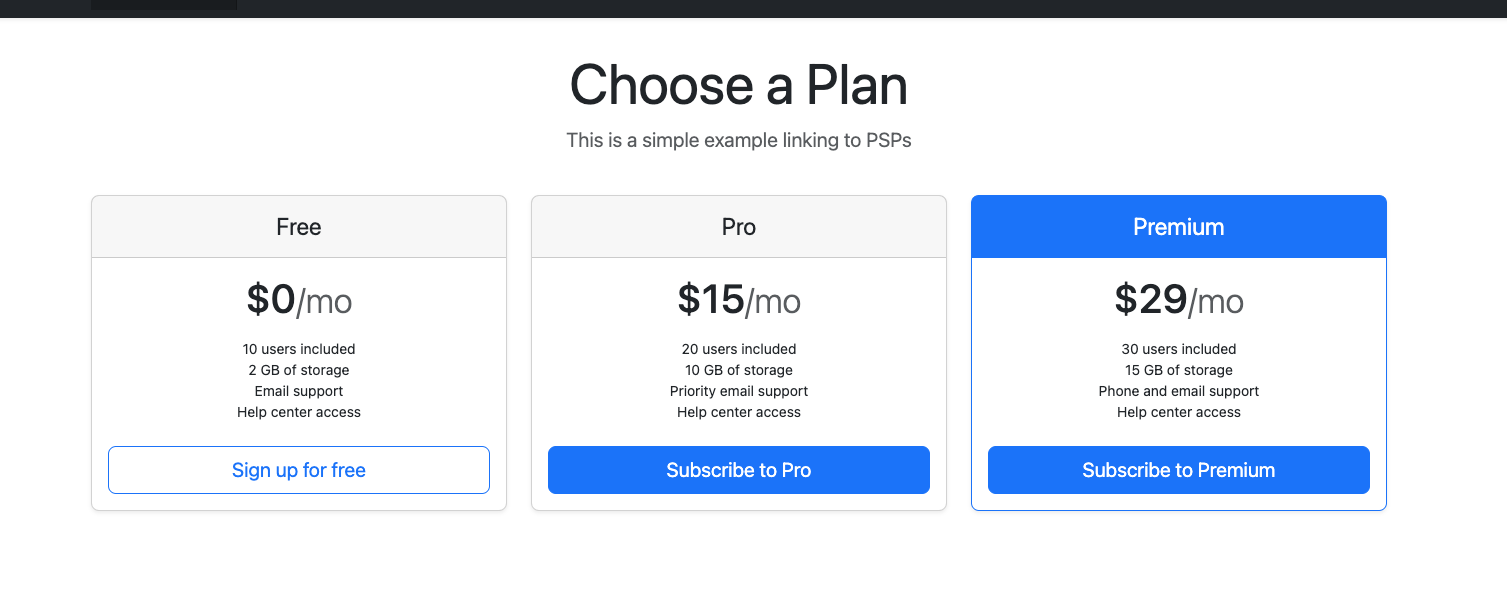
In the Catalog, you set up the 3 plans:
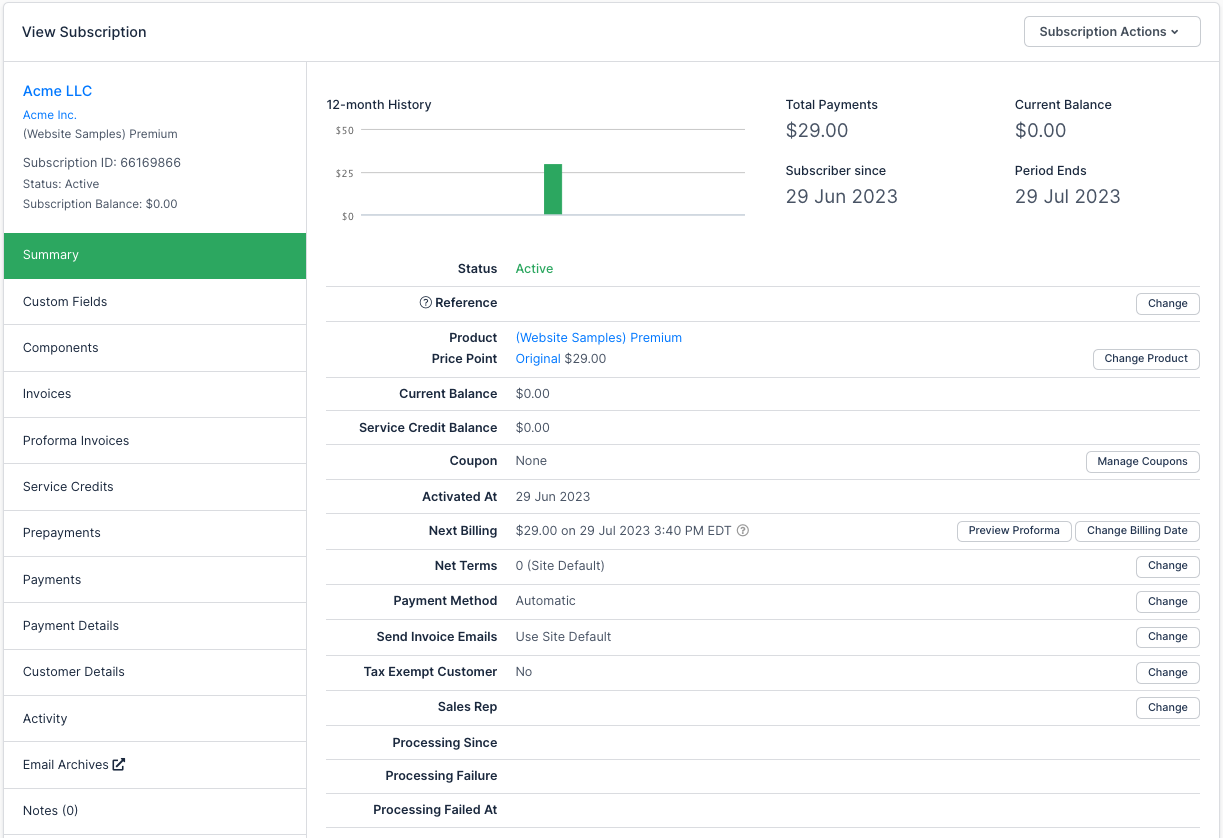
When you create a subscription to the Premium Plan, the resulting subscription looks like this:
And the invoice looks like this:
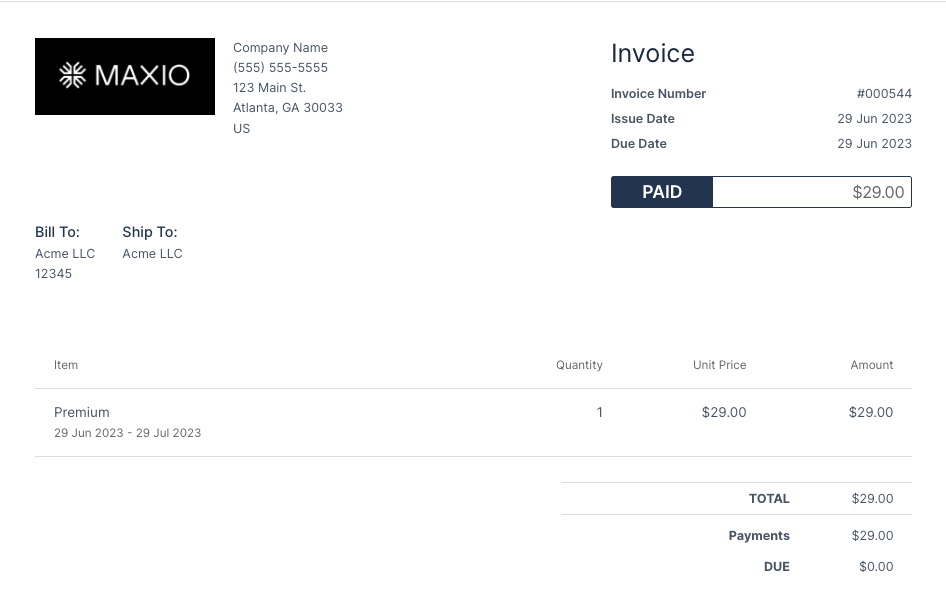
If you had add-ons, they would simply be additional line items on the invoice.
Start building your catalog
If this is the right model for you, these guides get you started:
Model 2: Beyond basic
- Feature
- Products, Components, Product Price Points, Component Price Points
- You Need
- Access to your company's price book
- Code
- None
- Difficulty
- ◉◎◎◎◎
Diagram
Building on the Basic Model, which uses Products and Components, the Beyond Basic Model adds in Product Price Points and Component Price Points. Price Points are variations in pricing, typically because you offer line items that have different pricing versions or different pricing rates.
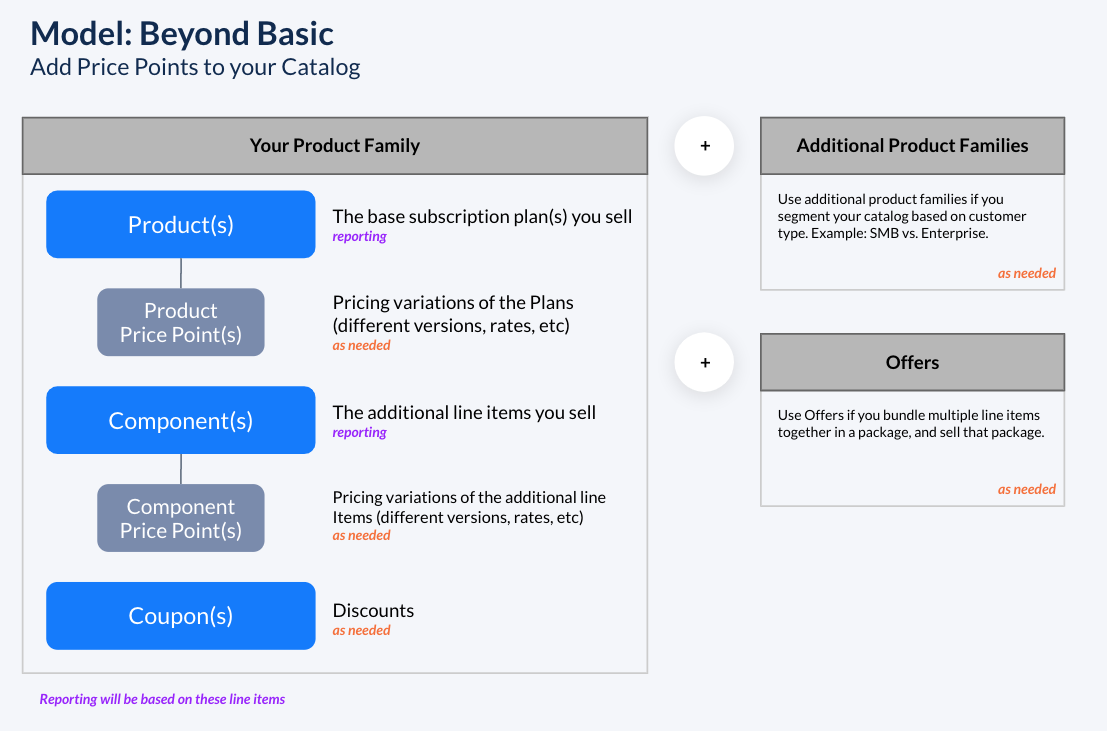
Example use cases
The Beyond Basic Model suits catalogs like these:
- Yearly subscriptions with a base rate of $x, with additional line items where you offer negotiated pricing per customer, and don't want to give coupons
- Subscriptions of various renewal intervals (monthly, quarterly, annually) where your business has versioned pricing over time, so some customers pay for 'version 1 pricing' of a line item while you offer 'version 2 pricing' to new customers
Full example
Let's look at the Free, Pro, and Premium example again, but this time zoom in to the line item portion. Within the Premium Plan, you offer "30 users included".
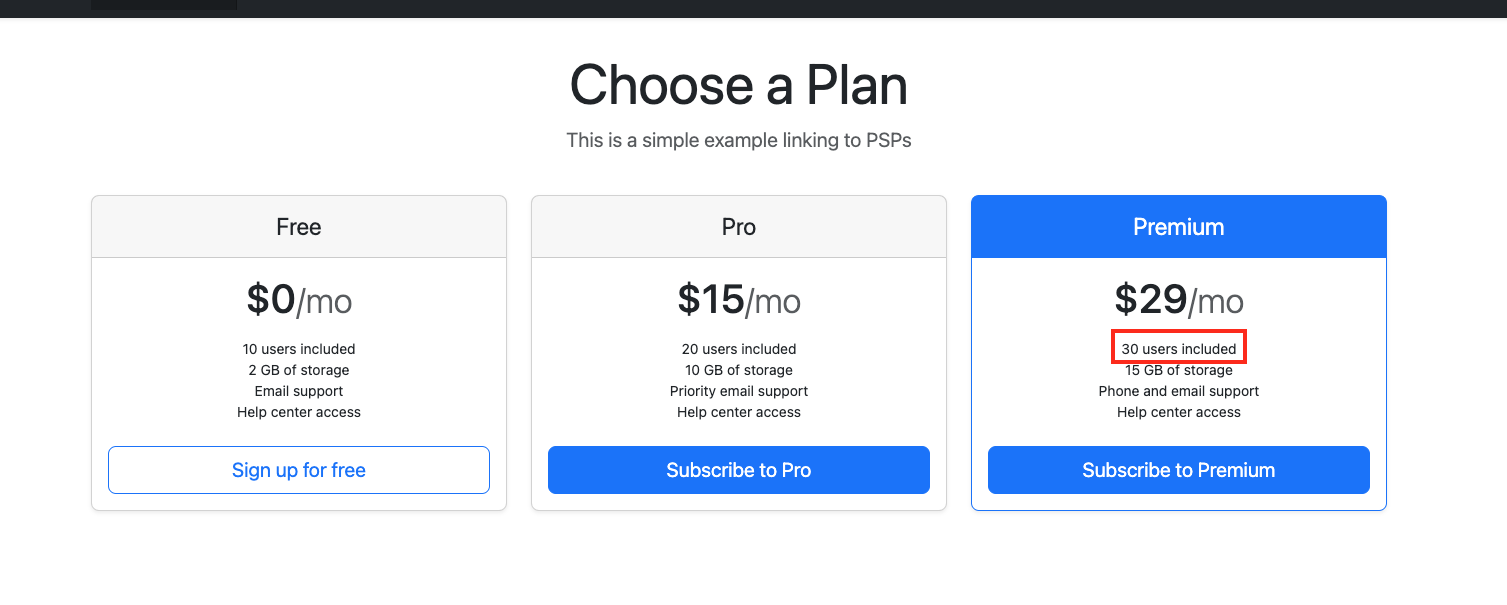
You need to consider how to set that up, especially when you want to offer variations for other amounts of users included, for example 10, 20, or 50.
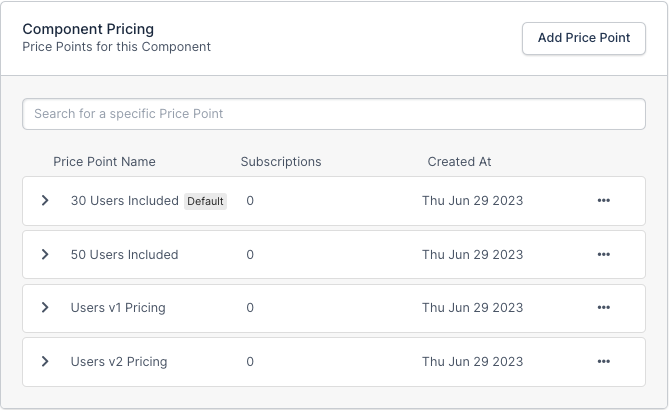
In the Catalog, create a Component called Users. Notice that it has four price points.
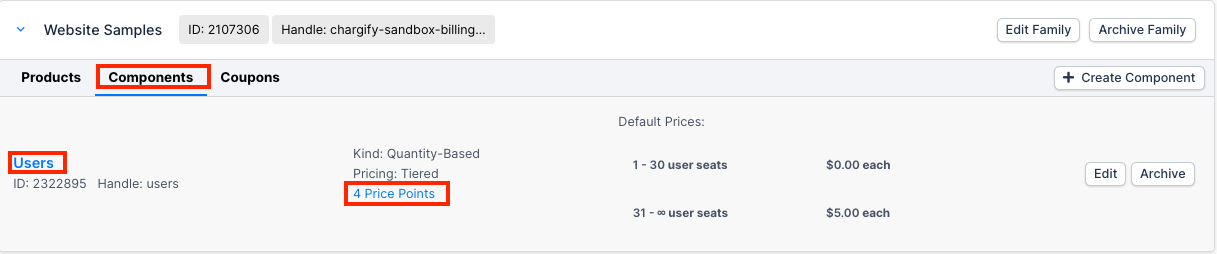
You can use price points to create pricing versions (Users v1 Pricing, Users v2 Pricing), and you can also set price points for different rates (30 users included, 50 users included). You can extend this to negotiated pricing, for example a price point called "Slack Seat Pricing" where you offer Slack a specific rate.
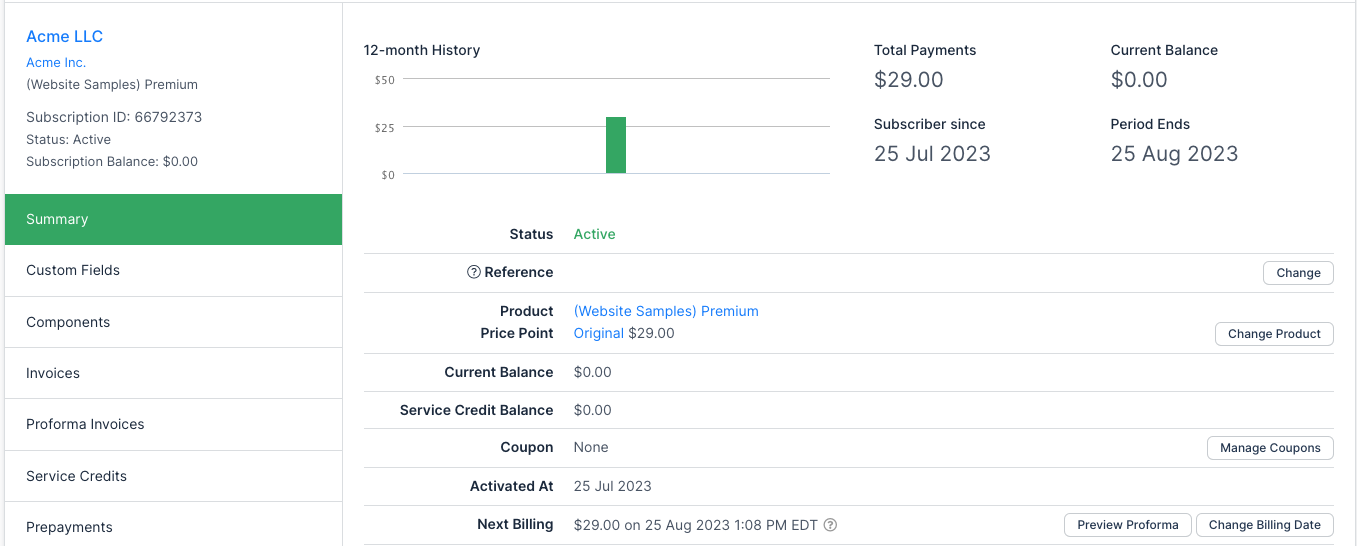
Next, create a subscription to the Premium Plan, and add the price point for 30 Users Included. The subscription looks like this:
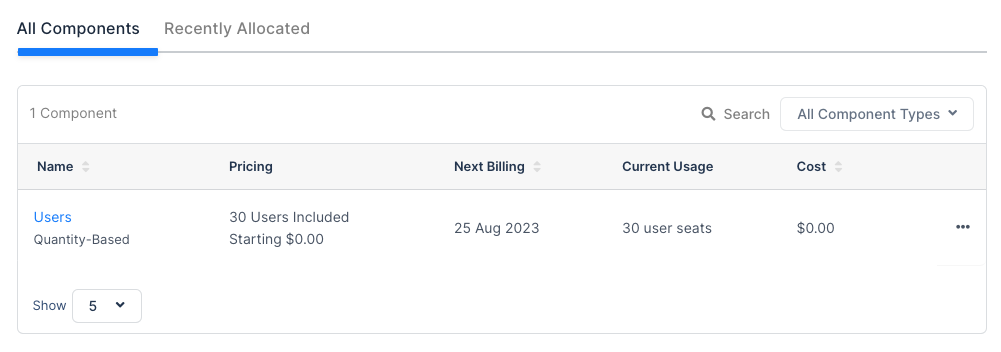
The Users component looks like this:
To extend it further, simulate the customer adding 25 user seats. In your implementation this can be done through the API, the Billing Portal, or the Advanced Billing admin, as shown below:
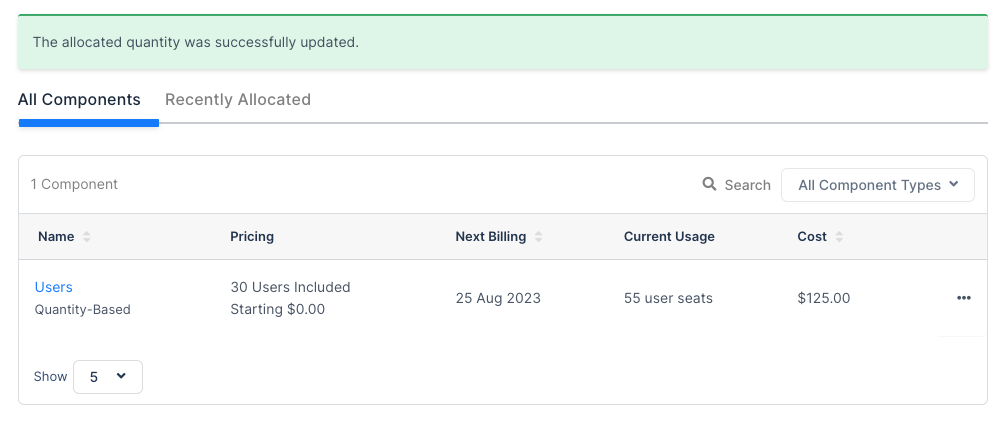
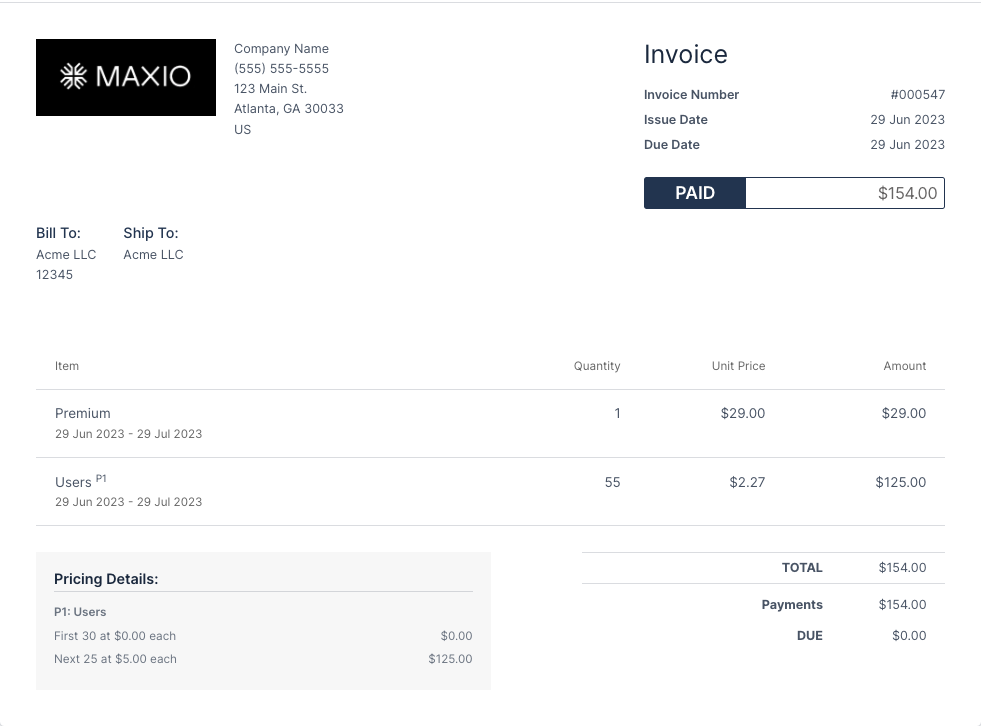
Next, look at the renewal invoice where the customer has 55 users. The 25 added users incur overage charges built in to the 30 Users Included price point, which charges $5/user for each user above 30. The resulting invoice looks like this:
Start building your catalog
If this is the right model for you, these guides get you started:
Model 3: It's complicated
- Feature
- Products, Components, Product Price Points, Component Price Points, $0 Products, Disable $0 line items on invoices
- You Need
- Access to your company's price book
- Code
- None
- Difficulty
- ◉◎◎◎◎
Diagram
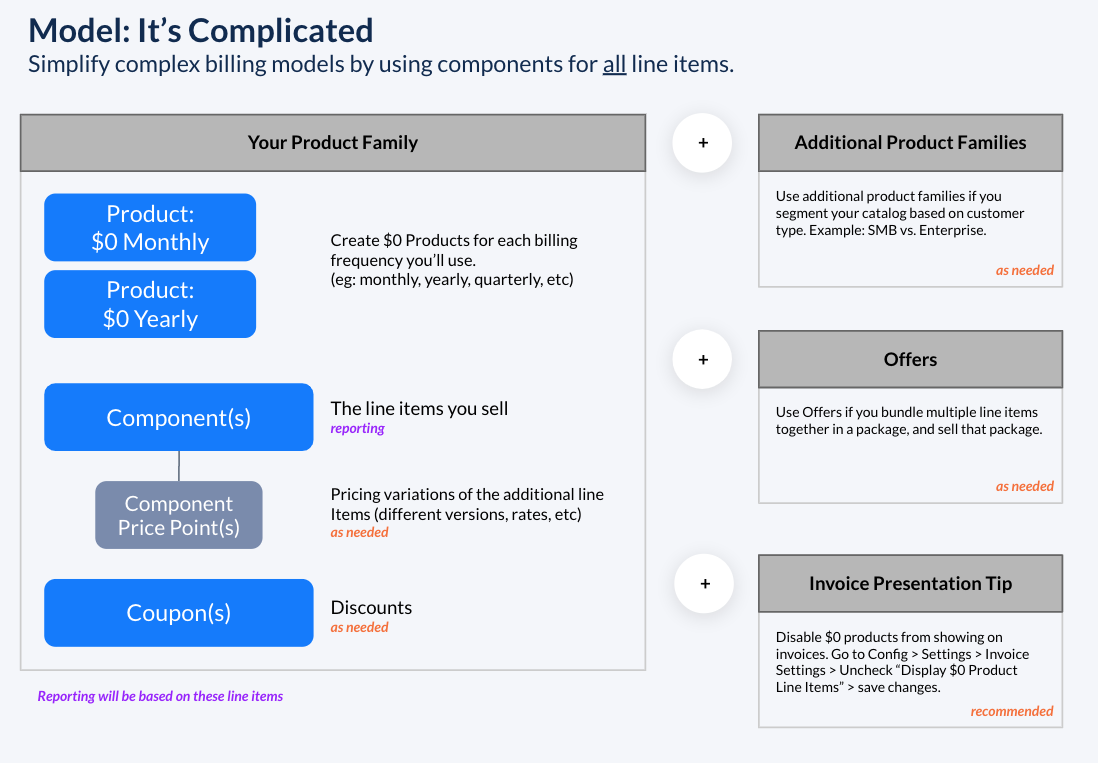
A complex billing model can get frustrating. This is where the strategy of $0 Products helps. All line items you sell, regardless of what they are, are Components. Any variations of specific line item prices are Component Price Points.
Example use cases
The It's Complicated Model suits catalogs like these:
- Anything beyond basic subscriptions with add-ons
- Monthly billing for server usage, where the usage rate varies based on server size
- Monthly billing for server usage, where the rate varies by server size, hosting location, and SLA agreement, the seemingly endless 'if this, then that' type of billing
Full example
Let's say you are a cloud provider who sells servers based on usage, as well as additional line items. The way you sell is filled with all types of permutations: many line items, custom pricing within line items, pricing versions within line items.
In the Catalog, you set up a Monthly Product at $0.
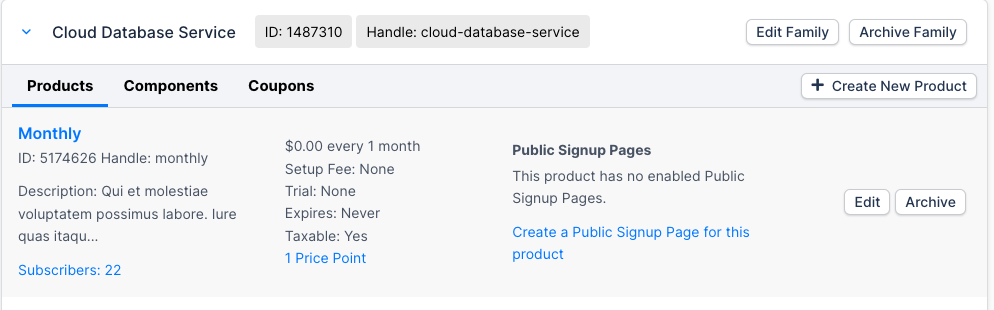
You also set an advanced setting so this $0 line item doesn't show on an invoice. Go to Config > Settings > Invoice Settings and uncheck the Display $0 Product Line Items box.

When you create a subscription, you can pass all the various line items and quantities. The image below uses the UI, but you can also use the API.
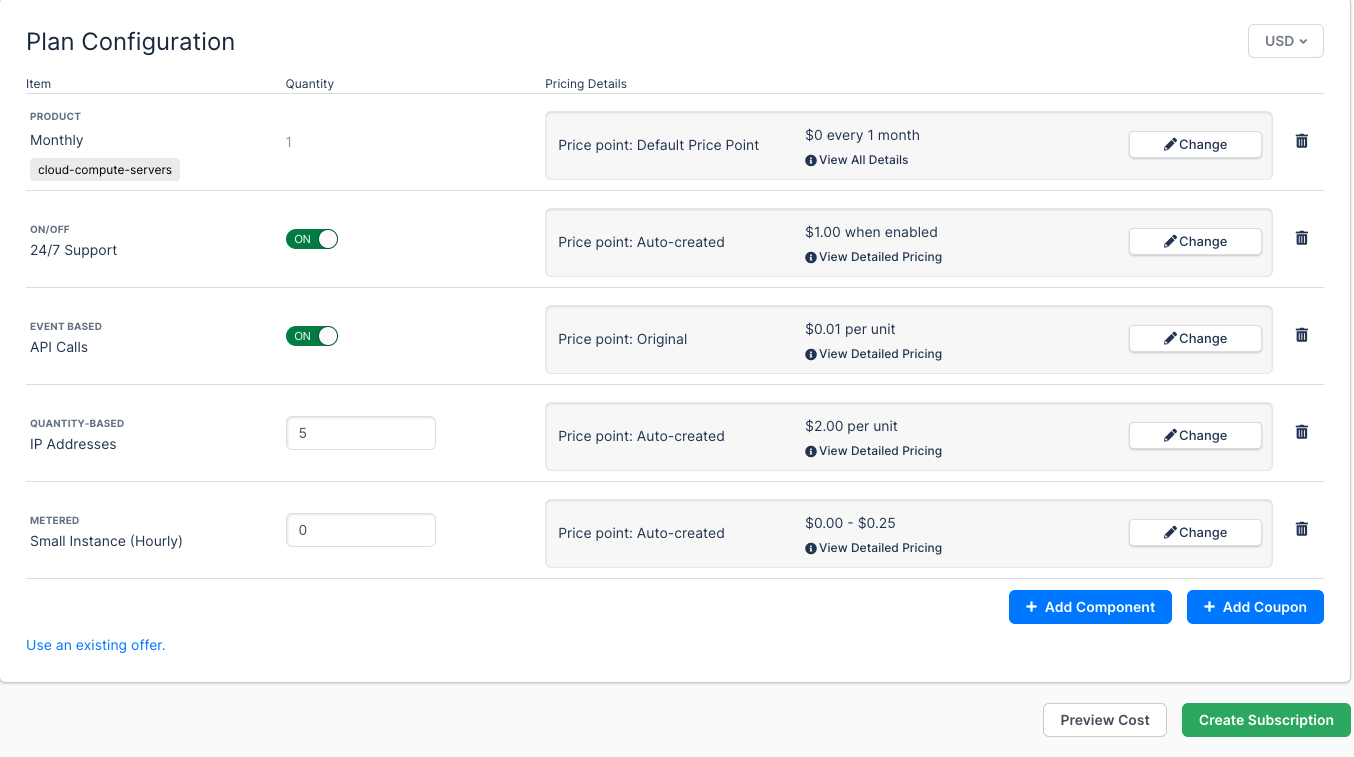
The subscription is created. Since this is a primarily usage-based subscription, fast forward to the first renewal invoice. During the first month, assume 178,258 API calls at $.01 each have been recorded. The invoice then looks like this:
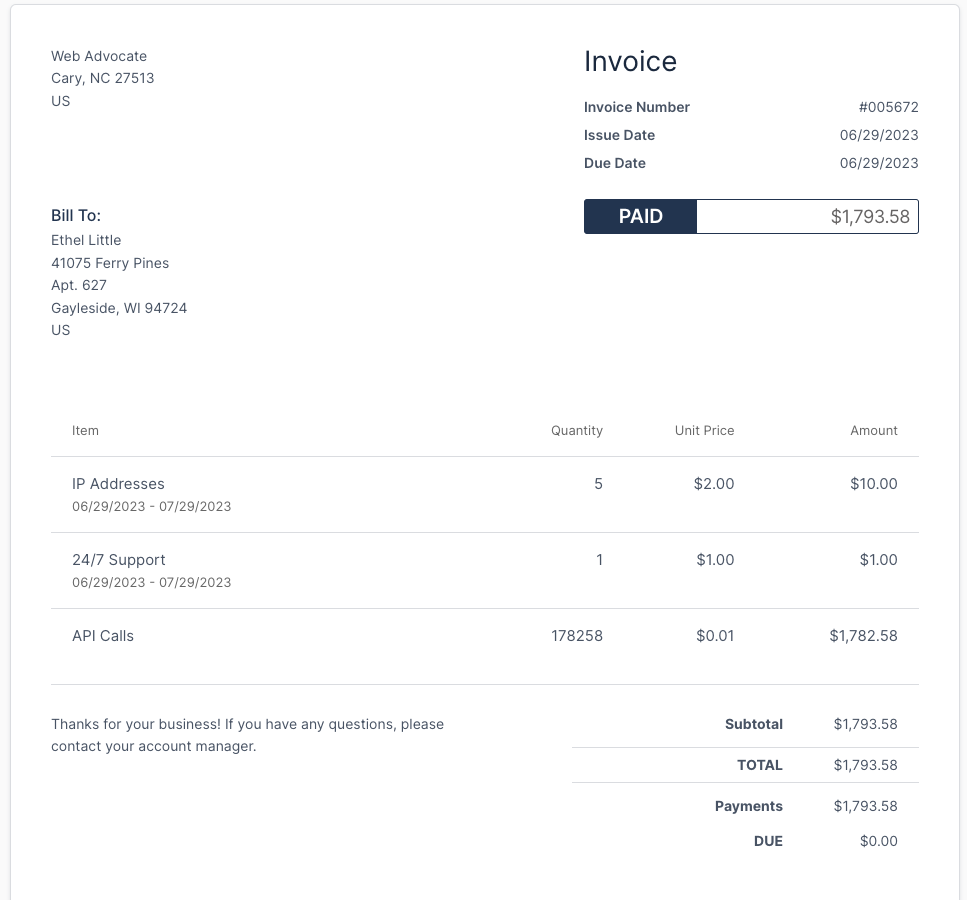
Notice that the $0 Monthly Product is not shown as a line item on the invoice.
Start building your catalog
If this is the right model for you, these guides get you started:
Component types
Whichever model you pick, each charge you sell maps to one of these component types.
| This Component Type... | Is best for... |
|---|---|
| Metered usage | Any usage-based items, billed in arrears. |
| Prepaid usage | Any usage-based items that are advanced and billed upfront. |
| Quantity-based | Any recurring items with a quantity of 0, 1, 2+. |
| Quantity-based One-time | Any non-recurring items with a quantity of 0, 1, 2+. |
| On-off | Any recurring items with a quantity of 0 or 1. |
Still need help?
Reach out and our support team will take it from here.