
NMI Gateway Setup Guide
Applies to: Advanced Billing
Last updated on Aug 25, 2026
Connect NMI (Network Merchants) to Advanced Billing to process credit card transactions through NMI's payment platform.
Important: NMI isn't available in the standard gateway picker by default. Contact Maxio to request access for your site.
Security key, or username and password
NMI supports two authentication methods for connecting your account to Advanced Billing. Use one or the other — entering a value for one method disables the fields for the other in the gateway connection form, and the form shows which method is currently in use.
- Security Key: An API security key generated from your NMI merchant account. This is NMI's recommended authentication method — NMI is deprecating username and password authentication in favor of security keys, and requires an NMI portal password reset every 90 days unless two-factor authentication is enabled. Generate a security key from your NMI account's security settings and paste it into the Security Key field. If you don't have access to generate one, contact NMI support.
- Username and Password: Use your NMI username and password to access the gateway within your Advanced Billing site. Leave the Security Key field blank when using this method.
- Payment Pre-Authorizations Disabled: An optional toggle on the connection form. Leave this off unless you specifically need to disable pre-authorizations for this gateway.
Important: If you're currently connected with a username and password, switching to a security key requires generating the key in NMI first, then entering it in Advanced Billing — entering a security key immediately disables the username and password fields, so keep your NMI credentials on hand in case you need to revert.
Important: Once a site goes live with NMI, any other test sites on the same NMI account must be updated to use NMI's dedicated test account credentials. NMI accounts operate in either live mode or test mode, not both simultaneously. If a test site in Advanced Billing remains connected to a live NMI account, any transactions run on that test site, even during testing, are processed as real payments if a valid credit card is used. Update your test sites to use NMI's dedicated test account credentials to avoid unintended live charges. See NMI's Test Mode Guide for their test account setup documentation.
Requirements
- The Customer Vault service must be activated.
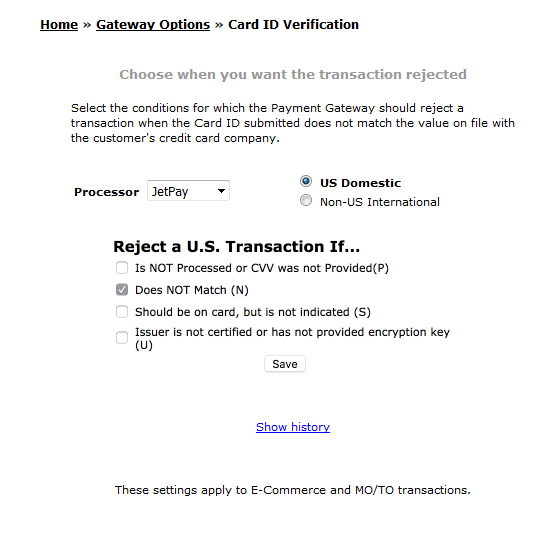
- Do not set Card ID Verification to Is NOT Processed or CVV was not Provided under Settings > Card ID Verification. This causes the gateway to reject any transaction where the CVV isn't sent, which causes all recurring billing transactions to fail.
- In the API Configuration settings, select Use system default API response format. This includes the customer vault ID, which Advanced Billing needs to communicate with NMI. If you choose a custom format instead, Advanced Billing can't store the vault token, and adding cards fails with the message "Please provide the payment profile token."
- Configure the following settings as shown to process cards successfully within the NMI gateway.
NMI settings required for successful card processing
Currencies and merchant location
For complete currency and merchant location support information, see the payment gateway overview page.
Data portability policy
Contact NMI directly for more information on their data portability policy.
Data processors that support validation
Select any of the following processors to use in your NMI account. Each of these processors works successfully with Advanced Billing and its validation processes.
- Borgun
- Chain Commerce
- Echo CC
- Elavon
- EPX
- First Data Canada
- First Data Compass
- First Data Nashville
- First Data Nashville North
- Global Payments - East
- Global Payments - Canada
- IP Pay
- JetPay
- Litle & Co
- Moneris Canada
- Moneris US
- Optimal Payments
- Paymentech Salem
- Paymentech Tampa
- TSYS (Vital)
- Vantiv
- Vital
- World Pay
Still need help?
Reach out and our support team will take it from here.