---
title: Manage an Advanced Billing Subscription from HubSpot
url: https://docs.maxio.com/selling/hubspot/using/manage-an-advanced-billing-subscription-from-hubspot
applies_to: Advanced Billing
updated: 2026-08-26
---
# Manage an Advanced Billing Subscription from HubSpot
View and manage an Advanced Billing subscription's day-to-day activity directly from its Maxio CRM card on a HubSpot Contact, Deal, or Company record.
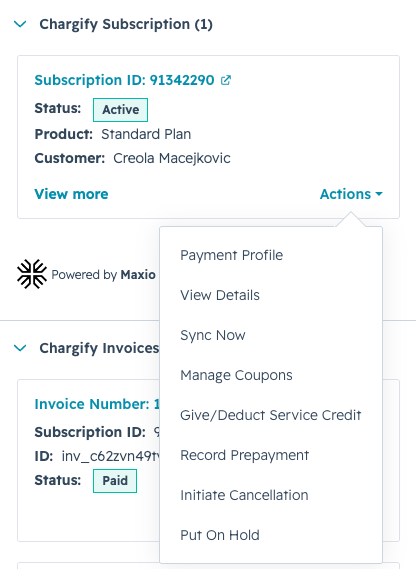
*The Maxio CRM card on a HubSpot record*
The **Powered by Maxio** label confirms that the billing information shown in the card is provided by Maxio through the integration.

*The Powered by Maxio label on the CRM card*
## View subscription details
Open **View Details** on the Maxio CRM card to see the subscription's status, Total Payments, current balance, next billing amount and date, net terms, subscriber-since date, and current period end date.
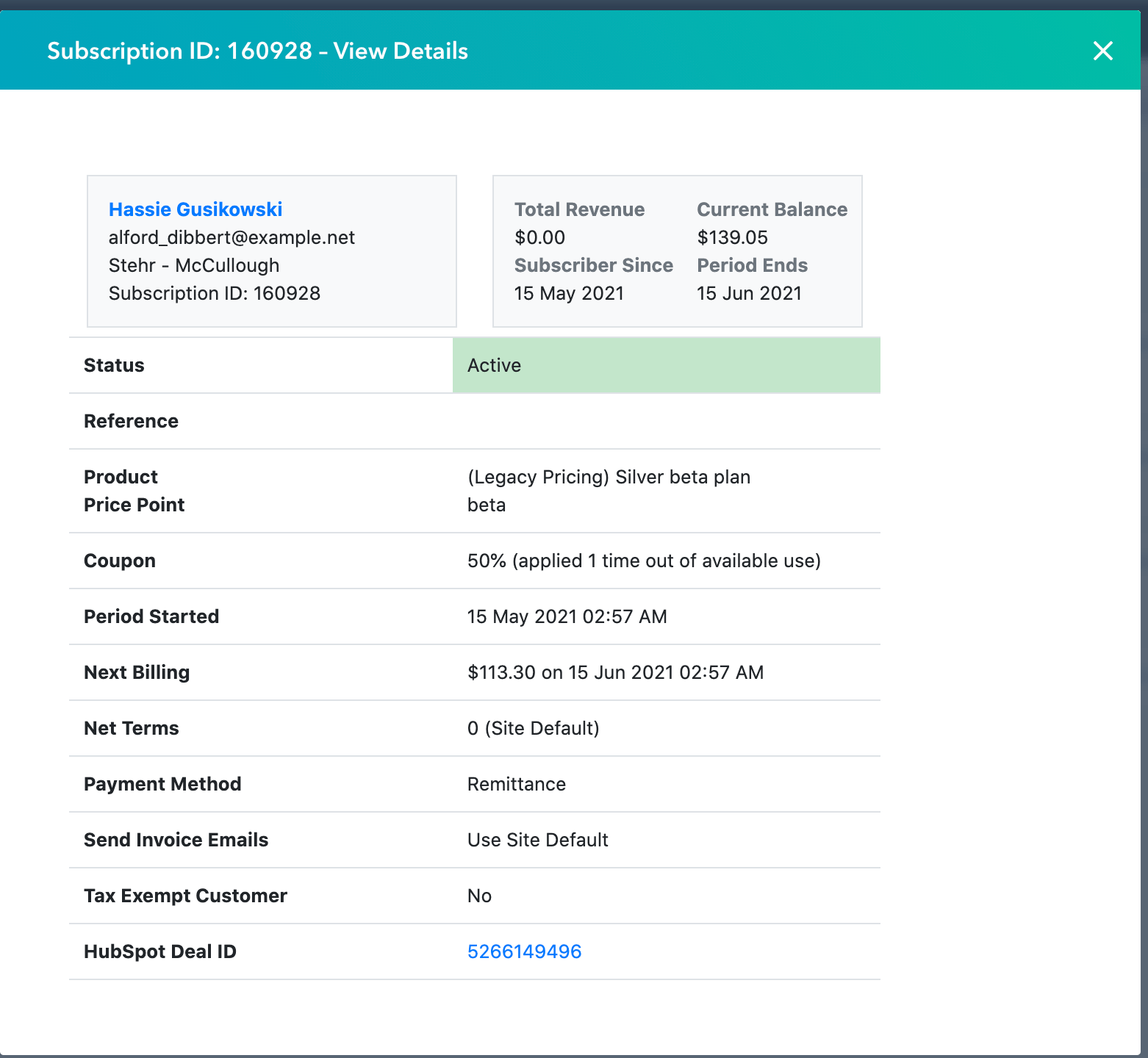
*Subscription details shown after opening View Details*
## View invoice details
From the same card, view an invoice's number, status, payment collection method, amount due, paid amount, credits used, and a public link to the invoice. The paid date only appears once the invoice is actually paid.
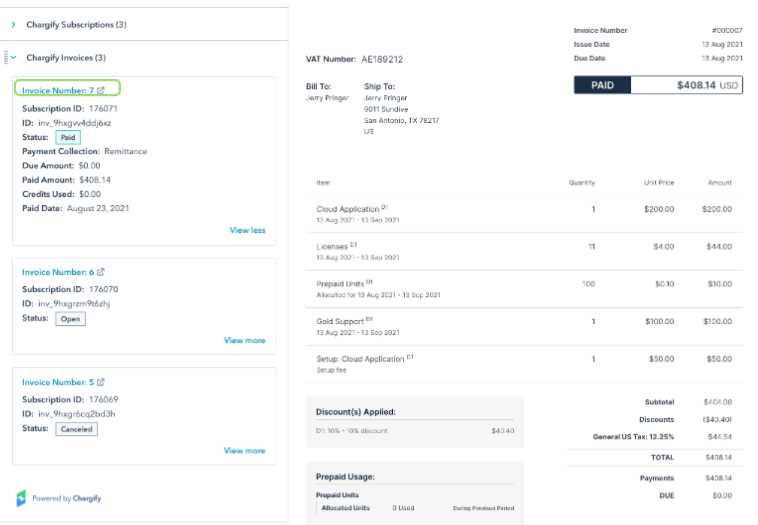
*Invoice details shown on the CRM card*
## Take action on a subscription
The card's **Actions** menu always includes **View Details**, **Sync Now**, and **Manage Coupons**. The rest are optional, and your admin can turn each on or off in Configure HubSpot Integration Sync Options. Some also only appear for a subscription in a particular state:
| Action | Only appears when |
| :--- | :--- |
| Activate | The subscription is Awaiting Signup |
| Payment Profile | Always, if enabled |
| Give/Deduct Service Credit | Always, if enabled |
| Record Payment | Always, if enabled |
| Reactivate Subscription | The subscription is Canceled or Trial Ended |
| Initiate Cancellation | The subscription is any state other than Canceled or Trial Ended |
| Resume Subscription | The subscription is On Hold |
| Put On Hold | The subscription is Active or Trialing |
| Upgrade/Downgrade | The subscription is Active or Trialing |
| Clear Pending Cancellation | The subscription has a pending cancellation scheduled |
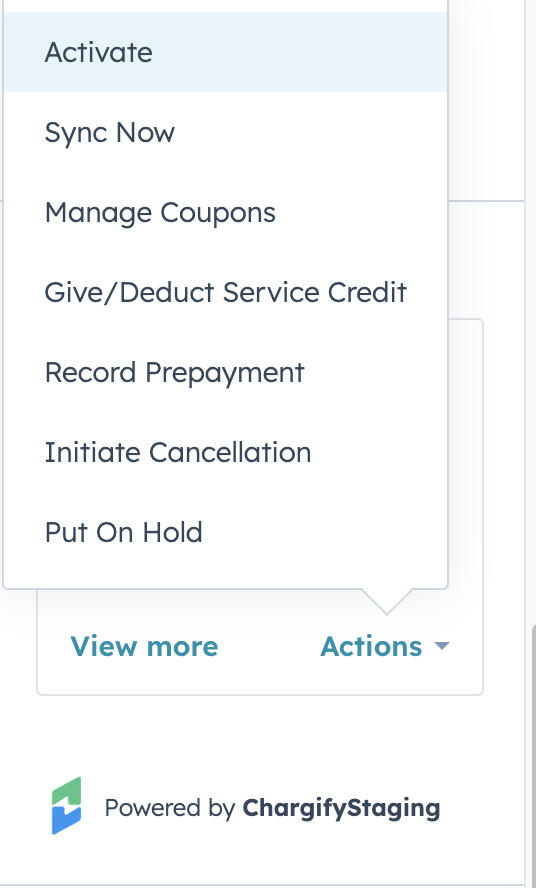
*The subscription card's Actions menu*
**To activate a subscription from HubSpot**
1. Sync the subscription with Advanced Billing.
2. Confirm the subscription's status is **Awaiting Signup**.
3. Complete the customer's payment profile. This step isn't required for subscriptions using remittance collection.
4. Open the subscription card.
5. From the **Actions** menu, select **Activate**.
## Track subscription activity on the timeline
Enabled timeline events post directly to the Contact, Deal, and Company timelines as Advanced Billing activity happens, such as payments, renewals, and invoices. See Enable timeline events for the full list and what each one shows.
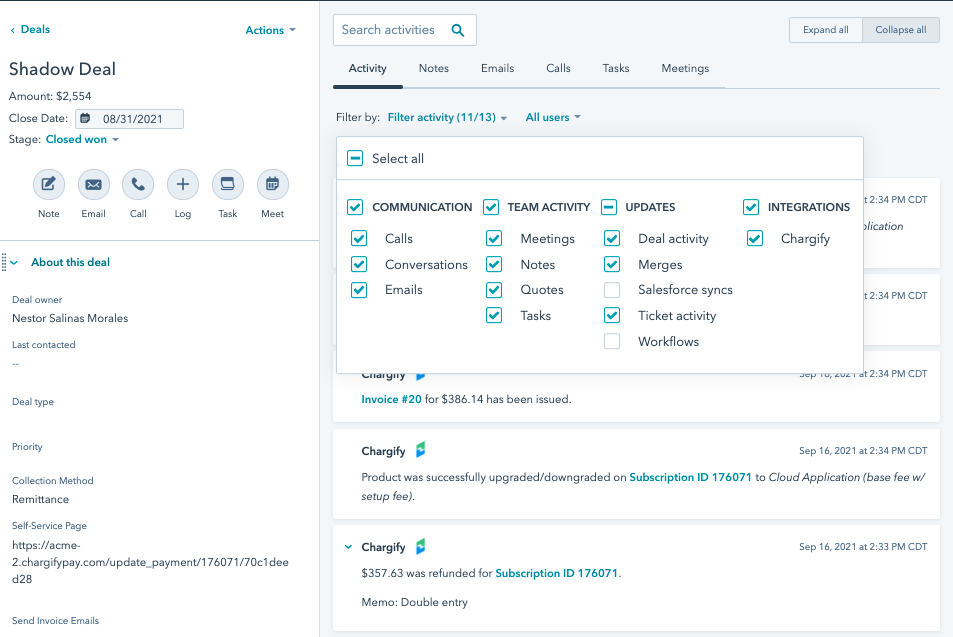
*Advanced Billing activity posted to a HubSpot timeline*
## Add the Subscription Status column to your deal view
Add this column to the deal index page so you can see subscription state without opening each deal. This is only available if your integration syncs Subscription Status.
**To add the Subscription Status column to your deal view**
1. In HubSpot, go to **Deals** under the **Sales** drop-down menu.
2. On the deal index page, click **Edit Columns** in the top-right corner.
3. In the **Search columns** field, type **Advanced Billing Subscription Status**.
4. Select the column to add it to your view.
5. Click **Save**.