
Configure HubSpot Integration Sync Options
Applies to: Advanced Billing
Last updated on Aug 26, 2026
Control how Advanced Billing exchanges data with HubSpot by configuring product, customer, deal, subscription, and timeline-event sync options. These settings determine what syncs, in which direction, and what automatically happens in HubSpot as a result.
Before you start
Complete this after connecting an Advanced Billing site to HubSpot. If your site isn't connected yet, follow Setup the HubSpot Integration first.
Configure sync settings
All settings below are found in Advanced Billing at Config > Integrations > HubSpot > Edit Sync Options.
Sync the product catalog
This single toggle controls whether your Advanced Billing catalog syncs into HubSpot at all.
| Setting | Description |
|---|---|
| Enable sync of Product Catalog from Advanced Billing to HubSpot | Syncs your Advanced Billing products, components, and coupons into the HubSpot Product Library as line items. Requires a HubSpot Professional or Enterprise plan. |
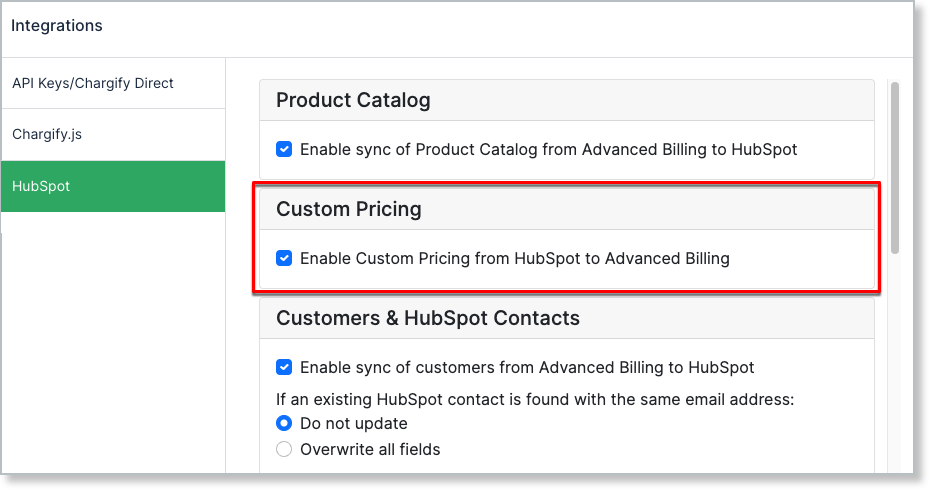
Enable Custom Pricing
Turn this on before anyone on your team can negotiate pricing on a HubSpot deal.
| Setting | Description |
|---|---|
| Enable Custom Pricing from HubSpot to Advanced Billing | Lets HubSpot users set negotiated pricing on a deal's line items instead of using catalog pricing. See Set Custom Pricing on a HubSpot Deal. Disabling this blocks setting new custom prices and editing existing ones. Already-set custom prices remain in place until someone manually deletes them. |
Sync customers to HubSpot Contacts and Companies
These settings control how Advanced Billing customers sync into HubSpot, and how Contact and Company IDs keep the two records linked.
| Setting | Description |
|---|---|
| Enable sync of customers from Advanced Billing to HubSpot | Syncs Advanced Billing customers into HubSpot as Contacts.
|
| Do not Sync Contact Updates to Advanced Billing Customers | When enabled, updates to an existing HubSpot Contact do not sync back to its matching Advanced Billing customer. A new HubSpot Contact still syncs to Advanced Billing as a new customer.
|
| Use Contact and Company IDs | Adds Contact ID and Company ID fields to Advanced Billing customer records, and enables the Billing Company selector on the Subscription Preview. See Sync HubSpot and Advanced Billing Fields. Also enables Company-level timeline events and a Company CRM card, in addition to the Contact and Deal versions. |
| Advanced Billing Customer Address Information | Only available when Use Contact and Company IDs is enabled.
|
| Enable Contact merge functionality | (Available only for specific accounts. Contact support@maxio.com if you're interested in this capability.) When enabled, Maxio automatically updates the Contact ID stored on an Advanced Billing customer after HubSpot contacts are merged. See HubSpot Contact ID updates after contact merges. |
Automate deal creation
Choose when the integration should create a HubSpot deal on its own, and where each one lands.
| Setting | Description |
|---|---|
| Create deals in HubSpot when subscriptions are created | Automatically creates a HubSpot deal whenever a subscription is created.
|
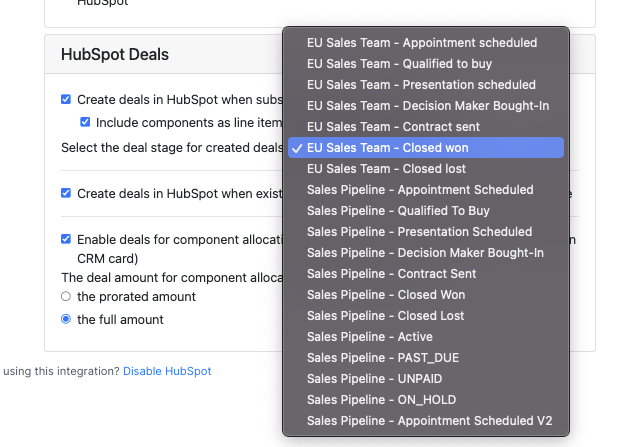
| Create deals in HubSpot when existing subscriptions' component allocations increase | Automatically creates a HubSpot deal when a subscription's component allocation increases. Select the deal stage the created deal starts in. |
| Enable deals for component allocation changes (click "View Details" on a subscription CRM card) | Lets a HubSpot user create a deal to submit a component allocation change directly from the subscription CRM card. Select the deal stage the created deal starts in. |
| Deal amount for component allocation change | Applies to deals created by the two component-allocation automations above.
|
Important: If a deal created by the "component allocation changes" automation is in HubSpot's default pipeline, submitting the allocation change automatically moves that deal to Closed Won. If the deal is in a custom pipeline, it isn't moved.
Choose how deal amount is calculated
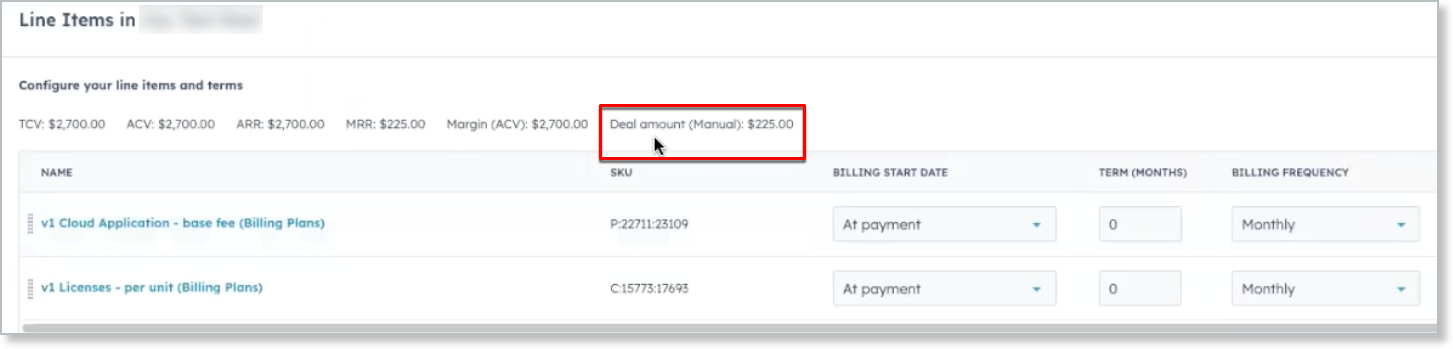
This setting decides what value the integration writes into a created deal's Amount field.
| Setting | Description |
|---|---|
| Set Deal Amount Calculation based on Hubspot line items calculation | (Available only for specific accounts. Contact support@maxio.com if you're interested in this capability.) Calculates the deal amount from HubSpot's own line-item rollup (TCV, ACV, ARR, or MRR) instead of Advanced Billing's subtotal-minus-discount calculation. |
Enable subscription actions in HubSpot
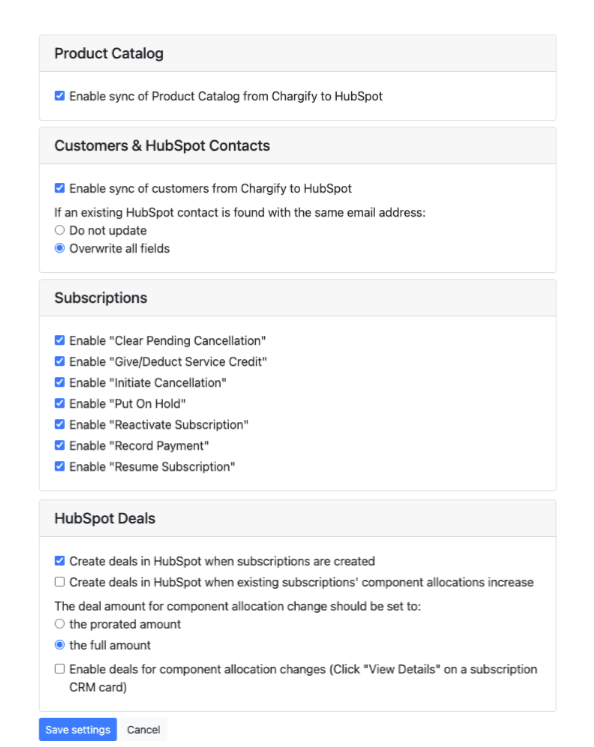
Choose which actions are available from a subscription's Actions menu on the Maxio CRM card. View Details, Sync Now, and Manage Coupons are always available; the rest are optional:
- Activate and Payment Profile
- Clear Pending Cancellation
- Give/Deduct Service Credit
- Initiate Cancellation
- Put On Hold
- Reactivate Subscription
- Record Payment
- Resume Subscription
- Upgrade/Downgrade
Sync custom fields
These settings control whether your Advanced Billing custom fields exist as HubSpot properties, and whether their values keep syncing over.
| Setting | Description |
|---|---|
| Initialize custom fields on customers and subscriptions as custom properties on HubSpot | Creates a HubSpot custom property for every Advanced Billing custom field on the Customer and Subscription resources that doesn't have one yet. Run this again any time after adding new custom fields in Advanced Billing — new fields aren't picked up automatically. |
| Enable sync of customers' custom fields to HubSpot | Syncs values for customers' custom fields into their matching HubSpot custom properties. |
Enable timeline events
Choose which Advanced Billing activity posts to the Contact, Deal, and Company timelines in HubSpot. Each event you enable posts separately to whichever of those three records the subscription is associated with.
| Timeline event | What the timeline card shows |
|---|---|
| Component Allocation Change | The component name and its previous and new allocation quantities, with a link to that component's allocation screen. |
| Direct Debit Payment Paid Out | A link to the subscription and to the customer's payment profiles. Doesn't include an amount. |
| Direct Debit Payment Pending | A link to the subscription and to the customer's payment profiles. Doesn't include an amount. |
| Direct Debit Payment Rejected | A link to the subscription and to the customer's payment profiles. Doesn't include an amount or rejection reason. |
| Dunning Step Reached | Which dunning step was reached, with a link to the subscription's dunning details. |
| Expiring Card | The card's expiration month/year and last four digits, with links to the subscription and payment profiles. |
| Invoice Issued | The invoice number, amount due, a list of line-item titles on the invoice, and a link to the invoice. |
| Payment Failure | The failed transaction's ID, amount, and any memo returned by the payment gateway (often the decline reason), with a link to the subscription's payment activity. |
| Payment Success | The transaction's ID and amount, with a link to the subscription's payment activity. |
| Pending Payment Completed | The payment amount, with a link to the subscription's payments. |
| Pending Payment Created | The payment amount, with a link to the subscription's payments. |
| Pending Payment Failed | The payment amount, with a link to the subscription's payments. Doesn't include a failure reason. |
| Prepaid Subscription Balance Changed | The subscription's current prepaid balance, with a link to the subscription. Doesn't show the previous balance or how much it changed by. |
| Proforma Invoice Issued | The amount due, with a link to the subscription's list of proforma invoices. |
| Refund Failure | The refund amount and the error message explaining why it failed, with a link to the subscription's activity. |
| Refund Success | The refund amount and any memo attached to the refund, with a link to the subscription's activity. |
| Renewal Success | A link to the subscription's activity. Doesn't include the renewal amount or new period dates. |
| Subscription Bank Account Updated | A link to the subscription's payment profiles. Doesn't show the new account details. |
| Subscription Card Updated | A link to the subscription's payment profiles. Doesn't show the new card details. |
| Subscription Group Card Updated | A link to the subscription group's page. This is the only event scoped to a subscription group rather than a single subscription. |
| Subscription Product Change | The previous and new product (each with its price point), with a link to the subscription's insights page. |
| Subscription State Change | The subscription's new status (for example, Active, Canceled, or Past Due), with a link to the subscription's activity. |
| Upcoming Renewal Notice | The upcoming renewal date and the renewal message, with a link to the subscription's activity. |
| Upgrade/Downgrade Failure | The product the subscription was attempting to move to, with a link to the subscription's activity. Doesn't show the product it was moving from. |
| Upgrade/Downgrade Success | The new product (with its price point), with a link to the subscription's activity. Doesn't show the previous product. |
Next steps
Continue to Build and Price a HubSpot Deal.
Related information
For the full list of synced fields and how address and Contact ID syncing behave, see Sync HubSpot and Advanced Billing Fields.
For common sync errors and how to resolve them, see Troubleshooting and FAQs.
Still need help?
Reach out and our support team will take it from here.