---
title: Configure Get Account Metadata for Salesforce
url: https://docs.maxio.com/selling/salesforce-for-maxio-core/configuration/configure-get-account-metadata-for-salesforce
applies_to: Maxio Core
updated: 2026-10-13
---
# Configure Get Account Metadata for Salesforce
Get Account Metadata syncs Salesforce Account data into Maxio, one-way, based on the field mappings you define. Use it to keep your Maxio Customer and Billing Profile records aligned with the corresponding Salesforce Account.
## Control when data updates
Maxio Platform updates Customer data based on the rules below. Note the important impact of the **Let Salesforce Update Non-Null Records** setting, discussed in Setup the Salesforce Integration for Maxio Core.
| Salesforce data | Maxio Platform data | Action |
| :--- | :--- | :--- |
| Does not contain data | Contains data | Do not update Maxio Platform |
| Contains data | Does not contain data | Update Maxio Platform |
| Does not contain data | Does not contain data | Do not update Maxio Platform |
| Contains data | Contains data | Depends on the **Let Salesforce Update Non-Null Records** setting: - Checked - update Maxio Platform.
- Unchecked - don't update Maxio Platform.
|
## Map fields
Click the pencil icon to configure the field mappings for Get Account Metadata. Select the Salesforce field you want to map to each Maxio Platform field from the drop-down menu, then click **Save**.
Custom fields in Salesforce are appended with a "**\_\_c**" suffix. In the image below, for example, **Account.Active\_\_c** is a custom field.
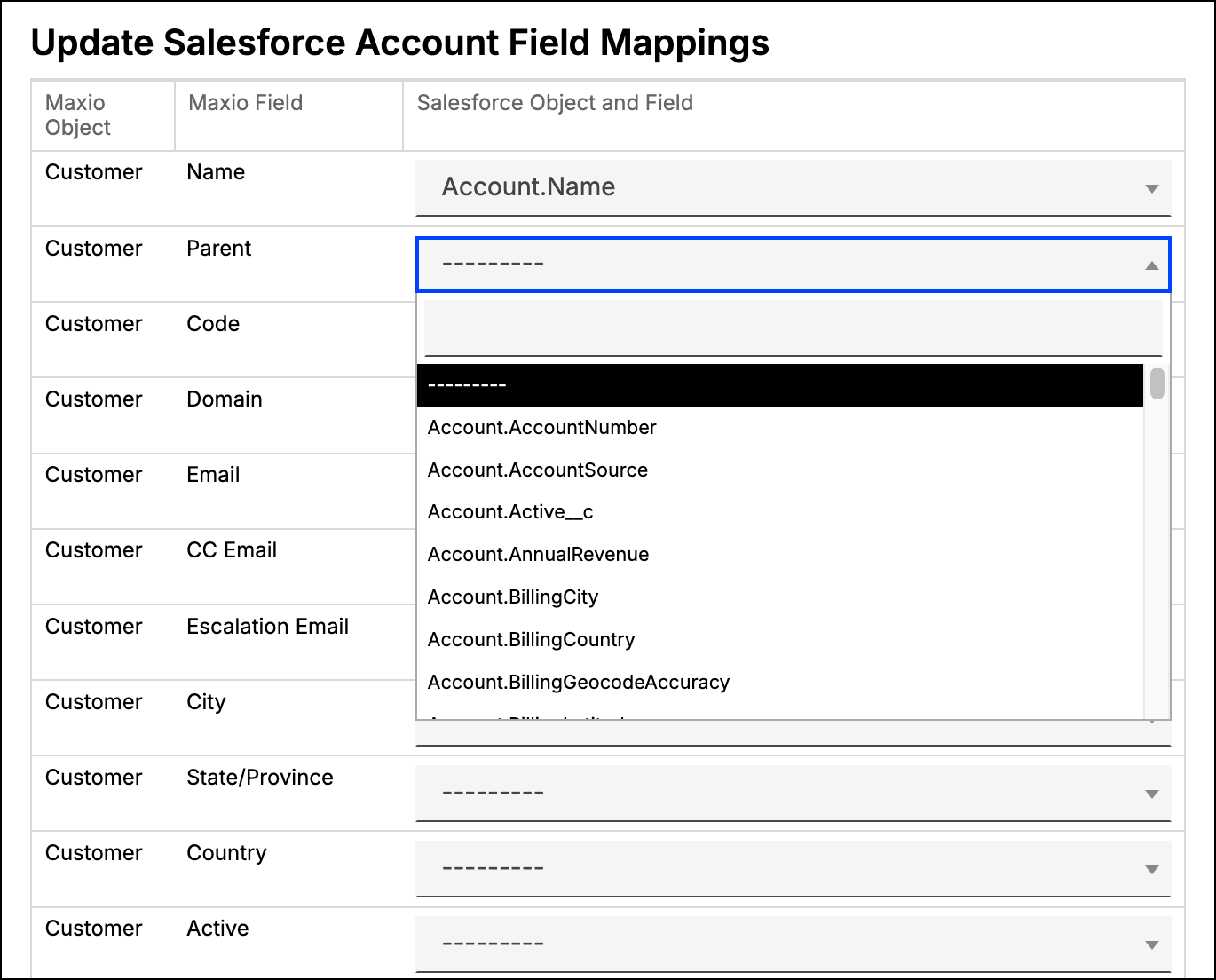
> **Important:** If you map a Salesforce field whose type doesn't match the Maxio Platform field (for example, a Salesforce picklist mapped to a Maxio Platform number field), that value won't sync. Maxio Platform doesn't show an error. It treats the mismatched value the same as if Salesforce sent no data at all.
### Map to a related record's name
Two entries in the Salesforce field drop-down menu sync the name of a related record instead of a Salesforce field: **Account.Owner.Name** syncs the name of the Account's owner, and **Account.Parent.Name** syncs the name of the parent Account. Without them, the drop-down menu offers only the Salesforce IDs of those records (**Account.OwnerId** and **Account.ParentId**), and you would need to look up each name in Salesforce.
Map these two entries to a custom Customer field that holds text. Don't map them to the **Parent** or **Owner Salesforce ID** fields. **Parent** finds the parent Customer by its Salesforce ID, so a name there never matches and nothing syncs. **Owner Salesforce ID** stores the Salesforce ID of the Account's owner. Keep **Account.ParentId** mapped to **Parent** and **Account.OwnerId** mapped to **Owner Salesforce ID**.
The rules in [Control when data updates](https://docs.maxio.com/selling/salesforce-for-maxio-core/configuration/configure-get-account-metadata-for-salesforce#control-when-data-updates) apply to these fields too. For example, if someone renames the parent Account in Salesforce, the name already stored in Maxio Platform changes only when **Let Salesforce Update Non-Null Records** is checked.
### Choose which fields to map
Get Account Metadata can map to these Maxio Platform Customer fields: Name, Parent, Code, Email, CC Email, Escalation Email, Notes, City, State/Province, Country, Domain, Active, Owner Salesforce ID, Salesforce Price Book ID, and Advanced Billing ID. If Xero is enabled for your account, Sales Tax Rate is also available. Maxio Platform also lists whatever custom Customer fields your account has configured. The number and type of custom fields vary by account.
Only **Domain** ships with a default mapping already applied, to **Account.Website**. Every other field is available to map, but nothing is pre-filled for it.
A few fields have their own requirements:
- **Email**, **CC Email**, and **Escalation Email** must be valid email addresses. Separate multiple addresses with commas or semicolons.
- **Salesforce Price Book ID** requires a custom look-up field in Salesforce.
Get Account Metadata can also map fields on your Customer's Billing Profile:
| Group | Fields |
| :--- | :--- |
| Name and contact | Name, Salutation, First Name, Last Name, Company Name, Email, Phone, Alt Phone/Other, Fax, Contact, Alt Contact, Account Number |
| Tax identification | Business Identification Number, Tax ID |
| Billing address | Billing Addr1, Billing Addr2, Billing Addr3, Billing City, Billing State/Province, Billing Zip/Postal Code, Billing Country |
| Shipping address | Shipping Addr1, Shipping Addr2, Shipping Addr3, Shipping City, Shipping State/Province, Shipping Zip/Postal Code, Shipping Country |
Salutation, First Name, and Last Name make up a customer's Primary Billing Contact. Mapping these lets Get Account Metadata set a Billing Profile's Primary Billing Contact directly from Salesforce, without creating and processing a Sales Order first.
> **Important:** Tax ID is only available if e-Bill and Billing Portal invoicing is enabled for your account.