
Setup the Stripe 1Way Integration
Applies to: Maxio Core
Last updated on Aug 24, 2026
Setting up the Stripe 1Way Integration connects your Stripe account to Maxio Platform, so the Subscriptions and Invoices you manage in Stripe can sync in.
Important: Contact Maxio Support to enable the Stripe 1Way Integration for your account. The Connect to Stripe button only works once Maxio Support has enabled the integration for you.
Once the Stripe 1Way Integration is enabled for your account, connect it to your Stripe account.
Connect to Stripe
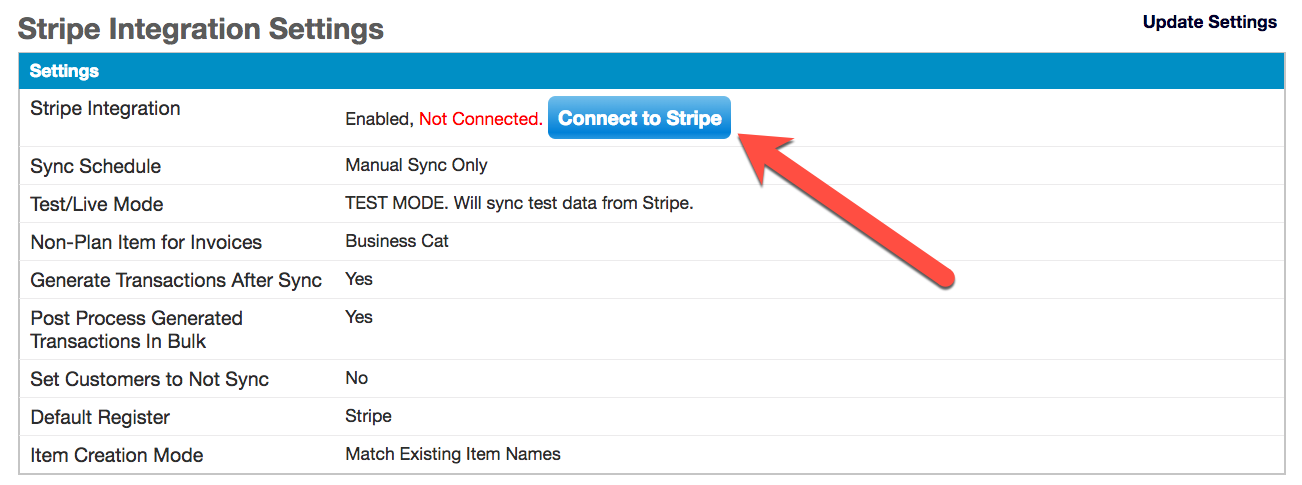
Navigate to your Stripe Integration Settings and click Connect to Stripe.
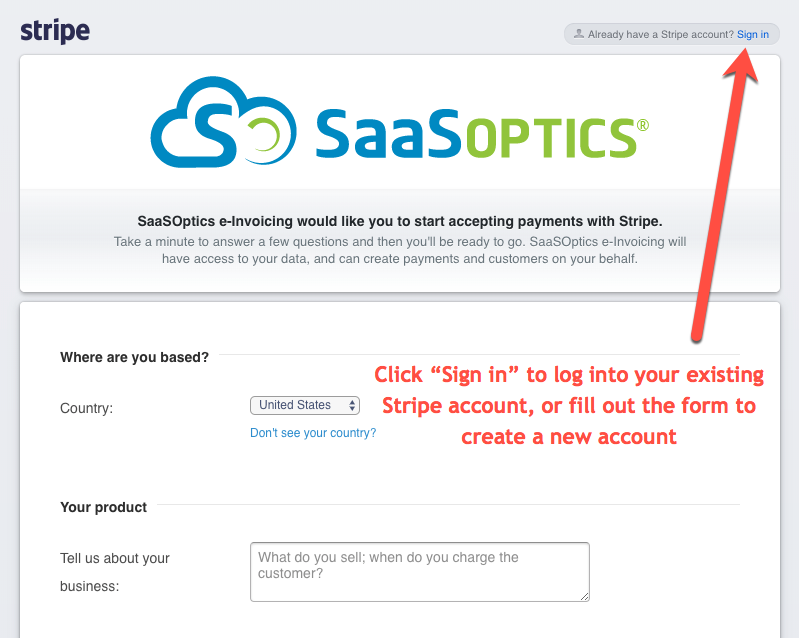
In the screen that appears, connect to your existing Stripe account by clicking Sign In. If you want to create a new Stripe account instead, fill out the information in the bottom half of the screen.
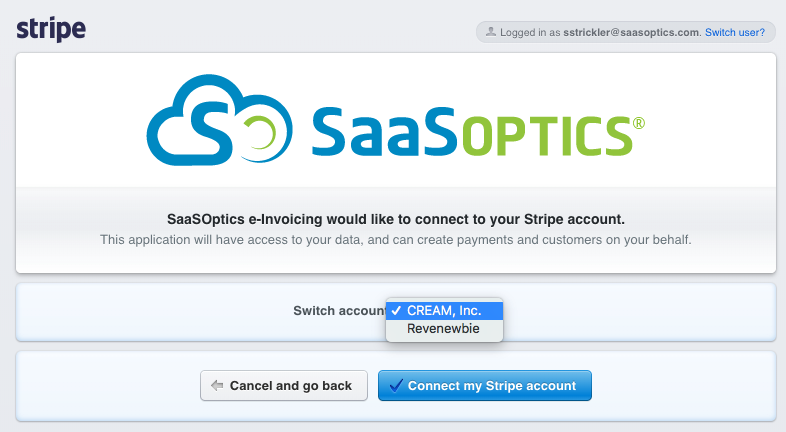
If you have an existing Stripe account, you're prompted to log into Stripe and confirm the connection. If you have multiple Stripe accounts, select the account you want to use for your Stripe 1Way integration, then click Connect my Stripe account.
Next steps
You are now connected. Next, configure the Stripe 1Way Integration.
Continue to Configure the Stripe 1Way Integration.
Still need help?
Reach out and our support team will take it from here.