
Void Accounting Invoices
Applies to: Maxio Core
Last updated on Aug 24, 2026
Voiding an Invoice in Maxio resets all Invoice Line Items to zero and clears the Invoice subtotal and sales tax.
Important: You can't void an Invoice while it's in a closed period, once it's synced to an external system (a general ledger, Stripe, Recurly, or Advanced Billing), locked for sales tax, or linked to an open e-Bill. If your account uses committed invoice sequencing, a committed Invoice also can't be voided. If the Invoice has an open e-Bill, delete or resolve it first — the Void option stays disabled until you do.
This article covers functionality related to the Maxio Platform Invoice object. An Invoice is a grouping of Invoice Line Items assembled based on Customer and Invoice date.
To void an Invoice
-
Locate and open the Invoice you want to void.
-
Select the Void option from the Invoice drop-down menu.
-
Confirm that you want to void the Invoice.
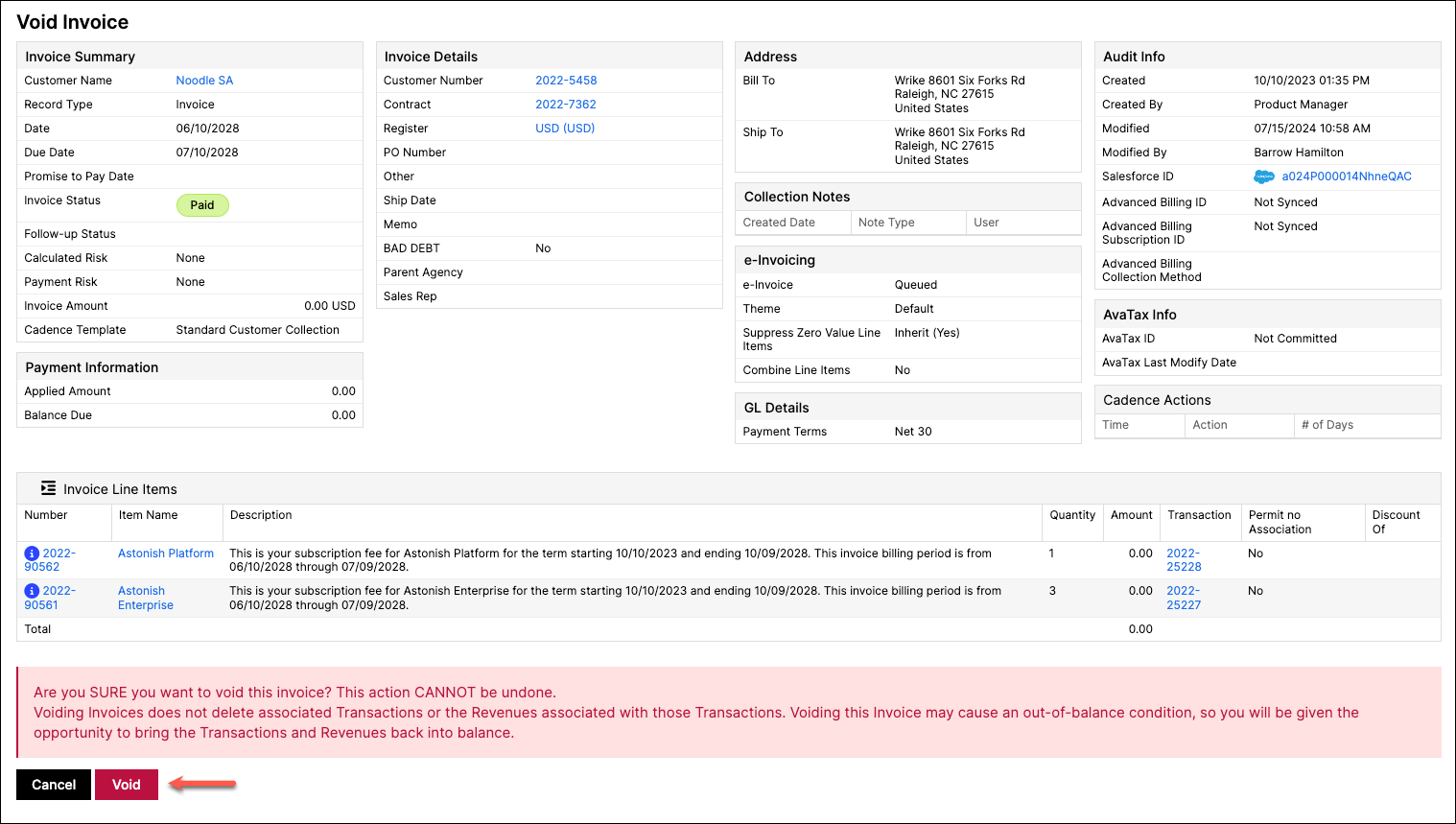
You'll see a warning that this action cannot be undone. Voiding an Invoice does not delete its associated Transactions or their Revenues, but it may cause an out-of-balance condition, so you'll get the opportunity to bring the Transactions and Revenues back into balance right after.
After voiding the Invoice, if any associated Transactions are out of balance, Maxio opens the same Select Transactions to Balance flow described in Balancing Transactions with Credit Memos.
Related information
For more information about Invoices in general, see How Invoices Work.
If you want to remove an Invoice entirely instead of voiding it, see Delete Invoices.
Still need help?
Reach out and our support team will take it from here.