
Monitor Receivables with the A/R Management Dashboard
Applies to: Maxio Core
Last updated on Oct 12, 2026
Use the A/R Management Dashboard to see all receivables at a glance, including New, Current, Due Soon, Past Due, and recent Paid activity. From this view you can drill into invoice categories, customize aging thresholds, and open customer records to act on specific balances.
From the left navigation panel, go to Accounts Receivable and select Accounts Receivable Home to open the Dashboard. From the Dashboard, you can see all your accounts receivables at a glance.
The upper part of the AR Management Dashboard shows the Invoice categories summaries. You can quickly see, for example, how many invoices are Past Due and the AR subtotal of all Past Due Invoices. Each category is clickable so you can focus a certain group.
If you are using Multi-currency, every balance on this Dashboard (each category card, the Total AR figure and bar, and the Paid total) is summed in your home currency, with the home currency code shown next to each total. Accounts that don't use Multi-currency see the same figures and layout as before.
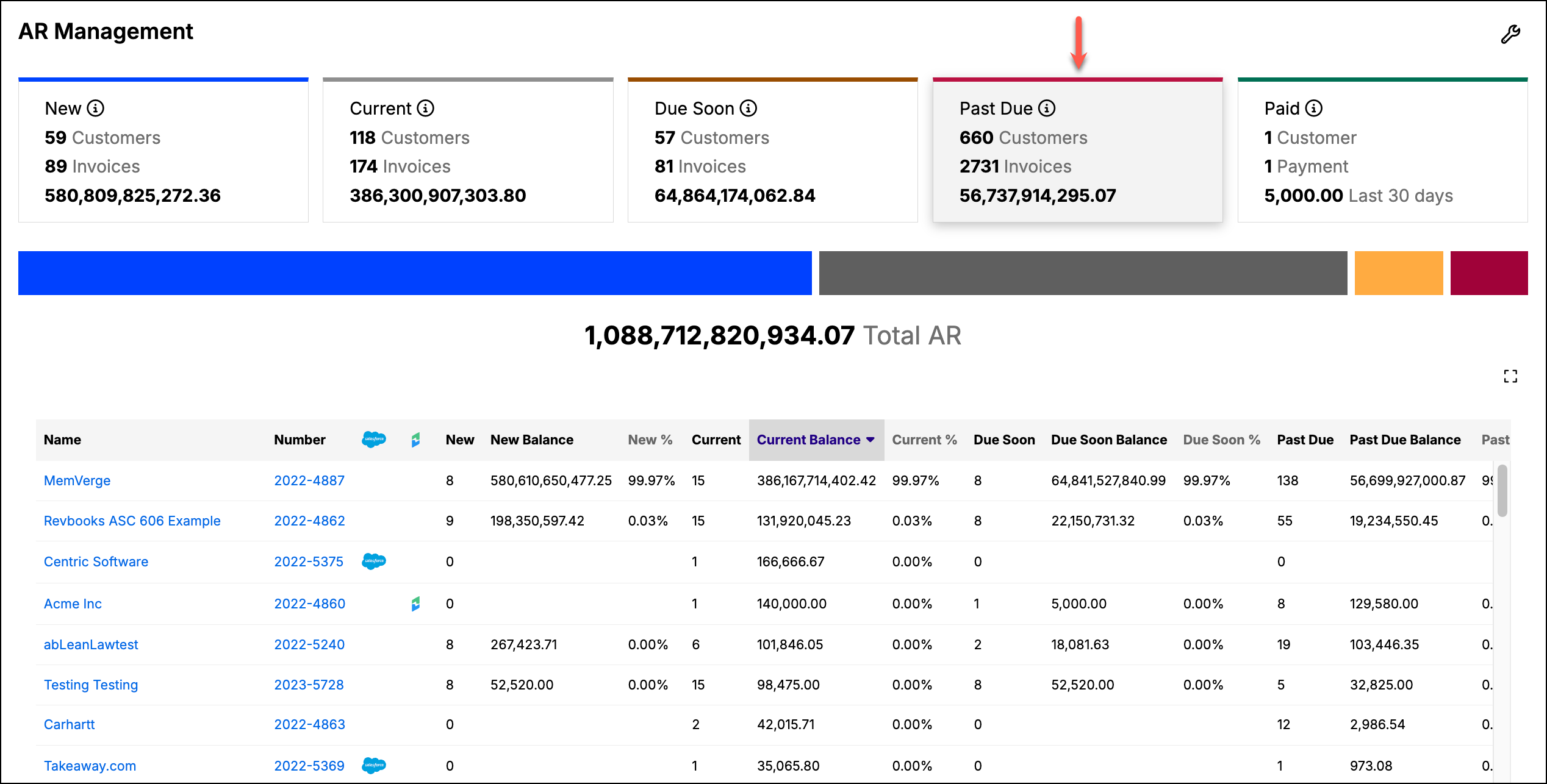
The bottom part of the Dashboard is a detailed list of all these records, including a balance and percentage-of-total column per category per customer. From this list, you can click on a link to open the Customer record. On a Multi-currency account, these per-customer balances and percentages are also in the home currency.
Customize the Dashboard
You can customize how you see your data on the Dashboard. From the top left corner, click the Collections & Dunning Settings action (wrench icon). This opens the Collections and Dunning screen. To edit the Dunning settings, click the Update Settings action (pencil icon). For what each setting on that screen controls, see Collections & Dunning Settings.
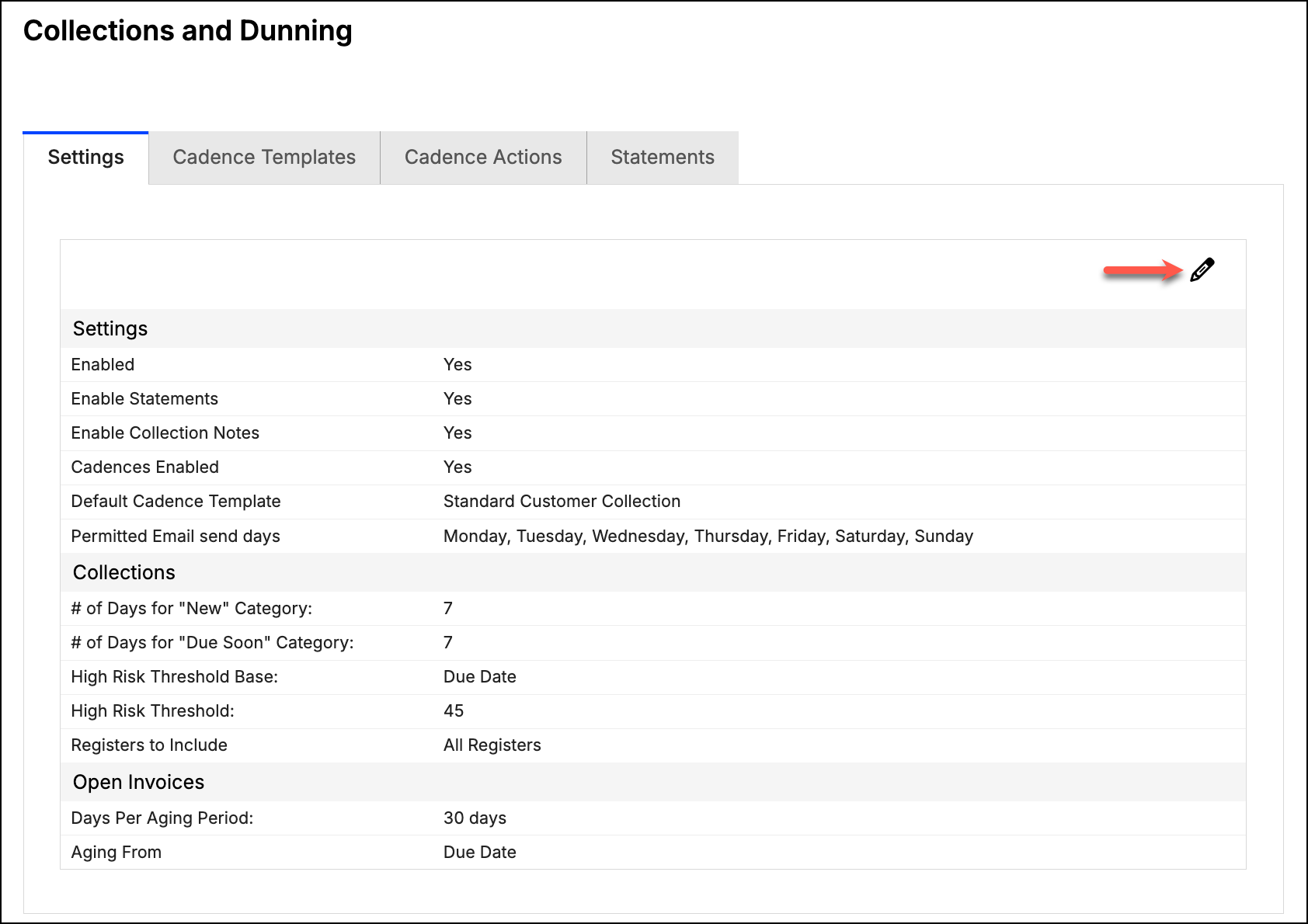
From the Update Dunning Settings screen, you can set the following options:
- The number of days for New AR
- The number of days for Due Soon AR
- Which Registers to include
- The number of days per range used in the AR Aging report (for example, grouping past-due invoices into "1-30 Days" ranges)
- Whether AR Aging ranges are calculated from the Invoice Date or the Due Date
Invoice Categories
Invoices fall into one of the following categories:
New
An invoice is considered "New" when the invoice date is within the number of days specified in the Collections & Dunning settings as of today's date.
Example:
- Invoice date: 1/1/20
- New category setting: 15
- Under these conditions, if you view the Collections page on or between 1/1/20 and 1/15/20, the invoice is included in the "New" category
- Under these conditions, if you view the Collections page on 1/16/20 or later, the invoice is NOT included in the "New" category
| New | Balance | New % |
|---|---|---|
| The count of "New" invoices for the customer | The sum of open balance for "New" invoices | The ratio of the "New" balance to total open invoices |
Current
An invoice is considered "Current" when its due date is after the date you are viewing the Collections screen, it isn't categorized as "New," and it isn't yet within the "Due Soon" window. If the invoice does not have a due date, then the invoice date is used.
| Current | Current Balance | Current % |
|---|---|---|
| The count of "Current" invoices for the customer | The sum of open balance for "Current" invoices | The ratio of the "Current" balance to total open invoices |
Due Soon
An invoice is considered "Due Soon" when it is "Current" and its due date is within the number of days specified in the Collections and Dunning settings from today's date.
Example:
- Invoice Date 1/1/20
- Invoice Due Date 2/1/20
- Due Soon Category Setting = 15
- Under these conditions, if you view the Collections page on or between 1/1/20 and 1/16/20, the invoice is NOT included in the "Due Soon" category
- Under these conditions, if you view the Collections page on or between 1/17/20 and 2/1/20, the invoice is included in the "Due Soon" category
| Due Soon | Due Soon Balance | Due Soon % |
|---|---|---|
| The count of "Due Soon" invoices for the customer | The sum of open balances for "Due Soon" invoices | The ratio of the "Due Soon" balance to total open invoices |
Past Due
An invoice is considered "Past Due" when today's date is greater than the due date and the invoice has an open balance. If the invoice does not have a due date, then the invoice date is used.
| Past Due | Past Due Balance | Past Due % |
|---|---|---|
| The count of "Past Due" invoices for the Customer | The sum of open balance for "Past Due" invoices | The ratio of the "Past Due" balance to total open invoices |
Paid
This is a summary of all payments submitted within the last 30 days. Note that you cannot click on this option to view a list like you can the other options. However, you can view all payments by opening the Payment List (Accounts Receivable > Payment List in the left navigation panel). You can also run the Payment Summary Report.
Still need help?
Reach out and our support team will take it from here.