
Configure Collections and Dunning Settings
Applies to: Maxio Core
Last updated on Sep 19, 2026
These settings control how Maxio categorizes and ages your open Invoices in the Collections function, and how Cadence emails are sent. The Collections function shows your open balance by Customer, along with the counts and percentages that indicate your AR exposure.
Collections is part of Maxio's Advanced AR Management functionality. To learn more, see Monitor Receivables with the AR Management Dashboard.
Where to find these settings
To reach these settings, click Collections & Dunning in the Invoicing section of the Admin screen.
The Collections and Dunning screen opens on its Settings tab, alongside tabs for Cadence Templates, Cadence Actions, and Statements. Click the pencil icon in the top-right of the Settings panel to change any of the values, then save.
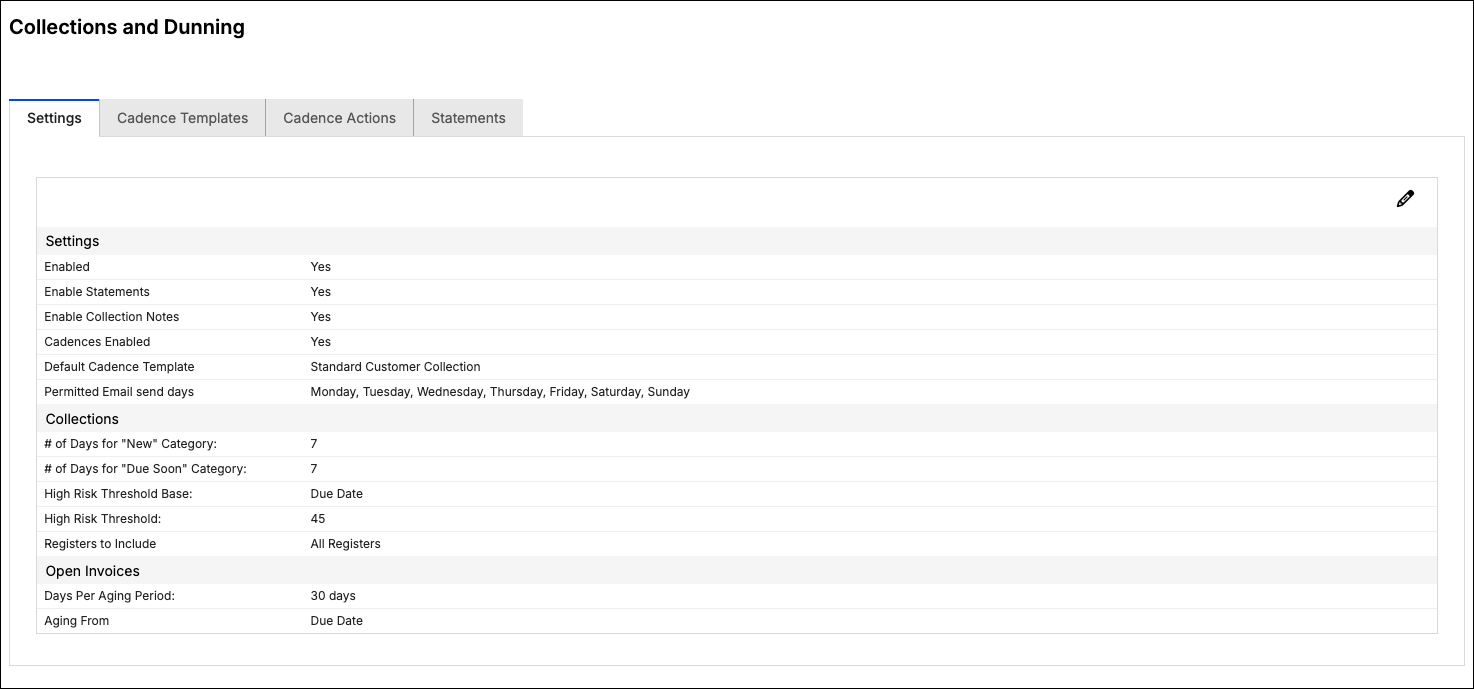
Some of these settings appear only when the matching feature is enabled for your account, and those features are enabled by Maxio Support rather than by you. If a setting below is missing from your screen, that feature is not enabled.
Account-wide settings
WARNING: Turning off Enable Statements hides and disables customer statements, and only Maxio Support can turn them back on.
Account-wide Collections and Cadence settings
| Setting | Description |
|---|---|
| Enable Statements | Controls whether customer statements are available. This setting appears only while statements are enabled, so you can turn them off but not back on. |
| Cadences Enabled | Turns Cadence processing on for the account. Appears only when the Cadences feature is enabled. |
| Default Customer Cadence | The Cadence Template applied to Customers that have no Cadence of their own. A Contract-level default, set directly on the Contract, takes priority over this account-wide setting. Appears only when the Cadences feature is enabled. |
| Permitted Email send days | The days of the week on which Cadence emails may be sent. All seven days are permitted by default. Appears only when the Cadences feature is enabled. |
How open invoices are categorized
These thresholds decide which bucket an Invoice falls into on the Collections screen.
| Setting | Description |
|---|---|
| # of Days for "New" Category | The number of days after an Invoice is created during which it counts as New. Defaults to 7. An Invoice is only counted as New while it is also unpaid, not Due Soon, and not past due, so a short-dated Invoice can move straight to another category. |
| # of Days for "Due Soon" Category | The number of days before an Invoice's Due Date during which it counts as Due Soon. Defaults to 7. |
| High Risk Threshold Base | Whether the High Risk Threshold counts from the Invoice Date or the Due Date. Defaults to Invoice Date. Appears only when Collection Notes is enabled. |
| High Risk Threshold | The number of days past the threshold base at which an Invoice is treated as high risk. Defaults to 60. Appears only when Collection Notes is enabled. |
| Registers to Include | The Registers included in the Collections function. If you select none, all Registers are included, and the setting displays as All Registers. |
How the day counts work
| Setting | Example |
|---|---|
| # of Days for "New" Category |
|
| # of Days for "Due Soon" Category |
|
How AR aging is bucketed
Two settings define the aging columns on the AR Aging report.
| Setting | Description |
|---|---|
| Days Per Aging Period | The number of days used to define the columns that Invoices are aggregated into, such as 1-30 Days. Typical values are 30 for monthly or 7 for weekly. Defaults to 30. |
| Aging From | Whether aging is calculated from the Invoice Date or the Due Date. Defaults to Invoice Date. If an Invoice has no Due Date, the Invoice Date is used instead. Choosing Due Date also adds a current period to the AR Aging report, covering Invoices that are issued but not yet due. |
How cadences chase payment
Cadences generate and send emails reminding Customers to pay their outstanding Invoices. You build a schedule of steps that run automatically or manually once a set number of days have passed relative to an Invoice's date. Because a Cadence step acts on an Invoice, an e-Bill is included with each Cadence email.
For full instructions on building and using Cadences, see Cadences Overview.
Still need help?
Reach out and our support team will take it from here.