
Use Customer Statements to Summarize Open Balances
Applies to: Maxio Core
Last updated on Aug 24, 2026
Generate customer statements to summarize all unpaid invoices for a customer or contract in a single email, PDF, and self-service landing page. Use statements to give customers a clear view of outstanding balances, aging by days past due, and quick links to pay each invoice.
Customer Statements are part of Maxio's Advanced AR Management functionality, which you can learn more about in Understand How A/R Management Works. If you would like to add Customer Statements to your account, contact support@maxio.com to discuss any questions you may have and the next steps to enabling this add-on module.
What does generating a statement mean for my customers?
When you generate a statement, the system creates a statement email, PDF, and a landing page. A statement is a summary of all unpaid invoices up to the point in time it is generated. If you generate a statement in the morning and your customer pays multiple invoices by the end of the day, then you will need to generate another statement to show that decrease in total unpaid invoices.
Statement Email and PDF
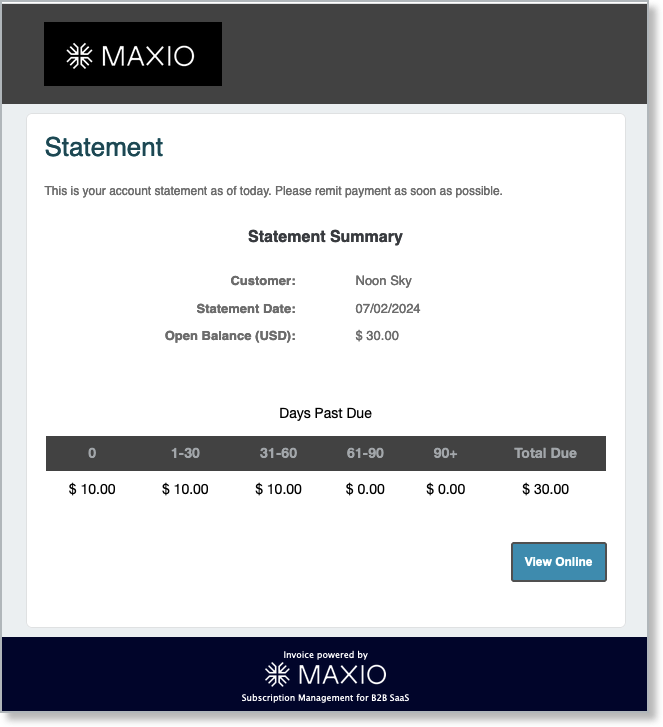
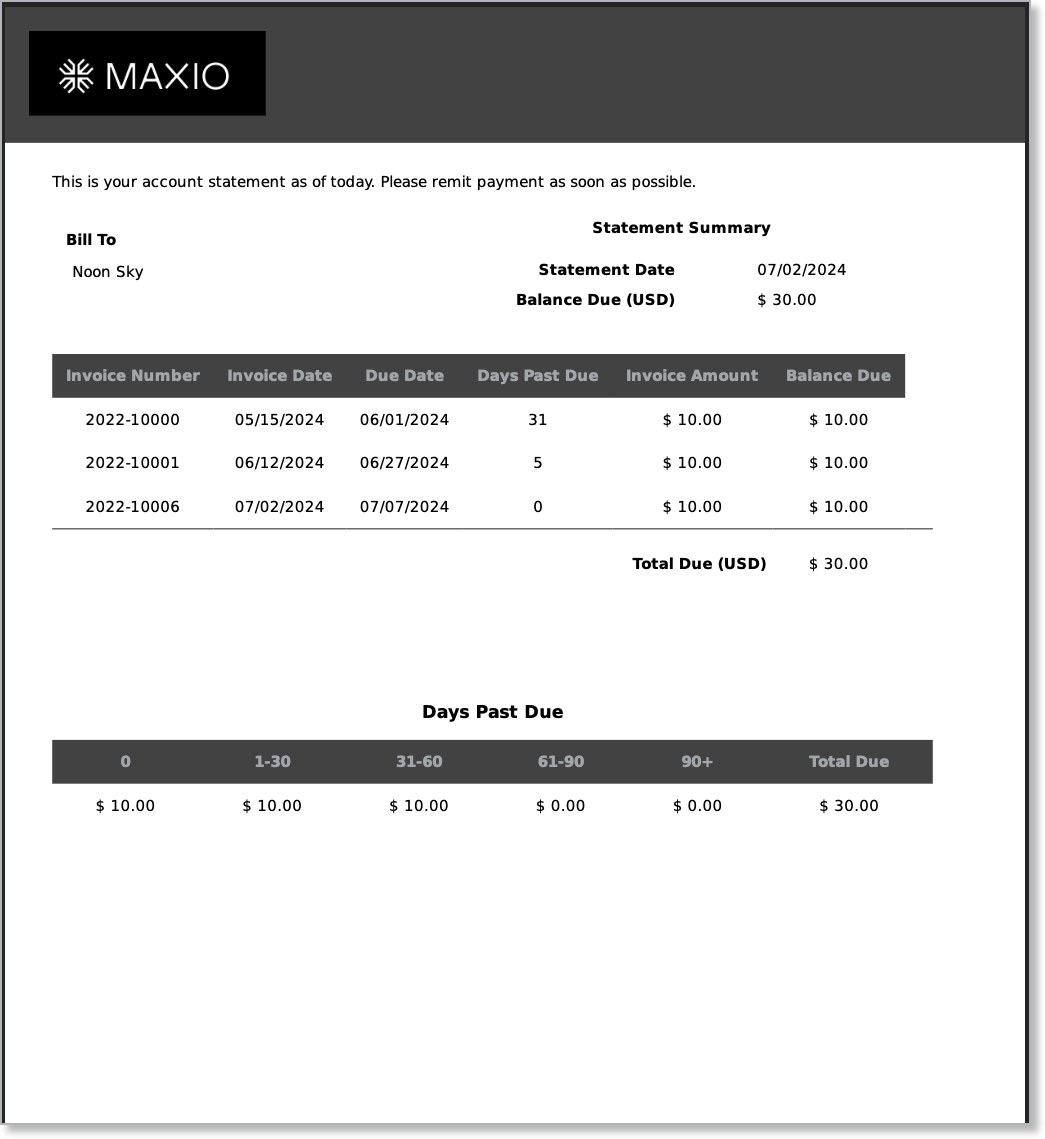
The statement email includes a summary of the open balance for your customer, a PDF showing each invoice, and the break down of the total open balance as well as any extra messaging or attachments that are added.
Example Email
Example PDF
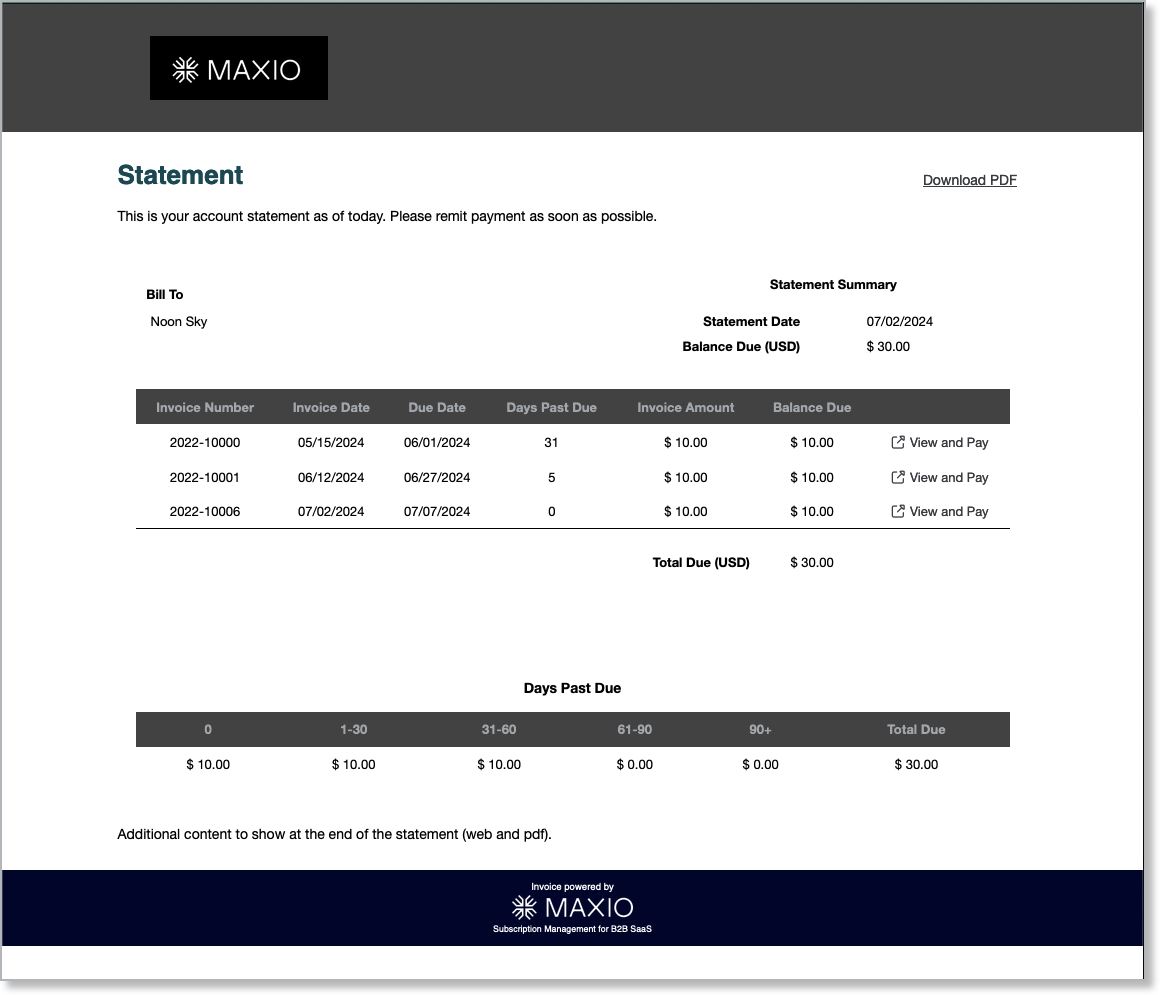
Statement Landing Page
The statement landing page is similar to the statement PDF. From the landing page, your customers can open each unpaid invoice to remit payment.
Generate a Statement
Complete the following steps:
-
Navigate to a Customer or Contract.
-
Hover over the Invoices drop-down at the top of the page.
-
Click on Generate Statement.
-
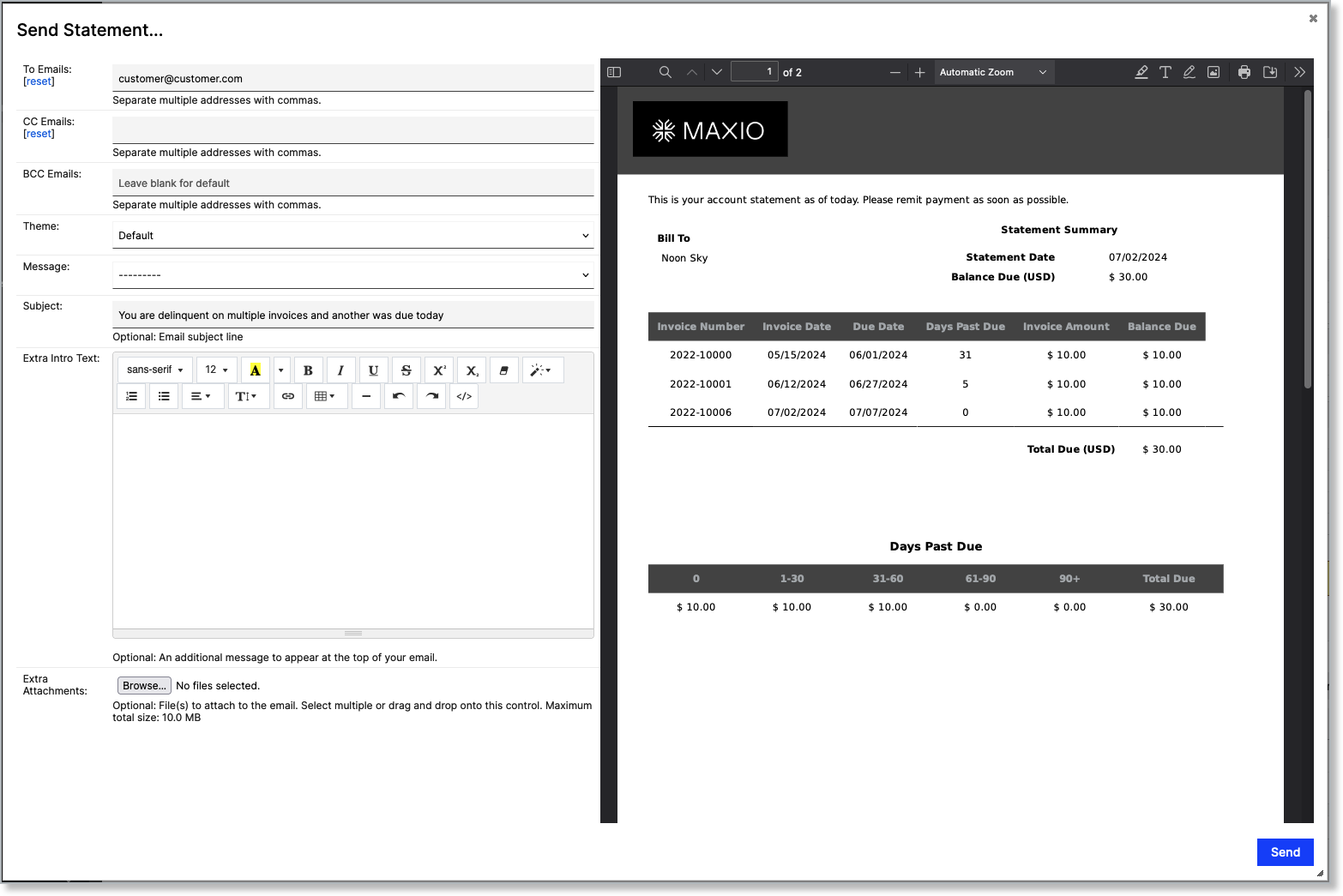
In the pop-up that appears, verify that the email address for the customer or contract is correct.
-
Add additional text or messaging to the email. Available variables for the extra messaging include:
- {statement_number}
- {from_company_name}
- {to_customer_name}
- {statement_date}
-
To print or download the PDF, click on the Print or Download icon in the preview window.
-
To email, click Send.
Update a Statement's Style
You have the ability to customize the look, feel, and content of Customer Statements using the e-Bill theme editor. Simply toggle between Invoice and Statement in the theme editor to achieve your desired Statement styling.
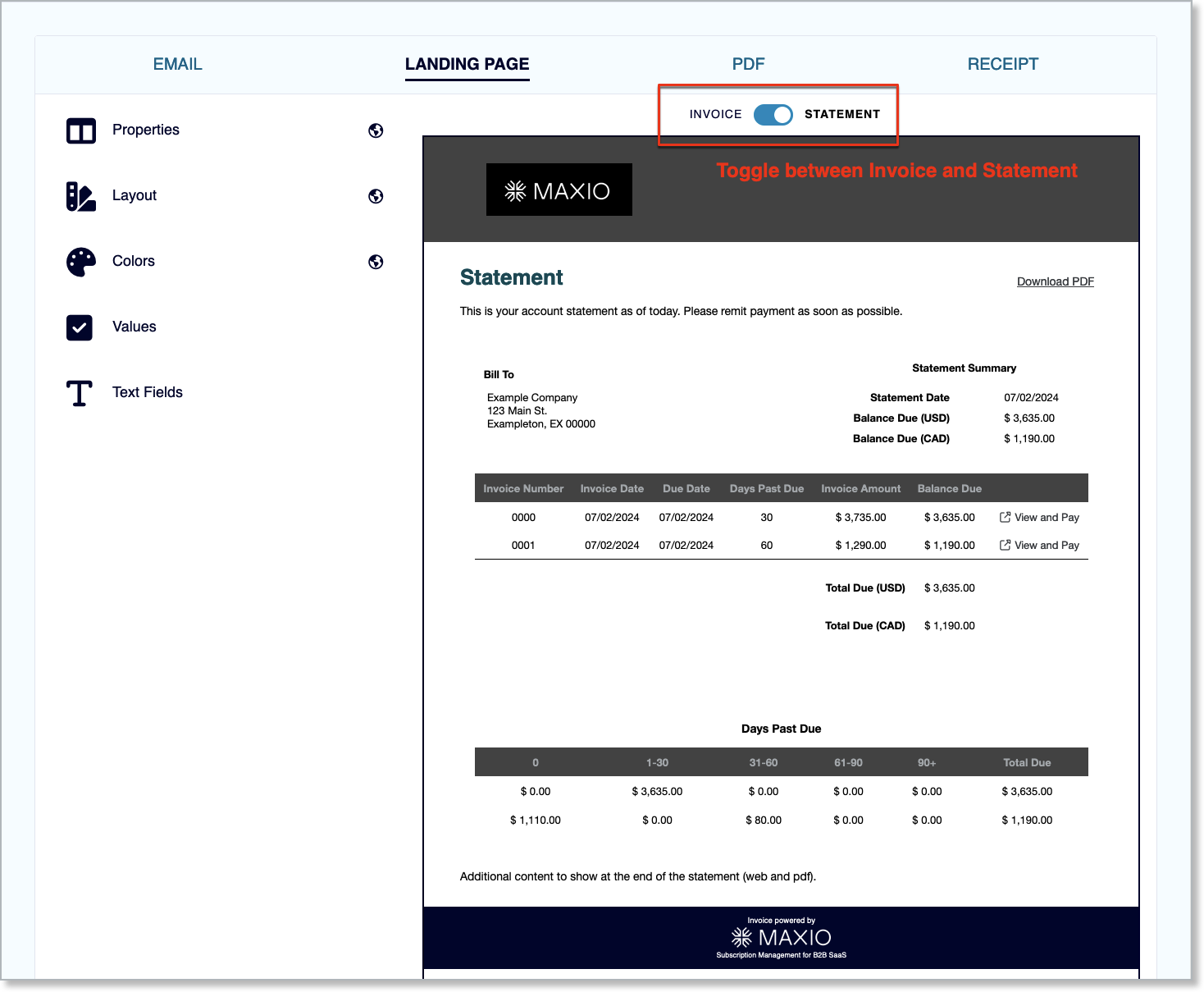
The theme for Statements is set at the customer level but you also have the option to use a different theme when manually sending a Customer or Contract Statement. Also, your automated Statements will, by default, use the theme set at the Customer. Or, you may define a different theme for all automated Statements in the Admin settings.
Automated Statements
Automated Statements give you the ability to automate the generation of customer statements.
Important: Automated statements are only sent if e-Bill is enabled and properly configured in your account. Additionally, customers must be marked for automatic statement delivery and have a valid email address on file. If these conditions are not met, statements will not be sent automatically, even if automation settings are enabled.
Simply pick a specific time each month to generate and send statements to customers and Maxio Platform automates the entire process. This functionality is unique and different from our cadence and dunning features.
Once enabled, you will see a new tab in the Collections and Dunning admin settings. Notice you can set the day of the month, the days of the week, and the hour that the system will automatically email statements.
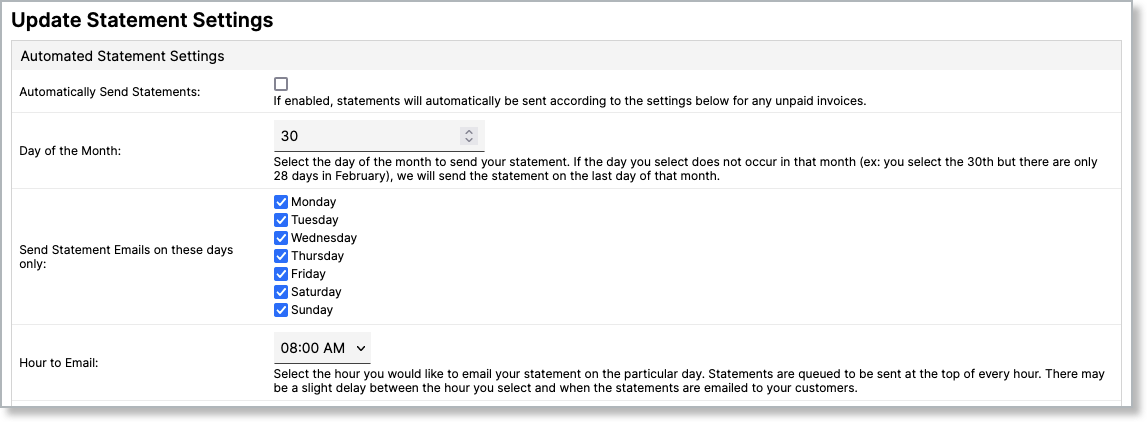
You can also select the statement theme, message, subject, and body content of the email.
Still need help?
Reach out and our support team will take it from here.