---
title: Understand Intacct Sync Steps
url: https://docs.maxio.com/accounting/general-ledger-integrations/intacct/sync/understand-intacct-sync-steps
applies_to: Maxio Core
updated: 2026-11-09
---
# Understand Intacct Sync Steps
Control which records move between Maxio and Intacct, and when, using sync steps and field mappings. These settings determine what data actually crosses the integration, distinct from the connection and general sync preferences covered in Setup and Configure.
## Sync steps
Users can choose which pieces of information sync to or from Intacct using sync steps. These can be toggled on and off and customized to map to the correct fields on either side of the integration.
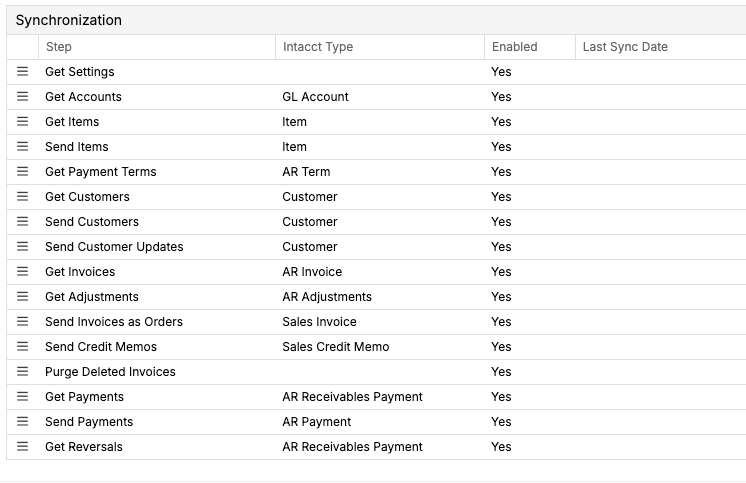
*Sync steps and what each one does*
| Name | Intacct Type | Description |
| :--- | :--- | :--- |
| Get Settings | - | Pulls in the currencies, base currency, and billing methods configured in Intacct. |
| Get Dimensions | - | *(V2 only)* Retrieves dimension values (such as Location, Department, or Class) from Intacct for use in default dimension mapping. |
| Get Accounts | GL Account | Retrieves the chart of accounts from Intacct for use in configuring items in Maxio. |
| Get Items | Item | Retrieves the items available for use in billing by Maxio. Excludes purchase items from Intacct, since those relate to Accounts Payable, not Accounts Receivable. |
| Send Items | Item | *(V2 only)* Sends new or updated items from Maxio to Intacct. Requires proper transaction definitions to be set in Intacct. |
| Get Payment Terms | AR Term | Retrieves the payment terms used in Intacct and lets you set a default. All invoices require a payment term to sync to Intacct. |
| Get Customers | Customer | Retrieves customers from Intacct and syncs them into the respective entity within Maxio. |
| Send Customers | Customer | Sends customers created in Maxio to Intacct and syncs them into the respective entity within Intacct. |
| Send Customer Updates | Customer | Sends updates made to customers in Maxio to Intacct. Reuses the same mappings as Send Customers. |
| Get Invoices | AR Invoice | Retrieves invoices from Intacct, including those created from Sales Orders and Accounts Receivable. |
| Get Adjustments | AR Adjustments | *(V2 only)* Retrieves adjustments from Intacct and syncs them to Maxio. Adjustments configured as debit memos sync as invoices; those configured as credit memos sync as credit memos. |
| Send Invoices as Orders | Sales Invoice | The main configuration for sending invoices from Maxio to Intacct. Proper transaction definitions must be set in Intacct. |
| Send Credit Memos | Sales Credit Memo | The main configuration for sending credit memos from Maxio to Intacct. Proper transaction definitions must be set in Intacct. |
| Purge Deleted Invoices | - | Enables purging invoices on the Maxio side when an invoice is deleted in Intacct. |
| Get Payments | AR Receivables Payment | *(V2 only)* Retrieves payments from Intacct and syncs them to Maxio. |
| Send Payments | AR Payment | *(V2 only)* Sends payments from Maxio to Intacct. |
| Get Reversals | AR Receivables Payment | *(V2 only)* Retrieves payment reversals from Intacct and syncs them to Maxio as refunds. |
| Get Refunds | AR Receivables Payment | *(V2 only)* Retrieves refunds directly from Intacct and syncs them to Maxio. |
| Send Refunds | AR Payment | *(V2 only)* Sends refunds from Maxio to Intacct. |
> Steps like Get Accounts, Get Items, Get Payment Terms, Get Invoices, and Get Payments each retrieve one fixed Intacct Type. On sites with Intacct v2 enabled, this field displays as read-only. On sites still using the legacy (non-v2) version of the integration, it appears as an editable dropdown instead.
## Accounts
Maxio retrieves your chart of accounts from Intacct so you can use the accounts when you configure items. No sync step sends accounts from Maxio to Intacct.
### Get accounts
Get Accounts retrieves the chart of accounts from Intacct. On sites with Intacct v2 enabled, the following fields are pre-configured and can't be changed:
| Maxio Field | Description |
| :--- | :--- |
| Account: Intacct ID | The unique identifier for the account in Intacct. This establishes the link between Maxio and Intacct accounts. |
| Account: Name | The account's title in Intacct. |
| Account: Account Type | The account's type in Intacct (for example, Asset or Liability). |
| Account: Intacct Category | The account's category in Intacct. |
| Account: Is Active *(V2 only)* | Whether the account is active or inactive in Intacct. An account that is inactive in Intacct is marked inactive in Maxio. |
> On sites still using the legacy (non-v2) version of the integration, Get Accounts has no Is Active mapping. Maxio marks every account it syncs as active, whether or not the account is active in Intacct.
## Items
Maxio retrieves the items it can use for billing from Intacct. On sites with Intacct v2 enabled, Maxio can also send new or updated items to Intacct.
### Get Items
When pulling settings from Intacct, you have the option to map key fields required within the Maxio integration. For example, if all of your items will be mapped to deferred revenue and unbilled A/R for the liability and asset accounts, respectively, you can set up the mappings before any sync from Intacct to Maxio. See below for details on each field and the respective item setting. For additional information on items and how to sync them, see Review Item Fields.
#### System default mappings
These mappings are pre-configured and cannot be changed:
| Maxio Field | Required | Description |
| :--- | :--- | :--- |
| Item: Intacct ID | Yes | The unique identifier for the item in Intacct. This establishes the link between Maxio and Intacct items. |
| Item: Is Active in GL | Yes | Determines whether the item is active or inactive. When set to inactive in Intacct, the item name doesn't appear when creating transactions or invoice line items in Maxio. |
| Item: Name | Yes | The item name that should match your invoice line item products, services, or solution items (for example, "ABC Subscription Fee," "Monthly Subscription," "License Fee"). |
#### Custom mappings
These mappings can be configured to match your business needs. If configured, these mappings apply to each new item detected from Intacct. Once item mappings are set in Maxio, existing settings aren't overridden by the mappings below.
| Maxio Field | Required | Description |
| :--- | :--- | :--- |
| Item: Asset Account | No | Asset account for revenue recognition, commonly Unbilled A/R. If an item has a Liability or Asset Account, it must have all three accounts set (Income, Liability, and Asset). |
| Item: Billing Description | No | Complete to create invoice line item descriptions using fixed text and variables. This text appears on invoices sent to customers. |
| Item: Code | No | An optional field, but important if Salesforce integration is enabled. This field can be matched against Salesforce Product Codes when creating orders. |
| Item: Create Revenue | No | When enabled, generated transactions have revenue created using the revenue recognition method of the associated item. |
| Item: Default Billing Method | No | The default billing method that defines how invoices are created when you create a transaction. |
| Item: Default Duration | No | When creating transactions, Maxio automatically calculates the end date using the item's default duration. Recurring items typically have a duration other than "End Date same as Start Date." |
| Item: Default Revenue Recognition Template | No | The default revenue schedule used when you create a transaction. Determines how revenue is recognized over time. |
| Item: Enable Create Transactions | No | Select to enable Maxio to create transactions from invoices synced in from other systems. |
| Item: Enforce Same Item in Renewal Links | No | When transactions are created, this enforces a rule that ensures only transactions with the same item can renew each other. |
| Item: Enforce Start Date After End Date | No | Enforces a rule that ensures a transaction with a start date prior to the end date of another transaction isn't classified as a renewal. |
| Item: Generate MRR/ARR | No | When a transaction is created or edited, Maxio generates both MRR and ARR values. Best practice is to enable this for recurring items. |
| Item: Income Account | No | Income account for revenue recognition, commonly a revenue account. |
| Item: Liability Account | No | Liability account for revenue recognition, commonly Deferred Revenue. If an item has a Liability or Asset Account, it must have all three accounts set (Income, Liability, and Asset). |
| Item: Notes | No | A free-form text field available only in the View and Update Item screens. Use this field to log incidental information about the item. Not used in the generation of transactions or invoices. |
| Item: Product Family | No | An optional field used for filtering in Analytics Reports. Helps categorize and group related items. |
| Item: Recurring | No | Indicates to Maxio that a transaction must be renewed or canceled when it expires. Has no impact on invoicing. |
| Item: Transaction End Date | No | Maxio sets the transaction end date based on this setting when generating transactions from invoices. |
| Item: Transaction Start Date | No | Maxio sets the transaction start date based on this setting when generating transactions from invoices. |
#### Important notes
Keep these points in mind when you set up item mappings.
- **System default mappings** can't be modified and are essential for maintaining the link between Intacct and Maxio items.
- **Custom mappings** can be configured based on your specific business requirements and data structure.
- **Account requirements**: if you assign an Asset or Liability Account to an item, you must assign all three account types (Asset, Liability, Income).
- **Integration dependencies**: some fields, like Code, become important when other integrations (like Salesforce) are enabled.
- **Revenue recognition**: the combination of Default Duration and Default Revenue Recognition Template determines how revenue is handled over time.
### Send Items
When you create an item in Maxio, a matching item is automatically created in Intacct once the item has a GL Account mapped and isn't flagged **Do Not Sync**. Matching items are created with the following attributes:
| Attribute | Default setting |
| :--- | :--- |
| Item type | Non-inventory (sales only) |
| Name | Maxio Name |
| Unit of measure / base unit | Each |
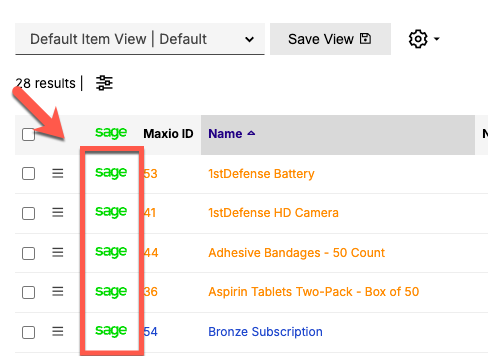
If you use any GL group mappings or other custom configurations, set these directly in Intacct. After an item syncs to Intacct, you can navigate to its Intacct item profile from the Sage hyperlink on the individual item profile or the item list:
#### How Maxio builds the Intacct item ID
Intacct's Item ID field (ITEMID) accepts at most 20 characters, letters, numbers, underscores, and hyphens only. Maxio picks the ID it sends by trying these sources in order and using the first one that already fits, or can be made to fit:
1. The item's existing **Sage Intacct ID**, if it's already valid for Intacct.
2. The item's **Code**, with unsupported characters replaced and the result shortened as needed.
3. The item's **Name**, treated the same way, when Code isn't set or doesn't produce a usable value.
An ID built from Code or Name always ends in a hyphen followed by the item's Maxio ID (for example, `PS-4471`), even when two items would otherwise reduce to the same value, so every item still gets its own distinct, stable ID across syncs.
If none of these sources can produce a valid ID, Maxio skips that item for the current sync and logs it as a **Sync Issue** instead of stopping the whole batch — see Monitor and Run Intacct Syncs. Other items in the same sync still send normally; give the affected item a valid Code or Name and it sends on the next sync.
#### Items already linked to Intacct
If an item's profile shows a **Sage Intacct ID** but no record number yet, its Intacct Item Profile section displays an Intacct Sync Note asking you to run the Item sync. The next time **Get Items** reports that Intacct item as modified, Maxio fills in the record number automatically, and the item becomes eligible for **Send Items** to keep it updated afterward. Until then, the item is neither created nor updated in Intacct.
## Payment terms
Maxio retrieves the payment terms used in Intacct and lets you set a default. Every invoice needs a payment term to sync to Intacct.
### Get payment terms
Get Payment Terms retrieves the payment terms configured in Intacct. The following fields are pre-configured and can't be changed:
| Maxio Field | Description |
| :--- | :--- |
| Payment Term: Intacct ID | The payment term's name in Intacct. This establishes the link between Maxio and Intacct payment terms. |
| Payment Term: Is Active | Determines whether the payment term is active or inactive in Intacct. |
| Payment Term: Name | The payment term's name, matching Intacct. |
| Payment Term: Number of Months | The number of months until the term is due, matching Intacct's Due From setting. |
| Payment Term: Number of Days | The number of days until the term is due, matching Intacct's Due Date setting. |
## Customers
Maxio retrieves customers from Intacct and sends customers created or updated in Maxio to Intacct, each with its own sync step.
### Get Customers
Get Customers retrieves customers from Intacct and syncs them into the respective entity within Maxio. The following fields are pre-configured and can't be changed:
| Maxio Field | Description |
| :--- | :--- |
| Customer: Intacct ID | The unique identifier for the customer in Intacct. This establishes the link between Maxio and Intacct customers. |
| Customer: Number | The customer's ID in Intacct, matching Intacct ID. |
| Customer: Name | The customer's name in Intacct. |
#### Custom mappings
Get Customers also offers optional field mappings you can turn on for your business needs. These are blank by default, so nothing changes until you map one.
| Maxio Field | Required | Description |
| :--- | :--- | :--- |
| Customer: CC Email | No | Maps an Intacct field, such as DISPLAYCONTACT.EMAIL2, to the customer's CC Email in Maxio. Once mapped, Get Customers sets CC Email from that Intacct field on every sync, including clearing it if the field is blank in Intacct. When you send an e-Bill, Maxio fills the CC field with the customer's CC Email. You can change it for each send, and a later send starts from the CC used on the invoice's previous send. |
When Intacct multi-entity is enabled, customers can sync to the Top Level or a specific entity, which determines which entities can see and use that customer. For how this works, including which entity a customer is visible in under each scenario, see Troubleshooting and FAQs.
## Invoices
Maxio retrieves invoices from Intacct, including those created from Sales Orders and Accounts Receivable, and syncs them into the respective Invoice in Maxio.
### Get invoices
Get Invoices retrieves invoices from Intacct, including those created from Sales Orders and Accounts Receivable, and applies any configured field mappings to each Invoice line item.
#### Custom mappings
These mappings can be configured to match your business needs. These are blank by default, so nothing changes until you map one.
| Maxio Field | Required | Description |
| :--- | :--- | :--- |
| Invoice line item: Quantity | No | Maps an Intacct field to the Invoice line item's quantity. |
| Invoice line item: Unit price | No | Maps an Intacct field to the Invoice line item's unit price. |
#### Quantity and unit price from the originating sales invoice *(V2 only)*
On sites with Intacct v2 enabled, Maxio can fill in Invoice line item quantity and unit price automatically, by reading the Order Entry Sales Invoice behind each AR Invoice, instead of requiring either field to be mapped. Contact Maxio support if you want this turned on for your account.
Once it's on:
- Quantity and unit price are set only when the lines with an item on the AR Invoice and on the Sales Invoice match one for one, by item and amount. Lines with no item, such as tax and invoice-level discount lines, are ignored and don't prevent a match. If the lines don't match, or several lines share the same item and amount but have different quantities on the Sales Invoice, those lines keep whatever quantity and unit price they already had in Maxio.
- Invoices created directly in Accounts Receivable, with no Sales Invoice behind them, aren't changed.
- Unit price is the AR line's own amount divided by its quantity, rounded to the nearest cent, so it reflects any line-level discount and carries the same sign as the line: a Credit Memo line gets a negative unit price. Because of the rounding, quantity multiplied by unit price can differ slightly from the line amount.
- Mapping **Invoice line item: Quantity** yourself turns this lookup off entirely, and unit price is then left alone too. Mapping only **Invoice line item: Unit price** still fills in quantity from the Sales Invoice.
> **Important:** Once this is on, each time Get Invoices retrieves an Invoice from Intacct, it sets Invoice line item quantity and unit price from the matching Sales Invoice lines, overwriting any changes you made to those fields directly in Maxio. Editing a synced Invoice line item's quantity or unit price in Maxio doesn't send that change back to Intacct, and it doesn't survive the next time Get Invoices retrieves that Invoice.
If Intacct rejects the request for the Sales Invoice lines, Maxio records a sync issue asking you to check that the Intacct web services user can view Order Entry transactions. Quantity and unit price don't update from Sales Invoices until this is resolved.
## Payments
Maxio retrieves payments from Intacct and sends payments to Intacct. Both sync steps are available only on sites with Intacct v2 enabled.
### Get payments
Get Payments retrieves payments from Intacct, creates a matching payment record in Maxio, and applies it to the corresponding synced invoice. If the payment can't be fully applied against a synced invoice, Maxio creates it with an unapplied line instead of skipping it. See Troubleshooting and FAQs for a related scenario involving Credit Memos.
When a payment synced before its invoice reached Maxio, its unapplied line holds that part of the payment until the invoice syncs. The next time Get Payments reads the payment after the invoice is in Maxio, it applies that line to the invoice, and the invoice's applied amount and balance update to match Intacct. If Intacct shows part of a synced payment applied to a different invoice than Maxio has, Get Payments moves that part to the invoice Intacct shows and recalculates the applied amount and balance of both invoices.
When a payment in Intacct leaves part of its amount unapplied, Get Payments imports the payment, applies to each invoice the amount Intacct applied to it, and shows the remainder as an unapplied amount on the payment. If you later unapply part of a synced payment in Intacct, the next time Get Payments reads the payment it removes that amount from the invoice, recalculates the invoice's applied amount and balance, and shows the amount as unapplied. Syncing the same payment again doesn't create duplicate lines or count the unapplied amount twice.
When you apply one receipt in Intacct to invoices of more than one customer, Intacct records a separate payment for each customer, and they all share the same RECORDID. Get Payments imports each of them as its own payment in Maxio, with the RECORDID as its payment number. Two payments or refunds in Maxio can't have the same number, so when another payment or refund already has that number, Maxio adds the payment's Intacct record number (RECORDNO) in parentheses, for example `PMNT-00645 (179934)`. Syncing the payment again keeps the number it already has, and doesn't create a second payment.
If both numbers already belong to other payments or refunds in Maxio, Get Payments skips the payment and records a sync issue that names both numbers. To resolve it, see Troubleshooting and FAQs.
Get Payments reads only payments that changed in Intacct since the step's last sync date, which moves forward only when the step succeeds. To apply a payment that hasn't changed in Intacct since its invoice synced, clear the Get Payments step's last sync date and run the sync again. See Clear Intacct Sync Dates.
### Send payments
Send Payments requires a Funds Account to be set in your Intacct sync settings before it sends any payments to Intacct. Choose either a **Bank Account** or an **Undeposited Funds Account**. If no Funds Account is set, Send Payments doesn't send any payments.
### Get reversals
Get Reversals retrieves payment reversals from Intacct and creates them in Maxio as refunds. Intacct names a reversal after the payment it reverses, with `Reversed-` in front, for example `Reversed-Dep-002239`. Maxio uses that name to find the original payment, then applies the refund to the same invoices for the same amounts and recalculates each invoice's applied amount and balance. Maxio only matches payments that were imported from Intacct or sent to it.
When you reverse a receipt that was applied to invoices of several customers, Intacct records one reversal for each customer. Get Reversals imports each of them, numbered the same way as the payments of a split receipt, and matches each one to the payment of the same customer. If only one payment in Maxio has the number, Maxio uses it, whichever customer it belongs to.
If several payments have the number and none of them belongs to the reversal's customer, Maxio still syncs the refund, but it doesn't add or change any of its lines, so it isn't applied to another customer's invoices. It records a sync issue instead. The same happens when no payment matches.
Each time Get Reversals syncs a reversal it has matched, it updates the refund's lines to match the original payment and removes lines that an earlier sync added but that no longer match. Lines you added to the refund in Maxio stay as they are.