
Sync Data Between Maxio and NetSuite
Applies to: Maxio Core
Last updated on Sep 14, 2026
Control which records move between Maxio and NetSuite, and when, using sync steps, drop-down custom field mappings, and credit application behavior. These settings determine what data actually crosses the integration, distinct from the connection and general sync preferences covered in Setup and Configure.
Sync steps
Users can choose which pieces of information can be sent to or retrieved from NetSuite using sync steps. These can be toggled on and off and customized to map to the correct fields on either side of the integration.
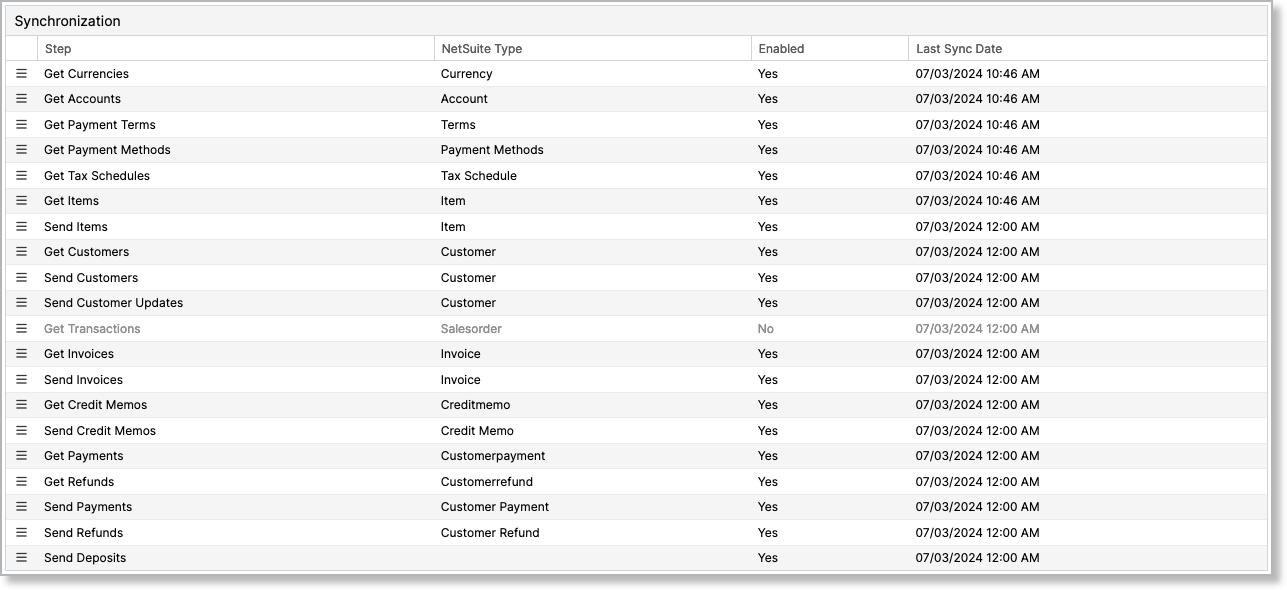
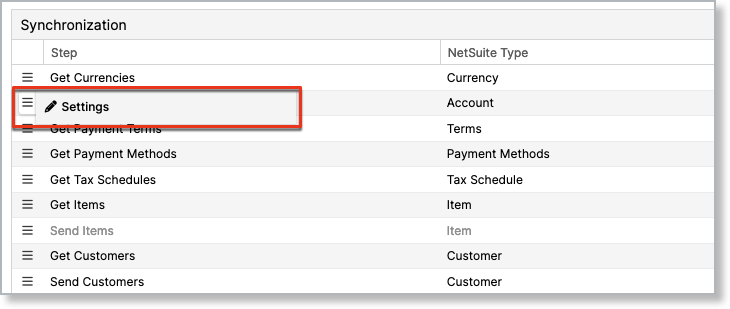
To edit these sync steps, go to NetSuite > Integration Settings > Synchronization, hover over the Menu menu icon, and select the Settings option.
| Name | Type | Description |
|---|---|---|
| Get Currencies | Toggle | Retrieves the currencies being used in NetSuite and sets them in Maxio Platform. |
| Get Accounts | Toggle | Retrieves the accounts being used in NetSuite and sets them in Maxio Platform. |
| Get Payment Terms | Toggle | Retrieves the payment terms being used in NetSuite and sets them in Maxio Platform. |
| Get Payment Methods | Toggle | Retrieves the payment methods being used in NetSuite and sets them in Maxio Platform. |
| Get Legacy Tax Schedules | Toggle | Retrieves the tax schedules being used in NetSuite and sets them in Maxio Platform. Superseded by Get Tax Rates for accounts using NetSuite SuiteTax. |
| Get Tax Rates | Toggle | Retrieves tax rate records from NetSuite and creates them as tax rates in Maxio Platform. Only runs if the tax rate flow is enabled for your account. |
| Send Tax Rates | Toggle | Sends tax rates from other sources (such as AvaTax or Advanced Billing) to NetSuite. Only runs if the tax rate flow is enabled for your account. |
| Get Items | Toggle | Retrieves the items being used in NetSuite and sets them in Maxio Platform. |
| Send Items | Toggle | Sends items from Maxio Platform to NetSuite as Non-Inventory Items for Sale. |
| Get Customers | Toggle and Mappings | Retrieves the customers from NetSuite and places them in Maxio Platform. Mappings will need to be filled out to ensure the proper information is carried over to the correct fields. |
| Send Customers | Toggle and Mappings | Sends the customers from Maxio Platform to NetSuite. Mappings will need to be filled out to ensure the correct information is carried over to the correct fields. Either the Maxio Platform field or a default text value can be used. |
| Send Customer Updates | Toggle | Updates customers already synced to NetSuite, so that changes made in Maxio Platform after the initial sync replace the corresponding NetSuite values. Reuses the mappings configured for Send Customers, filtered to only the fields marked to send updates. |
| Get Transactions | Toggle and Mappings | Retrieves sales orders from NetSuite and creates them as transactions in Maxio Platform. Mappings will need to be filled out to ensure the correct information is carried over to the correct fields.
|
| Get Invoices | Toggle and Mappings | Retrieves invoices from NetSuite. Mappings will need to be filled out to ensure the correct information is carried over to the correct fields.
|
| Send Invoices | Toggle and Mappings | Sends invoices from Maxio Platform to NetSuite. Mappings will need to be filled out to ensure the correct information is carried over to the correct fields. Either the Maxio Platform field or a default text value can be used.
|
| Get Credit Memos | Toggle and Mappings | Retrieves credit memos from NetSuite. Mappings will need to be filled out to make sure the proper information is carried over to the correct fields.
|
| Send Credit Memos | Toggle and Mappings | Sends credit memos from Maxio Platform to NetSuite. Mappings will need to be filled out to ensure the correct information is carried over to the correct fields. Either the Maxio Platform field or a default text value can be used.
|
| Get Payments | Toggle and Mappings | Retrieves payments from NetSuite. Mappings will need to be filled out to ensure the correct information is carried over to the correct fields.
|
| Get Refunds | Toggle and Mappings | Retrieves refunds from NetSuite. Mappings will need to be filled out to ensure the correct information is carried over to the correct fields.
|
| Send Payments | Toggle and Mappings | Sends payments from Maxio Platform to NetSuite. Mappings will need to be filled out to ensure the correct information is carried over to the correct fields. Either the Maxio Platform field or a default text value can be used.
|
| Send Payment Updates | Toggle | Updates payments already synced to NetSuite, so that changes made in Maxio Platform after the initial sync replace the corresponding NetSuite values. Reuses the mappings configured for Send Payments. |
| Send Refunds | Toggle and Mappings | Sends refunds from Maxio Platform to NetSuite. Mappings will need to be filled out to ensure the correct information is carried over to the correct fields. Either the Maxio Platform field or a default text value can be used.
|
| Send Deposits | N/A | Sends deposits from Maxio Platform to NetSuite. See Send Deposits fields below. |
Send Deposits configuration fields
| Option | Description |
|---|---|
| Bank Deposit Account | The bank account into which you make your deposits (typically, the bank account into which your Transfers are made). This cannot be an Undeposited Funds account. |
| Credit Card and ACH Fee Account | NetSuite account to receive debits for payment processing fees. Set to the GL Account to which you record your credit card and ACH handling fees. |
| Unassociated Payments Account | An Asset Account you create in NetSuite to hold payments synced from Maxio Platform that can't be linked to a NetSuite Invoice. See How the Unassociated Payments account works below. |
| Map Number for Sent Deposits | Check this box to map the Maxio Deposit number to the NetSuite Deposit number. Keep this box unchecked if your NetSuite configuration doesn't provide Deposit numbers. |
| Consolidate Deposit Fee Lines | Sends a single line to NetSuite that sums the processing fees across all deposit lines, instead of a separate line per fee. |
How the Unassociated Payments account works
Deposits (Payouts) in your payment provider sync to Maxio Platform, then to NetSuite, each time as a Deposit. Each Deposit references one or more Payments, which sync the same way: Stripe to Maxio Platform, then Maxio Platform to NetSuite. Each Payment, in turn, refers to one or more Invoices.
Normally, every Payment a Deposit references maps cleanly to an existing NetSuite Invoice. Under certain circumstances, such as someone manually marking the Invoice as paid in NetSuite before the automatic sync process syncs the payment, the Payment can't be applied to a receivable (invoice) in NetSuite, because the invoice may not exist there. When that happens, the Unassociated Payments account is credited instead, recording the payment against an unknown Invoice and entity.
A negative balance in this account will flag these payments as an issue to resolve in your GL.
Apply a department, class, or location to deposit lines
The Settings for Deposit Cashbacks mapping lets you send a Department, Class, or Location value with each deposit line Send Deposits creates in NetSuite. It applies to both Deposit Cashback lines (the fee lines posted to your Credit Card and ACH Fee Account) and Deposit Other lines (unassociated funds posted to your Unassociated Payments Account) — the two are the same NetSuite line shape, so one mapping covers both.
If your NetSuite role requires a Department (or Class/Location) value on every deposit line, configure this mapping so a deposit containing unassociated funds isn't rejected for a missing value.
Sync custom drop-down fields between Maxio and NetSuite
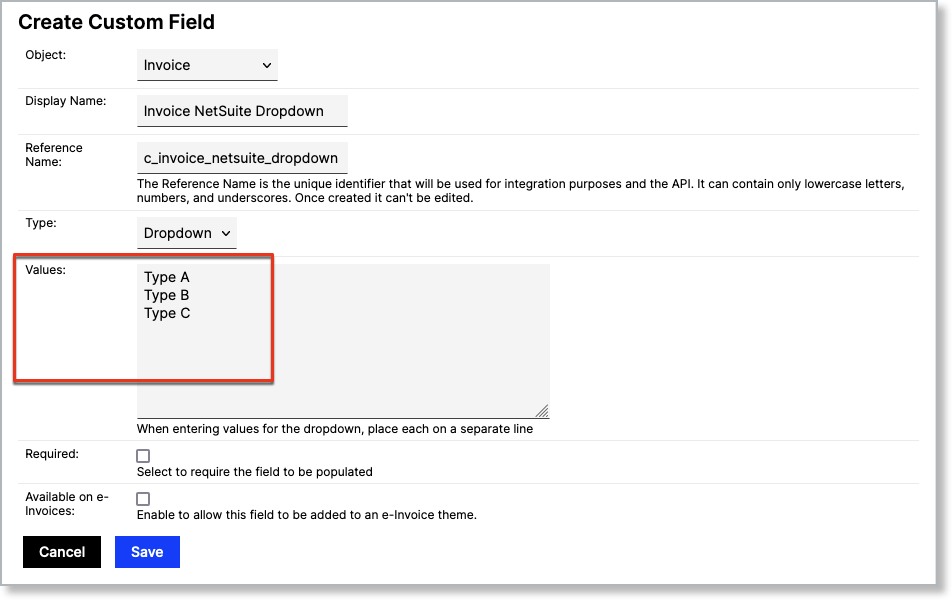
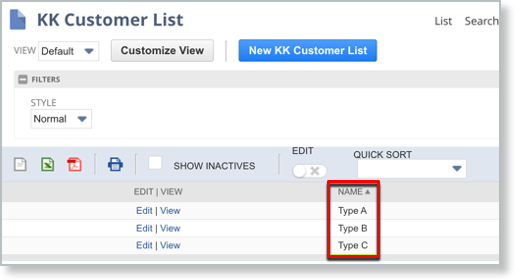
You can sync drop-down custom fields between Maxio and NetSuite. Configuration of the allowed values is required in both systems.
How credit applications sync between Maxio and NetSuite
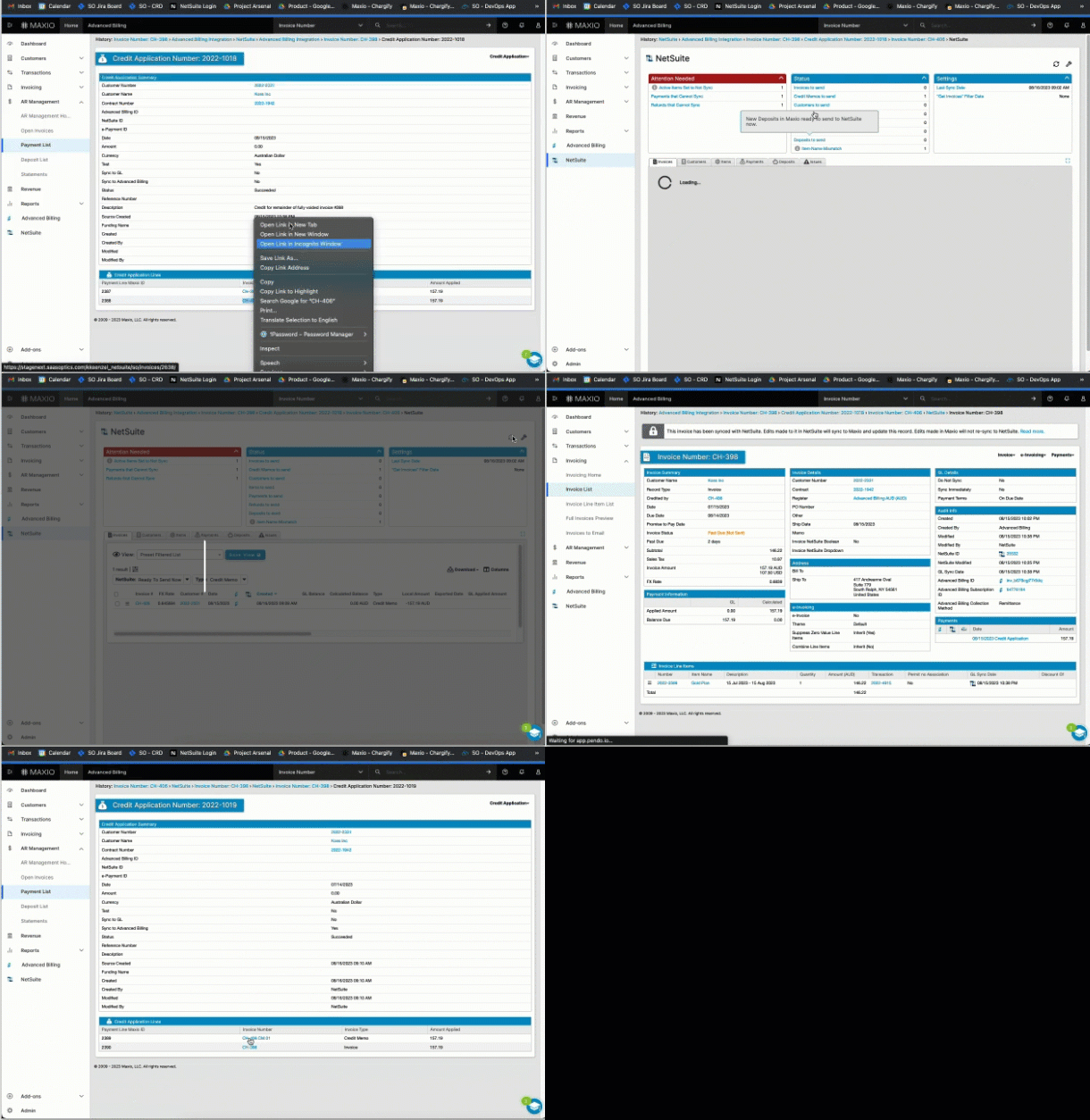
Use credit applications to automatically apply credit memos to invoices when syncing between Maxio and NetSuite. These records act as bridge payments that ensure balances remain accurate.
For Maxio Platform and Advanced Billing originating Credits, Credit Applications enable you to automatically apply Credit Memos in NetSuite. Credit Applications are bridge payments created to apply Credit Memos to the associated Invoice.
Credit Applications appear in the Payments List views as $0 at the top level. By default, they are set to Do Not Sync. This is the same sync setting used across every GL integration Maxio supports, not something specific to NetSuite. Uncheck it on the record if you need a specific Credit Application to sync.
Related information
For common sync errors and how to resolve them, see Troubleshooting and FAQs.
Still need help?
Reach out and our support team will take it from here.