
Setup the Xero Integration
Applies to: Maxio Core
Last updated on Aug 24, 2026
Connect Maxio Platform to Xero by authorizing access through Xero's OAuth flow. Completing the connection is required before configuring Xero sync settings.
Before you begin
You need the Admin role in Maxio Platform to connect or disconnect the Xero integration.
Connect to Xero
Complete the steps below to connect Maxio Platform to your Xero account:
-
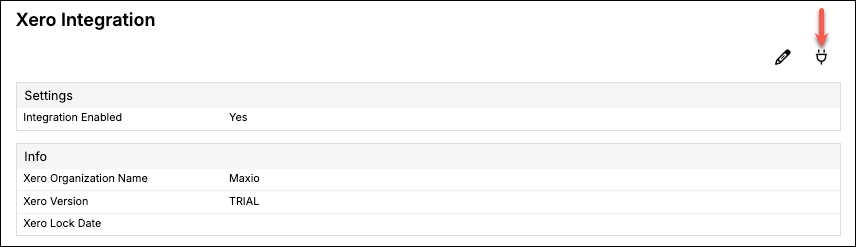
Navigate to the Xero integration settings from either the Xero screen or the Admin menu.
-
Click the Connect to Xero icon in the top-right corner.
-
If you're not already logged in, log in to your Xero account.
-
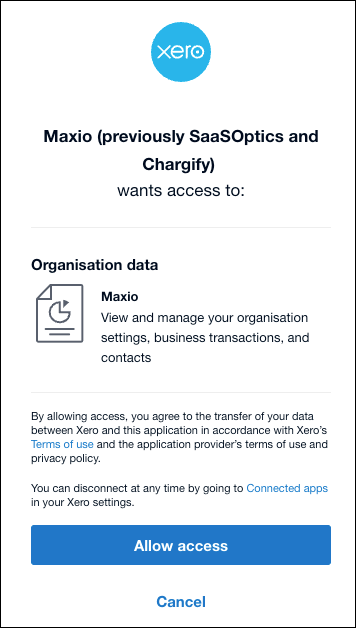
On the screen asking whether to allow Maxio Platform access to your Xero account, click Allow access.
-
If you have multiple organizations in Xero, select which one you'd like to grant Maxio Platform access to, then click Connect.
-
If you've granted Maxio Platform access to multiple Xero organizations, select the organization again on the Maxio Platform side. This screen displays the organizations currently set to allow access.
-
Click Save. The integration is now connected.
Disconnect from Xero
Disconnecting may be necessary for certain situations, such as switching to a different organization within Xero.
-
Open the Xero integration settings from either the Xero screen or the Admin menu.
-
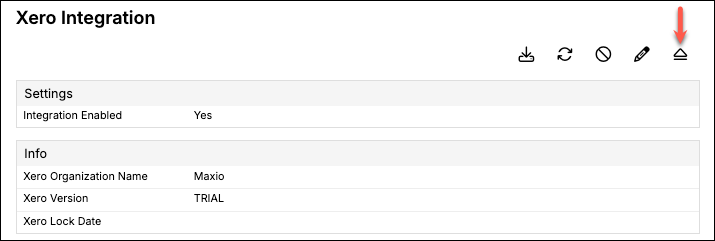
Click the Disconnect icon in the top-right corner.
-
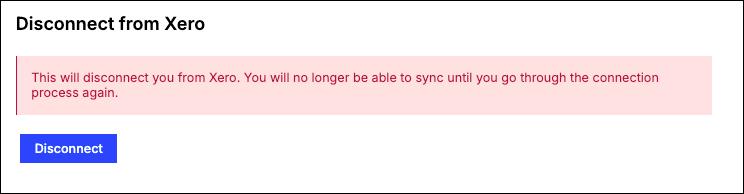
Click Disconnect on the next screen.
-
Disconnect Xero from Maxio Platform on Xero's side too. Log in to your Xero account, open the Connected Apps setting from the Organization settings screen, locate Maxio Platform, and click its Disconnect option.
-
Maxio Platform and Xero are now disconnected. To reconnect, repeat the steps in Connect to Xero.
Related information
To understand what the integration does once it's connected, see Understand How the Xero Integration Works.
To configure sync settings after connecting, see Configure Xero Integration Settings.
Still need help?
Reach out and our support team will take it from here.