
Commit Sales Tax to AvaTax
Applies to: Maxio Core
Last updated on Aug 28, 2026
Committing Sales Tax sends the finalized tax amount from Maxio to AvaTax for official recording and remittance. Once committed, Avalara stores a record of that amount, and all the relevant details, in your AvaTax Transaction List. Because the amount depends on the addresses AvaTax was given, validate them first — see Validate Addresses with AvaTax.
Important: Committing Sales Tax is disabled if you have a missing or invalid Merchant Address, or if Commit Sales Tax is set to Disable Committing Sales Tax in your AvaTax integration settings.
You can commit Sales Tax manually at any time, even if your Commit Sales Tax setting is Automatically Commit Sales Tax.
Commit Sales Tax for a single Invoice
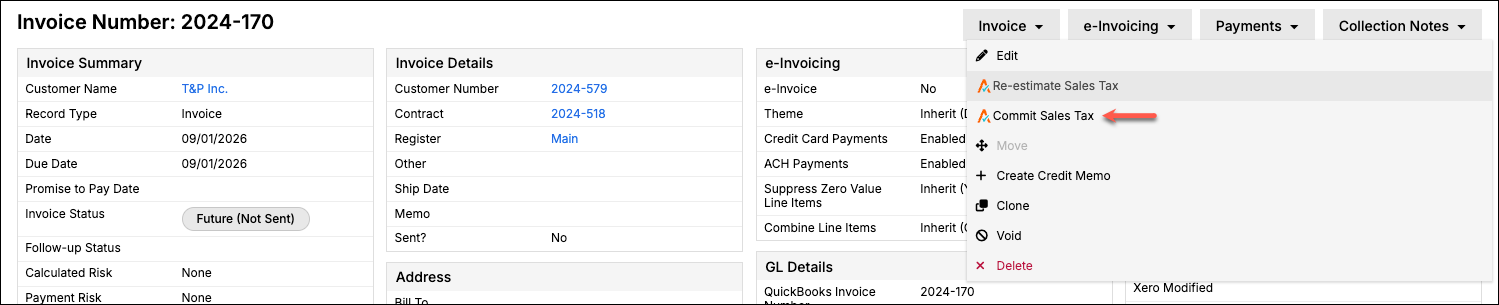
Commit Sales Tax directly from the Invoice once you're ready to finalize it.
WARNING: Committing Sales Tax for an Invoice cannot be undone.
To commit Sales Tax for a single Invoice
- Click Commit Sales Tax in the Invoice's drop-down menu.
- Review the Sales Tax address shown on the confirmation screen.
- Click Commit only if you're sure you want to commit the Sales Tax.
Commit Sales Tax for multiple Invoices
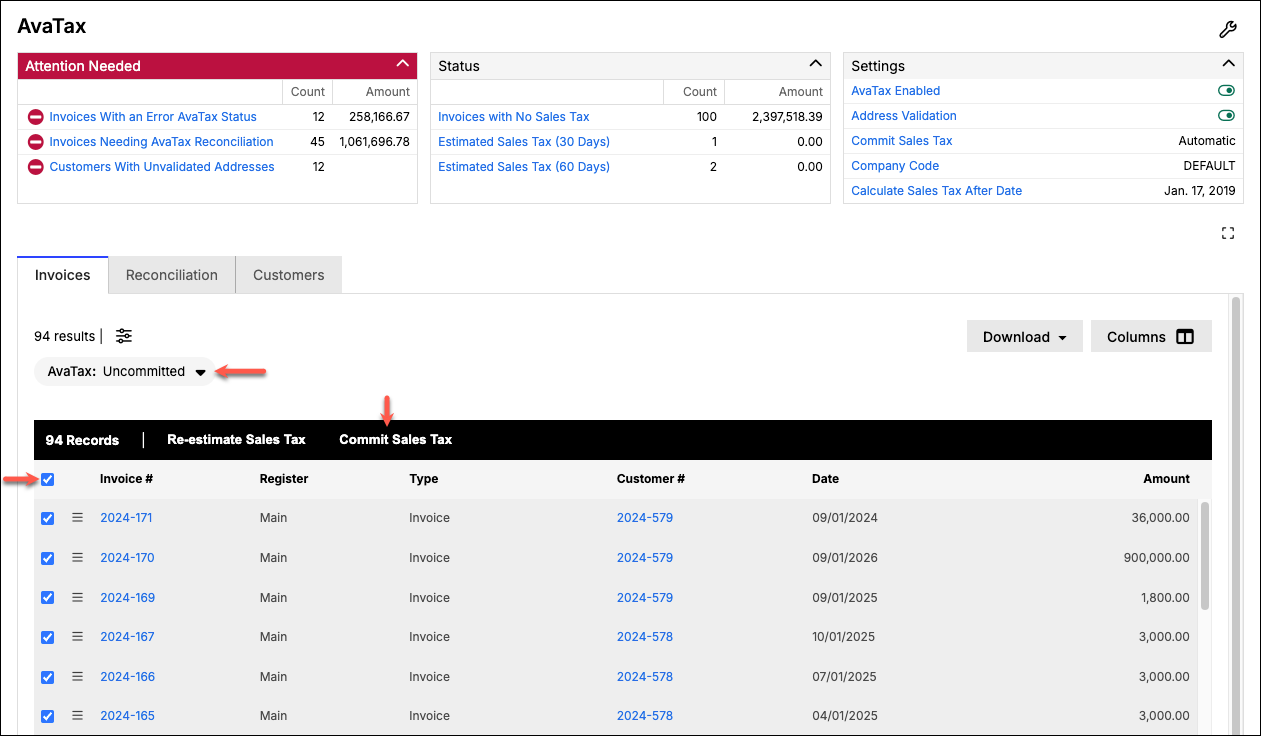
You can also commit Sales Tax for multiple Invoices at once from your Invoice List.
WARNING: Bulk committing Sales Tax skips the confirmation screen and commits immediately once you click the button. Double-check your selection before continuing.
To commit Sales Tax for multiple Invoices
- In your Invoice List, apply an AvaTax filter of Uncommitted.
- Use the checkboxes to select the Invoices you want to commit.
- Click the button at the bottom of the list to commit Sales Tax for those Invoices.
Related information
To preview your Sales Tax before committing it, see Estimate Sales Tax on Invoices.
To automatically commit Sales Tax instead of committing it manually, see Configure the AvaTax Integration.
If an Invoice's AvaTax status is blocking it from syncing or emailing, see Troubleshoot AvaTax Alerts.
Still need help?
Reach out and our support team will take it from here.