---
title: Create and Configure RevenueBooks
url: https://docs.maxio.com/accounting/revenue-advanced-revenue/configuration/create-and-configure-revenuebooks
applies_to: Maxio Core
updated: 2026-10-26
---
# Create and Configure RevenueBooks
You create and configure a RevenueBook from the Advanced Revenue admin area, and can set which RevenueBook is a contract's default when it carries more than one. See Understand RevenueBooks for what a RevenueBook controls and how it relates to your contracts and SSP lists.
## Create a RevenueBook
You create and manage RevenueBooks from the Advanced Revenue admin area.
**To create a RevenueBook**
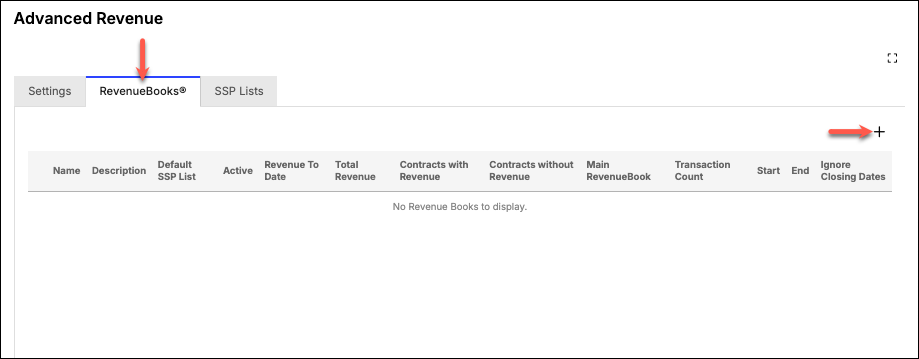
1. Navigate to **Admin** > **Advanced Revenue**.
2. From the **RevenueBooks** tab, click the **Add** action ("+").
3. Give your book a **Name** and **Description**, and make sure the **Active** box is selected (checked).
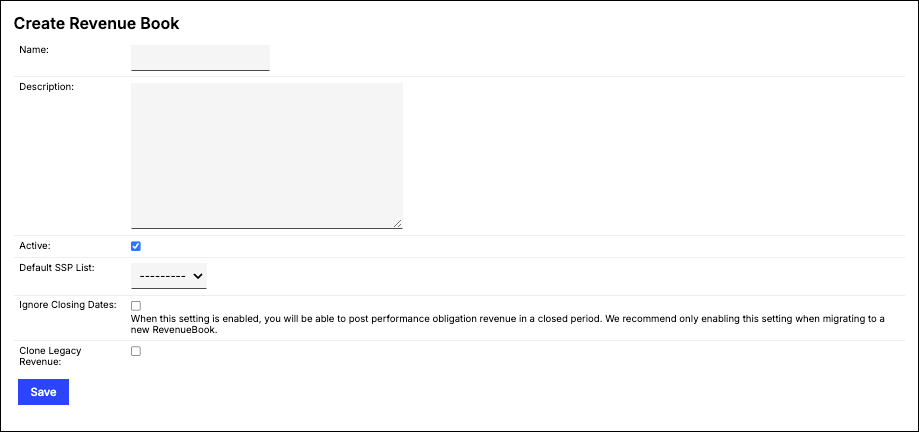
4. *(Optional)* Select a **Default SSP List**. See Create and Manage SSP Lists for more information.
5. *(Optional)* Check **Ignore Closing Dates** if you want this RevenueBook to be able to post performance obligation revenue in a closed period. We recommend only enabling this setting when migrating to a new RevenueBook.
6. *(Optional)* Check **POB Automated Revenue Generation** if you want Maxio to periodically generate performance obligation revenue for contracts in this RevenueBook that have out-of-date POBs.
7. *(Optional)* If **Legacy Revenue** is enabled for your account, check **Clone Legacy Revenue** to copy your existing Legacy Revenue into this RevenueBook.
8. Click **Save**.
## Set the Main Revenue Book
You can have multiple RevenueBooks on each Contract. The **Main Revenue Book**, however, dictates which RevenueBook to show by default.
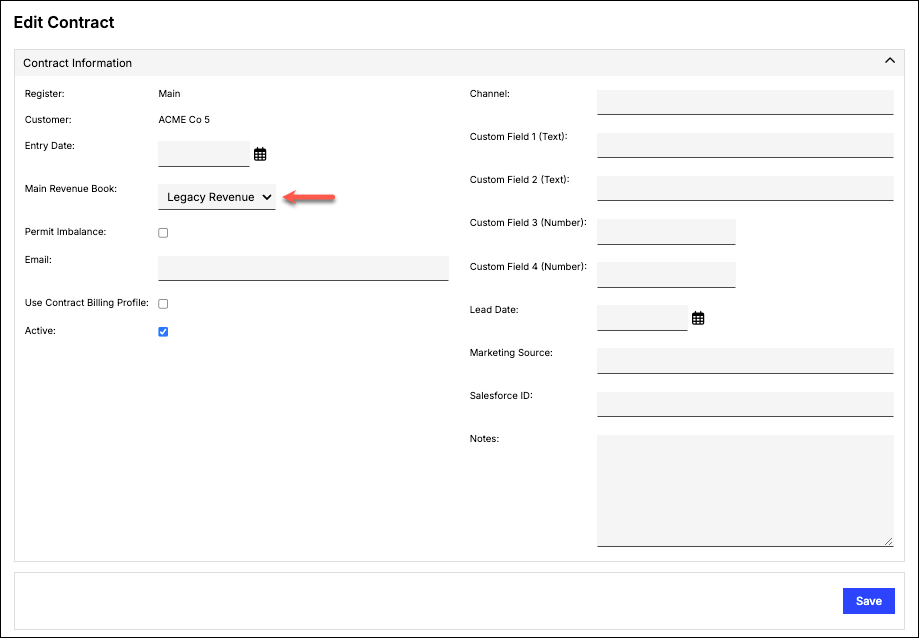
You can also set the **Main Revenue Book** when bulk editing Contracts.
**To set the Main Revenue Book while bulk editing Contracts**
1. Go to your **Contract List**.
2. Select the contracts for which you want to set the **Main Revenue Book** by checking the box next to the Contract name.
3. From the List toolbar, click **Bulk Edit**. This opens the Bulk Edit Contracts screen.
4. Under Contract Information, check **Main Revenue Book** and from the drop-down select the RevenueBook to display by default.
5. Click **Update**.
## Filter contracts needing POB regeneration
Your Contract list and the Revenue module's Contract Revenue Contracts list both include a **POB Out of Date** filter. Set it to **Yes** to find contracts whose performance obligations need to be regenerated because of changes within their transactions.
For a full index of worked examples showing how each configuration behaves in practice, see Advanced Revenue Allocation Scenarios.