
Understand Billing Portal Authentication
Applies to: Advanced Billing
Last updated on Aug 28, 2026
Subscribers can access the Billing Portal several ways: a login link sent by email, an accepted invitation, a password they've set, or a direct management URL. Control which methods are available and how strict verification is, so subscribers can securely manage their own billing without needing your staff's help.
Public-facing login page
Every merchant using the Billing Portal has a login screen available at the following URL:
https://www.billingportal.com/s/shortnameYour shortname is your Advanced Billing subdomain. This link isn't personalized for any particular subscriber. If password logins are turned off, a customer can use the login screen to easily request a login link using their email address on file.
By default, this URL redirects to one of two pages, depending on whether password logins are enabled. If they are, the URL is:
https://www.billingportal.com/s/demo-9469680429/login/passwordand prompts the user to use their email address and configured password to log in. Otherwise, if passwords are disabled, the user is prompted to retrieve a login link via email at:
https://www.billingportal.com/s/shortname/login/magicAt any time, a subscriber can change whether they'd prefer to log in using a password (if password login is enabled) or a login link.
Methods of authenticating
There are four primary ways of accessing the Billing Portal: login links, password logins, the management URL, and invitation emails. Each has its own level of security; if a Customer hasn't used the Billing Portal for an extended period, they may be asked to sign in again. Any of these methods can be used at any time.
Login flows vary slightly depending on whether email verification is enabled. See Related information for more guidance.
Invitation email
You can choose to invite all Customers to the Billing Portal automatically at signup, or invite them manually. When a Customer accepts an invitation, they're signed in to the Billing Portal and can access their Subscriptions. The invite email is valid for 48 hours after it's sent; if a Customer tries to use it after that, they need to generate a new invite.
The invitation email is primarily used the first time a subscriber accesses the Billing Portal. Afterward, they use login links, management URLs, or their password to log in.
Login links
Login links are the most basic way for a subscriber to gain access to their Billing Portal account. To generate one, the subscriber visits your company's public-facing login page and clicks Get Login Link Via Email. They must enter the email address noted on their Customer details inside Advanced Billing.
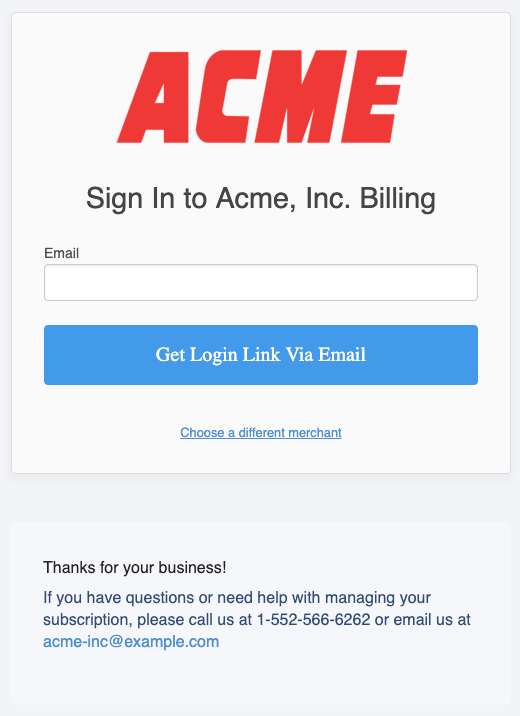
This process is similar to the common password-reset procedure on most websites, with a similar security profile. Advanced Billing sends an email to the requested address with a limited-time link; clicking it grants the subscriber access to their Billing Portal. This login link is valid for only an hour.
Using a login link stores a cookie in the subscriber's browser, so visiting the generic public-facing login page (https://www.billingportal.com/s/shortname) takes them directly to their Subscription.
If the cookie is cleared, such as when they click the Log Out button, the Customer typically needs to request a new login link to regain access.
Password logins
Combining Password Logins with the less-secure Anyone with the URL can access the associated Billing Portal Management Links option isn't recommended, since one increases login security while the other lowers it.
If Password Logins is enabled, your Customer can log in using a password they've set. This setting is optional; Customers aren't required to set a password and can still use login links to log in.
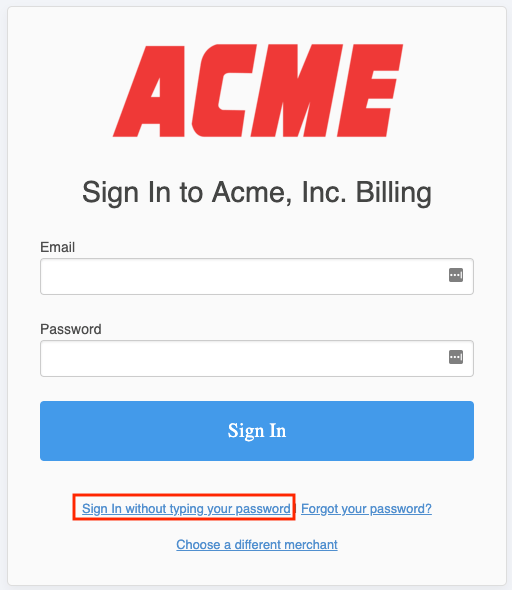
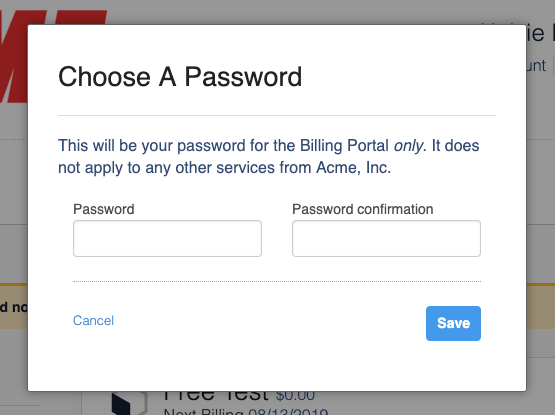
A Customer is prompted to set up their password the first time they access their Billing Portal account, meaning they first authenticate using a login link or an accepted invitation email. At any time after logging in, a Customer can update their password via their My Account page.
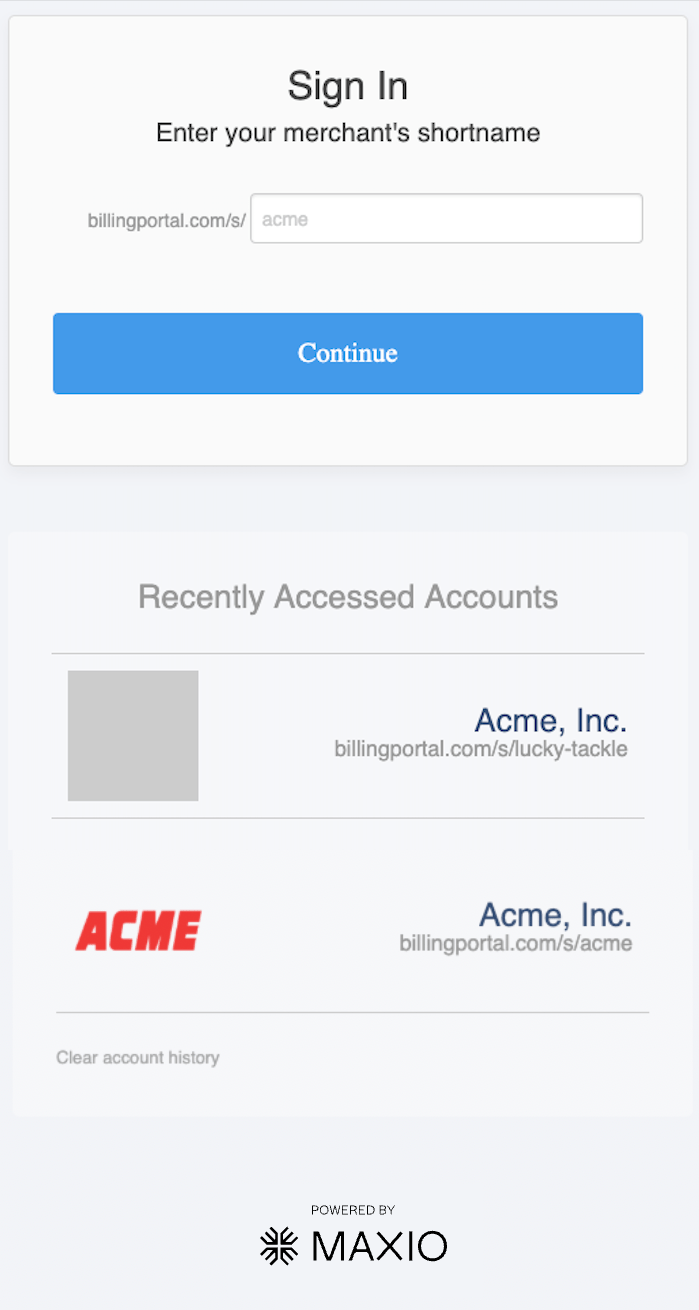
When Customers manage Subscriptions across multiple businesses, they can choose from businesses they've already authenticated with.
Forgotten passwords
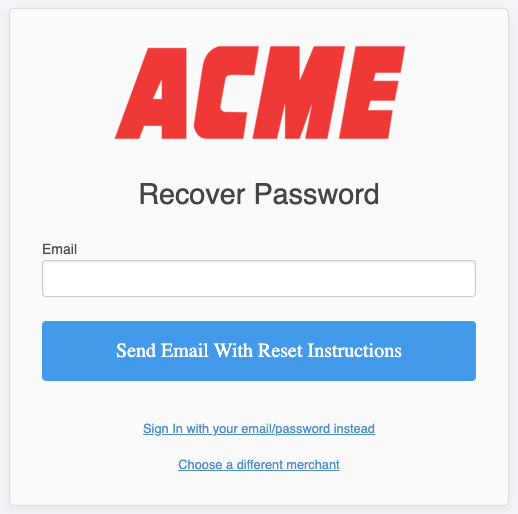
If a Customer forgets their password, they can use the forgotten-password flow to access their account and set a new password after clicking a link in an email.
Management URLs
Billing Portal management URLs are useful once the subscriber has already authenticated. Unlike the public-facing login page, the management URL is the Customer's unique Billing Portal URL.
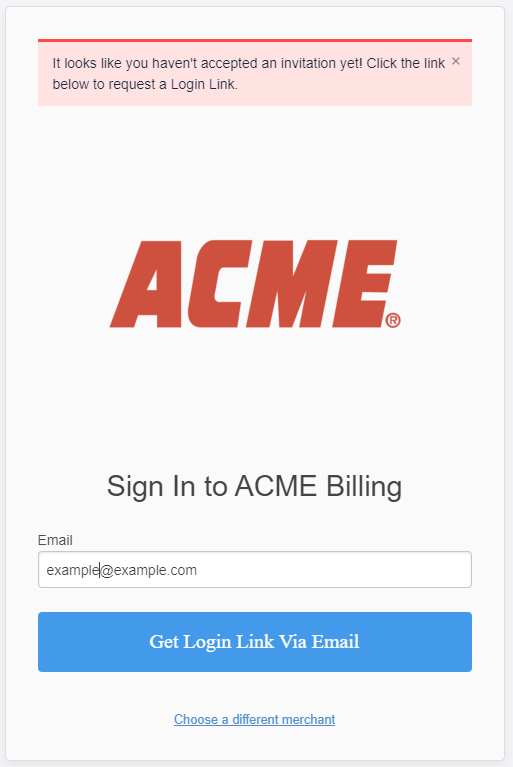
This link alone isn't enough to sign a Customer into their Billing Portal account, unless you enable Anyone with the URL can access the associated Billing Portal in your Management Links settings. If the Customer has already signed in recently using one of the methods above, they can access their Subscription directly. Otherwise, they're asked to verify their identity with a new login email, or by entering a password if Password Logins is enabled.
Management URLs are included at the bottom of statements and Invoices your Customers receive. Each link is valid for 65 days.
Related information
See Understand Billing Portal Login Flow for more on how login flows vary depending on whether email verification is enabled.
See Understand Billing Portal Invitations for how to configure and send Billing Portal invitations.
See View Live Pages for how to look up a Customer's exact Billing Portal URL.
Still need help?
Reach out and our support team will take it from here.