
View Live Pages
Applies to: Advanced Billing
Last updated on Sep 19, 2026
Use the View Link or View URL options to quickly access live, customer-facing pages configured in Advanced Billing. These options open the exact URL Customers use, allowing you to verify the page, copy the link, or share it externally.
These options are available for the following page types:

These links can be used for:
- Testing how the page appears to Customers
- Sharing a direct signup or portal link
- Verifying correct configuration before going live
For Public Signup Pages
Where to find it:
- Go to Catalog > Public Signup Pages.
- Select the Public Signup Page you want to review and click the View URL link.
- From the pop-up, click the Link icon to open the link in a new browser tab, or click the Clipboard icon to copy the URL to the clipboard.
What it does:
- Opens the live Public Signup Page for the selected configuration.
- Allows you to test the Customer experience or share the signup link with prospects.
For Offer Signup Pages
Where to find it:
- Go to Catalog > Offer Signup Pages.
- Select the Offer Signup Page and click the View URL link.
- From the pop-up, click the Link icon to open the link in a new browser tab, or click the Clipboard icon to copy the URL to the clipboard.
What it does:
- Opens the offer-specific signup page that includes pricing, trial, coupon, or promotion details.
- Helps you confirm that the offer appears correctly before sharing it.
For the Billing Portal
WARNING: Billing Portal links provide access to Customer billing details. Share them with care.
Where to find it:
-
Go to Catalog > Billing Portal.
-
Locate the Customer you want to manage.
-
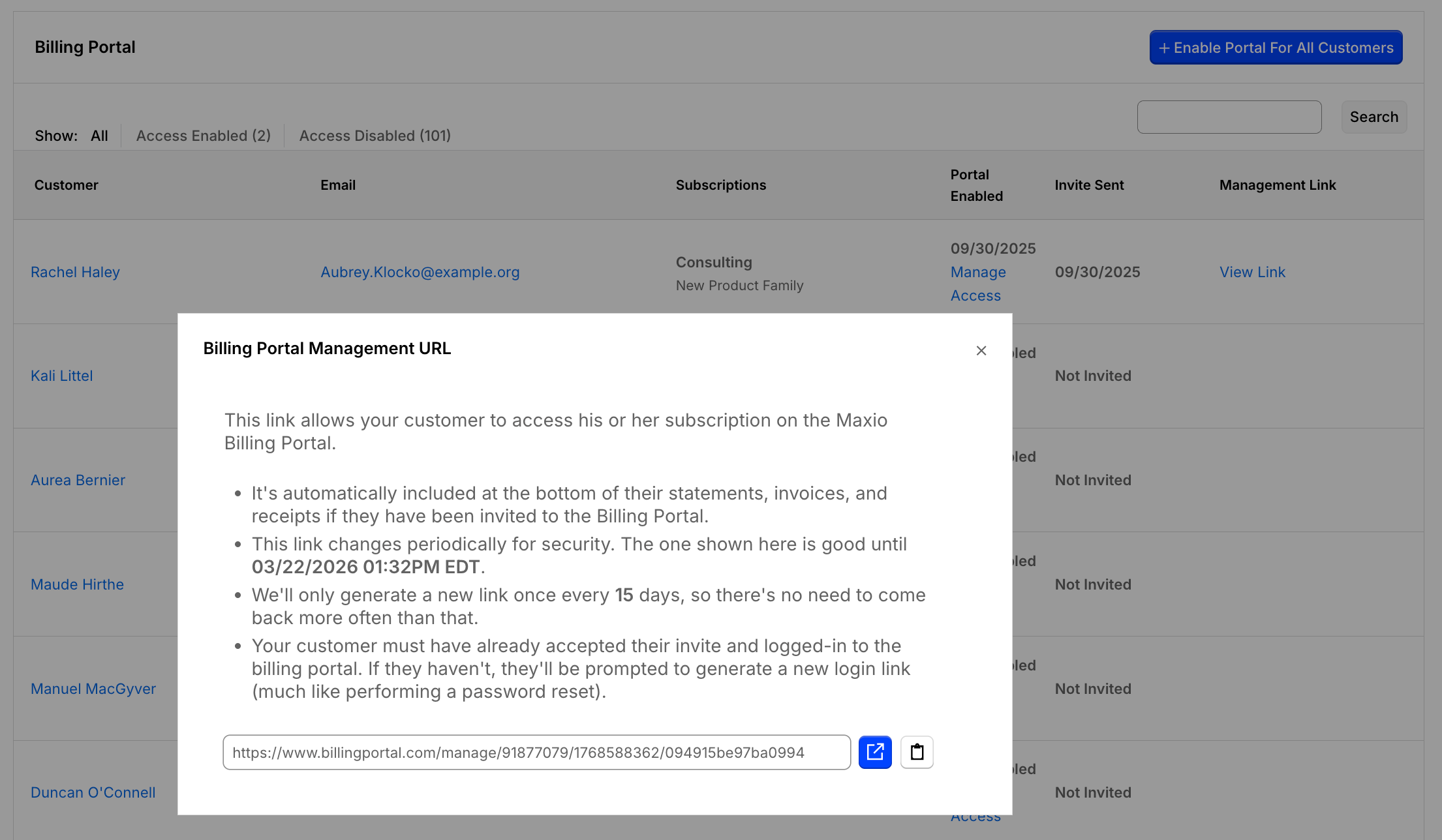
In the Management Link column, click View Link.
-
From the pop-up, click the Link icon to open the link in a new browser tab, or click the Clipboard icon to copy the URL to the clipboard.
What it does:
- Opens the Customer's Billing Portal management link, the same link automatically included at the bottom of their statements, invoices, and receipts once they've been invited to the Billing Portal.
- Useful for verifying portal access or sharing a management link with the Customer.
- The Customer must have already accepted their invite and logged in to the Billing Portal; otherwise, they're prompted to generate a new login link, similar to a password reset.
- This link changes periodically for security, but Maxio only generates a new one once every 15 days, so there's no need to check back more often than that.
Related information
See Understand the Billing Portal for an overview of what the Billing Portal does and who it's for.
See Understand Billing Portal Invitations for another way to view a Customer's management link, from the Billing Portal customer list.
See Explore Billing Portal Topics for the full set of Billing Portal setup, access, and support articles.
Still need help?
Reach out and our support team will take it from here.