---
title: Manage a Subscription Group
url: https://docs.maxio.com/billing/subscriptions/configuration/subscription-groups/manage-a-subscription-group
applies_to: Advanced Billing
updated: 2026-11-09
---
# Manage a Subscription Group
Manage a Subscription Group's payments, credits, and lifecycle from the **Group Actions** dropdown, found on the top right of the group's page.
From Advanced Billing, go to **Billing** > **Subscriptions**, then select the blue **Group - Primary** or gray **Group - Member** tag on any Subscription in the group. This opens the Subscription Group page, where you'll find **Group Actions** on the top right.
> Only users with Customer Support permissions or higher can see the **Group Actions** dropdown.
## Manage group members
Select **Manage Group Members** to open the **Manage Subscription Group** screen. See Add an Existing Subscription to a Group for the full procedure.
## View payments
Select **View Payments** to see a table of every payment recorded against the Subscription Group.
## Export group members
Select **Export Members** to queue a CSV export of every Subscription in the group, along with membership and billing details. The export doesn't download immediately — retrieve the finished file from Downloads (Exports) once it completes.
## Give or deduct a service credit
You can give or deduct a service credit at the Subscription Group level, the same way you would on an individual Subscription. Select **Give Credit** to issue a credit, or **Deduct Credit** to remove credit from the Subscription. These credits apply to the next issued consolidated invoice.
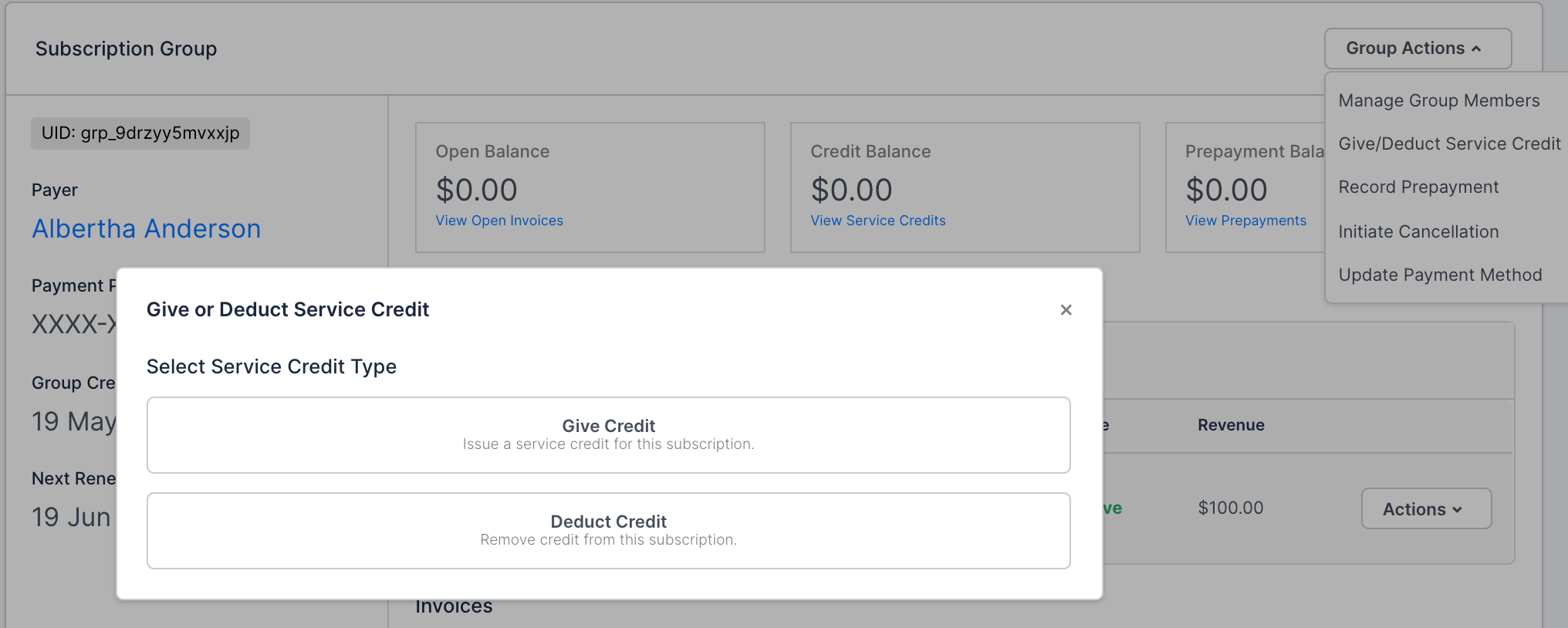
*Give or Deduct Service Credit dialog*
## Record prepayment
Select **Record Prepayment** to apply a prepayment to the Subscription Group. This prepayment doesn't apply to one specific invoice; it applies to the entire Subscription instead. Set the **Payment Method**, **Payment Details**, **Payment Memo**, and **Amount**, then click **Record Prepayment**.
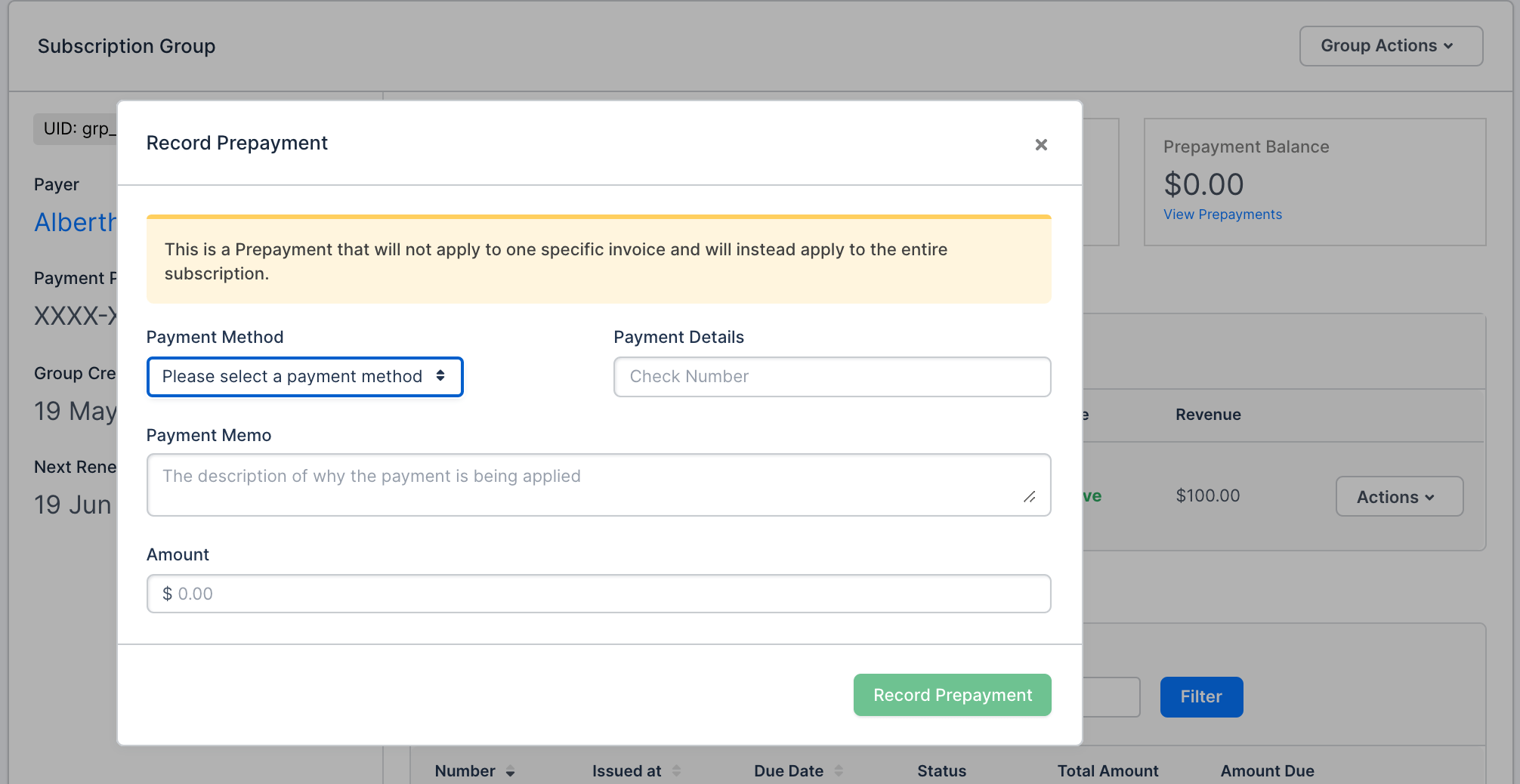
*Record Prepayment dialog*
## Initiate cancellation
Select **Initiate Cancellation** to open the **Cancel Subscription Group** screen. Add optional cancellation notes, set **Collection Timing** to **Cancel Immediately** or **Cancel at End of Period**, and choose whether to turn on **Charge unbilled usage**.
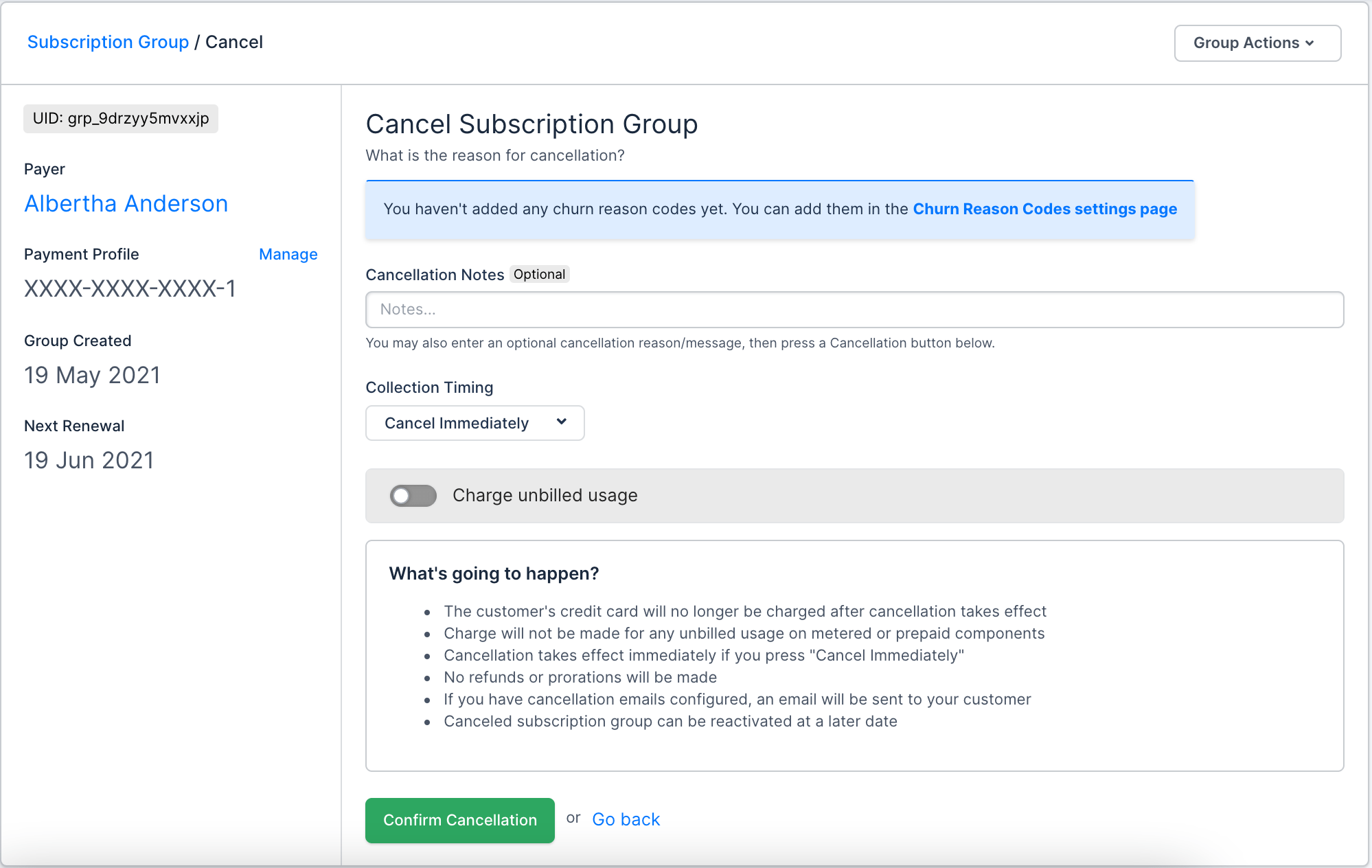
*Cancel Subscription Group screen*
Canceling a Subscription Group:
- Stops charges for future periods to the Customer's payment method. Unbilled usage can still be charged after the cancellation, as described below.
- Bills unbilled usage according to **Charge unbilled usage** and your site, as described below.
- Takes effect immediately if you select **Cancel Immediately**.
- Doesn't issue refunds or prorations.
- Sends a cancellation email to the Customer, if you have cancellation emails configured.
- Can be reversed later with **Reactivate**.
When you select **Cancel Immediately**, the **What's going to happen?** list says what happens to the group's unbilled usage. If your site uses wallets and a Subscription in the group has an active wallet that bills overage, the list covers wallet overage too, and shows the overage recorded so far. An archived wallet that bills overage counts too while it holds recorded overage that hasn't been billed. What happens depends on **Charge unbilled usage** and your site:
- **Charge unbilled usage on:** Unbilled usage and wallet overage are invoiced immediately. They're also charged immediately when the group's primary Subscription pays automatically.
- **Charge unbilled usage off, on a site that bills unbilled usage after cancellation:** They're invoiced at the end of the current period, on the date the list shows.
- **Charge unbilled usage off, on a site that doesn't:** They aren't billed.
When **Cancel Immediately** will charge that usage, the list says the Customer's credit card is charged only for the unbilled usage after the cancellation takes effect. That happens when **Charge unbilled usage** is on and the group's primary Subscription pays automatically, or when the toggle is off, your site bills unbilled usage after cancellation, uses Invoice Centric Billing, and the primary Subscription pays automatically. Otherwise, the list says the card is no longer charged after the cancellation takes effect.
If you select **Cancel at End of Period** and the member Subscriptions don't all share the primary's billing period, each member cancels as soon as the primary's own cancellation takes effect, even if the member's current billing period hasn't ended yet. The primary owns the group's consolidated invoice, so a member is not left active under a canceled primary.
- A member whose billing period ends at the same time as the primary's still completes its own final billing before it cancels.
- A member that is on hold when the primary's cancellation takes effect is canceled with the group.
- A member that is already canceled is not affected.
## Clear pending cancellation
If a Subscription Group has a cancellation scheduled for the end of the period, select **Clear Pending Cancellation** to cancel that schedule and keep the group active. This takes effect immediately, with no confirmation screen.
## Reactivate
Select **Reactivate** to bring back a canceled Subscription Group. This option only appears when the primary Subscription is canceled, and it restores every member Subscription, not just the primary.
A few things to know before you reactivate:
- The primary Subscription can't already be active.
- Your site must use invoice-centric billing.
- Every Subscription in the group must use the Automatic collection method.
- None of the Subscriptions can be on a trial.
- A Subscription Group using Calendar Billing can't reactivate mid-period. Use **Resume** instead.
- A member Subscription that was suspended for prepaid usage when the group canceled stays canceled. Reactivating the group doesn't bring it back.
- If you choose **Start New Billing period**, the primary and each member are billed for a new billing period. If **Resume eligible member subscriptions** is selected, which it is by default, members with time left in their current billing period are resumed instead, with no additional charge.
## Update Payment Method
Select **Update Payment Method** to add, edit, or remove the Subscription Group's payment method.
## Put on hold
Select **Put On Hold** to pause billing on one or more Subscriptions in the group. Choose which Subscriptions to hold, then set a resume date or choose to resume manually.
A Subscription can only be put on hold if it's Active or Trialing, and its current billing period ends more than an hour from now.
## Resume
Select **Resume** to bring one or more on-hold Subscriptions back to Active. Resuming takes effect immediately: if the hold ends before the Subscription's next renewal, it becomes Active right away; if the hold already passed the renewal date, Maxio processes that billing immediately instead.