
Create and Manage Subscription Groups
Applies to: Advanced Billing
Last updated on Aug 26, 2026
Group Subscriptions together to invoice them as one, with a single Customer responsible for payment. See Understand Customer Hierarchies and WhoPays for how Subscription Groups relate to Customer Hierarchies and WhoPays.
Create a new subscription in a group
Create a brand-new Subscription Group by enabling Consolidated Invoices while creating a Subscription.
To create a Subscription in a new group
- From Subscriptions, click Create New Subscription.
- Click Create Customer, or select an existing Customer.
- Complete the Customer form and click Submit.
- Enable Consolidated Invoices to create the Subscription in a group.
- Fill in the Subscription details and click Create Subscription.
Add an existing subscription to a group
Move a standalone Subscription into a group that already exists.
To add an existing Subscription to an existing group
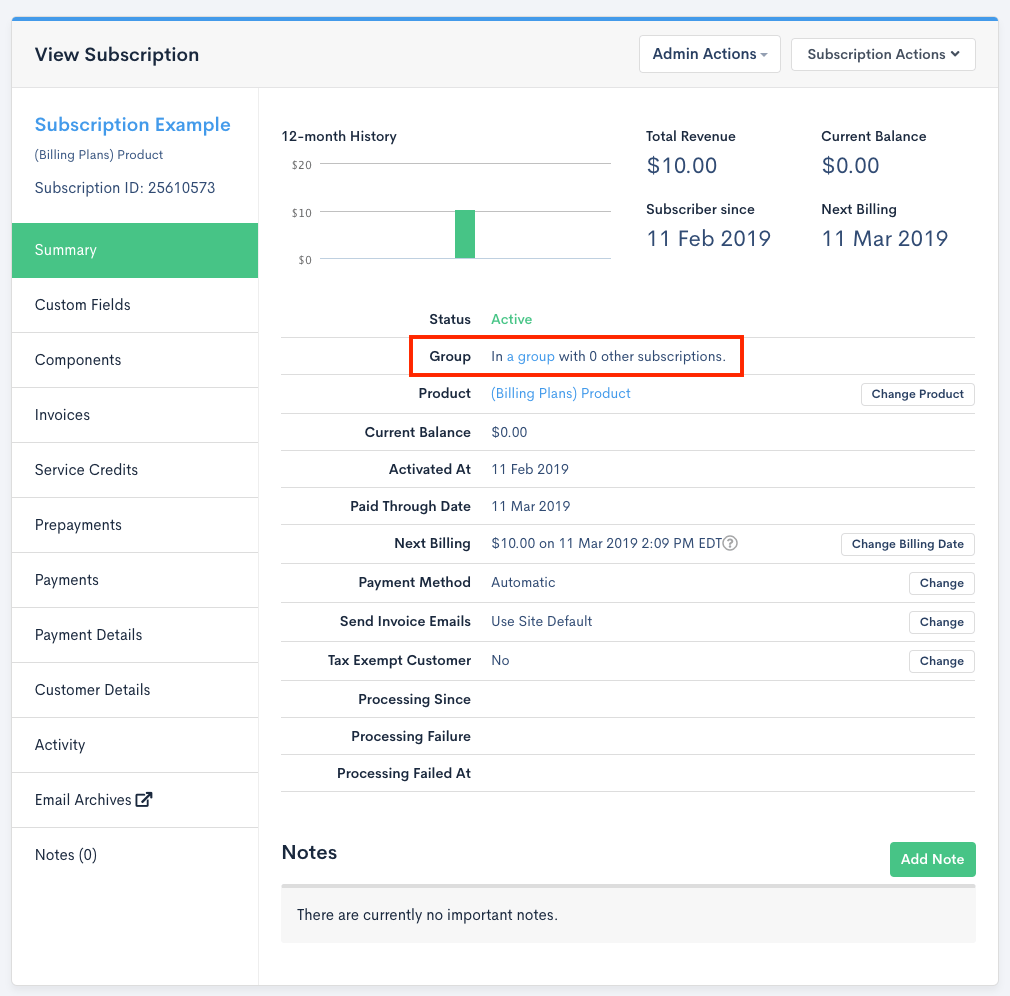
- Open a Subscription that's already in the group you want to add to.
- In the Group row, click the group link to open the Subscription Group page.
- Click Manage Group.
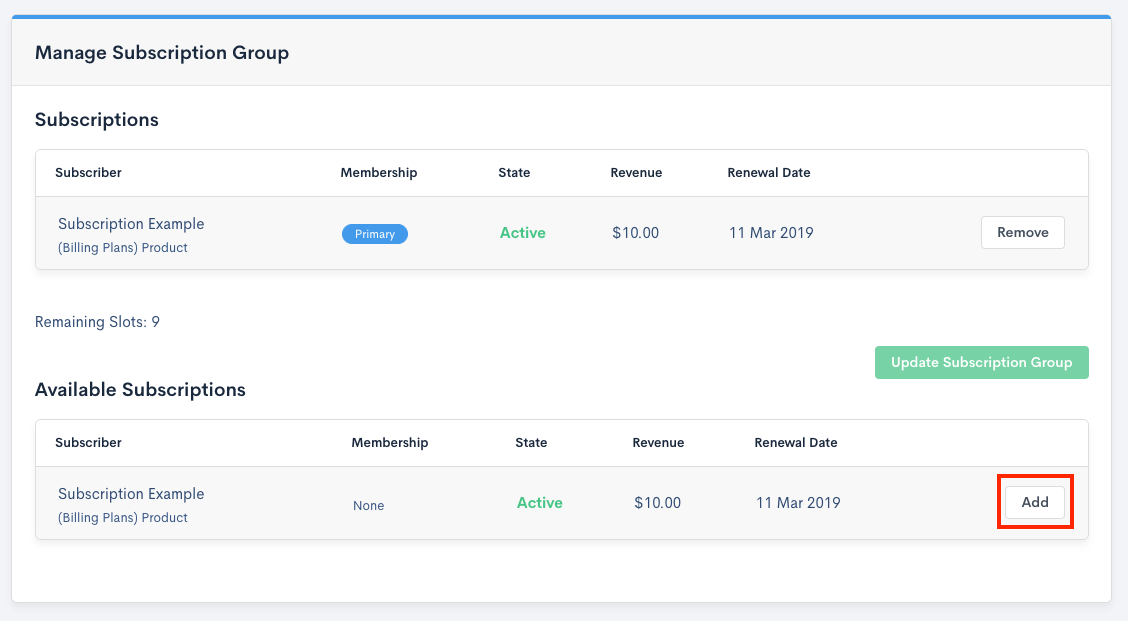
- Under Available Subscriptions, find the Subscription you want to add and click Add.
- Review the summary in the confirmation window, then click Update Subscription Group.
Add a new subscription to an existing group
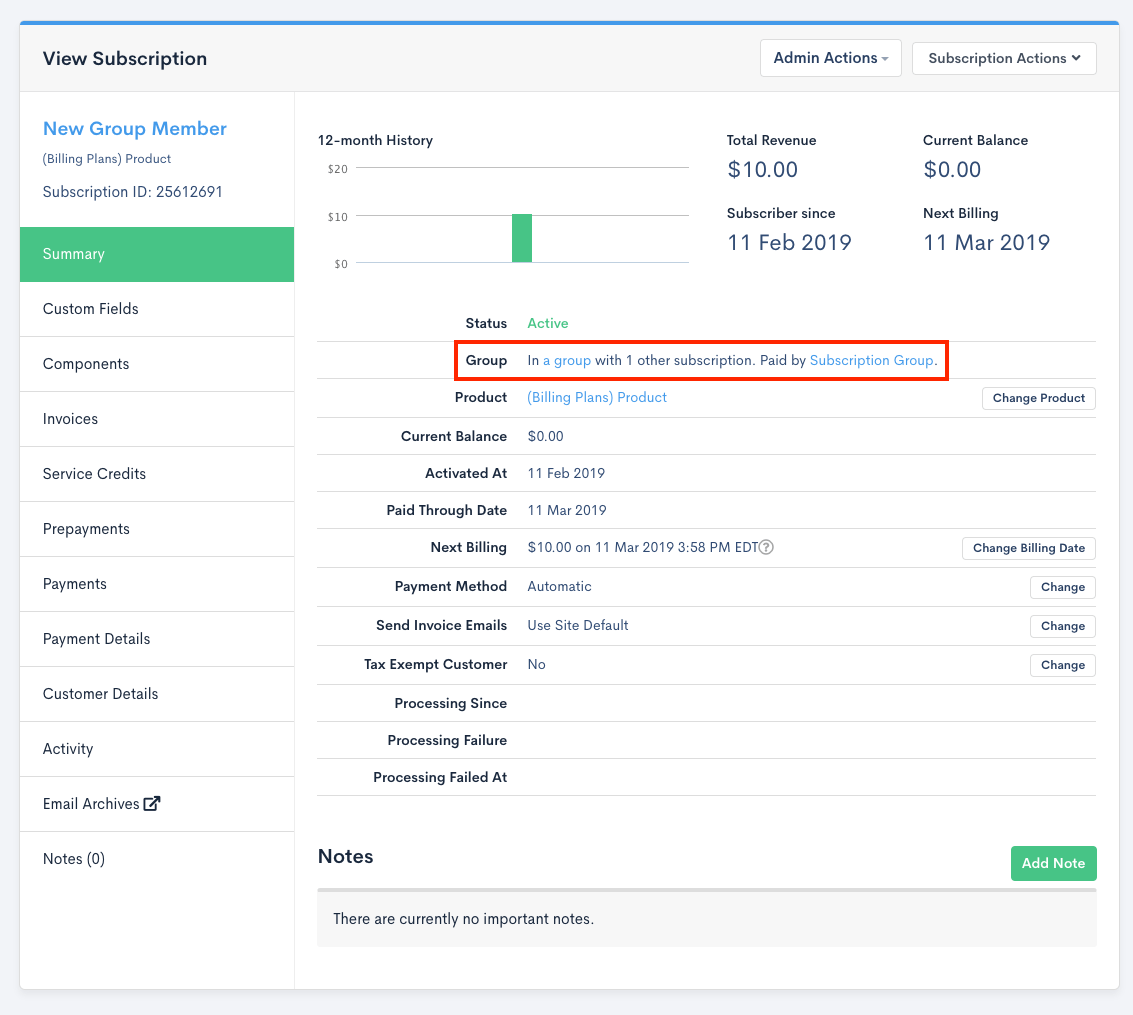
If you already have a group and want to add a brand-new Subscription (for a new or existing Customer) to it, set up the Customer hierarchy first, then create the Subscription and assign WhoPays.
To add a new Subscription to an existing group
- On the new Customer's record, assign the group's payer as their parent. See Set Up a Customer Hierarchy.
- From Subscriptions, click Create New Subscription.
- Create a new Customer, or select an existing one.
- Assign WhoPays for the Subscription. See Assign WhoPays to a Subscription.
- Complete the rest of the Subscription form and click Create Subscription.
Still need help?
Reach out and our support team will take it from here.