Use a taxed contract to confirm that Maxio can calculate Numeral sales tax for taxable items before billing.
Before you start
Confirm that the Numeral setup and required tax calculation data are complete before creating a taxed contract. Missing addresses, taxability settings, or credentials can prevent tax from calculating correctly.
Numeral is enabled in Maxio.
The tax origin address is complete.
The customer has the address required by your tax address setting.
The invoice includes taxable items.
The site currency is supported by your Numeral setup.
Step 1: Create or update the item catalog
The item catalog controls which items are taxable. Review the catalog before creating the contract so Numeral receives the correct line item details.
Define items in Maxio Core.
Mark items as taxable when sales tax should apply.
Add Numeral product tax codes when Numeral should use a specific product category.
Step 2: Create the customer record
The customer record must include the address required by your tax address setting. Numeral uses the customer destination address to calculate applicable sales tax.
Enter the customer address information required by your tax address setting.
For shipping-based tax settings, collect a complete shipping address.
For billing-based tax settings, collect complete billing address details on the payment profile or signup form.
Step 3: Configure the contract and invoice
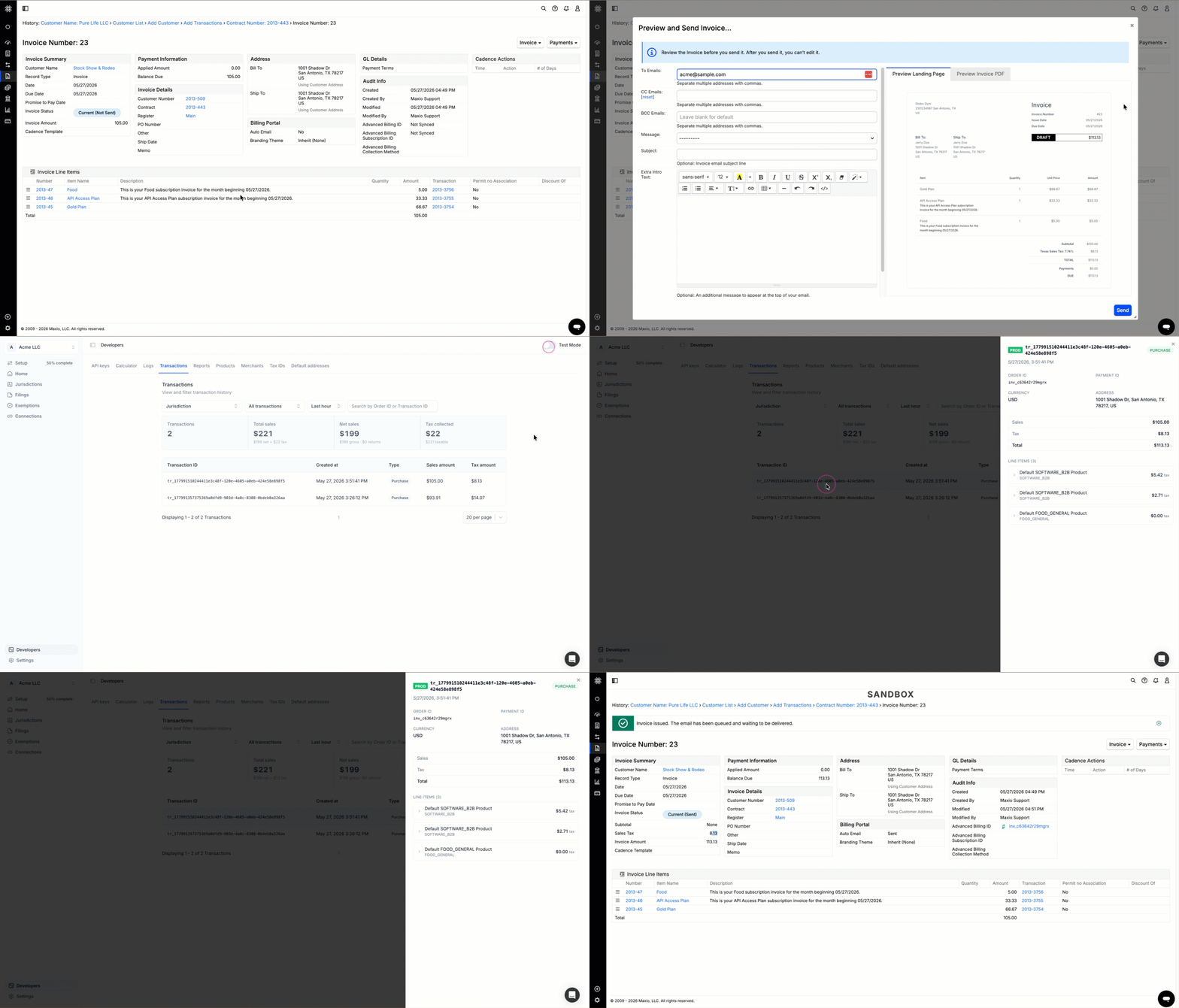
After the item and customer record are ready, add taxable items to the contract invoice. Preview the invoice before completing the issuing and sending of the invoice.
Add taxable items to the contract invoice.
Choose a supported site currency for your Numeral setup.
Preview the invoice to confirm tax is calculated before billing.
Complete sending and issuance of the invoice when the tax amount looks correct.
Contract invoice preview showing a Numeral-generated sales tax line item
Test before going live
Test the full Numeral workflow using a Test key before using a Production key. This helps confirm tax amounts, jurisdiction details, exemptions, and Numeral metadata before live invoices are created.
Connect your Maxio test site to Numeral using a Test API key.
Run sample contracts, invoices, voids, and refunds.
Verify tax amounts, jurisdiction breakdowns, and exemption behavior.
Confirm Numeral metadata, including transaction ID and jurisdiction detail, is stored on invoices.
Once validated, switch to the Production API key on your production site.
Still need help? Reach out and our support team will take it from here.