
Loading article…
Loading article…
Last updated on Aug 27, 2026
BETA
This feature is currently in beta and may change over time. During the beta period, functionality, availability, and performance may vary.
To join the Beta program, request Beta access.
Connect Numeral to a Maxio site, test the connection, update Numeral credentials, or disable the integration.
Review the prerequisites and limitations in Numeral Integration Overview before enabling Numeral.
Follow these steps in order so product tax codes, exemptions, and required addresses are in place before tax begins calculating on live invoices.
In the Numeral dashboard, go to Developers > API Keys. Generate a key for the environment you intend to connect.
Keep keys scoped to one environment. Pointing a Production key at a test site, or a Test key at a production site, can produce confusing tax results and is not supported.
Administrators can manage the integration from Settings > Taxes in Maxio.
Go to Settings > Taxes.
Select Enable Numeral.
Enter your Numeral API key.
Save the settings by clicking Connect Numeral.
When you save, Maxio stores the credentials in gateway settings and switches the site's tax type to Numeral. The UI validates the expected key format and links to Numeral's API documentation.
Use Test Connection to verify your credentials without committing them. The test validates the key format and attempts a live call to Numeral. If the test fails, Maxio displays an error so the issue can be corrected before going live.
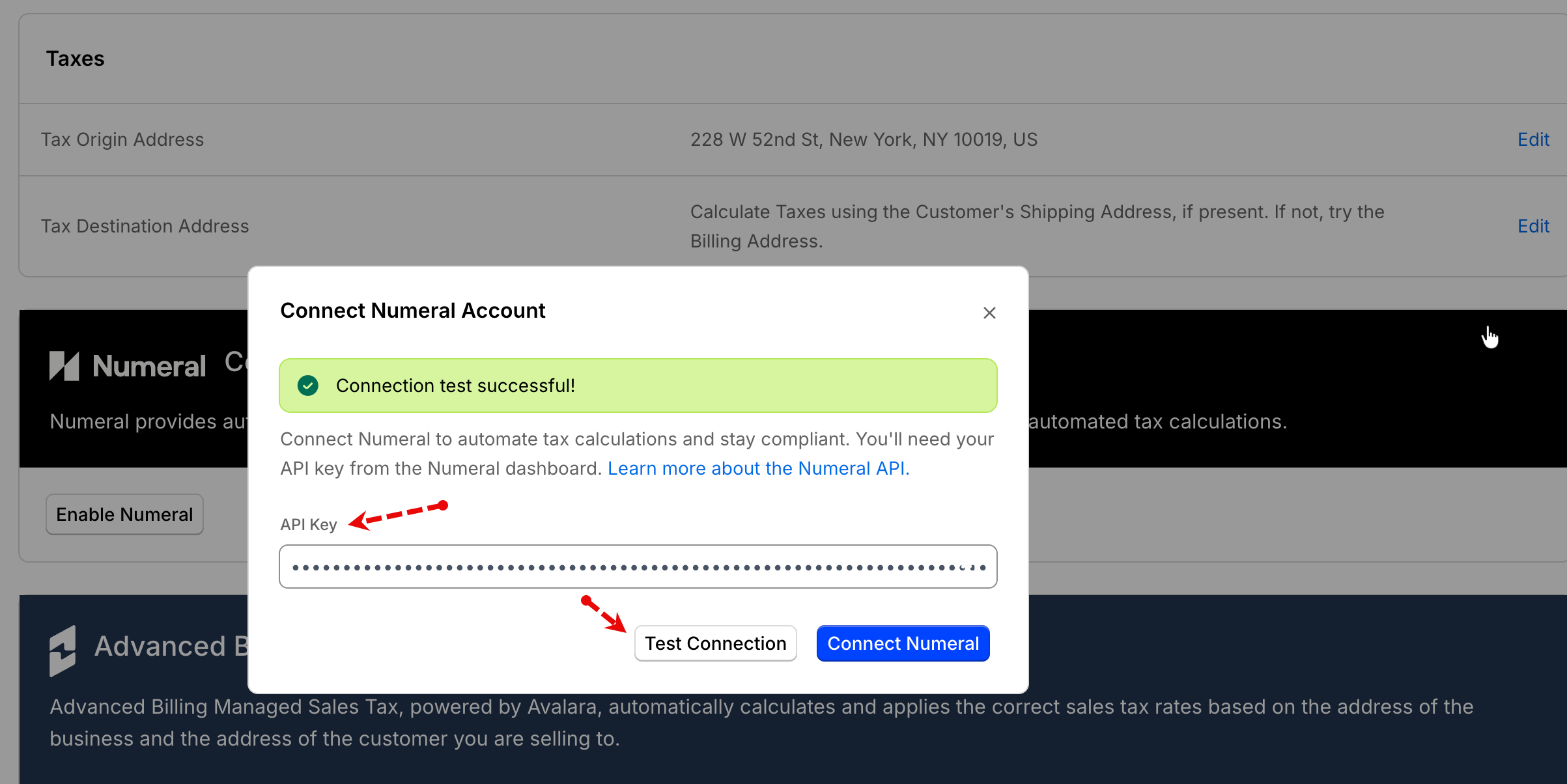
If Numeral is already enabled and you need to update the key, reopen the Numeral configuration modal and enter the new key. Maxio re-validates the key and keeps the site marked as Numeral-enabled after the update.
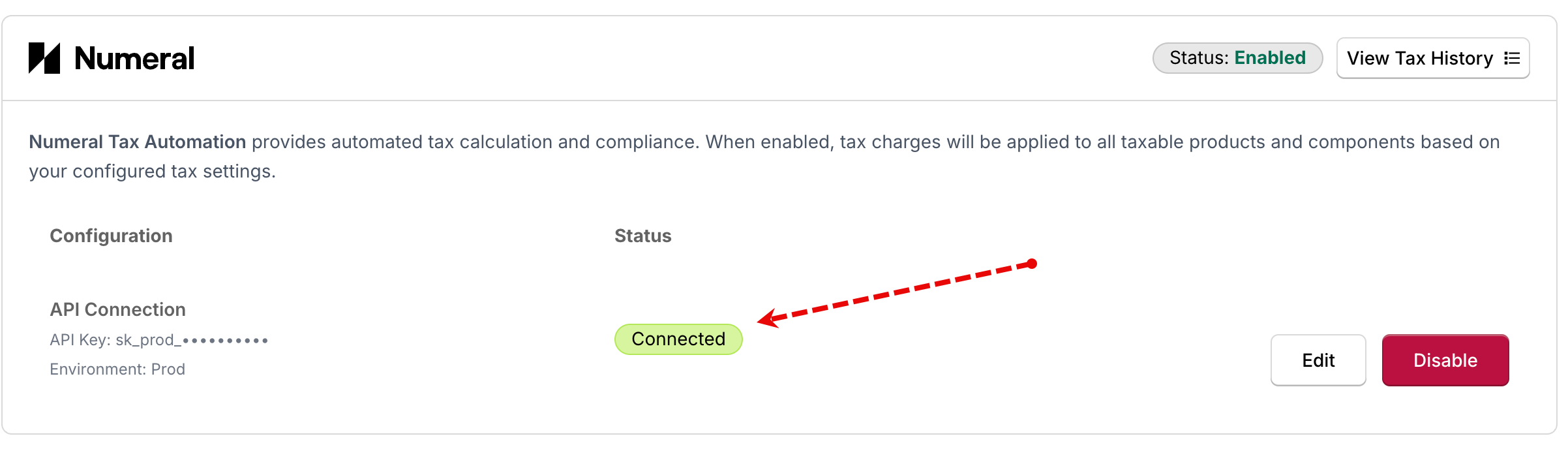
Selecting Disable and confirming with Yes, Disable removes the stored credentials, reverts the site's tax type to custom, and stops Numeral tax calls. Any errors during disablement are logged and surfaced in the UI.
Still need help?
Reach out and our support team will take it from here.